How to Remove Revision History From PDFs
A PDF can still contain text you deleted and earlier versions of edits. How to check what your file carries, remove it, clear metadata, and verify.

A PDF can carry its own past. Saving incrementally appends changes and leaves the previous version in the file, so a document that has been edited several times may still contain text you deleted, images you replaced, and metadata about who worked on it. None of it is visible, all of it is extractable.
This is a real disclosure route, and it has caught out law firms and government departments.
Check what your file is carrying
Two quick signals. File size disproportionate to the visible content — a three-page document at 12 MB has something in it. And multiple %%EOF markers: each one marks the end of a revision, so more than one means the file has an edit history.
grep -c "%%EOF" document.pdf
More than 1 means incremental saves are present.
The PDF object explorer shows what objects a file actually holds, which is the direct way to see whether something unexpected is in there.
Removing it
Save As, not Save. This is the fix in most cases and the habit worth forming. Save As writes a fresh file containing only current objects; Save appends. Almost every "my PDF has history in it" problem is solved by one Save As.
qpdf does it deterministically:
qpdf --linearize input.pdf output.pdf
Linearising rewrites the file completely, discarding superseded objects, and is the reliable option for a batch.
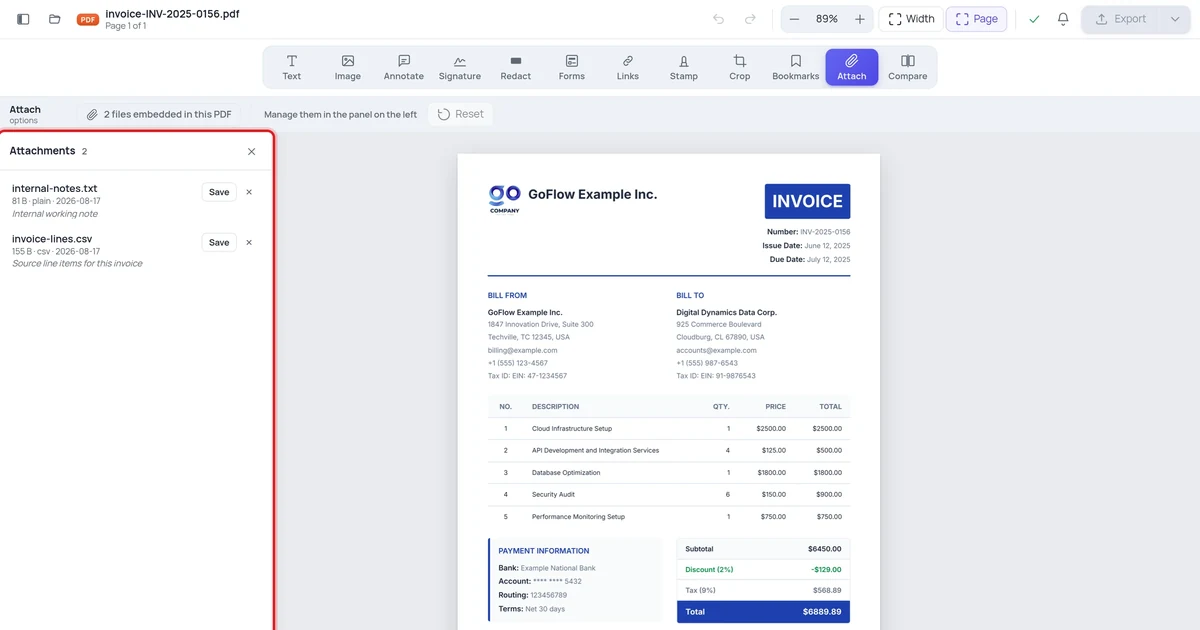
Sanitise in Acrobat (Tools → Redact → Sanitize Document) removes hidden content more thoroughly, including metadata, embedded search indexes and deleted-but-retained objects.
Metadata is separate, and easy to forget
Author, creator application, and creation and modification timestamps travel with the document independently of revision history. Check them before sending anything externally — the author field frequently still holds the name of whoever created the template, which is not always someone you want disclosed.
Verify
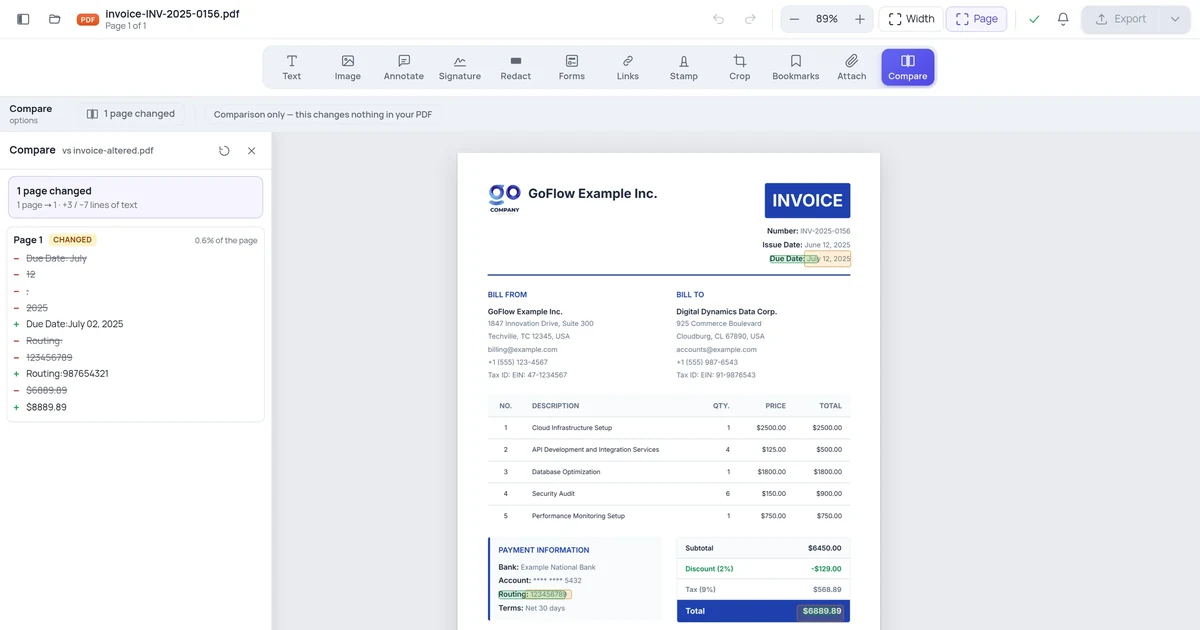
After cleaning, check %%EOF count again, compare file size, and extract the text to confirm nothing deleted has survived. Doing this once on a document that matters is quicker than assuming.
Frequently asked questions
Does deleting text remove it from the file? Not necessarily, if the file is saved incrementally. The deletion is recorded as a change; the original may still be present.
Is flattening the same as removing history? No. Flattening merges annotations into the page. It does not discard earlier revisions.
Does compressing remove revision history? Usually yes as a side effect, since compression rewrites the file — but do not rely on it. Use Save As or qpdf if it matters.
How do I remove metadata too?
Acrobat's Sanitize, or exiftool -all= file.pdf. Check afterwards rather than assuming.