How to Download an Image from a PDF (Free, Online)
The fastest way to download an image from a PDF in its original quality — select the image in your browser and click Download. No Acrobat, no screenshots, no signup.

You have a PDF with a logo, a photo, or a diagram in it — and you need that image as its own file. Most people take a screenshot, crop it, and live with the blurry result. There is a much better way: you can download an image from a PDF in its original quality, straight from your browser, in about 20 seconds.
This guide shows the exact steps in the free Online PDF Edits editor. No Acrobat, no install, no signup — and because the editor pulls the actual image object embedded in the PDF, you get the real file, not a picture of your screen.
Key takeaways
- You can download any image from a PDF in its original resolution and format (PNG, JPG, WebP, or SVG — whatever was embedded).
- A screenshot re-compresses the image at your screen's resolution; extracting the embedded object does not.
- The whole flow is four clicks: upload the PDF → open the Image tab → click the image → click Download.
- The saved file is named after your PDF (for example
invoice-image.png), so it's easy to find. - Need every image in the document, not just one? See how to extract all images from a PDF at once.
How to download an image from a PDF (step by step)
Step 1 — Open your PDF in the editor
Go to the free PDF editor and drop your file onto the upload area, or click Upload PDF and pick it from your computer. You can also import from a web link, Google Drive, Dropbox, or OneDrive.
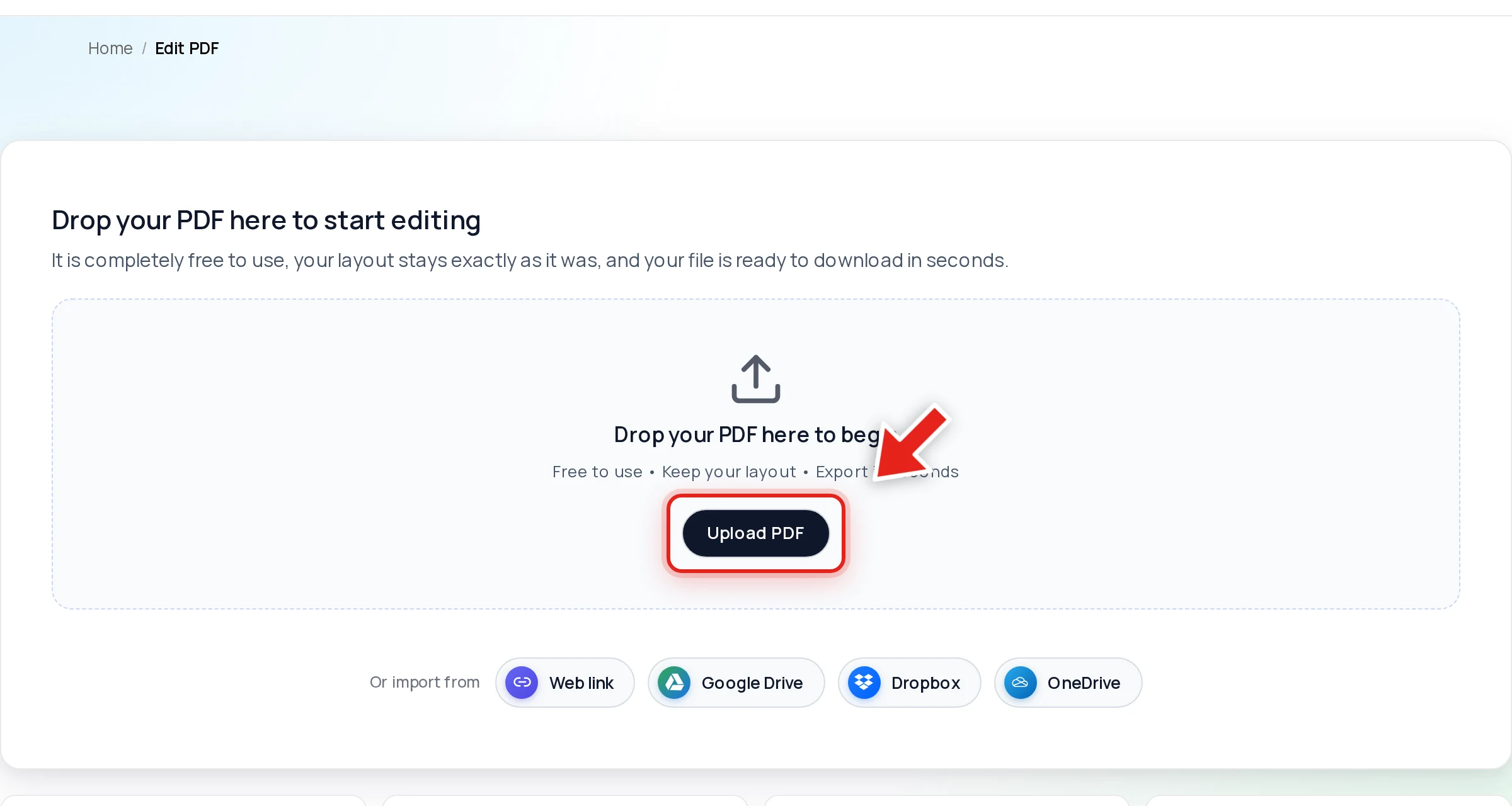
The document opens at full fidelity, so every logo, photo, and graphic appears exactly where it is in the file.
Step 2 — Switch to the Image tab
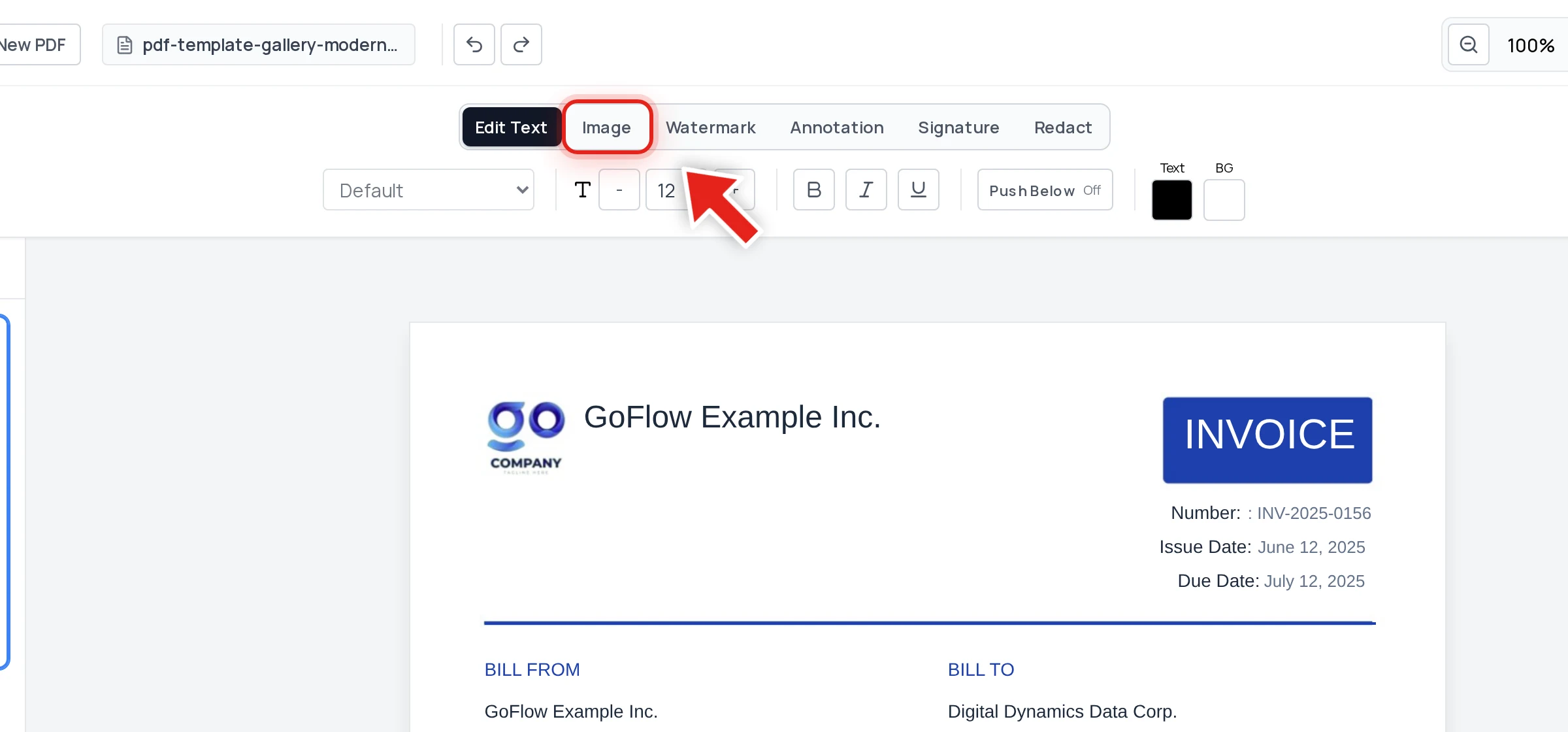
In the toolbar at the top of the editor, click the Image tab. This puts the editor into image mode, where every picture in the document becomes selectable.
Step 3 — Click the image you want
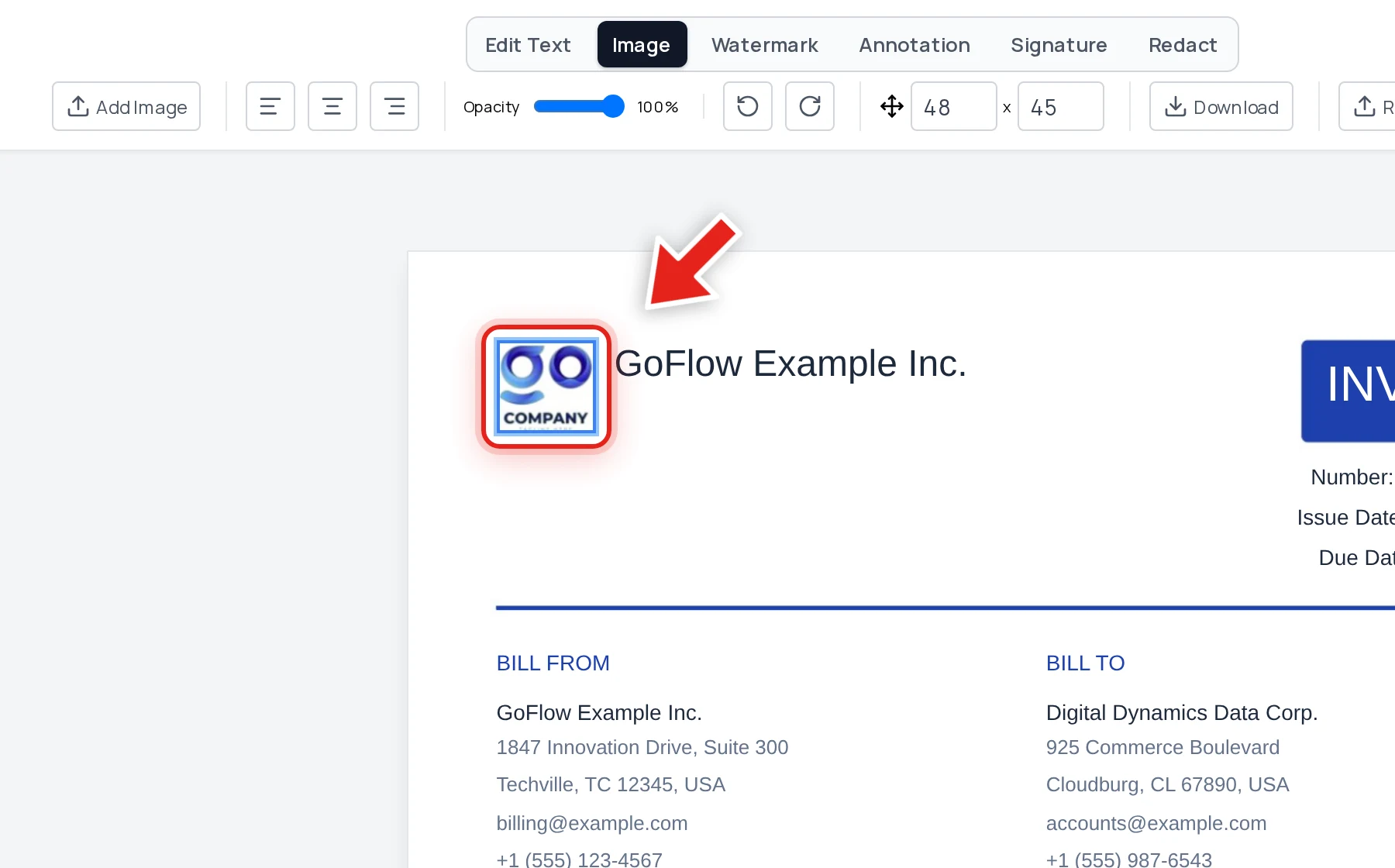
Click directly on the image you want to save — a logo, a product photo, a chart, anything. A selection frame appears around it, and the image toolbar shows up with everything you can do to it: opacity, rotation, size, Download, Replace, and delete.
Step 4 — Click Download in the image toolbar
Click the Download button in the image toolbar (not the big Download button in the top-right corner — that one exports the whole PDF). The image saves to your device immediately.
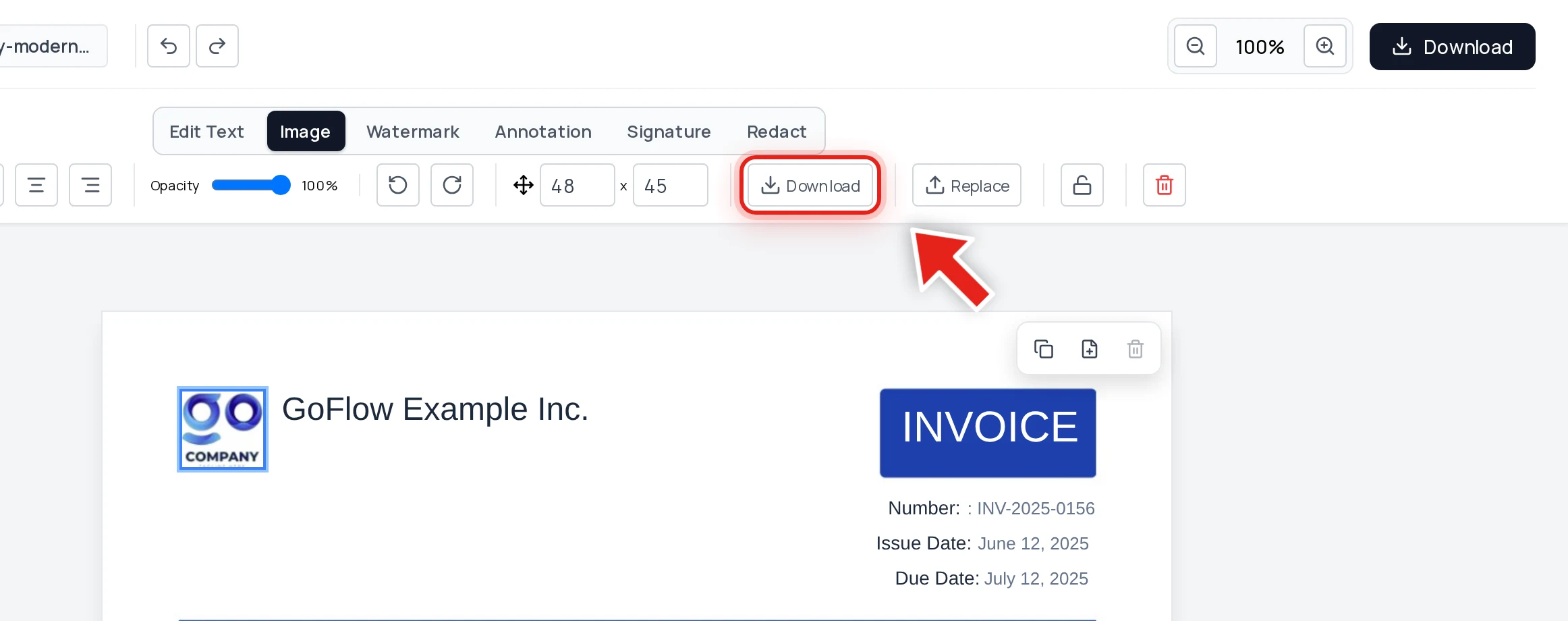
That's it. The file lands in your downloads folder named after your document — for example contract-image.png — in the same format it was embedded in the PDF.
Why this beats taking a screenshot
A screenshot only captures the pixels your monitor happens to show, so the result is limited by your screen resolution and zoom level. Downloading the embedded image object is different in every way that matters:
- Original resolution. A logo embedded at 1200×1200 downloads at 1200×1200, even if it's displayed at 60×60 on the page.
- Original format. PNG stays PNG, JPG stays JPG, SVG stays SVG. Transparent backgrounds on logos survive intact — a screenshot would flatten them onto white.
- No double compression. Screenshots re-encode already-compressed images, which is where the muddy, smudged look comes from.
- No cropping by hand. You never have to trim page background out of the shot pixel by pixel.
Save the image before you replace or delete it
The Download button sits right next to Replace for a reason. A very common workflow is swapping an old logo for a new one — and it's smart to keep a copy of the original first. Select the image, click Download to back it up, then click Replace and pick the new file. If things go wrong, you still have the original.
The same applies before deleting: grab the image first, then remove it. If you're cleaning a document up, see how to remove images from a PDF without losing layout.
Need more than one image?
Clicking image → Download is perfect for one or two pictures. If you need every image in a long report, extracting them one by one gets tedious — extract all images from a PDF at once covers the bulk approach.
And if what you actually want is each page as a picture (not the images inside the pages), that's a different job: convert the PDF to JPG without losing quality.
Other things you can do while the image is selected
Once an image is selected in the Image tab, the same toolbar lets you:
- Replace it with a new file in one click — the new image drops into the same spot.
- Resize or move it — drag the corners or edges; see resizing and moving images in a PDF.
- Rotate it left or right in 90° steps.
- Change its opacity — handy for turning a logo into a light background mark.
- Lock it so it can't be nudged accidentally while you edit text around it.
Adding a brand-new picture instead? Start with how to add an image or logo to a PDF.
FAQ
What format does the downloaded image come in?
Whatever format the image was embedded in — usually PNG or JPG, sometimes WebP or SVG. The editor doesn't convert or re-compress it, so you get the exact bytes that live inside the PDF.
Is the downloaded image full quality?
Yes. You get the image at the resolution it was embedded at, which is often much higher than the size it appears on the page. This is the main advantage over taking a screenshot.
Do I need Adobe Acrobat to download an image from a PDF?
No. Everything in this guide runs in your web browser at onlinepdfedits.com — free, no install, no signup, no watermark.
Can I download an image from a scanned PDF?
Yes, with a caveat. In a scanned PDF each page is usually one big photograph, so selecting "the image" selects the whole page scan. You can download that full-page image, then crop it in any image editor.
Does downloading the image change my PDF?
No. Downloading is read-only — it copies the image out of the document. Your PDF stays exactly as it was unless you also replace, move, or delete something and export.
Can I do this on my phone?
Yes. The editor works in mobile browsers: open the PDF, tap the Image tab, tap the image, then tap Download. The image saves to your device's downloads.