How to Use Google Drive to View, Comment on, and Edit PDFs for Free
Google Drive can view, comment on or convert a PDF, and only some of that leaves the file intact. When to use each, and how to edit and keep it a PDF.

Google Drive does three different things to a PDF, and only one of them leaves the file intact. Knowing which is which saves you from the most common outcome here: opening a PDF "in Google Docs", watching the layout fall apart, and not realising the original is still safe.
Viewing and commenting keeps the file intact
Double-click a PDF in Drive and it opens in Drive's own preview. From there you can select text, search, and — the useful part — add comments. Click the comment button, drag a box over the region you want to discuss, and type. Collaborators with access see the comment threads, can reply, and can resolve them.
This is genuinely good for review workflows. The PDF is not modified: comments live in Drive alongside the file, not inside it. That is also the catch — download the PDF and the comments do not come with it. They exist only in Drive.
If you need the feedback to travel with the document, the comments have to be applied as PDF annotations by a PDF tool instead.
"Open with Google Docs" converts, and conversion is lossy
This is the option people reach for when they want to edit, and it is the one that surprises them. It does not edit the PDF. It creates a new Google Doc by attempting to reconstruct the content as a word-processing document.
What survives reasonably well: plain body text in a single column.
What does not: multi-column layouts, tables, precise spacing, headers and footers, embedded fonts, and anything positioned rather than flowed. A form becomes unusable. A designed page becomes a mess.
This happens because PDF and Word documents are fundamentally different. A PDF is a set of positioned drawing instructions — "put this glyph at these coordinates". A Doc is reflowable paragraphs. Going from the first to the second means guessing which drawn characters form a paragraph, and the guess is often wrong.
Your original PDF is untouched; the Doc is a separate file. So it costs nothing to try, as long as you know that what comes out is a draft, not the document.
Scanned PDFs go through OCR, quietly
If you open a scanned PDF with Google Docs, Drive runs OCR on it and gives you the recognised text. This is a real, free OCR route and worth knowing about — but treat the output as recognised, not correct. Accuracy depends on scan quality, and numbers, tables and unusual fonts are where it goes wrong.
Proofread anything that matters before you rely on it. Figures in a financial table are exactly the sort of thing OCR gets subtly wrong in ways nobody notices.
When you want to change the PDF and keep it a PDF
If the goal is "fix a typo, change a date, correct a figure, and still have the same document", conversion is the wrong tool entirely. You want to edit the PDF in place.
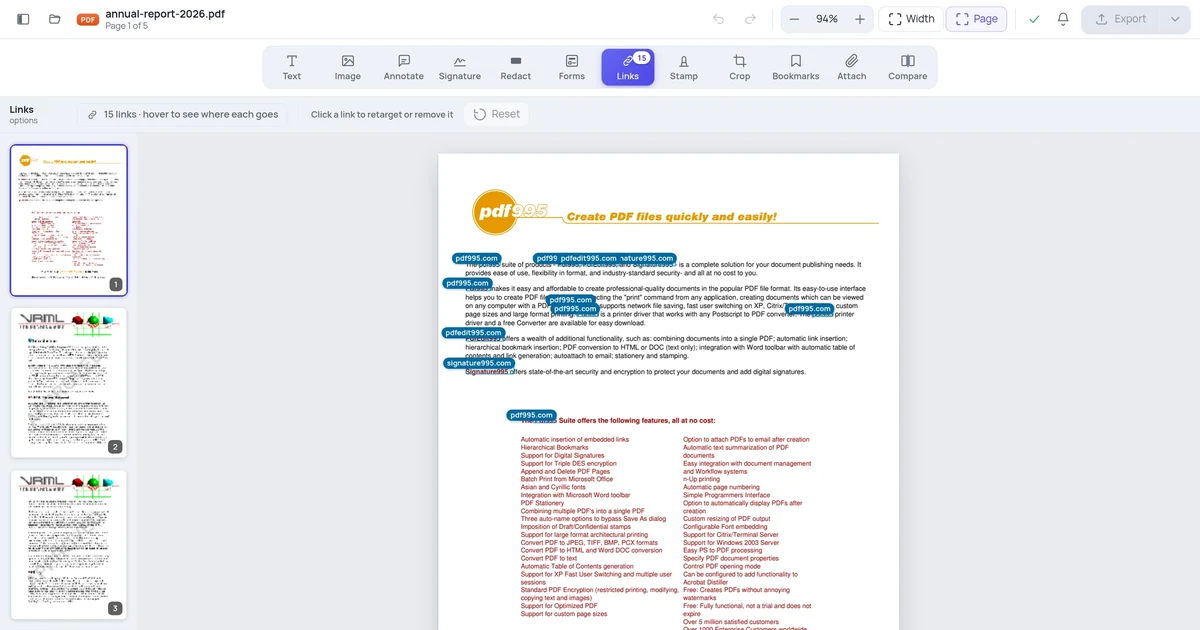
That is what this site's editor does: it modifies the text objects in the existing file rather than rebuilding the page, so the layout, the tables and the surrounding content stay where they are. It runs in the browser, takes files up to 10 MB and 100 pages, and does not do OCR — for a scan, use Drive's conversion above or a dedicated OCR tool first.
A reasonable division of labour: Drive for storing, sharing, previewing and collecting comments; a PDF editor for changing the file; Google Docs conversion only when you genuinely want a word-processing document out the other end.
Frequently asked questions
Can I edit a PDF directly in Google Drive? No. Drive views and comments. Editing means converting to a Doc, which produces a different file in a different format.
Will my comments be in the downloaded PDF? No. Drive comments are stored in Drive. Download the PDF and they are gone.
Why did my layout break when I opened it in Docs? Because that is a conversion, not an edit. Positioned page content has to be guessed back into reflowable paragraphs, and complex layouts do not survive it.
Can I convert the Doc back to PDF? Yes — File, Download, PDF. But it will look like the Doc, not like the original. Round-tripping does not restore the layout.
Does Drive OCR scanned PDFs for free? Yes, via "Open with Google Docs". Check the output; accuracy varies with the scan.