Why Do PDF Annotations Disappear After Saving? (And How to Keep Them)
If you are dealing with **pdf annotations disappear after saving**, you are not alone — this is one of the most common PDF support questions, and it almost alw…

You highlighted, commented and marked up a PDF, saved it, and the markup is gone when you reopen it or send it on. Annotations live in a separate layer from page content, and several common tools quietly refuse to write that layer back.
Common Causes
- The markup was made in a browser viewer — Chrome and Edge let you highlight but often keep those marks in local browser state rather than in the file. Send the file and the marks are not in it.
- You exported through Print → Save as PDF — Printing renders the page, and by default the print pipeline omits annotations entirely. See the Comments & Forms setting below.
- Annotations were flattened on export — Flattening turns markup into permanent page content. The marks are still visible but are no longer editable or removable, which reads as "they changed".
- The receiving app does not render that annotation type — Sticky notes, stamps, measurement and free-text callouts are all distinct annotation types. A minimal viewer may show none of them.
- The file was saved as a copy that predates the markup — Some tools write to a new file on save, so you keep editing an original that never received the changes.
Quick Checks to Try First
- Reopen your saved file in a different PDF app to check whether the marks are in the file or only in the first app
- If you printed to PDF, redo the export as a normal save instead
- In Adobe Acrobat, check File → Print → Comments & Forms is set to Document and Markups
- Confirm you are reopening the file you saved, not the original
- Look for a comments/annotations sidebar — marks may exist but not be drawn on the page
Step-by-Step Solutions
Solution 1: Annotate in a tool that writes annotations into the file
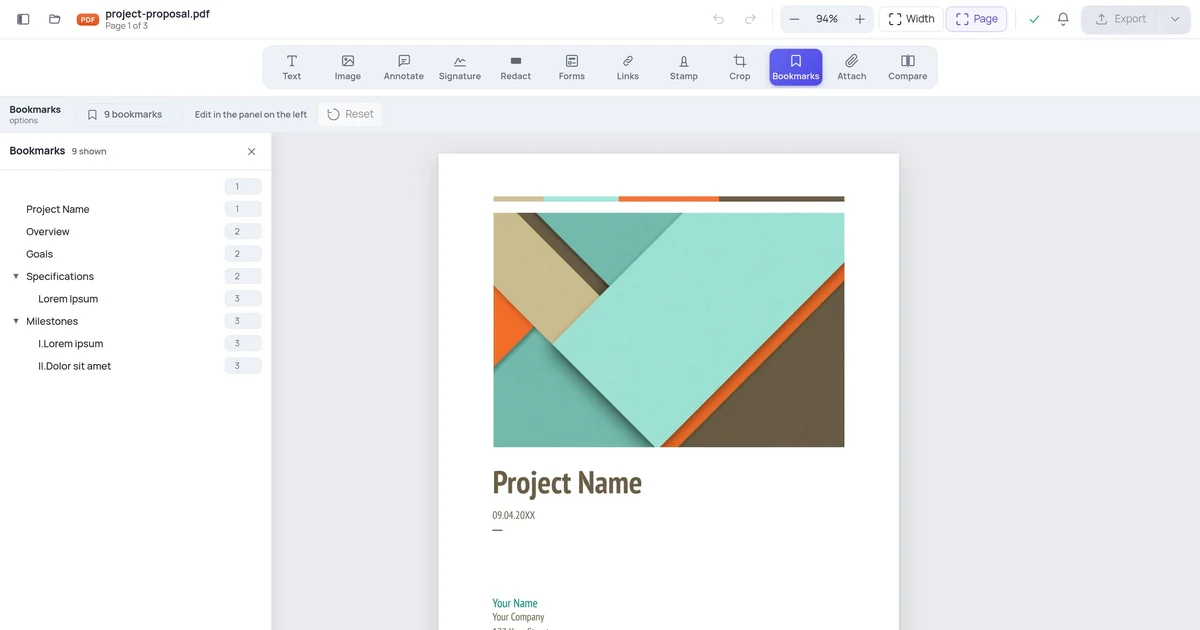
Use an editor that saves markup as real PDF annotation objects rather than browser state. Upload the document to the PDF annotator, add your highlights and comments there, and download it — the markup is written into the file itself, so it travels with the document to anyone you send it to.
Solution 2: Stop exporting through Print
Print → Save as PDF re-renders the page and drops the annotation layer by default. Use the application's own Save or Export instead. If you must print to PDF, set Comments & Forms to Document and Markups first, but understand this bakes the marks in permanently.
Solution 3: Flatten deliberately when you want them permanent
If the point is that nobody can move or delete your markup — a signed-off review, a redlined contract — flatten on purpose. Flattening merges annotations into page content so every viewer shows them identically and no one can drag them off. Keep the unflattened original if you may need to revise the comments later.
Solution 4: Check the annotation type is one the recipient can see
If your reviewer sees some marks but not others, the missing ones are probably a type their viewer ignores — stamps and measurement annotations are the usual casualties. Convert to plain highlights and text comments, which every viewer renders, or send a flattened copy so what they see is exactly what you saw.
When None of the Above Works
If you have tried everything and still see the problem, the PDF may have been created with proprietary tools that produce unusual internal structures:
- Contact the document creator and ask for an unlocked or editable version
- Ask for the source file (Word, InDesign) if editing is legitimate
- For government or official forms, check if a fillable online version exists on the official website
How to Prevent This in Future
- Always work on a duplicate — keep the original locked version intact
- When creating PDFs yourself, only apply restrictions you actually need
- Test your PDFs in multiple viewers before distributing
- For editable documents, consider sending the source file (Word / Google Docs) rather than a PDF
- Related reading: How to Edit Contract PDFs
Frequently Asked Questions
Is this a sign of a serious problem? No. The document content is untouched — this is about the annotation layer being dropped somewhere between your editor and the file on disk.
Can I fix this on my phone? Yes. Open a mobile browser, go to an online PDF editor, upload the file, and try the operation. Many PDF problems that seem to require desktop software are actually just viewer limitations.
Will fixing this delete my document content? No. The steps above modify how the PDF is processed, not the underlying content. Always work on a copy to be safe.
How long does it take to fix? Redoing markup in a tool that saves it properly takes as long as the original markup did. Verifying the file in a second viewer takes seconds.