Why Won't My PDF Form Save My Answers? (How to Fix It)
PDF form answers gone after you save? It is usually the viewer you filled it in, or a form never built to be saved. How to find which and keep your answers.

You filled in a PDF form, hit save, reopened it, and the fields are empty again. This is almost never a corrupted file — it is usually the viewer you filled it in with, or a form that was never built to be saved.
Common Causes
- You filled it in a browser's built-in viewer — Chrome, Edge and Firefox render forms but their "save" often writes a flattened copy or drops field values entirely. This is the single most common cause.
- The form is XFA, not AcroForm — LiveCycle/XFA forms are a different technology that only Adobe Acrobat and Reader fully support. Every other tool shows a "please open in Adobe" placeholder or renders it read-only.
- The form lacks Reader-extended rights — Older PDFs had to be explicitly "Reader-enabled" by the author for Adobe Reader to save entered data. Without it, Reader lets you type but not keep it.
- You used Print → Save as PDF — That flattens the page into static content. It looks right, but the field values are now pixels, not data.
- The fields are not real form fields — Many "forms" are just a scan or a printed layout. If clicking a blank does not give you a text cursor, there is no field to save into.
Quick Checks to Try First
- Open the file in a dedicated PDF editor rather than a browser tab and re-enter one field
- Click a blank — if you get no cursor and no blue/grey field highlight, it is not a fillable form
- Look for a purple banner saying the document contains XFA / "please open in Adobe Acrobat"
- Use Save As to a new filename rather than Save
- Check whether the file opens read-only from a Downloads folder or email preview pane
Step-by-Step Solutions
Solution 1: Stop filling the form in a browser tab
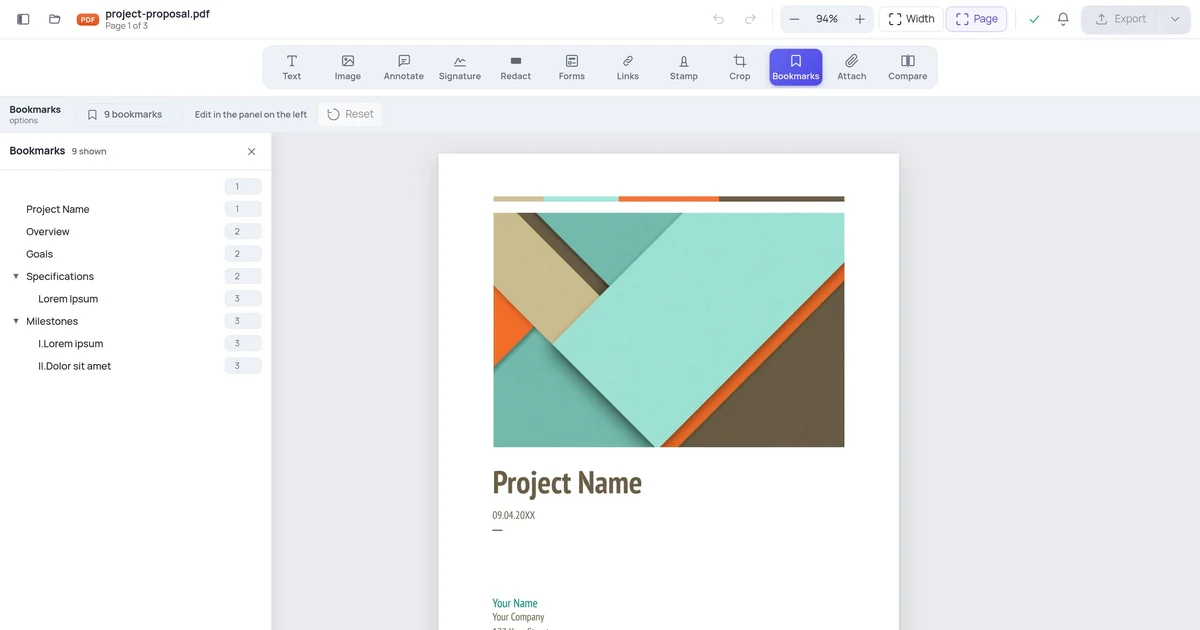
Download the file first, then open it in a real PDF editor rather than the browser's preview. Browser viewers are built to display, and their save path frequently discards field data. Open the Online PDF Editor, upload the form, fill it there, and download the result — the values are written back into the form fields, so they survive reopening.
Solution 2: Check whether the form is XFA
If you see a message telling you to open the document in Adobe Acrobat, the file is an XFA form. XFA is a separate, largely abandoned technology that never worked outside Adobe's own products. Ask the sender for an AcroForm or a plain PDF version — most organisations now have one. If you cannot get one, fill it in Adobe Reader specifically, or print it and complete it by hand.
Solution 3: Flatten your answers so they cannot be lost
If you only need to send the completed form and nobody needs to edit it afterwards, flattening is the reliable path: it converts your typed answers into permanent page content. Fill the form, then export a flattened copy. Nothing can drop the values after that, because they are no longer field data. Keep an unflattened copy if you may need to revise it.
Solution 4: Rebuild the fields if there are none
If clicking a blank gives you no cursor, the document has no form fields at all — someone scanned or exported a layout that merely looks like a form. You can add real fillable fields to it with a fillable PDF form builder, which places text, checkbox and signature fields onto the existing page so the file becomes genuinely fillable for everyone you send it to.
When None of the Above Works
If you have tried everything and still see the problem, the PDF may have been created with proprietary tools that produce unusual internal structures:
- Contact the document creator and ask for an unlocked or editable version
- Ask for the source file (Word, InDesign) if editing is legitimate
- For government or official forms, check if a fillable online version exists on the official website
How to Prevent This in Future
- Always work on a duplicate — keep the original locked version intact
- When creating PDFs yourself, only apply restrictions you actually need
- Test your PDFs in multiple viewers before distributing
- For editable documents, consider sending the source file (Word / Google Docs) rather than a PDF
- Related reading: How to Edit Contract PDFs
Frequently Asked Questions
Is this a sign of a serious problem? No. In almost every case the document is fine and the problem is the viewer you filled it in with, or a form type that was never saveable outside Adobe.
Can I fix this on my phone? Yes. Open a mobile browser, go to an online PDF editor, upload the file, and try the operation. Many PDF problems that seem to require desktop software are actually just viewer limitations.
Will fixing this delete my document content? No. The steps above modify how the PDF is processed, not the underlying content. Always work on a copy to be safe.
How long does it take to fix? Re-filling the form in a proper editor takes a couple of minutes. An XFA form you cannot replace is the only case that may need a call to whoever sent it.