Best Free PDF Editors in 2026: Tested and Compared
Finding a truly free PDF editor that doesn't watermark your file or demand a signup is harder than it should be. Here's what we found.

Plenty of people who try to edit a PDF without Adobe Acrobat hit a wall — the file locks up, the text won't budge, or they end up with a watermarked result they can't actually use. If you've landed here, you're probably dealing with one of those walls right now. This post cuts through the noise: we tested six of the most-used free PDF editors in 2026 and compared them honestly on the things that actually matter — text editing, image handling, watermarks, and whether you have to create an account just to save your work.
What to Look for in a Free PDF Editor
Not all PDF editors offer the same thing, and the gaps matter in practice. Here's what to evaluate before committing to a tool:
Text editing that preserves layout. The most common complaint is that converting or editing a PDF destroys the original layout. A good editor lets you click into existing text blocks and modify them without the page reflowing into chaos.
Image replacement. Many editors let you add new images but won't let you swap out an existing one. If you need to update a logo or replace a photo in a document, check this specifically.
No watermark on free exports. This is the biggest gotcha in the PDF tools space. Several popular tools add a visible watermark to every file you export on the free tier, making the output unusable for professional purposes.
No mandatory signup. Creating an account to download your own edited file is friction most people don't want. For one-off edits, a tool that works without registration saves real time.
Format support. Can it handle scanned PDFs? Password-protected files? Multi-page documents with mixed content? These edge cases trip up several otherwise decent tools.
File size limits. Most web forms cap attachments at 5–10MB. Gmail's practical limit is closer to 12–18MB due to encoding overhead, even though the stated cap is 25MB. A PDF editor that lets you compress your output alongside editing saves a separate step.
Comparison Table: Six Free PDF Editors in 2026
| Tool | Edit Text | Edit Images | No Watermark | No Signup Required | Free Tier |
|---|---|---|---|---|---|
| OnlinePDFEdits | Yes | Yes | Yes | Yes | Full editing |
| Smallpdf | Yes | Limited | No (free tier) | No | 2 tasks/day |
| ILovePDF | Yes | Limited | No (free tier) | No | 2 tasks/day |
| PDF24 | Yes (basic) | No | Yes | No | Unlimited |
| LibreOffice Draw | Yes | Yes | Yes | Yes (desktop) | Full |
| Adobe Acrobat Free | No (Reader only) | No | — | No | Annotation only |
A few notes on what's behind these ratings:
- Smallpdf and ILovePDF both impose a daily task cap on free users and add watermarks unless you subscribe. They're solid tools but the free tier is genuinely limited.
- PDF24 is generous on task volume and has no watermarks, but its text editing is basic — you're adding text boxes on top of the PDF rather than editing inline.
- LibreOffice Draw opens PDFs and lets you edit them properly, including images, but it's a desktop install and the interface takes some learning.
- Adobe Acrobat Free (Reader) is annotation-only. Highlighting, commenting, filling forms — that's it. Actual editing requires Acrobat Pro at around $20/month, which is what drives most people to look for alternatives in the first place.
Best for Quick Online Edits: OnlinePDFEdits
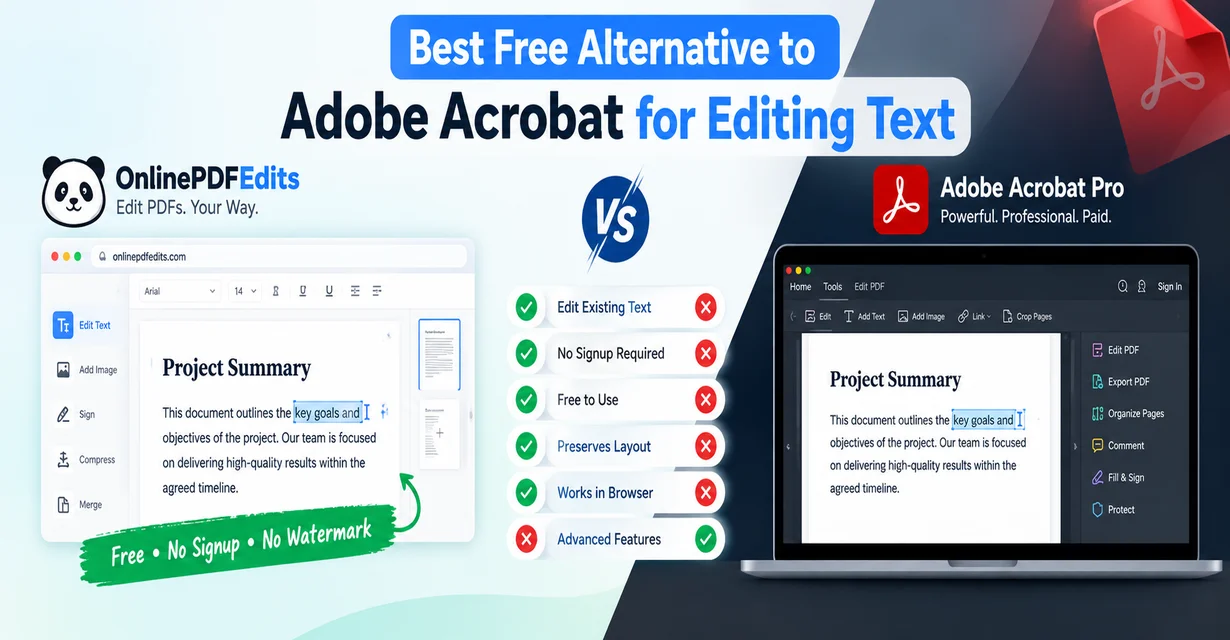
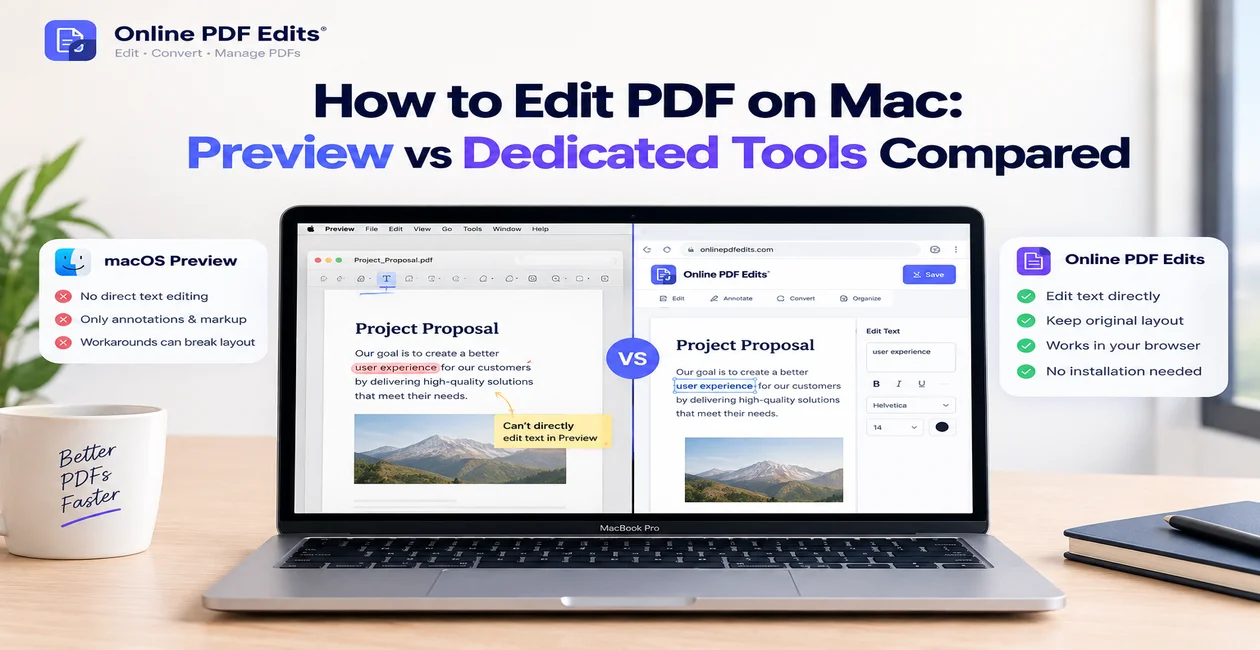
For one-off edits you need done in a few minutes, OnlinePDFEdits is the strongest free option we tested in 2026. Upload a PDF, click into a text block, change the content — the surrounding layout stays intact. There's no account required and no watermark on the exported file.
The editor handles more than basic text. You can replace images, add signatures, edit tables, and delete pages in the same session. For signing, there's a dedicated sign PDF tool if you prefer a focused workflow. Need to remove pages from a long report before sharing it? The delete pages tool works on the same file without re-uploading.
Where it's strongest is on layout preservation for complex PDFs — multi-column documents, forms with custom fonts, and PDFs with embedded images alongside text. Most browser-based tools mangle the layout when you try to edit; OnlinePDFEdits treats each element separately, so touching one text block doesn't shift everything else on the page.
The no-signup angle matters more than it sounds. Several tools in this space funnel you toward account creation before you can download your file. When you're fixing a PDF at 11pm before a deadline, that friction is genuinely irritating.
Best Desktop Option: LibreOffice Draw
If you work with PDFs regularly and prefer offline software, LibreOffice Draw is the strongest free desktop option available in 2026. It's part of the LibreOffice suite, which is free forever and runs on Windows, macOS, and Linux.
LibreOffice Draw opens PDFs natively and treats the content as editable objects. You can click on a text block, edit it, resize images, reposition elements, and save back to PDF. It handles multi-page documents well and has no file size limits beyond your local machine's memory.
The caveats are real though. The interface is dated and takes a learning curve if you're coming from a cloud tool. Complex PDFs with embedded fonts sometimes render differently than expected — particularly documents from design tools like Canva or InDesign. Scanned PDFs show up as images, not editable text, unless you use a separate OCR step.
For people who regularly edit sensitive documents and don't want to upload files to a server, LibreOffice is the right call. Nothing leaves your machine. For everything else — especially quick edits on a shared or work computer — a browser-based tool is faster.
Best for PDF Forms: PDF24
PDF24 is a strong choice when your primary use case is filling in and submitting forms. It has a dedicated form-filling mode, no watermarks on exports, and no daily task cap — which puts it ahead of Smallpdf and ILovePDF on the free tier.
The signup requirement is its main friction point. You can use PDF24 without a premium subscription, but the interface pushes you toward creating an account. The tool also lacks true inline text editing — you're placing text fields on top of the document rather than editing the original content, which is fine for forms but inadequate for layout editing tasks.
PDF24 also covers a wide range of utility operations: merging, splitting, compressing, converting. If you're looking for an all-in-one PDF utility and form handling is your main task, it earns its place. For anything that requires editing the actual content of a designed PDF — a brochure, a report, a certificate — the other options serve better.
For documents you need to merge together before distributing, PDF24's merge feature works reliably on the free tier.
Why Adobe's Free Tier Isn't Enough (And What to Do Instead)
Adobe Acrobat invented the PDF format, but its free Reader app is deliberately limited. You can annotate, highlight, add comments, and fill in simple forms. You cannot edit text, replace images, move elements, or change the document structure — any of that requires Acrobat Pro.
Acrobat Pro subscriptions run approximately $19.99/month or $239.88/year (2026 pricing). For individuals who occasionally need to edit a PDF, that's hard to justify. Adobe knows this: the paid tier exists precisely because Reader is capped at annotation.
This gap is what drives most search traffic toward free alternatives. If you've come from a search for "edit PDF without Adobe," you're not alone — it is one of the most common complaints about the format.
The practical answer for most people: use a free browser-based editor for occasional edits, LibreOffice Draw if you're doing it regularly offline, and reserve an Acrobat subscription only if your workplace specifically requires it for a workflow (like PDF/A compliance or advanced form creation).
If you've got a PDF you can't open or that's showing formatting errors, there's often a fix that doesn't require any software at all — see our PDF won't open fix guide for the most common causes and solutions.
Picking the Right Tool for Your Situation
Here's the short version:
- Need to edit a PDF right now, no account, no watermark → OnlinePDFEdits editor
- Edit PDFs regularly and prefer desktop software → LibreOffice Draw (free download)
- Filling in forms, no daily cap needed → PDF24
- Need to sign and return a document → OnlinePDFEdits sign tool
- File is too large to email after editing → compress the PDF first
- Combining multiple PDFs before editing → merge tool
- Need to remove sensitive pages before sharing → delete pages or extract specific pages
- Have Adobe and need to justify the cost → only if your workflow needs Pro features like PDF/A, advanced redaction, or fillable form creation
If you've been struggling with a PDF that won't let you edit its text at all, that's usually a permissions or font-encoding issue rather than the wrong tool — the why can't I edit my PDF post covers the main causes.
One honest note on tool selection: the comparison table above reflects real free-tier testing in mid-2026. Tool capabilities and pricing change. If Smallpdf or ILovePDF have updated their free limits since this post was published, check their pricing pages directly before deciding.
FAQ
Is there a truly free PDF editor with no watermark?
Yes. OnlinePDFEdits exports files with no watermark on the free tier, no account required. LibreOffice Draw (desktop) also produces clean exports with no watermark. Tools like Smallpdf and ILovePDF add watermarks unless you pay for a subscription, which makes their "free" tier unsuitable for professional use.
Can I edit a PDF without downloading any software?
Yes. Browser-based editors like OnlinePDFEdits work entirely in your browser — upload the PDF, make edits, download the result. No installation needed. This is the fastest option for occasional edits and works on any device with a modern browser, including phones and tablets.
Why can't Adobe Acrobat Reader edit text in a PDF?
Adobe Reader is deliberately limited to annotation and form-filling. Text editing, image replacement, and layout changes require Acrobat Pro, which costs roughly $20/month. This restriction is a business decision, not a technical limitation — the free alternatives listed in this post do support text editing because they've chosen to offer it.
What's the best free PDF editor for signing documents?
For signatures specifically, OnlinePDFEdits has a dedicated sign PDF tool that lets you draw, type, or upload a signature image and place it on any page. PDF24 also handles signatures on the free tier. Both work without a subscription. Adobe's free Reader supports signatures via Adobe Sign, but limits the number of transactions per month on the free plan.