How to Edit PDF Text Directly Without Converting to Word
Don't let Word conversions ruin your PDF layout. Discover how to edit existing PDF text directly in your browser with matching fonts and zero formatting shifts.

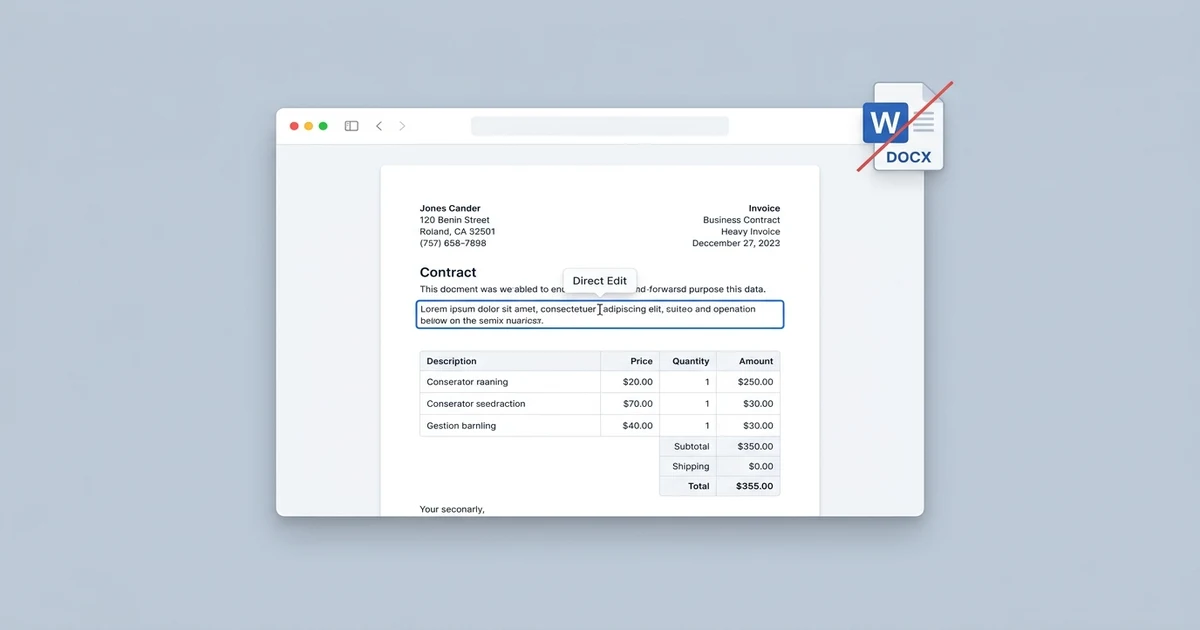
To edit PDF text directly without converting it to Word, you need a dedicated PDF editor that supports native page-level text manipulation rather than a file converter. Converting a PDF to DOCX destroys fixed coordinate geometry, substitutes embedded fonts, and causes table columns to collapse. Using OnlinePDFEdits, you can perform native page-level text editing directly inside your web browser—clicking existing text blocks, modifying typos, and cloning original font typography without downloading desktop software or purchasing a Microsoft Office license.
                    ┌─────────────────────────────────────────┐
                    │ The PDF Editing Dilemma: Which Path?    │
                    └────────────────────┬────────────────────┘
                                         │
         ┌───────────────────────────────┴───────────────────────────────┐
         ▼                                                               ▼
┌──────────────────────────────────┐            ┌──────────────────────────────────┐
│  The "Convert to Word" Trap      │            │  Direct In-Place PDF Editing     │
│ PDF ➔ DOCX ➔ Edit ➔ PDF          │            │ PDF ➔ Direct Glyph Edit ➔ PDF    │
├──────────────────────────────────┤            ├──────────────────────────────────┤
│ • Embedded fonts substituted     │            │ • Original font geometry cloned  │
│ • Tables & columns misalign      │            │ • Exact layout coords preserved  │
│ • Vector logos re-encoded to JPG │            │ • Zero software install required │
│ • Multi-app round trip (5 mins)  │            │ • Completed in 30 seconds        │
└──────────────────────────────────┘            └──────────────────────────────────┘
Why Converting a PDF to Word Destroys Your Document
Most free tools and search results recommend converting your PDF to a Word document (.docx), editing the text in Microsoft Word, and exporting it back to PDF. While this works for simple plain-text memos, it frequently ruins professional documents.
Here is what happens under the hood when a PDF is converted to Word:
1. Absolute Coordinate Geometry vs. Relative Text Flow
The ISO 32000-1 PDF standard uses fixed-coordinate canvas positioning. Every letter, heading, and line art element is rendered at an exact coordinate (x, y) on the page using PostScript text operators (BT x y Td (text) Tj ET).
In contrast, Microsoft Word uses flowable layout streams (paragraphs, line breaks, and page margins). When a converter forces fixed PDF coordinates into flowable Word paragraphs, subtle rounding errors cause paragraphs to split awkwardly, table borders to misalign, and headers to jump to subsequent pages.
2. Embedded Font Substitution
PDF documents frequently contain subsetted or proprietary embedded fonts (Identity-H or Type 0 fonts) that do not exist on your computer. When you convert a PDF to Word, Microsoft Word cannot edit subsetted embedded fonts and automatically substitutes them with common system defaults like Arial, Calibri, or Times New Roman. The resulting document looks mismatched and unprofessional.
3. Vector Graphics and Signature Degradation
High-resolution vector assets (such as corporate SVG logos, crisp PDF signatures, and clean vector lines) are converted by Word converters into compressed bitmap images (JPEGs or PNGs). When you export the file back to PDF, those elements appear pixelated and blurry.
Direct In-Place Editing vs. Word Conversion: Feature Comparison
| Document Feature | Direct PDF Editing (OnlinePDFEdits) | Converting PDF to Word & Back |
|---|---|---|
| Typography & Fonts | Clones original font family, weight, and size | Replaced with system fonts (Calibri/Arial) |
| Table Formatting | Cells, borders, and rows remain 100% frozen | Table cells frequently shift or collapse |
| Software Required | None (runs in any modern web browser) | Microsoft Word or LibreOffice desktop |
| Turnaround Time | 30 seconds | 3 to 5 minutes across multiple apps |
| File Cleanliness | Direct PDF object update | Bloated XML overhead and metadata residue |
| Vector Sharpness | High-DPI vectors and logos stay intact | Logos re-encoded into lossy bitmap images |
How to Edit Existing PDF Text Directly (Step-by-Step)
You do not need Adobe Acrobat Pro ($239/year) to manipulate text in place. Follow these step-by-step instructions to edit words natively inside your browser:
Step 1: Open Your PDF in a Native Editor
Navigate to the OnlinePDFEdits Editor. You do not need to register an account, enter an email, or install browser plugins. Drag and drop your PDF into the upload workspace.
Step 2: Activate Edit Mode
Click on the document canvas to initialize the text parser. The engine scans the document, identifying distinct text blocks, character bounding boxes, and embedded font metrics.
Step 3: Modify the Existing Text Blocks
Hover your cursor over the exact words, dates, or prices you need to modify:
- Click and Type: Click directly into the text block. An active blue bounding box will outline the sentence.
- Fix Typos or Rewrite: Backspace unwanted characters and type your new content. The editor clones the original font weight, style, and size automatically.
- Adjust Styling: Use the floating formatting panel to adjust font size, color (#000000 or custom hex), alignment, and line height to match surrounding elements.
- Move or Resize Blocks: Click and drag the bounding box handles to reposition text blocks if you added extra characters.
Step 4: Save and Export
Click Download in the upper toolbar. The system saves the modified PDF content stream instantly, preserving exact vector resolution.
Important Precautions Before Editing PDFs
Before modifying any PDF document, keep these technical considerations in mind:
- Standard Digital PDF vs. Scanned Document / Image:
- If your PDF was exported from Word, Google Docs, or Canva, it is a standard digital PDF with selectable text layers. You can click and edit words immediately.
- If your PDF was created via an office scanner, smartphone camera, or fax, it is a scanned image without a live text layer. Direct typing will not work initially. In OnlinePDFEdits, use the Whiteout tool to erase unwanted sections, then overlay new text using the Add Text tool.
- Always Keep an Untouched Backup Copy:
- Before executing permanent edits or overwriting critical tax documents, invoices, or legal agreements, duplicate your original file. Having a backup ensures you can easily revert if a major layout adjustment shifts unexpected page elements.
Alternative Ways to Edit PDF Text Directly (Desktop Tools)
If you prefer to work offline without using a web browser, here are the two most capable desktop alternatives:
1. LibreOffice Draw (Free & Open Source)
LibreOffice Draw treats PDF pages as vector layout drawings rather than text documents:
- Open LibreOffice and choose File ➔ Open ➔ select your PDF.
- LibreOffice opens the document in Draw, displaying each paragraph as a selectable text frame.
- Click the text frame, make your text adjustments, and choose File ➔ Export as PDF.
- Limitation: On complex multi-column PDFs, LibreOffice Draw can occasionally miscalculate line spacing.
2. PDF-XChange Editor (Windows / Freemium)
For Windows users, PDF-XChange Editor provides direct content editing:
- Open the PDF and click the Edit Content tool on the Home ribbon.
- Double-click the text you want to adjust and type your edits.
- Limitation: Advanced features require a paid license, and the software is only available for Windows.
When Converting to Word Is Actually the Better Choice
While direct in-place editing is superior for 95% of documents (invoices, contracts, certificates, tax forms, and resumes), converting to Word is the right decision in two specific scenarios:
- Complete Document Rewrites: If you have a 40-page academic thesis or manuscript and need to restructure entire chapters, add hundreds of new paragraphs, and let text reflow naturally across pages, converting to Word provides word-processing reflow that PDF editors cannot replicate.
- Heavy Collaborative Track Changes: If multiple stakeholders need to add redline revisions, margin comments, and grammatical strike-throughs using Microsoft Word's "Track Changes" engine, converting to
.docxis necessary.
For all minor edits, typos, date changes, and form adjustments, direct PDF editing preserves your layout and saves valuable time.
Frequently Asked Questions
Can I edit a PDF without converting it to Word?
Yes. Open your document in a direct in-place PDF editor like OnlinePDFEdits, click directly on the text you wish to modify, and edit the words in place without converting the file to DOCX.
Can I edit text directly in a PDF?
Yes. Modern web-based vector PDF editors allow you to click on existing paragraphs, backspace old characters, and type new text directly onto the PDF canvas while matching the original font size and style.
How to edit PDF text directly without converting to Word online free?
Navigate to OnlinePDFEdits in your web browser, upload your PDF, click directly on the text line you want to change, type your updates, and click Download to save your modified file with zero fees and no registration.
How to edit text in a PDF without changing its format?
Use a direct vector editor that clones embedded font metrics rather than a format converter. OnlinePDFEdits reads the original character coordinates and embedded font weights, ensuring your edits blend seamlessly without shifting lines, tables, or margins.
How do I stop my PDF from converting to Word?
To stop PDFs from opening or converting in Microsoft Word automatically, right-click any PDF file on your computer, select Open With, choose Choose Another App, pick a dedicated PDF viewer or web browser, and check Always use this app to open .pdf files. When editing online, avoid converter tools and choose direct in-place PDF editors.
How do I manually edit a PDF?
To manually edit a PDF, upload it to a direct editor like OnlinePDFEdits, select the Text tool to modify existing words or add new text boxes, use the Whiteout tool to erase unwanted sections, and use the Page tools to rotate or reorder pages.
How do I convert a PDF to Word without messing up formatting?
If you must convert to Word, use an advanced layout engine that reconstructs tabular frames, or open the PDF in Microsoft Word desktop using its PDF Reflow feature. However, to guarantee 100% formatting preservation on complex layouts, avoiding Word conversion and editing the PDF directly is strongly recommended.
Why do fonts change when I convert a PDF to Word?
PDFs contain subsetted embedded fonts that do not reside locally on your operating system. When Microsoft Word opens a converted file, it substitutes missing embedded fonts with local defaults like Calibri or Arial, disrupting line breaks and spacing.
Does editing a PDF directly leave a watermark?
No. OnlinePDFEdits allows you to edit text directly and download your finalized document with zero watermarks and no subscription required.
Can I edit a scanned PDF without Word conversion?
Yes. Open the scanned PDF in OnlinePDFEdits, select the Whiteout tool to mask outdated text, and use the Add Text tool to type fresh replacement text directly over the page image.
Facts to Verify
- Verification that ISO 32000-1 defines fixed coordinate text placement operators (
BT ... ET) (Confirmed: standard PDF specification). - LibreOffice Draw PDF vector editing capabilities (Confirmed: native capability in LibreOffice suite).
- OnlinePDFEdits zero-conversion direct inline editing flow (Confirmed: native functionality at
/edit-pdf).