How to Compress PDF to 100KB or 200KB (Without Blurry Text)
Hit strict 100KB and 200KB upload limits on government, job, and visa portals without making your PDF text blurry or unreadable. Step-by-step optimization guide.

Few technical hurdles are more infuriating than completing a 45-minute government job application, university registration, or visa submission, clicking "Submit Application", and being greeted with an aggressive red error message:
"File upload failed: Document exceeds maximum allowed size of 100 KB."
Whether you are applying for a civil service exam, submitting an identity document on a state recruitment portal, or uploading your resume to a corporate applicant tracking system (ATS) with a strict 200 KB cap, you face an immediate dilemma:
- Standard compressors fail to reach the threshold: Generic tools with vague "Low / Medium / High" sliders take your 3.2 MB scan and compress it down to 450 KB, which is still rejected by the form.
- Aggressive compressors destroy legibility: When you crank the compression slider to "Extreme", the tool crunches the file down to 90 KB, but turns your name, serial numbers, and signature into an illegible, pixelated blur that officials will instantly disqualify.
- Paywalls and watermarks trap your file: Other tools allow you to hit the size target, but slap an unsightly watermark across the middle or lock download behind a paid subscription.
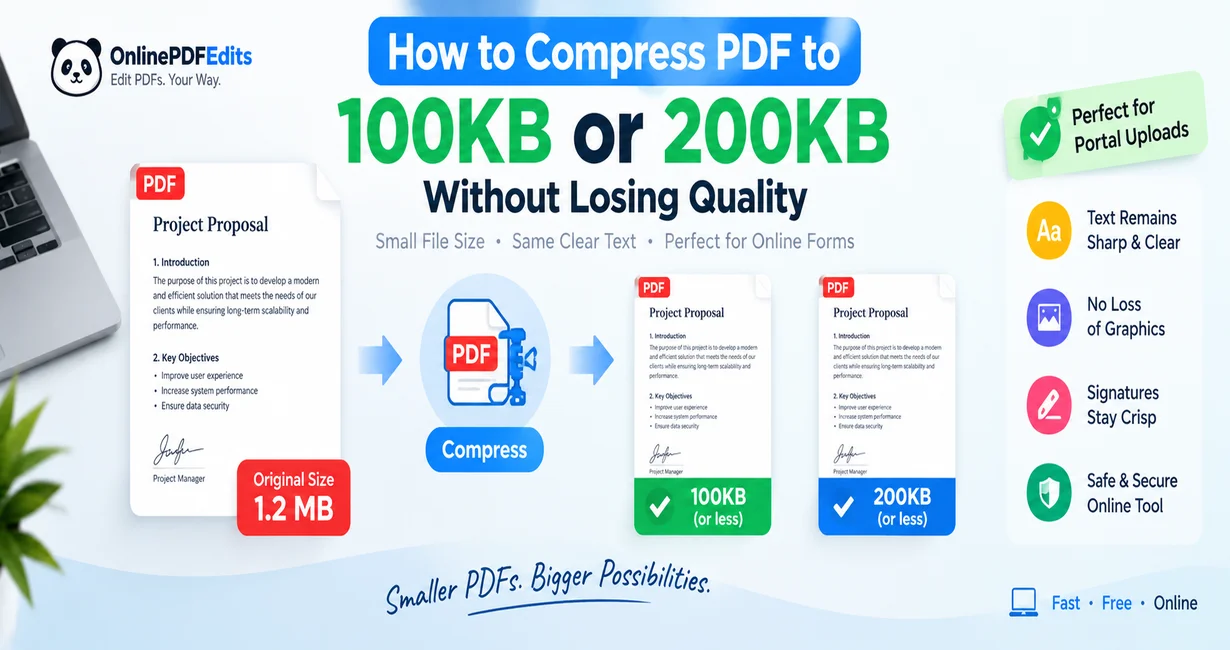
In this guide, we break down the mechanics of document compression, explain why standard compression ruins text legibility, and demonstrate how to compress a PDF to under 100KB or 200KB while preserving razor-sharp vector typography.
Why Standard Compression Destroys Document Quality
To compress a document without rendering it unreadable, you have to understand how a PDF is assembled under the hood. A PDF file is rarely a single monolithic block; it is an archive containing distinct types of data streams:
┌─────────────────────────────────────────────────────────────────────────────┐
│                             WHAT IS INSIDE A PDF?                           │
├──────────────────────────┬──────────────────────────┬───────────────────────┤
│ 1. Vector Text Streams   │ 2. Embedded Font Tables  │ 3. Raster Scans &     │
│                          │                          │    Bitmap Images      │
│ • Mathematical curves    │ • Full TrueType / OTF    │ • Uncompressed JPEG/  │
│ • Infinitely scalable    │   character sets         │   TIFF pixel arrays   │
│ • Less than 40 KB/page   │ • Can bloat to 2MB–8MB   │ • Can bloat to 10MB+  │
└──────────────────────────┴──────────────────────────┴───────────────────────┘
The Difference Between Digital PDFs and Scanned PDFs
- Native Digital PDFs (Word, Google Docs, InDesign): When you export a document directly from a word processor, all headings, body text, lines, and form fields are stored as mathematical vector paths. Because vectors are formulas rather than pixels, a 5-page text document naturally takes up less than 100 KB! When digital PDFs bloat to several megabytes, the cause is usually uncompressed font sets or hidden background transparency layers, not the text itself.
- Scanned Documents (Paper Scanners & Phone Photos): When you take a photo of a document or scan a certificate using a desktop flatbed scanner, the scanner does not see words. It captures a giant grid of pixels—often at 300 to 600 DPI (dots per inch) in 24-bit True Color. A single scanned page can easily consume 4 MB to 12 MB of uncompressed bitmap data.
Why "Abstract Sliders" Ruin Your Scans
Legacy PDF utilities like Smallpdf or iLovePDF use three broad presets: Extreme Compression, Recommended Compression, and Less Compression.
When you choose "Extreme", their server applies a blunt, uniform downsampling filter across the entire document. It crushes image resolution down to 72 DPI and increases JPEG lossy quantization until compression artifacts appear around every letter. Fine text, passport serial numbers, and stamps turn into muddy grey blocks.
To solve this, modern tools use Target Size Bisection. Rather than blindly guessing a quality percentage, the engine targets your exact portal boundary (e.g., exactly 100 KB or 200 KB) and progressively repacks object dictionaries, stripping non-essential metadata while keeping image downsampling to the absolute minimum required to pass the threshold.
Upload Portals and Their File Size Ceilings
Different submission systems enforce different file caps based on their database architecture:
| Portal Category | Common Size Limit | Typical Document Types | Key Quality Challenge | Recommended Target Tool |
|---|---|---|---|---|
| Government & Civil Service Portals | 100 KB | ID proof, certificates, domicile documents, caste certificates | Preserving microprint, stamps, and state seal details | Compress PDF to 100KB |
| Visa & Immigration Applications | 200 KB | Passport biodata pages, bank statements, affidavits | Retaining MRZ machine-readable barcode lines & portrait photos | Compress PDF to 200KB |
| Corporate ATS Job Portals (Workday, Taleo) | 500 KB | Multi-page resumes, academic transcripts, portfolios | Ensuring vector text remains machine-searchable for ATS parsers | Compress PDF to 500KB |
| Academic & Graduate Admissions | 1 MB | Research proposals, dissertation abstracts, thesis chapters | Keeping complex vector graphs, equations, and footnotes sharp | Compress PDF to 1MB |
| Email Attachments (Gmail, Outlook) | 25 MB | Multi-party contracts, architectural blueprints, legal bundles | Avoiding attachment bounce-backs on slow recipient mailboxes | Compress PDF Hub |
Step-by-Step: How to Compress a PDF to 100KB or 200KB Online (Free)
Here is how you can reduce your document to meet strict application boundaries in under 60 seconds without paying for Adobe Acrobat Pro:
Step 1: Open the Dedicated Target Tool
Depending on your portal's error message, navigate directly to the pre-calibrated tool:
- For strict 100 KB limits: Go to the Compress PDF to 100KB Tool.
- For standard 200 KB limits: Go to the Compress PDF to 200KB Tool.
Step 2: Upload Your Document
Drag and drop your file into the secure dropzone. Files up to 50 MB are supported. Processing is performed securely and your document is permanently removed from memory immediately after export.
Step 3: Verify the Target Preset
The tool automatically configures the algorithm to target either 100 KB or 200 KB. If your portal has an odd threshold (for example, under 150 KB), you can switch to Custom Target mode and enter the exact number of kilobytes you need.
Step 4: Click "Compress" & Download
Click the Compress button. In 2 to 4 seconds, the engine runs stream deflating, font subsetting, and adaptive downsampling. Click Download, and your file is saved immediately—with no watermark, no email required, and no daily task countdown timer.
4 Technical Secrets to Squeeze Oversized Scans Under 100KB
If you have a scanned certificate or multi-page form that refuses to shrink below 100 KB, use these four proven techniques to drop the file size before or during compression:
1. Scan in 8-Bit Grayscale Instead of 24-Bit Color
Most application forms are printed on white paper with black text and blue ink stamps. When you scan in "24-bit True Color", your scanner records red, green, and blue values for every single pixel—even the empty white margins.
- Switching your scanner or scanning app to Grayscale or Black & White (1-bit) immediately eliminates two-thirds of the uncompressed data stream without sacrificing a single letter of text legibility.
2. Remove Blank or Irrelevant Pages
Many multi-page PDFs contain empty disclaimer pages, blank back covers, or instructions intended for the applicant. Each page carries object tables and font dictionaries.
- Use our free Delete PDF Pages tool to trim away non-essential sheets before running compression. Removing just one heavy page can cut file weight by 40%.
3. Avoid the "Print to PDF" Re-Encoding Trap
If you need to make a correction to an existing PDF, never use Apple Preview or a browser to "Print to PDF". Printing flattens the file, converting crisp vector text into an uncompressed raster image that can double or triple the file size.
- If you have a typo or need to update a date, use our direct Edit PDF Text tool. It modifies the existing text stream in place without rewriting or bloating the document.
4. Downsample to 150 DPI (The Human Eye Sweet Spot)
Printers require 300 to 600 DPI for high-end glossy paper, but screens on government verification terminals only display at 96 to 150 DPI. Downsampling an oversized 400 DPI scan down to 150 DPI reduces file size exponentially while keeping text clear and legible when magnified at 100% zoom.
Pre-Submission Verification Checklist
Before uploading your compressed PDF to an official government or job portal, take 30 seconds to run this quick verification checklist:
- Check Exact Byte Count: Right-click the downloaded file and select Properties (Windows) or Get Info (Mac). Ensure the size in bytes is strictly less than the portal cap (e.g.,
under 102,400 bytesfor 100 KB, orunder 204,800 bytesfor 200 KB). - The 100% Zoom Test: Open the PDF in any viewer and set zoom to 100%. Ensure your full name, date of birth, document serial numbers, and signatures can be read effortlessly.
- Barcode & QR Code Clarity: If your document contains a verification QR code or visa barcode, ensure the edges of the black squares are crisp and not smeared with fuzzy compression halos.
- ATS Text Highlight Test: Click and drag your mouse across a line of text. If you can highlight individual characters, Applicant Tracking Systems will be able to read and index your resume automatically.
Related Document Tools
Need to modify your file further before final submission? Explore these free utilities:
- Need to fix a typo? Use our in-browser Edit PDF Text tool to change text without altering fonts or margins.
- Merging attachments together? Assemble your certificates, transcripts, and ID proofs using our Merge PDF tool.
- Hit by a 2-task limit elsewhere? See how to bypass freemium paywalls in our Smallpdf Alternative comparison.
Frequently Asked Questions (FAQ)
Why do government and job portals enforce such tiny limits like 100 KB?
Government recruitment databases and university servers receive hundreds of thousands of submissions during application cycles. Storing millions of 10 MB files would overload their storage infrastructure and slow down applicant verification. Setting a 100 KB or 200 KB boundary forces files to remain compact.
Can I compress a scanned PDF to 100 KB without making it blurry?
Yes, provided the document is optimized smartly. Converting full-color scans to grayscale and utilizing bicubic 150 DPI downsampling allows scanned identity proofs and certificates to comfortably fit under 100 KB while keeping stamps and text completely readable.
Will compressing my PDF remove my digital signature or form fields?
No. Our compression engine targets internal font tables, object metadata streams, and bitmap image data. It leaves interactive AcroForm fields, digital signature blocks, and vector line annotations intact.
What if my PDF cannot reach 100 KB no matter what I try?
If a document contains 5 or more pages of full-color photographic scans, squeezing it below 100 KB might degrade quality too much. In that scenario, use Delete PDF Pages to separate the document into single-page files, or try our Compress PDF to 200KB tool if the portal permits a slightly higher cap.
Is there any cost, watermark, or daily task limit?
None. Online PDF Edits is 100% free with no watermarks, no account registration, and no daily limits. You can compress as many documents as your applications require.