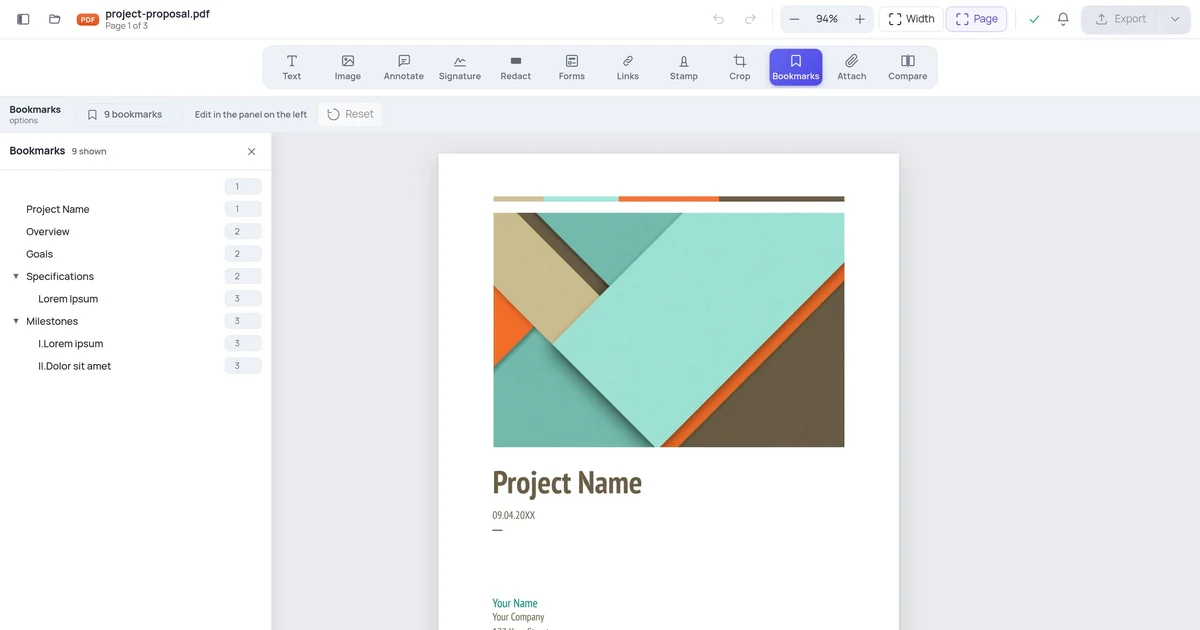
How to Edit a PDF Resume (Without Starting Over)
If you have the original Word or Canva file, update it there. If you don't, here's how to edit the PDF directly without wrecking the layout.

The best way to edit a PDF resume is to find the original source file — the Word document, Google Doc, or Canva template it was created from. PDFs are designed as final-output formats, not editable documents, so editing them directly introduces quirks: fonts may shift, alignment may slip, and matching the exact formatting of surrounding text is tricky.
That said, if you don't have the source file, direct PDF editing is absolutely doable for targeted updates.
Step 1: Find or Recover the Source File
Before editing the PDF directly, check these places:
Microsoft Word: Documents folder, OneDrive, Desktop, or wherever you save work. Try searching for *.docx in Windows File Explorer or Spotlight on Mac.
Google Docs: docs.google.com — search for "resume" or the specific company name you tailored it for.
Canva: canva.com → My Projects → look for your resume template. Canva saves all projects to your account.
Adobe InDesign / Illustrator: If you used a design tool, check the application's recent files.
Email: Search your own sent email for messages where you attached your resume — the original may be in an email to yourself or a previous application.
Version history: If you worked in Google Docs, check File → Version History. If you worked in Word on OneDrive, check Version History in the file's right-click menu in OneDrive.
If you find the source file, update it there and export a new PDF — this is always cleaner than editing the PDF directly.
If You Don't Have the Source File
Method 1: Convert PDF to Word, Edit, Re-Export
Converting to Word gives you the most editing flexibility, though formatting may shift on complex layouts.
Using Microsoft Word:
- Open Word → File → Open → select your PDF resume
- Word shows a dialog: "Word will convert your PDF to an editable Word document" — click OK
- Word performs the conversion — for simple resumes this is usually quite accurate
- Make your edits
- When done: File → Save As → PDF (or File → Export → Create PDF/XPS)
Using Adobe Acrobat Pro:
- Open the PDF in Acrobat
- File → Export To → Microsoft Word → Word Document
- Acrobat's conversion is often better than Word's for preserving layout
- Edit in Word → re-export to PDF
Using Google Docs:
- Go to drive.google.com
- Upload the PDF → right-click → Open with Google Docs
- Google converts the PDF to an editable document
- Edit → File → Download → PDF Document
What to expect from conversion:
- Single-column plain text resumes: conversion is usually very clean
- Two-column or grid-based design resumes: may require significant reformatting after conversion
- Resume templates from Canva or professional designers: often convert poorly because they use complex positioning
After conversion, compare the Word document side-by-side with your original PDF to check alignment, spacing, and fonts before distributing the new version.
Method 2: Direct PDF Text Editing (Acrobat Pro)
For targeted changes — updating a job title, adding one role, changing your phone number — editing the PDF directly in Acrobat Pro is faster than full conversion.
- Open the resume PDF in Acrobat Pro
- Tools → Edit PDF
- Click on the text you want to change — it selects as a text block
- Click inside and edit directly
- Watch the Font panel (right side) — match the font, size, and color to surrounding text
Typical resume edits that work well directly in PDF:
- Updating phone number or email address
- Changing your LinkedIn URL or portfolio link
- Correcting a company name, job title, or date
- Adding a line of text to an existing job entry (if there's space)
- Updating your location (city/state)
What to watch for:
- Font substitution: If your resume uses a premium or uncommon font (Garamond, Avenir, Proxima Nova), Acrobat may substitute a system font for text you type. Zoom in to check — mismatched fonts are visible at higher zoom.
- Text overflow: Adding a new line to a text box that doesn't have room pushes text outside the visible area. Check that nothing was cut off.
- Alignment: Click elsewhere after editing and review the change in context. Sometimes text position shifts slightly.
Method 3: Online PDF Editor (Quick Updates)
For changes to a non-confidential resume, OnlinePDFEdits and similar tools let you edit without software:
- Upload the PDF
- Click on text to edit it
- Add new text blocks if needed
- Download the updated PDF
Best for: Simple, targeted changes that don't require matching exact font properties.
Limitation: Online editors work by overlaying your changes on top of the original. For matching existing text exactly, Acrobat Pro gives you more control over font matching.
Privacy note: Your resume contains personal information — name, address, phone, email, employment history. For online editors, be aware files are processed on the tool's servers. Use a desktop tool or Acrobat if you prefer to keep the file local.
Editing Different Resume Sections
Updating Work Experience
Work experience usually spans multiple text blocks in a PDF. The job title, company name, dates, and bullet points are often separate text objects.
When adding a new role:
- In Acrobat Pro: Use Tools → Edit PDF → Add Text to add a new text block, then format it to match the existing role blocks
- Match: font family, size, weight (bold for title), color, and paragraph spacing
- Check alignment — new text blocks are positioned freely and may not align with existing grid lines
Updating Contact Information
Contact details (header of resume) are usually a single text block or a row of separate blocks. Click directly on the email, phone, or LinkedIn text and edit in place.
Adding Skills or Certifications
Skills sections are often in a different column or box. If adding to an existing list, click the list and add a line. If the list is already at capacity (text overflows the column), you may need to reduce font size slightly or delete an outdated skill to make room.
Adding Education Entries
Same approach as work experience — locate the education text block, click to edit, add a new entry below the existing one, or use Add Text to insert a new block.
Recreating a Lost Resume from PDF
If the source file is gone and the PDF formatting is too complex to edit directly, recreating the resume may be faster than fighting with the PDF:
- Open the PDF and transcribe the content to a new Word or Google Doc
- Find a clean resume template in Word (File → New → search "resume") or in Google Docs (Template Gallery)
- Paste and reformat your content into the new template
- Export to PDF when done
This takes 30-60 minutes for most resumes and gives you a clean, fully editable source file going forward. Keep the source file in Google Drive or OneDrive so you can always access it.
Keeping Your Resume Editable Going Forward
Always keep the source file. Save the Word, Google Docs, or Canva project alongside the PDF version.
Export, don't print: When creating your PDF resume, use "Export to PDF" or "Save as PDF" (not "Print to PDF"). Export preserves text as real text; some Print to PDF workflows may flatten content.
Name versions clearly: resume_2026_software-engineer.pdf paired with resume_2026_software-engineer.docx so you always know which source file matches which PDF.
Store in cloud: Google Drive, OneDrive, or Dropbox ensures you can access your source files from any device, even if your laptop dies.
FAQ
Can I edit a PDF resume on my phone?
For minor changes (text fixes, adding a line): use Adobe Acrobat Reader mobile (the free version allows some editing) or access OnlinePDFEdits through your phone's browser. For comprehensive edits, a desktop or laptop is significantly easier.
Why does my resume look different after I edit it?
The most common causes: (1) font substitution — the original font isn't installed on your system, so a similar one is substituted; (2) text reflow — adding text in one block shifted spacing elsewhere; (3) PDF-to-Word conversion errors — the layout was interpreted differently during conversion. Compare carefully before distributing.
Can I change the resume template design in PDF?
Not meaningfully. PDF editing lets you change content (text, colors in existing elements) but not redesign the layout. To change the template design, you need the original design file or start fresh with a new template.
Is it safe to upload my resume to an online PDF editor?
Your resume contains your name, contact details, and employment history — personal but not highly sensitive compared to, say, financial records. Most reputable online PDF editors (including OnlinePDFEdits) process files for the session and delete them after a short period. For a resume, this is generally an acceptable privacy tradeoff. If you're very privacy-conscious, use Acrobat Pro or a local tool instead.
My resume PDF is password-protected and I can't edit it. What do I do?
If it's permissions-restricted (you can view but not edit), try the browser Print to PDF method: open in Chrome → Ctrl+P → Save as PDF → this creates an unrestricted copy you can then edit. If it's open-password encrypted (you need a password to view it), you need the password to proceed. See how to unlock a password-protected PDF for more options.