How to Fix PDF Bookmarks That Point to the Wrong Pages
Insert one page near the front of a PDF and every bookmark after it is now off by one. Here's why that happens, and how to repoint the whole outline without rebuilding it.

You merged a cover page onto the front of a report. Now every bookmark is off by one: "Introduction" lands on the title page, "Conclusion" lands in the middle of the appendix.
Nothing is broken, exactly. The bookmarks are pointing exactly where you told them to — it's the pages that moved.
Key takeaways
- A bookmark stores a page target. Insert or remove a page and every target after it is wrong.
- Most merge and split tools don't fix the outline, because they don't know which pages you meant.
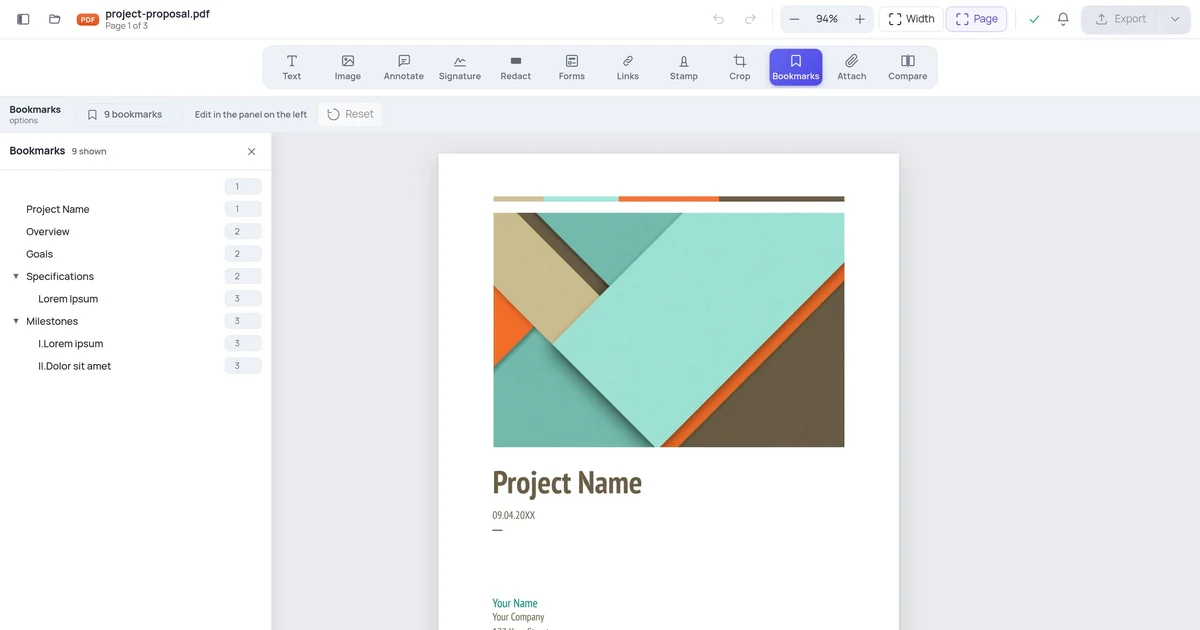
- The Bookmarks panel lets you retype the page number for any bookmark, rename it, reorder or re-nest it.
- Fixing an outline is faster than rebuilding it — you usually only need to shift a run of entries.
- Changes apply when you export; Reset puts everything back.
Why this happens so often
Bookmarks are a separate structure from the pages. Each one says "jump to page 7." Nothing links the bookmark to the content of page 7 — only its position.
So the moment page positions change, targets go stale:
- Merging. A cover, a title page or another document goes on the front; everything shifts.
- Deleting a page. Everything after it shifts back one.
- Splitting. Bookmarks survive into a part where their target no longer exists.
- Reordering. Sections move; the outline doesn't.
Some tools drop the outline entirely rather than get it wrong — which is arguably honest, and definitely annoying.
Step 1 — Open the outline
Open the PDF in the editor and click Bookmarks.

The panel lists the whole outline, nested exactly as a reader's bookmark panel will show it.
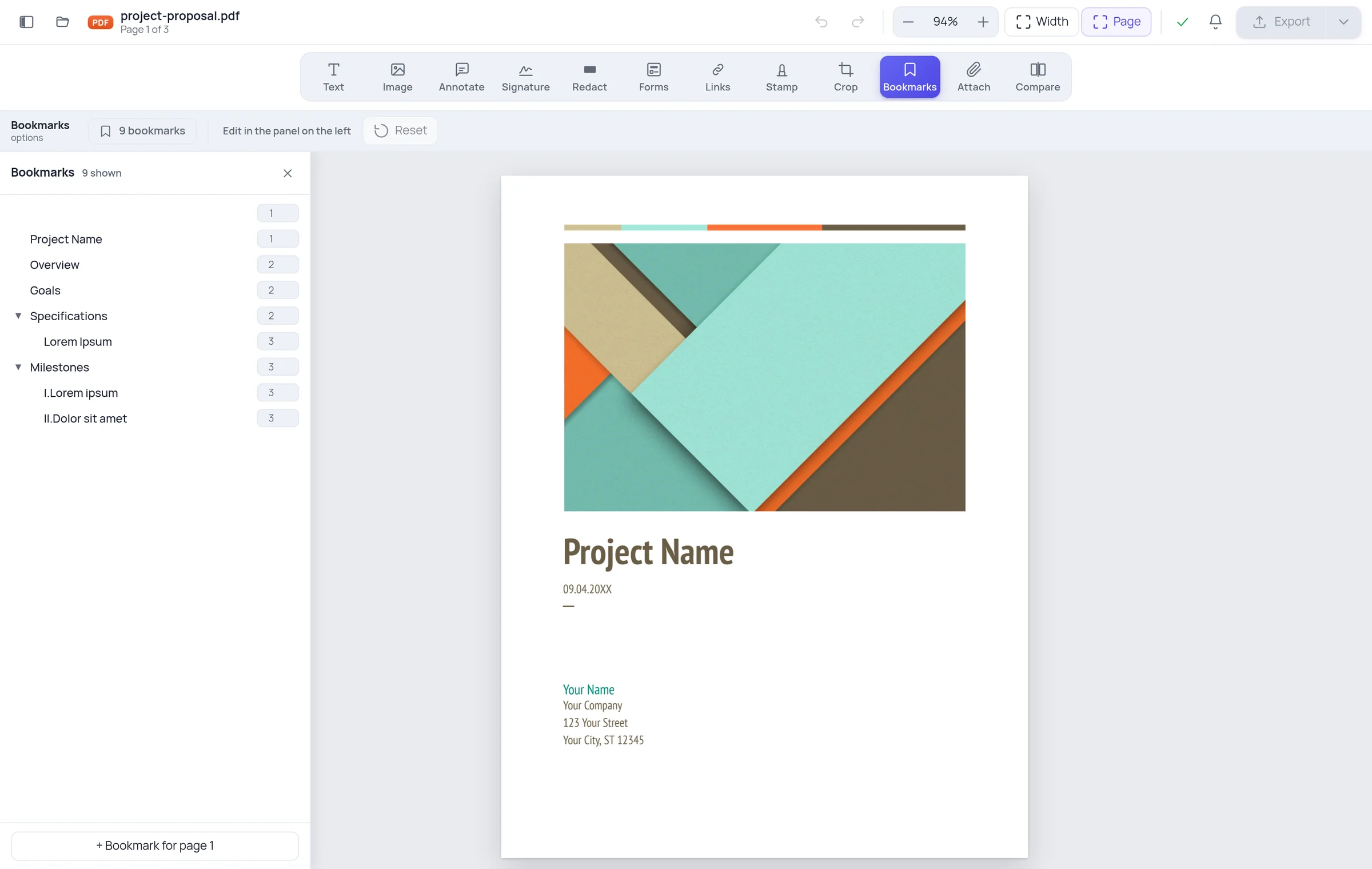
Clicking a bookmark jumps the document to the page it currently points at — which is the fastest way to find the broken ones. Click down the list and watch where you land.
Step 2 — Fix the page numbers
Each row has a page number you can type into.
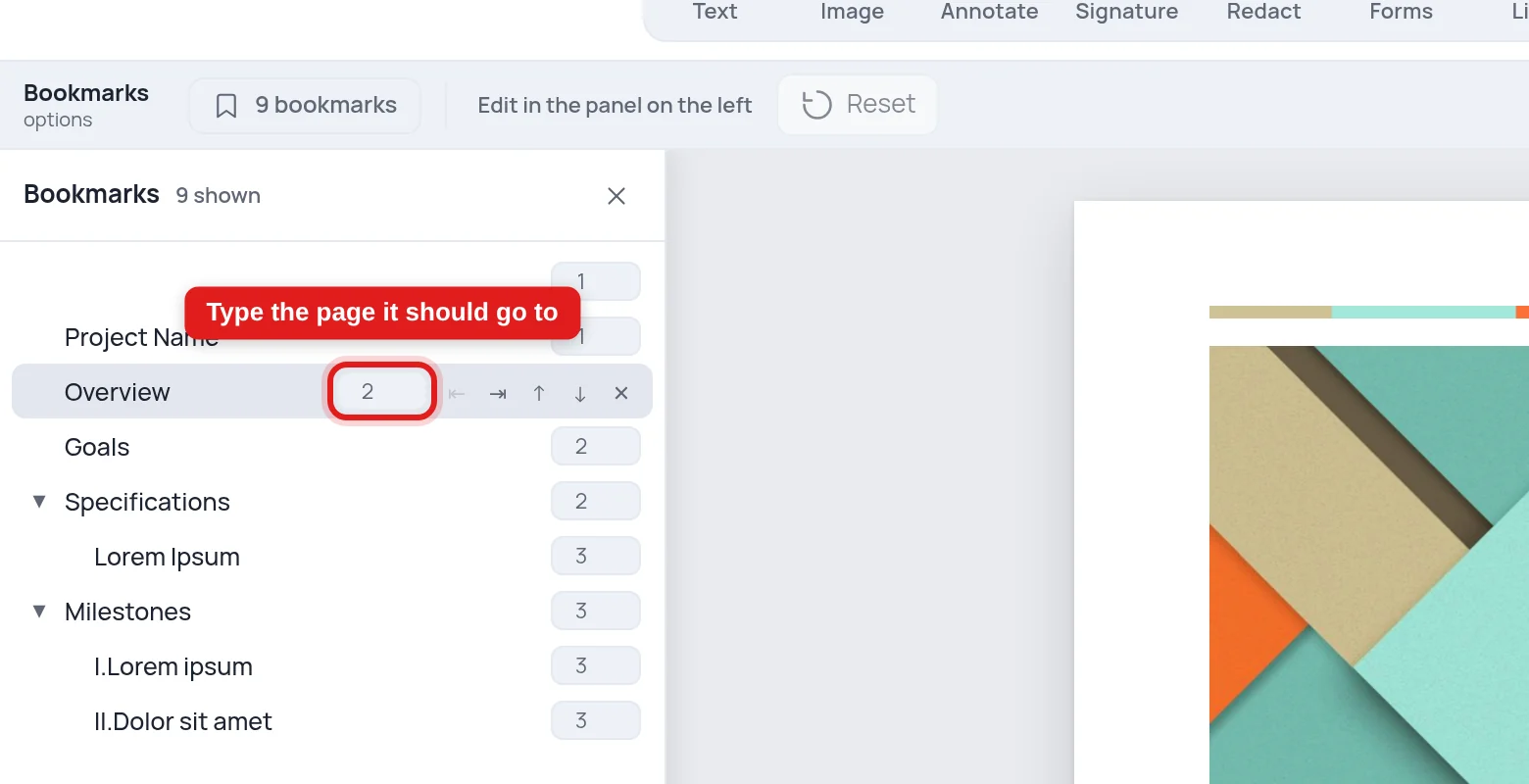
If you added one page to the front, every bookmark needs +1. Work down the list; it's mechanical and takes a minute for a typical outline.
You can also fix the outline's shape while you're there:
- Rename — double-click the title.
- Nest and un-nest — make a bookmark a child of the one above it, or promote it back out.
- Reorder — move an entry up or down among its siblings.
- Delete — removes the bookmark and everything nested under it.
- Add — creates a bookmark pointing at the page you're currently viewing.
Step 3 — Check the collapse state, then export
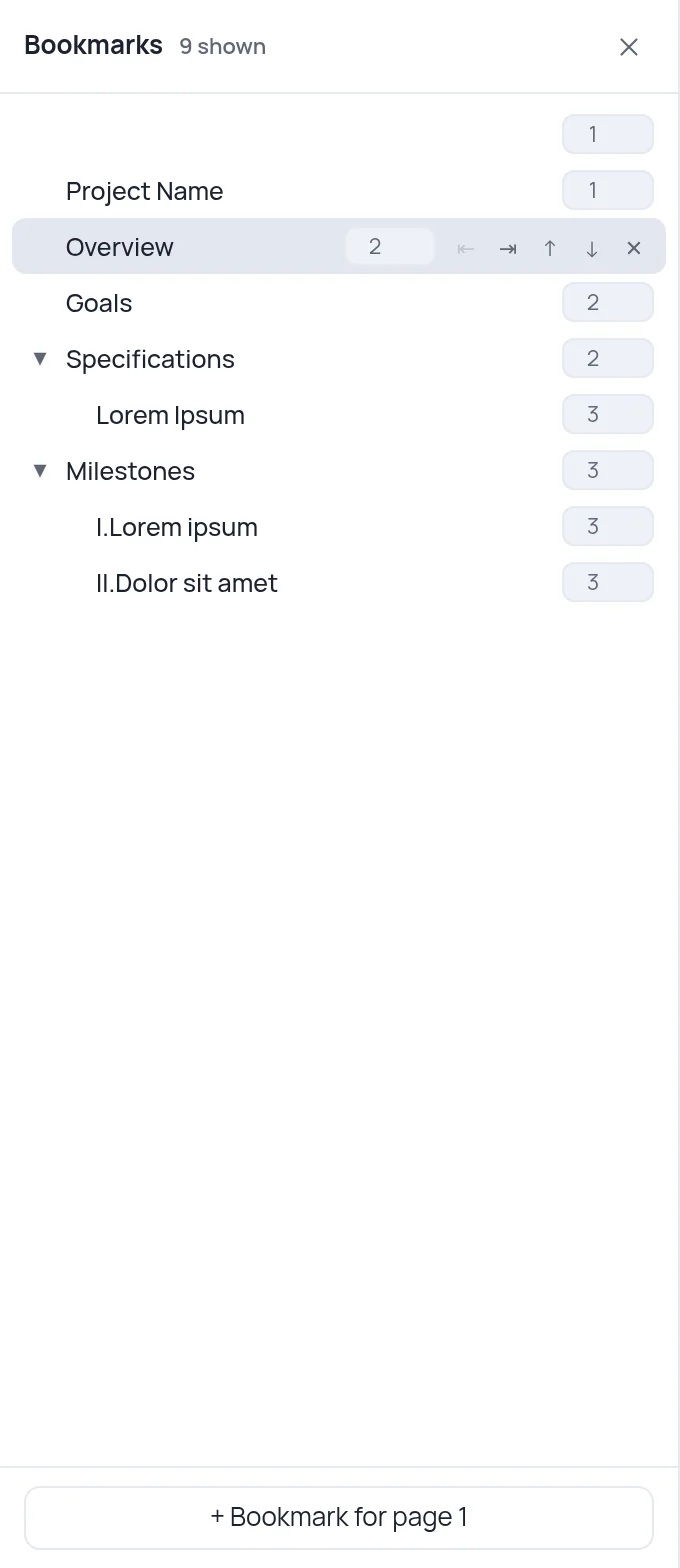
Whether a bookmark shows expanded or collapsed when the reader opens the document is stored in the file. The triangle in the panel controls it: collapse the deep sections and readers get a clean overview instead of a wall of entries.
Then export. If you want to abandon the changes, Reset restores the outline exactly as it loaded.
Getting it right at the merge stage
Fixing an outline afterwards works, but avoiding the break is better:
Add front matter last. Build the document, bookmark it, then add the cover — and fix only the offset, which is uniform.
Check the outline after any merge. Click the first and last bookmarks. If both land correctly, the middle usually has too.
Bookmark by section, not by page. Fewer, well-named entries survive editing better than one per page.
What we deliberately don't change
One detail worth stating, because it's the kind of thing that quietly damages documents: when the outline is rewritten, bookmark titles are preserved exactly, including odd ones.
A real document in our test set has a bookmark titled with two spaces, and several with trailing spaces. An earlier version of our code tidied those up — and in doing so deleted one of the author's bookmarks and rewrote the rest, during an export that had nothing to do with bookmarks. Now only a genuinely empty title is dropped.
If your outline has strange entries, they'll still be there afterwards. That's intentional.
Frequently asked questions
Will fixing bookmarks change my pages? No. The outline is a separate structure; the pages are untouched.
Can I delete the whole outline? Yes — delete every entry and export. The bookmarks panel is removed from the document.
Do bookmarks work on phones? Most mobile readers support them, though some hide the panel behind a menu.
Why does clicking a bookmark not change my zoom? Bookmarks here jump to the top of the target page and leave your zoom alone, which is what most people expect. Some documents store a zoom level in each bookmark; those get replaced when the outline is rewritten.