How to Import PDF into Canva Without Breaking Formatting
Stop Canva from scrambling fonts, misaligning vectors, and breaking layouts when importing PDFs. Learn why Canva alters PDFs and how to edit them cleanly.

You drag an existing PDF flyer, marketing brochure, event program, or resume into Canva expecting a smooth, editable design canvas. Instead, the moment Canva finishes importing, your document looks like a chaotic puzzle:
- Your brand's custom typography has been substituted with generic Arial or Open Sans.
- Cohesive sentences have shattered into dozens of fragmented, single-word text boxes.
- Vector logos and decorative icons have shifted out of alignment or turned into blurry bitmap squares.
- Vibrant brand colors look muddy, dull, or strangely inverted.
Why does Canva struggle so severely with standard PDF files?
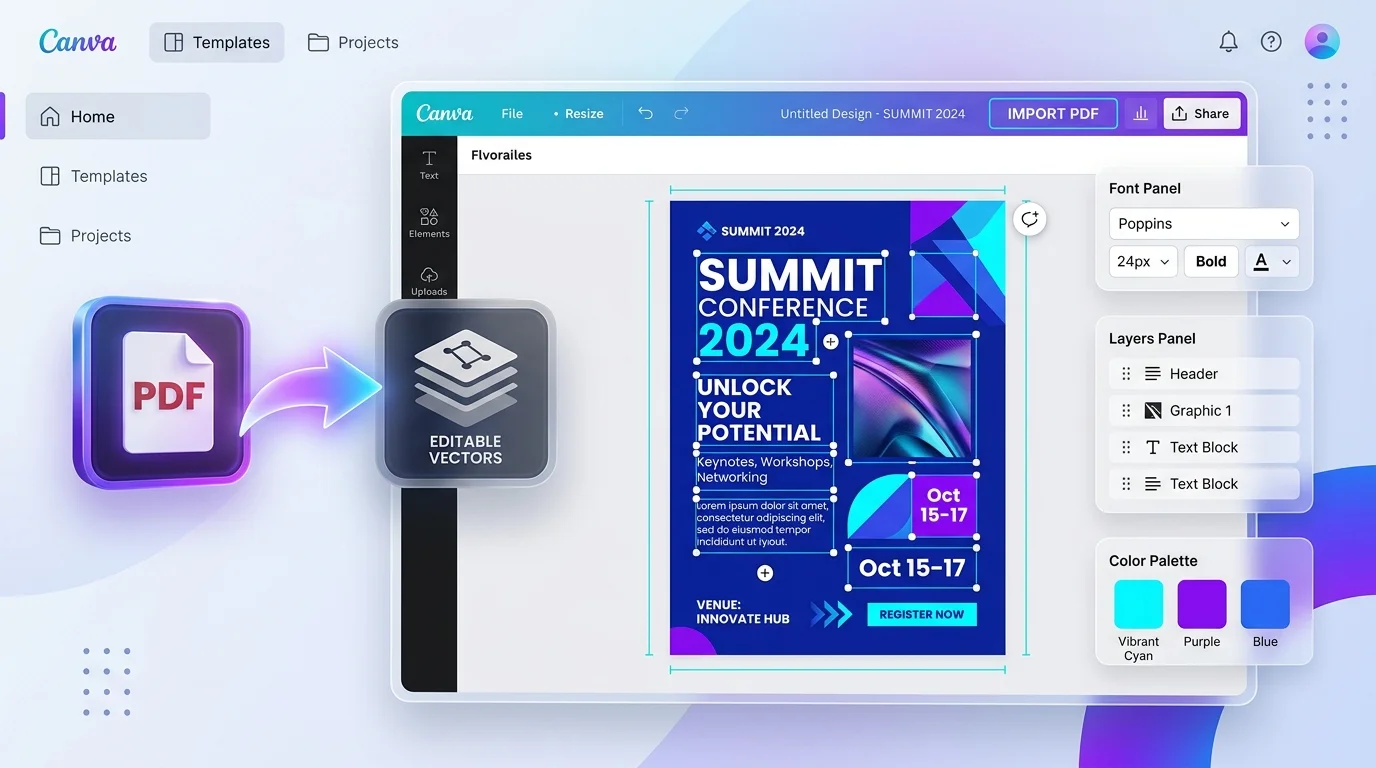
Canva's PDF import engine does not simply display your document like Adobe Acrobat or Google Chrome. Instead, it attempts to reverse-engineer the PDF's internal object database and convert raw PostScript drawing operators into Canva's proprietary graphic element model. When your PDF uses custom subset fonts, complex clipping masks, or CMYK color spaces, Canva's heuristic parser makes arbitrary guesses that ruin your design.
The good news: you can prevent these errors entirely. In this guide, we break down the technical reasons Canva scrambles PDF files and provide four reliable workflows to edit or import your documents with pixel-perfect fidelity.
The Quick Answer:
Yes, you can edit PDF text and fix formatting issues without letting Canva scramble your design.
If you only need to update dates, names, prices, or paragraphs on an existing PDF flyer, do not import it into Canva. Open the Online PDF Editor, upload your file, and edit the vector text directly inline in its original font without re-wrapping or breaking the layout. If you must use Canva for new creative graphics, convert your PDF text to vector outlines or sanitize the font embedding dictionaries before importing.
⚡ Need to Edit a PDF Flyer or Document Right Now?
Update text, change dates, and correct typos in the original font without Canva layout glitches:
👉 Open Online PDF Editor (Free & No Sign-Up) →
Inline Font Cloning · Zero Layout Breakage · No Account Required · 100% Free
Why Canva Breaks PDF Formatting: The Technical Reality
To understand why your layout disintegrates inside Canva, it helps to compare how Portable Document Format (ISO 32000-1) stores visual data versus how Canva renders designs:
┌─────────────────────────────────────────────────────────────────────────────┐
│                   HOW CANVA REVERSE-ENGINEERS A PDF FILE                    │
├──────────────────────────┬──────────────────────────┬───────────────────────┤
│ 1. Vector PDF Source     │ 2. Canva Import Parser   │ 3. Canva Canvas       │
│ • Exact coordinate paths │ • Replaces missing fonts │ • Disjointed boxes    │
│ • Embedded subset fonts  │ • Estimates paragraphs   │ • Altered line wraps  │
│ • CMYK print color space │ • Converts CMYK to sRGB  │ • Muddy, shifted hues │
└──────────────────────────┴──────────────────────────┴───────────────────────┘
1. Font Subsetting and Missing Unicode Mappings
When a design program like Adobe Illustrator, InDesign, or Microsoft Word exports a PDF, it rarely embeds the full TrueType or OpenType font file. To keep file size small, it creates an embedded subset font containing only the specific glyphs used on that page. Canva's cloud server does not install your local machine's fonts. When Canva inspects the PDF and discovers an embedded subset font that is not in Canva's approved web font library, it cannot edit those vector glyphs as live text. Instead, Canva forces a fallback font (such as Roboto or Arimo). Because the fallback font has completely different character widths (glyph metrics), text strings overflow their boxes and collide with adjacent graphics.
2. Lack of Native Paragraph Structures in PDFs
Unlike HTML or Microsoft Word documents, a PDF is not a continuous text flow. Under the ISO 32000-1 specification, text is drawn using discrete coordinate placement operators:
BT(Begin Text Object)1 0 0 1 120 750 Tm(Set text matrix to coordinate X:120, Y:750)/F1 12 Tf(Select Font 1 at 12pt)(Headline) Tj(Paint characters)ET(End Text Object)
A PDF does not know that two lines belong to the same paragraph. When Canva imports the document, its algorithm tries to guess which words belong together. If the spacing is slightly irregular, Canva generates 20 separate, overlapping text boxes instead of a single editable block.
3. CMYK to sRGB Color Space Shifts
Professional flyers and brochures intended for commercial printing are authored in the DeviceCMYK color space (Cyan, Magenta, Yellow, Key Black). Canva's browser-based canvas operates exclusively in the sRGB color space.
When Canva ingests CMYK color profiles, it uses basic mathematical color transformation formulas without rendering intent adjustments (Perceptual or Relative Colorimetric). Rich blacks, neon gradients, and corporate brand colors shift dramatically, making your design look dull or discolored.
4. Complex Clipping Masks (W Operators)
Vector illustrations, badges, and curved image frames in PDFs rely on mathematical clipping paths (W and W* operators). Canva's SVG translator frequently misinterprets nested clipping groups. As a result, background illustrations get clipped off, drop shadows turn into solid black blocks, or vector elements become permanently locked as uneditable raster shapes.
4 Proven Methods to Edit PDFs Without Canva Formatting Glitches
Depending on what you want to achieve with your PDF, choose the method that best matches your goal:
Method 1: Use an Inline Vector PDF Editor (Best for Text & Date Changes)
If your goal is to update existing copy—such as changing an event date, editing ticket prices, fixing typos, or updating contact details on a flyer—importing the file into Canva is the wrong tool for the job.
Canva is designed for creating new visual layouts from scratch, not preserving pre-existing PDF object trees.
The Solution:
- Open the Online PDF Editor in your browser.
- Upload your PDF flyer or document.
- Click directly on the text you need to revise.
- The editor's font engine clones the exact embedded typeface, size, and character spacing from the document's
/Fontdictionary. - Type your revisions inline without creating fragmented text frames or shifting surrounding artwork.
- Click Export PDF to download a clean, vector-sharp document with 100% of the original formatting intact.
(Need to remove an obsolete agency logo or sponsor mark before updating? Use our PDF Watermark Remover to delete vector stamps cleanly).
Method 2: Convert Fonts to Outlines Before Importing to Canva
If you need to add new graphical elements, stickers, or social media badges in Canva, you can prevent Canva from substituting your fonts by converting the text to vector paths (curves) first.
When text is outlined, every letter becomes a mathematical polygon. Canva will no longer treat the text as an editable font—eliminating font substitution errors entirely.
How to do it in Adobe Acrobat Pro or Illustrator:
- Open the PDF in Acrobat Pro.
- Navigate to Tools → Print Production → Preflight.
- Search for the preflight profile named "Convert fonts to outlines".
- Click Analyze and Fix, then save the updated PDF.
- Drag the outlined PDF into Canva. The typography will appear identical to your original design, though the text will now behave as vector graphics rather than editable text boxes.
Method 3: Convert the PDF Page to a High-DPI Vector SVG
Canva handles native Scalable Vector Graphics (.svg) much better than raw .pdf containers.
- Open your PDF in a vector software tool or an online converter and export the specific page as an SVG file.
- In the SVG export settings, ensure "Embed Fonts" or "Convert Text to Shapes" is checked.
- In Canva, open your target canvas size, go to Uploads → Upload files, and select the
.svg. - Canva will import the artwork with crisp vector paths, proper layer stacking, and accurate dimensions without font substitution errors.
Method 4: Flatten the Background and Overlay Fresh Canva Text
If you have a complex flyer with intricate gradients and unique typography, you can preserve the visual aesthetic while keeping selected text editable inside Canva:
- Export the PDF as a high-resolution 300 DPI PNG image using an image converter.
- In Canva, create a design matching your document's exact dimensions (e.g., 8.5 x 11 inches or A4).
- Set the high-resolution image as the background of your canvas.
- Use Canva's Text tool (T) to type editable text fields directly over the background. This ensures your background illustrations, shadows, and color gradients remain pristine while giving you editable fields for future updates.
Comparison: Canva vs. Dedicated PDF Tools for Flyer & Document Editing
| Feature / Capability | Online PDF Edits | Canva PDF Import | Adobe Acrobat Pro |
|---|---|---|---|
| Cost | 100% Free | Free / $120/yr (Pro) | $239.88 / year |
| Account Required? | ❌ No sign-up or email | Mandatory Account | Mandatory Adobe ID |
| Preserves Original Fonts | ✅ Inline font cloning | ❌ Substitutes missing fonts | ✅ Preserves fonts |
| Prevents Text Box Fragmentation | ✅ Coordinates preserved | ❌ Breaks into 15+ boxes | ⚠️ Variable |
| CMYK Print Color Retention | ✅ 100% Color integrity | ❌ Shifts colors to sRGB | ✅ Full CMYK support |
| Vector Clipping Mask Accuracy | ✅ Untouched native streams | ⚠️ Often distorts masks | ✅ 100% Native |
| Preserves Hyperlinks & Forms | ✅ Fully intact | ❌ Strips all PDF links | ✅ Fully intact |
| Speed for Quick Corrections | ⚡ Under 15 seconds | ⏱️ 3–5 min cleanup | ⏱️ 2–3 minutes |
Frequently Asked Questions
Can I import a PDF to Canva without losing formatting?
Yes. You can preserve formatting by converting your PDF fonts to vector outlines before uploading, exporting the document as an SVG file, or using the Online PDF Editor for direct inline text changes without importing into Canva.
Why does Canva change the font when I upload a PDF?
Canva changes fonts because it does not have access to your computer's local font files or embedded subset fonts inside the PDF. If the exact font is missing from Canva's cloud font library, Canva substitutes it with a generic web font, causing words to misalign and overflow.
How do I stop Canva from breaking my PDF into multiple text boxes?
To prevent fragmented text boxes, edit the document directly using the Online PDF Editor rather than importing it into Canva. PDFs store text as coordinate positioning commands rather than unified paragraphs, which Canva's parser frequently breaks into separate single-word elements.
Why do colors look faded or different after importing a PDF into Canva?
Colors look faded because commercial print PDFs are authored in the CMYK color space, whereas Canva converts all imported assets into the sRGB color space. This automated color translation dulls vibrant inks and alters dark tones.
How do I edit text in a PDF flyer for free without Canva?
Open the Online PDF Editor, drag your PDF flyer into the browser, click on the text you wish to update, type your changes in the original font, and export the file. No account creation or software download is required.
Can you import a multi-page PDF into Canva?
Yes. Upload the PDF through Canva's project dashboard, and Canva will import each page as a separate page inside a new design project. However, layout shifts and font substitutions can occur across every imported page.
How do I convert a PDF to an editable format in Canva?
Drag your PDF into the Canva home screen or use the Uploads menu. Canva will automatically analyze the file and convert supported text and shapes into editable canvas elements, though you may need to manually adjust substituted fonts and re-group text boxes.
Does Canva Pro preserve PDF formatting better than free Canva?
No. Canva Pro uses the exact same underlying PDF import and parsing engine as the free tier. While Canva Pro allows you to upload custom brand fonts to your Brand Kit, it will not automatically remap unrecognized embedded subset fonts during the initial import process.
Why are my PDF vector logos blurry after uploading to Canva?
Vector logos become blurry when Canva's import engine fails to parse complex vector clipping paths or gradients, forcing the engine to flatten the vector artwork into a low-resolution raster image.
How do I make a PDF flyer editable for someone using Canva?
Convert the flyer's complex background elements into a high-resolution 300 DPI image, upload that image to Canva as a background, and place standard Canva text boxes on top using widely available fonts like Montserrat or Open Sans before sharing the template link.
Can I edit a scanned PDF flyer in Canva?
No. A scanned PDF consists of a flat photographic image rather than individual text and shape objects. Canva cannot edit the text inside a scanned image without manual graphic erasing and retyping.
Will importing a PDF into Canva remove interactive links?
Yes. Canva's PDF import engine purges interactive PDF annotations, hyperlink dictionaries, and fillable AcroForm fields upon import. To preserve hyperlinks, edit your document using the Online PDF Editor.