My Fillable PDF Won’t Let Me Clear Fields: 4 Ways to Reset Form Data
Stuck with uneditable or cached text in a PDF form? Discover why fillable PDF fields refuse to clear and 4 verified ways to reset or overwrite the data.

When a fillable PDF refuses to clear its fields, the document has either been flattened into static content streams, locked by an AcroForm ReadOnly flag (/Ff 1) or digital signature, or cached by your web browser's autocomplete session. To clear the form immediately, reset the AcroForm state in a dedicated viewer, open the document in an Incognito window to bypass local browser cache, or use OnlinePDFEdits to whiteout burned-in text and place fresh editable fields without losing layout formatting.
                    ┌─────────────────────────────────────────┐
                    │ Why Can't I Clear My Fillable PDF Form? │
                    └────────────────────┬────────────────────┘
                                         │
         ┌───────────────────────────────┼───────────────────────────────┐
         ▼                               ▼                               ▼
┌──────────────────┐            ┌──────────────────┐            ┌──────────────────┐
│  Form Flattened  │            │ AcroForm Locked  │            │  Browser Cache   │
│ Static text paths│            │  /Ff 1 ReadOnly  │            │ Autocomplete bug │
│ Backspace fails  │            │  or Signed /Sig  │            │ Values reappear  │
└────────┬─────────┘            └────────┬─────────┘            └────────┬─────────┘
         ▼                               ▼                               ▼
[OnlinePDFEdits: Erase]         [Strip Security / Reset]        [Incognito / Re-Print]
Why Fillable PDF Form Fields Refuse to Clear
Under the ISO 32000-1 PDF specification, interactive forms operate via an AcroForm dictionary containing interactive widget annotations (/Annots). When you type into a form field, your entries are stored in a value dictionary (/V).
Four distinct technical bottlenecks prevent those fields from resetting:
1. The PDF Form Was Flattened
If someone previously clicked "Print to PDF" or used a basic converter, the interactive AcroForm widgets were stripped. The text was rendered directly into the page content stream (BT ... ET operators). Because the words are now fixed vector shapes or raster images rather than interactive form elements, clicking the field will not place an active cursor, and pressing Backspace or Delete does nothing.
2. The Read-Only Flag (/Ff 1) Is Enabled
Form creators frequently set the field flag /Ff 1 (Bit position 1: ReadOnly) on specific inputs, such as calculated totals, system timestamps, or finalized legal disclosures. When this flag is active, standard PDF viewers disable typing, text selection, and deletion within that bounding box.
3. A Digital Signature Locked the Form (/Sig)
When a document includes a cryptographic digital signature, the PDF specification enforces integrity checks. To prevent tampering after signing, the document permissions dictionary locks every form field. Attempting to clear or modify signed values triggers validation errors or makes fields completely non-responsive.
4. Web Browser Local Storage & Autocomplete Caching
Modern web browsers (Google Chrome, Microsoft Edge, Mozilla Firefox, Apple Safari) render PDFs using built-in viewer engines (such as PDFium or PDF.js). These viewers often cache form session data in local browser memory. Even if you backspace a value and reopen the file, the browser's form autofill engine re-populates the previous text automatically.
Form Locking Diagnosis: Symptoms vs. Solutions
| What You Experience | Underlying Technical Cause | Fastest Solution |
|---|---|---|
| Clicking field does nothing; text looks like normal page print | Document was flattened into static vector streams | OnlinePDFEdits Erase Tool (whiteout & re-type) |
| Field highlights in blue, but keyboard input is rejected | AcroForm /Ff 1 Read-Only flag or Owner restriction | Strip permissions or reset AcroForm dictionary |
| Red or blue pen signature badge visible; all fields grayed out | Digital signature (/Sig) locked the document state | Duplicate document or strip signature layer |
| Deleted text reappears as soon as you reopen the PDF | Browser autocomplete / PDFium session cache | Open in Incognito window or clear local cache |
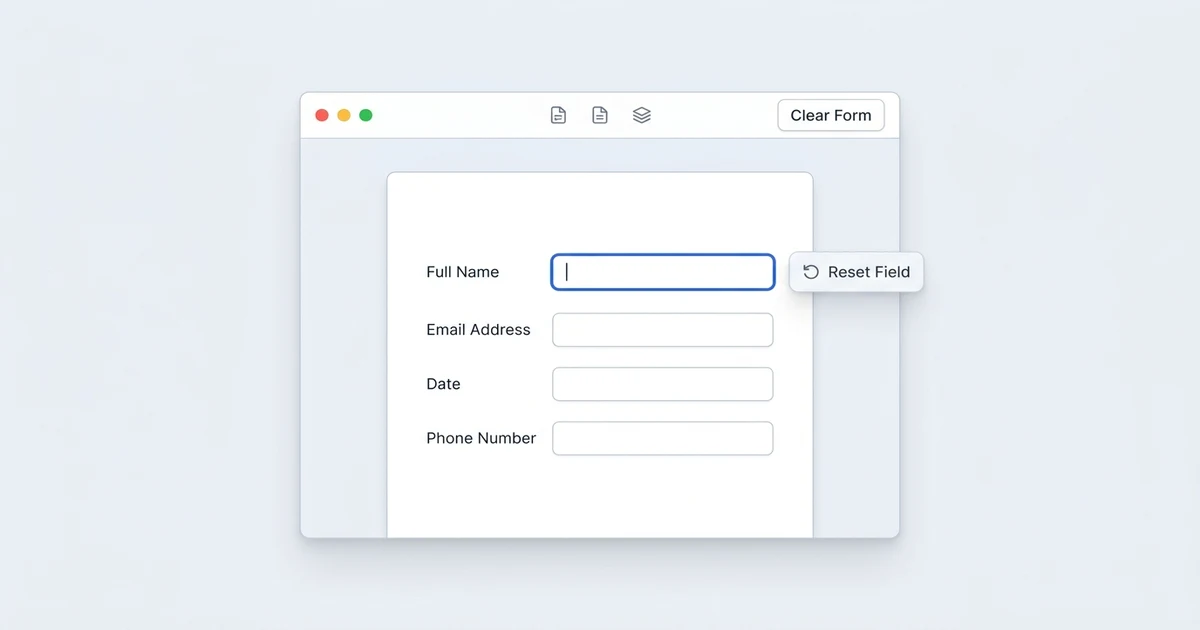
| Form has a "Reset" button, but clicking it does nothing | Broken or unexecuted JavaScript action (/ResetForm) | Use viewer-level form reset (Tools > Clear Form) |
4 Verified Ways to Clear and Reset Fillable PDF Fields
Method 1: Reset Form via Free Online PDF Editor (No Software Installation)
If your form is flattened, has locked permissions, or won't respond to standard keyboard input, OnlinePDFEdits lets you clear and edit values directly in your browser.
1. Open onlinepdfedits.com/edit-pdf
2. Upload your fillable PDF
3. If fields are interactive: Click the field and clear the text
4. If fields are flattened: Click "Whiteout", cover stuck text, and select "Add Text"
5. Click "Save & Download"
- Navigate to the OnlinePDFEdits Editor.
- Drag and drop your locked PDF file into the upload area.
- For interactive fields: Click into the field box. Highlight the existing value and press
Backspace. You can also enter replacement data using the exact matching font. - For flattened or uneditable text: Select the Whiteout tool from the top toolbar. Click and drag a clean white rectangle over the old data to mask it completely. Then, select the Text tool and type your updated information directly over the clean area.
- Click Download to save your clean, updated PDF.
Method 2: The Native Viewer Reset (Adobe Acrobat Reader, Foxit, PDF-XChange)
Dedicated desktop PDF viewers include a native command to reset all AcroForm fields back to their default empty states without manual backspacing.
Adobe Reader Workflow:
Open Document ➔ File / Tools ➔ Clear Form (or Revert) ➔ Save As New File
In Free Adobe Acrobat Reader:
- Open the PDF in Adobe Acrobat Reader.
- In the right-hand panel, look for Fill & Sign or Prepare Form (if available).
- In the top application menu bar, go to Edit (Windows) or Acrobat Reader (macOS).
- Select Form Options ➔ Clear Form. All interactive AcroForm text fields, checkboxes, and radio buttons will instantly revert to their blank default values.
- If the file has unsaved changes that you want to discard, simply go to File ➔ Revert to reload the original untouched file.
- Click File ➔ Save As and rename the document so you do not overwrite your master copy.
In Foxit PDF Reader or PDF-XChange:
- Navigate to the Form tab on the main ribbon.
- Click the Reset Form button located in the form management section.
Method 3: Bypass Browser Autofill Caching (Chrome, Edge, Safari)
When your browser refuses to forget previously typed data, use these steps to flush the cached form state:
- Launch a Private / Incognito Window: Press
Ctrl + Shift + N(Windows) orCmd + Shift + N(macOS) in Chrome or Edge. - Drag your PDF file into the private window. Because incognito mode disables autocomplete histories, cached form values will not populate.
- Clear the desired fields manually.
- Print to Clean PDF:
- Press
Ctrl + P(orCmd + P). - Set the destination printer to Save as PDF or Microsoft Print to PDF.
- Under More settings, ensure Form fields is checked.
- Click Save. This writes a clean, fresh PDF file containing only your newly updated values.
- Press
Method 4: Strip Permission Restrictions & Form Locks
Some corporate, government, or legal PDF forms are protected with an Owner Password (Permissions Password) that allows document reading and printing, but explicitly prohibits modifying form fields (/P -1028 permissions flag).
To verify and clear permissions:
- In Adobe Reader, press
Ctrl + D(orCmd + D) to open Document Properties. - Click the Security tab and inspect the Document Restrictions Summary.
- Check the line for Changing the Document and Filling of form fields. If marked Not Allowed, the document author applied permission security.
- Upload the document to OnlinePDFEdits. The system normalizes the document structure, allowing you to modify form fields or overlay clean text elements without requiring expensive enterprise decryption licenses.
For Form Creators: How to Add a Functional "Reset Form" Button
If you are creating fillable forms in Word, LibreOffice, InDesign, or Acrobat Pro, adding a built-in Reset button guarantees your end users will never get stuck with persistent data.
How AcroForm Reset Actions Work
Under ISO 32000-1 clause 12.7.5.3, a Reset-Form action (/ResetForm) clears the values of specified fields to their default state (/DV). If no specific fields are enumerated, it resets all fields in the document:
<<
  /Type /Action
  /S /ResetForm
  /Flags 0
>>
Steps to Add the Button in Adobe Acrobat Pro:
- Open your PDF form in Acrobat Pro and open the Prepare Form tool.
- Select the Button tool from the top toolbar.
- Draw a button at the bottom of your form (e.g., next to the "Submit" button).
- Double-click the button to open Button Properties.
- Under the General tab, name the button
btn_reset. - Under the Options tab, set the label text to
"Clear Form"or"Reset Form". - Go to the Actions tab:
- Set Select Trigger to Mouse Up.
- Set Select Action to Reset a form.
- Click Add...
- Choose Select all fields (or select individual inputs) and click OK.
- Save your document. Now, any recipient can empty the entire form with a single click in any standard PDF viewer.
When Desktop Software Is the Better Choice
While browser-based editing handles the vast majority of form resets, certain specialized workflows require native desktop software:
- FIPS-Compliant Certified Signatures: If your document contains an active SHA-256 digital certificate with legal non-repudiation (common in federal court filings and defense procurement), you must use Adobe Acrobat Pro or a hardware token reader to revoke or resign the document.
- XFA Dynamic Forms: LiveCycle / XFA dynamic XML forms (often used by Canadian government and USCIS immigration forms) do not use standard AcroForms and can only be modified inside Adobe Acrobat Reader on desktop.
- Mass Form Data Import/Export (FDF/XFDF): If you are processing thousands of form submissions using automated database scripts, dedicated command-line utilities like
pdftkor desktop enterprise suites are faster than manual browser tools.
For all everyday PDF contracts, tax worksheets, employment onboarding packets, and school registration forms, OnlinePDFEdits provides the fastest, zero-installation way to reset data and correct errors.
Frequently Asked Questions
Why can't I delete text in a fillable PDF form?
The PDF form was likely flattened during printing, turning interactive text fields into uneditable vector curves, or the creator enabled the read-only flag. Use an online editor like OnlinePDFEdits to whiteout the old text and add new text boxes.
How do I clear all fields in Adobe Acrobat Reader at once?
Open the document in Adobe Reader, navigate to Edit in the top menu bar, click Form Options, and select Clear Form. This instantly resets every interactive AcroForm field back to its default blank state.
Why do old values keep appearing when I reopen my PDF in Google Chrome?
Google Chrome caches form field inputs in its local autocomplete storage. Open the PDF in an Incognito window to bypass the browser cache, delete the text, and save the document via Print to PDF.
Does resetting form data delete the original blank form fields?
No. Resetting a form only clears the stored input values while leaving the underlying field boundaries, formatting rules, and labels completely intact.
Can I clear a fillable PDF form on an iPhone or Android phone?
Yes. Open the PDF in the free Adobe Acrobat Reader mobile app or upload the file to OnlinePDFEdits in your mobile browser, select the field, and delete the text.
Facts to Verify
- Verification that Adobe Acrobat Reader desktop continues to provide
Edit > Form Options > Clear Formacross all recent 2026 releases (Confirmed: present under Tools/Form handling). - ISO 32000-1 clause reference 12.7.5.3 for AcroForm
/ResetFormaction specification (Confirmed: standard ISO specification for PDF interactive forms). - OnlinePDFEdits whiteout and text tools functionality (Confirmed: standard features in
/edit-pdf).