Real text fields
Interactive AcroForm text fields with placeholder hints and a required flag — recipients click and type in any standard PDF reader.

Fillable PDF Maker
A fillable PDF is a document with interactive form fields — technically called AcroForm fields — baked into the file itself. Recipients open it in Adobe Acrobat Reader, macOS Preview, or any modern browser, click into a field, type their answer, tick checkboxes, sign, then save or print. Nothing gets flattened into an image: the fields are a real, standard part of the PDF format that has worked the same way since the late 1990s.
This free, browser-based fillable PDF creator builds those fields visually. Drag text fields where answers go, drop checkboxes next to options, and place a signature field at the bottom — each exports as a genuine interactive field, not a lookalike box. Set a placeholder hint and a required flag on any text field so recipients know exactly what to enter.
There is no signup and no watermark, and the export is a crisp vector PDF with selectable text. Design the layout with the same canvas tools you would use for any document — fonts, shapes, tables, logos — then send one file that works everywhere.
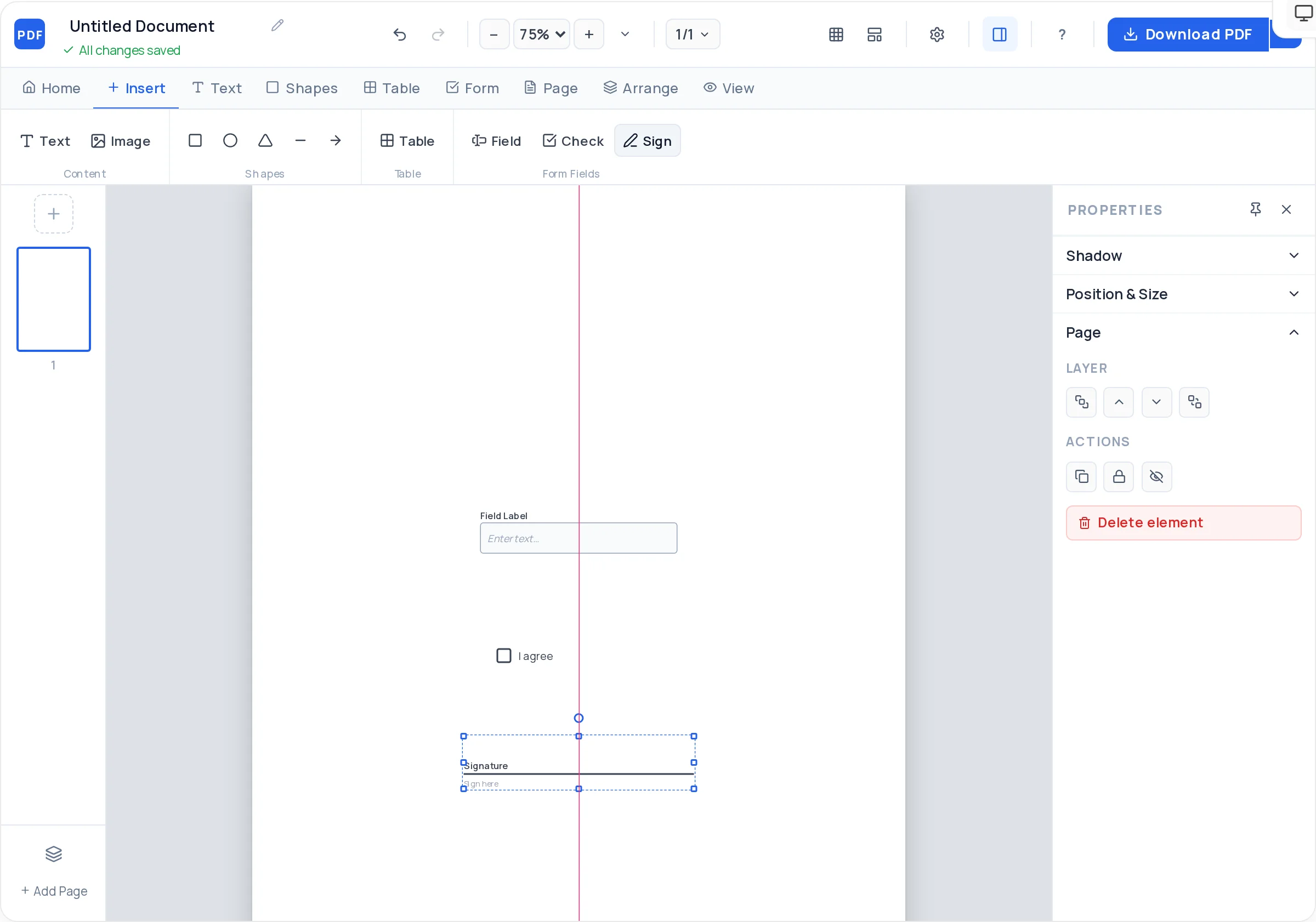
Interactive AcroForm text fields with placeholder hints and a required flag — recipients click and type in any standard PDF reader.
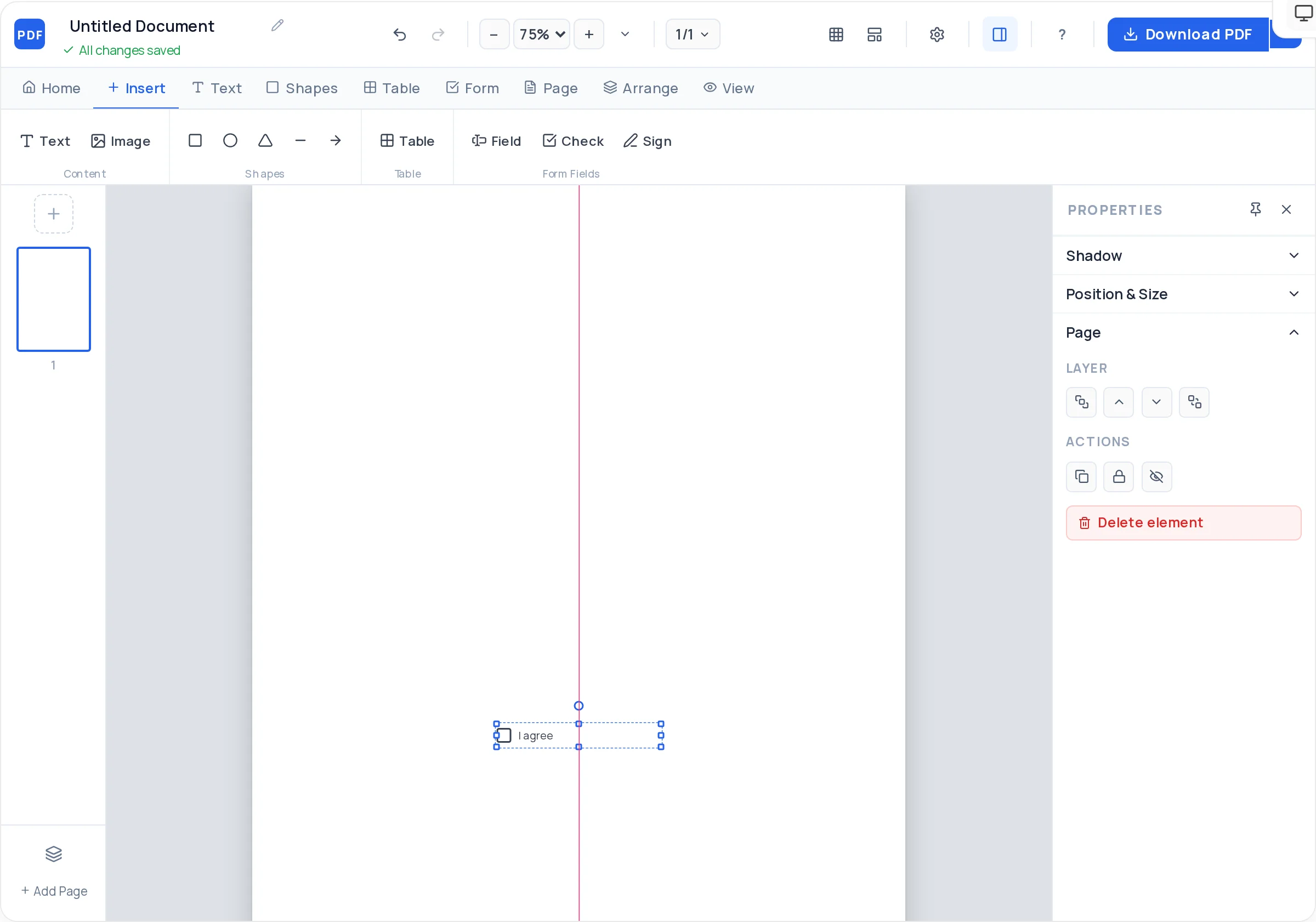
Clickable checkboxes that toggle on and off in Adobe Reader, Preview, and browsers — ideal for consent lines and yes/no options.
Place a dedicated signature field where the recipient signs. For signing an existing PDF instead, use /sign-pdf.
Smart alignment guides, snap-to-grid, and arrow-key nudging keep label–field pairs perfectly lined up down the page.
Set labels in Arial, Helvetica, Georgia, Times New Roman and more, with size, weight, color, and letter-spacing control.
Server-rendered vector PDF where every field stays interactive — recipients fill it in, then save or print. No watermark.
Start the free PDF Creator with a blank A4 or US Letter page — no account needed.
Add a text element for each question or label (Full name, Email, Date). Place labels above or to the left of where answers will go.
Add an interactive text field next to each label. Size it for the answer — a name needs one line, an address needs a taller box.
Drop checkboxes beside options or consent statements, and place a signature field with a date line near the bottom.
Give each text field a placeholder hint (e.g. "name@example.com") and mark must-answer fields as required.
Download the vector PDF, open it in Adobe Acrobat Reader, and fill every field once yourself before sending it out.
Keep text fields at least 28px tall. Cramped fields clip descenders and feel fiddly on trackpads and touchscreens.
Reader is what most recipients use. Open your exported PDF there, tab through the fields, and check every checkbox toggles.
Add an asterisk to the label text (Full name *) alongside the required flag — print-and-pen fillers never see digital validation.
Split "City / State / ZIP" into three fields instead of one long box. Answers stay tidy and are easier to read later.
Some people will print the form. Keep field boxes visible with a light border so a pen-filler knows where to write.
It is a PDF containing AcroForm fields — the interactive form standard built into the PDF format. Fields are stored inside the file, so the same document is fillable in Adobe Reader, macOS Preview, and browsers without any special software.
They open it in any standard PDF reader, click into fields to type, tick checkboxes, and sign. Then they use Save (or the browser's Download/Print-to-PDF) to keep a completed copy and email it back to you.
Yes. AcroForm text fields, checkboxes, and signature fields work in the free Adobe Acrobat Reader app on iOS and Android, and in most mobile browsers' built-in PDF viewers.
Yes — free, unlimited, and the exported PDF never carries a watermark. There is no signup either; you design in the browser and download the finished file.
This tool builds fillable PDFs from scratch on a design canvas. To type onto or modify a PDF you already have, upload it to /edit-pdf instead; to just sign an existing file, use /sign-pdf.
Three today: text fields (with placeholder and required flag), checkboxes, and signature fields. There are no radio buttons, dropdowns, date pickers, or calculation fields yet — a labeled checkbox group covers most multiple-choice needs.
No — there is no online submission backend. Recipients save the completed PDF on their device and email or upload it back to you, which also means their answers never pass through our servers.
Fields survive most standard PDF operations, but some tools flatten forms during processing. If you post-process the file (for example with /merge-pdf), re-open the result and confirm the fields are still clickable.
All of these open the same free online PDF creator — each guide covers what makes that document work.
Design a PDF form from a blank page
Create a registration form PDF for your event, course, or club
Create a survey PDF with rating rows and comment boxes
Create a checklist PDF you can actually tick off
Create a Fillable Job Application Form PDF
No signup, no watermark, nothing to install — design your document and download a clean, print-ready PDF in minutes.
Build your fillable PDF — free