How to Edit PDF on Mac: Preview vs Dedicated Editors
Why can't Apple Preview edit a simple typo in a PDF? Here is the real technical story behind macOS Preview, why the white-box trick backfires, and how to edit text cleanly.

It is 4:45 PM on a Friday. You are sitting at your Mac, getting ready to send an urgent consulting agreement or revised client proposal. The PDF is open in front of you.
Everything looks sharp on your Retina display. Then you catch it: a stray typo in the pricing schedule. It says "$4,500" instead of "$5,400", or maybe the project kickoff date is still listed as 2025.
You do what every human being does: you double-click the number, expecting a blinking cursor so you can hit Backspace and type the right digit.
Instead, the entire line turns light blue. You click again. You double-click harder. You press Backspace.
Your Mac answers with that familiar, dull system alert thump.
You scan the top menu bar: File, Edit, View, Go, Tools, Window. Under Tools, you spot Annotate > Text. Relieved, you click it. A box lands in the middle of your page with the word "Text" in tiny red Helvetica. Now you are dragging an awkward little box around your screen, trying to figure out why an operating system that can render 8K video in Final Cut without breaking a sweat cannot change a single number in a three-page document.
Welcome to the Apple Preview dilemma.
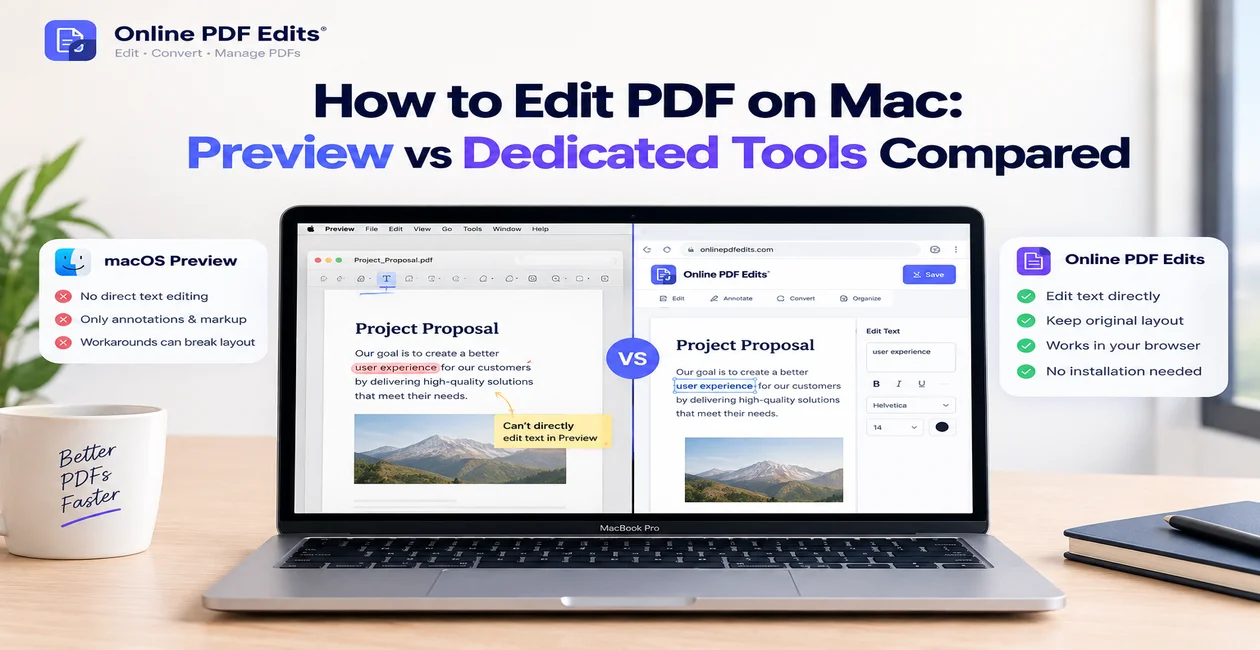
The Quick Answer: No, Apple Preview cannot edit, delete, or rewrite existing text in a PDF. macOS Preview was engineered from day one as a high-speed document viewer and annotator, not a word processor or layout editor. You can highlight passages, fill interactive forms, draw shapes, and sign agreements, but Preview cannot touch the underlying vector text stream. To modify existing words without drawing clumsy white rectangles over them, you need a dedicated vector editor like Online PDF Edits.
Here is the real technical story of why Preview behaves this way, why the internet's favorite "white box workaround" is a legal hazard, and how you can actually edit existing PDF text on your Mac without coughing up $239.88 a year to Adobe.
Why Doesn't Preview Just Let You Edit Text? (The NeXTSTEP Heritage)
To understand why Preview feels so stubborn, you have to look at how Apple built macOS graphics in the first place.
Preview is not new. Its ancestry dates back to the late 1980s and Steve Jobs' NeXTSTEP operating system. NeXT used Display PostScript to render everything on screen. When Apple created OS X in 2001, they adapted this concept into Quartz 2D, a display engine built fundamentally around Adobe's PDF specifications.
Because the Mac operating system literally uses PDF concepts to draw windows, buttons, and text, Preview was designed to do one job brilliantly: read and render drawing instructions as fast as humanly possible.
When Preview opens a PDF, it does not see a document with paragraphs, sentences, and margins. It sees a flat coordinate canvas with precise drawing operators:
BT                          % Begin text object
/F1 12.0 Tf                 % Set font F1 at 12pt
72.0 712.5 Td               % Move to coordinate (x=72, y=712.5)
($5,400 Total Fee) Tj       % Paint these exact glyphs
ET                          % End text object
To Preview, those words are not editable text in a word processor. They are positioned graphical marks on a virtual sheet of paper—no different than a line, a logo, or a background gradient.
Preview knows how to paint those characters onto your screen with crisp anti-aliasing. It knows how to let you copy them to your clipboard. But it has no text-reflow engine. It does not know what happens to the rest of the sentence if you replace "$4,500" with "$105,000". Because it cannot predict how text should wrap or match uninstalled font subsets, Apple simply disabled text editing altogether.
The Dangerous "White Box" Trap: A Cautionary Tale
If you search Apple Support forums or Reddit for "how to edit text in Mac Preview", hundreds of threads offer the same crafty tip:
- Press
Shift + Cmd + Ato bring up the Markup Toolbar. - Click the Shapes tool and choose the Rectangle.
- Change the border to "None" and the fill color to pure white.
- Drag that white box over the text you want to get rid of.
- Create a new Text Box, pick a font that looks somewhat similar, and type your new words over the white patch.
On screen, it looks like a miracle. The old text vanishes; the new text sits on top. You export the file and email it off.
What Actually Happened Under the Hood:
┌────────────────────────────────────────────────────────────────────────┐
│                   THE PREVIEW "WHITE BOX" SECURITY TRAP                │
├────────────────────────────────────────────────────────────────────────┤
│                                                                        │
│   [ Layer 3: Top ]    ───► Floating Text Box ("Jane Doe")             │
│   [ Layer 2: Middle ] ───► White Rectangle (Covers visually only)      │
│                                                                        │
│   [ Layer 1: Base ]   ───► Original Text Stream ("CONFIDENTIAL DATA")  │
│                            ▲ STILL FULLY SEARCHABLE & EXTRACTABLE!     │
└────────────────────────────────────────────────────────────────────────┘
A white rectangle is merely an annotation instruction telling a PDF viewer to draw white pixels over a coordinate box. It does not delete a single byte of the text underneath.
Here is how that shortcut backfires in the real world:
- The
Cmd + FDiscovery: Anyone opening your PDF in Google Chrome, Microsoft Edge, or Adobe Acrobat who searches for the "deleted" word will find it instantly. The viewer highlights the text right through your white box. - The Copy-Paste Leak: If a recipient presses
Cmd + Aand copies the page into an email or Word document, the hidden original text copies straight out. Law firms and financial advisors have faced serious regulatory penalties because client social security numbers or settlement figures were "redacted" with white shapes. - Screen Readers Read Everything: Assistive technology used by visually impaired recipients reads the raw document stream in order. A screen reader will announce the old confidential text, followed immediately by the floating replacement text, exposing the discrepancy.
- Font and Alignment Clashes: Unless your document uses default system Helvetica or Times New Roman, your newly typed text box will almost never match the kerning, tracking, and weight of the surrounding paragraph. It sticks out like a photocopy patch.
What Apple Preview DOES Do Exceptionally Well
Just because Preview cannot rewrite text does not mean you should abandon it. For day-to-day document triage, it remains one of the cleanest tools Apple ever built.
Here is what Preview excels at:
1. Signing Documents with Trackpad, iPhone, or Webcam
Apple’s hardware ecosystem shines here. Click the Markup Toolbar (Shift + Cmd + A), select the Sign icon, and click Create Signature:
- Trackpad: Draw your signature with your finger. Press any key when finished.
- iPhone / iPad: Your nearby iPhone automatically lights up with a signature pad. Sign with your finger or an Apple Pencil, and it appears instantly on your Mac.
- Camera: Sign a white index card with a black ink pen and hold it up to your Mac’s FaceTime camera. Preview digitizes it into a clean, transparent vector stamp.
2. Rearranging, Extracting, and Rotating Pages
Press Cmd + Option + 2 to open the Thumbnails sidebar:
- Rotate a single crooked scan: Click that specific page thumbnail and press
Cmd + R(rotate clockwise) orCmd + L(counter-clockwise). - Delete unwanted pages: Click the thumbnail and press
Delete. - Merge two documents: Open both PDFs, drag a thumbnail from one window, and drop it straight into the sidebar of the other.
3. Filling Genuine AcroForm Fields
When an institution (like the IRS or your bank) sends you a standardized interactive form, Preview handles it smoothly. Form fields illuminate with light blue highlights. You can Tab from field to field, select radio buttons, and pick dates without installing third-party apps.
How to Actually Edit Existing Text on a Mac (The Practical Options)
When you need to fix a name, correct an address, change a price, or update terms, you have two realistic paths:
Method 1: Use an In-Place Vector Editor (Online PDF Edits)
If you need a quick, accurate fix and do not want to buy specialized desktop software, Online PDF Edits solves the exact problem Apple Preview avoids.
Instead of converting your PDF to a Word document (which scrambles multi-column layouts, shifts tables, and wrecks headers), it operates as a true in-place vector editor directly inside Safari or Google Chrome:
- Navigate to the Free Online PDF Editor.
- Drop in your document.
- Click directly onto the text you need to alter. The editor reads the character coordinates and detects the font family, font size, weight, and color.
- Make your correction. The surrounding paragraphs, borders, and margins stay anchored exactly where they were.
- Click Download. Your file exports cleanly—with zero watermarks, zero tracking, and no white rectangles.
Privacy Guarantee: Unlike general cloud converters that save your documents on remote servers, your files are processed in ephemeral working memory and automatically purged when your session ends.
Method 2: Dedicated Desktop Software (When You Need Heavy Machinery)
If your daily job involves rebuilding 200-page technical manuals, running deep batch OCR on file cabinets of scanned paper, or managing legal Bates numbering, you should look at dedicated commercial applications:
- Adobe Acrobat Pro ($19.99/mo / $239.88/yr): The industry benchmark. It can reflow entire paragraphs across columns and embed proprietary font licenses. However, it is expensive, requires a recurring Creative Cloud subscription, and installs several background helper daemons on your Mac.
- PDF Expert for Mac ($79.99/yr or $139.99 lifetime): A refined macOS app from Readdle. It features clean typography controls and smooth text editing. It is faster and lighter than Acrobat, though font matching can still struggle on unusual commercial fonts.
Comparison: Apple Preview vs. Online PDF Edits vs. Adobe Acrobat Pro
| Capability | Apple Preview (macOS) | Online PDF Edits | Adobe Acrobat Pro |
|---|---|---|---|
| Price | Free (Included with Mac) | 100% Free | $239.88 / year |
| Edit Existing Words | ❌ No (Annotations only) | ✅ Yes (Direct text replacement) | ✅ Yes (Full paragraph reflow) |
| Font Matching | ❌ None (System fonts only) | ✅ Automatic vector match | ✅ Yes |
| White-Box Free | ❌ Requires manual shapes | ✅ Clean vector replacement | ✅ Clean vector replacement |
| Installation | Built-in | Zero install (Safari/Chrome) | Heavy desktop installer |
| Signatures | ✅ Excellent (Trackpad/iPhone) | ✅ Yes (Draw, type, upload) | ✅ Yes (Digital certificates) |
| Page Thumbnails | ✅ Reorder, rotate, delete | ✅ Yes (Organize & delete) | ✅ Yes |
| Document Privacy | 100% local on device | 0 cloud retention / Ephemeral | Synced to Creative Cloud |
Frequently Asked Questions
Can you edit text in a PDF using Mac Preview for free?
No. Apple Preview cannot edit, delete, or rewrite existing text in a PDF document. Preview is built as a document viewer and annotator. It allows you to highlight text, fill interactive form fields, add notes, and overlay new text boxes, but it cannot alter the original text layer. To edit existing words for free on a Mac, use a browser-based vector editor such as Online PDF Edits.
How do I delete text in a PDF using Mac Preview?
You cannot delete original text inside Preview. Placing a white rectangle over the text is cosmetically misleading and insecure because the underlying text stream remains embedded in the file and can be uncovered using copy-paste or search. To delete or replace text securely, open the file in a true PDF editor that directly removes the text object from the document's vector tree.
Is it safe to redact confidential numbers in Preview by drawing black boxes?
No. Drawing a black shape over a credit card or Social Security Number in Preview does not redact the data. The text underneath remains intact and can be copied by anyone who opens the file. However, if you are running macOS Big Sur (version 11) or newer, you can use Preview's official Redact Tool (Shift + Cmd + A > Redact icon with an ink block). The official Redact tool permanently burns away the underlying characters upon saving.
Why do annotations made in Preview look different on Windows or Android?
Apple Preview uses Apple's Quartz 2D graphics engine, which renders fonts, line weights, and transparency slightly differently than Adobe Acrobat or Google Chrome on Windows. Furthermore, standard notes and callout shapes are stored in an annotation layer that some lightweight mobile viewers ignore. If you need markup to appear identically on every device, flatten your document before sending it.
Can I convert a PDF to Word on Mac without third-party tools?
macOS does not have a native PDF-to-Word converter. If you copy text from Preview and paste it into Apple Pages or Microsoft Word, the formatting, column alignment, and tables usually scramble. For quick edits, editing the PDF directly in an inline editor is much faster than attempting format conversions.
The Verdict
- Stick with Apple Preview when you need to read research papers, sign an agreement with your trackpad, fill out a bank form, or delete a stray blank page. It is fast, clean, and already on your Mac.
- Switch to Online PDF Edits when you need to fix typos, change dates, update prices, or adjust names directly in the document without ruining your typography or paying for an Adobe subscription.
- Invest in Adobe Acrobat Pro only if your organization regularly runs legal Bates stamping, pre-press color separations, or large-scale document compliance archiving.