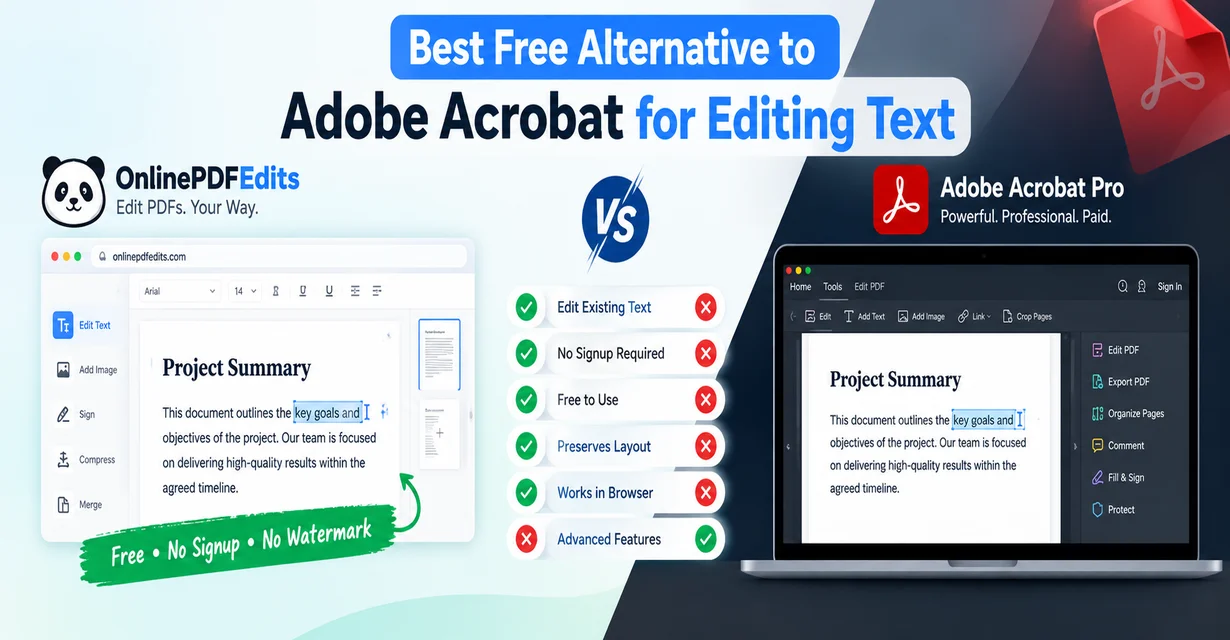
Best Free Alternative to Adobe Acrobat for Editing Text
Editing a typo or changing a date in a PDF shouldn't require a $239/year Adobe Acrobat Pro subscription. Here is an honest breakdown of the best free alternatives for editing existing PDF text without paywalls or watermarks.

If you have ever needed to fix a simple typo, update an invoice date, or change a name on a contract, you have almost certainly encountered the Adobe Acrobat paywall. Opening a PDF in Acrobat Reader reveals the "Edit PDF" tool, but clicking it immediately launches a checkout modal demanding a $19.99/month ($239.88/year) subscription to Adobe Acrobat Pro.
This frustration explains why search queries like "best free alternative to adobe acrobat for editing text" regularly feature Reddit threads and Microsoft support forums at the top of Google. Everyday users do not need enterprise prepress preflighting, redaction indexing, or complex form scripting—they just want to edit 2 to 3 lines of existing text and download a clean file without paying twenty dollars.
In this guide, we break down the reality of PDF text editing in 2026, explain why 90% of "free" PDF tools fail, and evaluate the top free alternatives to Adobe Acrobat.
The 3 Traps of "Free" PDF Editors
Before comparing alternatives, it helps to understand why finding a genuine free replacement for Acrobat Pro is notoriously difficult. Most tools online use one of three deceptive tactics:
- The Annotation Pretender: Tools like Microsoft Edge, Apple Preview, and basic web editors claim to "edit" PDFs, but they only let you draw text boxes over existing content or add sticky notes. They cannot modify or delete the words already printed on the page.
- The Hidden Watermark Trap: Several free utilities let you edit text seamlessly, only to burn a massive semi-transparent watermark across the center of your export unless you upgrade to a paid account.
- The 2-Task Daily Limit: Freemium web suites (like Smallpdf) allow basic actions, but cap free users at just 2 tasks per 24 hours, locking your browser with a countdown timer mid-workflow.
Annotation vs. In-Place Stream Editing: Why Most Tools Fail
Why is editing existing PDF text so hard without Adobe? It comes down to how the PDF specification actually works.
A PDF is not a Word document. It does not store paragraphs, flowing text margins, or continuous sentences. Instead, a PDF is a compiled content stream of PostScript coordinates. A line of text might look like this inside the raw file:
BT
/F1 12 Tf
72 712 Td
[(John) 12 (Doe) -4 ( - Senior) 8 ( Developer)] TJ
ET
Each character has an exact visual coordinate and an embedded font glyph index.
- Why Word conversion fails: When you open a PDF in Microsoft Word, Word guesses the layout and reflows the entire document. This frequently breaks two-column layouts, shifts table borders, and misaligns signatures.
- Why annotation tools fail: Annotation tools simply stamp a new white rectangle over the old text and type new characters on top. If the document is selected or copied, the original text is still underneath.
- How in-place stream editing works: True stream editing (used by Acrobat Pro and modern native browser editors) decompresses the page stream, identifies the exact font subset table, and swaps the character bytes directly at the vector level without reflowing adjacent layout elements.
2026 Head-to-Head Comparison: Free Adobe Acrobat Alternatives
| Tool | In-Place Text Editing? | Daily Task Limit | Account / Signup Required? | Watermark on Export? | Best For |
|---|---|---|---|---|---|
| Online PDF Edits | Yes (Full Stream) | Unlimited | No | No | Quick in-browser text fixes & typos |
| Adobe Acrobat Pro | Yes | Paid ($19.99/mo) | Yes (Credit card) | No | Enterprise publishing & preflight |
| Smallpdf | Pro Only | 2 tasks / day | Required for edit | No | General conversions & cloud storage |
| Sejda PDF | Yes | 3 tasks / day (50MB) | No | No | Scheduled web tasks under 50 pages |
| LibreOffice Draw | Partial (Font reflow) | Unlimited (Desktop) | No (Open source) | No | Offline desktop power users |
| Microsoft Edge | No (Annotation only) | Unlimited | No | No | Highlight & freehand signing |
In-Depth Look at the Top Alternatives
1. Online PDF Edits (Best Overall for Quick Text Edits)
If your primary goal is to change dates, fix spelling errors, or update names without installing software, Online PDF Edits provides the cleanest workflow.
- How it works: It uses native in-browser rendering paired with server-side font stream modification. When you click a sentence, it opens the exact text run, matches the embedded font metrics, and exports a clean vector PDF.
- Pros: 100% free, no account registration, no watermarks, and no artificial 2-task daily limits.
- Cons: Focused strictly on editing and essential utilities; does not offer cloud file archiving.
2. LibreOffice Draw (Best Desktop Open-Source Alternative)
For users who require an entirely offline, open-source workflow.
- How it works: Draw parses the PDF into individual graphical vector elements that you can click and edit.
- Pros: Completely free, open source, works offline on Windows, Mac, and Linux.
- Cons: Because it treats text blocks as drawing boxes, complex fonts can substitute unexpectedly, and multi-column document layouts may shift during import.
3. Sejda PDF (Best for Moderate Tasks with Page Caps)
Sejda is one of the few web-based editors that allows direct text editing on its free tier.
- Pros: Polished interface, supports text editing, signing, and form filling.
- Cons: Free usage is strictly capped at 3 tasks per day, documents must be under 50 pages, and files cannot exceed 50 MB.
Step-by-Step: How to Edit Existing PDF Text Online Free
Here is how you can edit existing text in any standard PDF document in under 60 seconds:
- Open the Editor: Head directly to the online PDF text editor.
- Upload Your File: Drag and drop your PDF into the upload zone (files up to 50 MB are supported).
- Click the Text You Want to Change: The editor detects text boundaries automatically. Click directly on the line or paragraph you want to edit.
- Make Your Corrections: Type your updated text. The editor automatically matches font weight, tracking, and sizing.
- Download Clean PDF: Click Save & Download. Your file exports instantly without watermarks or payment screens.
Helpful Next Steps & Related Tools
Once you have finished editing your document, you may need to prepare it for emailing or official portal uploads:
- Reduce File Size: If your document needs to clear Gmail's 25MB limit or strict portal caps, use the free PDF compressor to target 100KB, 200KB, or 500KB.
- Combine Multiple Files: To assemble supplementary documentation, use our tool to merge PDF files online.
- Explore Other Alternatives: Read our detailed Smallpdf Alternative breakdown to see how to bypass daily task limits.
Frequently Asked Questions (FAQ)
Can I edit existing text in a PDF without Adobe Acrobat Pro?
Yes. You do not need Adobe Acrobat Pro for standard text edits. Specialized tools like Online PDF Edits can decompress the underlying content stream and modify text characters directly in your browser without requiring a subscription.
Why does Microsoft Edge or Apple Preview not let me edit text?
Microsoft Edge and Apple Preview are PDF readers and annotators, not structural editors. They can draw text boxes and signatures on top of the document layer, but they cannot access or modify the compiled text stream beneath.
Will editing a PDF scramble the layout like Microsoft Word does?
Not if you use an in-place stream editor. Converting a PDF to .docx in Word forces the software to reconstruct columns, margins, and line wraps, which often disrupts complex layouts. An in-place editor leaves the surrounding coordinates untouched, changing only the specific characters you select.