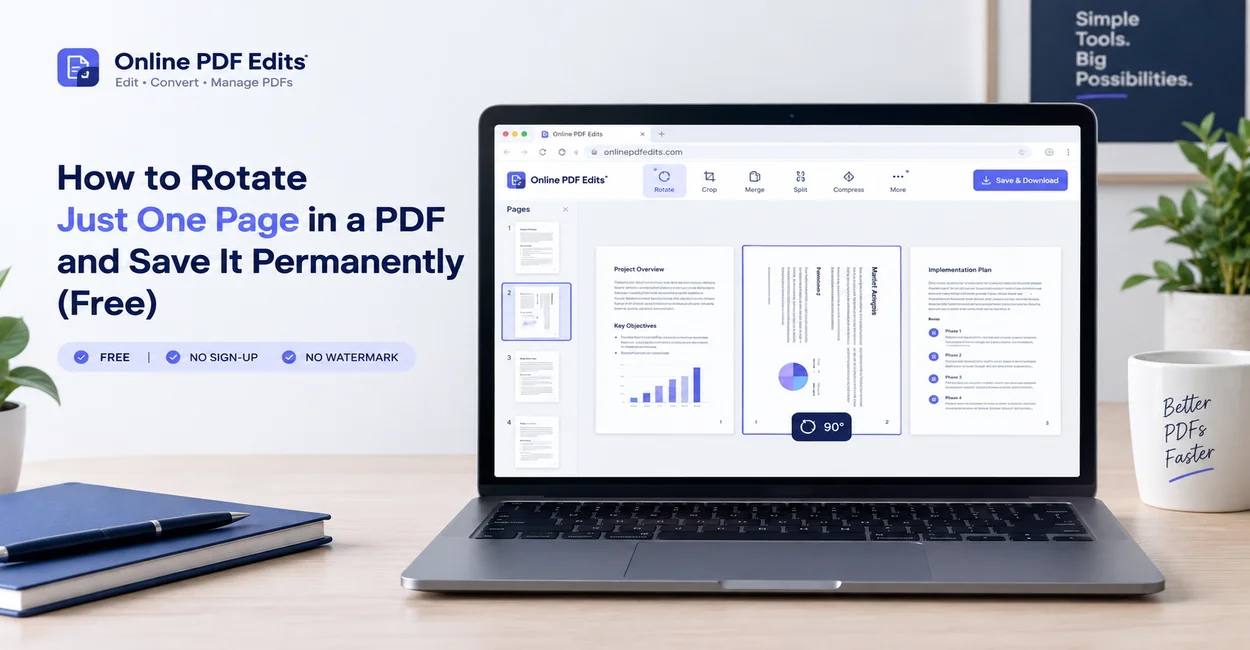
How to Rotate One Page in a PDF and Save
Fix sideways scans and mixed-orientation contracts by rotating just one single page in your PDF and saving it permanently without buying Adobe Acrobat.

You open a 25-page legal agreement, medical record, or scanned financial packet, and everything looks crisp—until you reach page 7. It was fed into the scanner horizontally, and now you have to crane your neck 90 degrees to read it.
You click the circular "Rotate" icon in Google Chrome or Adobe Acrobat Reader. The sideways page turns upright—but so does every other page in the document. Even worse, when you close the file and reopen it, page 7 flips right back to sideways.
The core dilemma is simple: most PDF viewers confuse viewing orientation with file-level structural rotation.
In this guide, you will learn the exact technical difference between temporary view rotation and permanent page rotation, and how to rotate just one single page in a PDF and save it permanently across Web, Windows, Mac, and mobile—completely free and without paying for an Adobe Acrobat Pro subscription.
The Technical Difference: Why Your Rotated PDF Reverts
To permanently fix a sideways page, you must understand how PDF readers handle page orientation under the hood:
┌─────────────────────────────────────────────────────────────────────────────┐
│                    VIEWER ROTATION vs. STRUCTURAL ROTATION                  │
├──────────────────────────────────────────┬──────────────────────────────────┤
│ 1. Temporary View Rotation (Viewport)    │ 2. Document Object Rotation      │
│                                          │    (PDF Dictionary)              │
│ • Handled by: Chrome, Edge, Free Reader  │ • Handled by: Native PDF Engines │
│ • Trigger: Clicking "Rotate" in viewer   │ • Key: /Rotate 90 / 180 / 270    │
│ • Scope: Rotates entire document window  │ • Scope: Affects ONLY target     │
│ • File on disk: UNCHANGED (Reverts upon  │   page dictionary object         │
│   reopening or emailing)                 │ • File on disk: PERMANENT        │
└──────────────────────────────────────────┴──────────────────────────────────┘
When you view a document in standard browser viewers (Chrome, Edge, Firefox) or the free Adobe Acrobat Reader, clicking the rotate button changes the display canvas in temporary RAM. It does not write to the underlying PDF object table.
In the official Adobe PDF specification (ISO 32000-1), each individual page in a document is represented by a separate Page Object Dictionary. Within this dictionary, an optional entry named /Rotate defines the page's orientation in degrees relative to the document coordinate system:
/Rotate 0(Standard portrait default)/Rotate 90(Rotated 90 degrees clockwise)/Rotate 180(Upside down / inverted)/Rotate 270(Rotated 90 degrees counterclockwise)
To rotate only one page and keep it saved, the editing software must modify the /Rotate integer on that specific page dictionary while leaving every sibling page dictionary untouched.
Method 1: Rotate a Single Page Online (Fastest, Any Device)
If you need to fix a document immediately without installing software or entering credit card details, you can use our browser-based editor:
Step 1: Open the Online Tool
Go to the Online PDF Editor or the Delete & Reorder PDF Pages Tool. No account or software installation is required.
Step 2: Select Your PDF
Drag and drop your file into the editor. A visual thumbnail panel will load, displaying every page in your document exactly as it renders.
Step 3: Select Only the Sideways Page
Click on the thumbnail of the specific page you want to fix (for example, Page 7).
- Click the Rotate Clockwise (90°) button or press the shortcut key R.
- If the page is rotated the wrong direction, press Shift + R (or click Rotate Counterclockwise).
- Notice that all other pages remain in their original orientation.
Step 4: Click Download / Export
Click Export / Save PDF. The editor writes the updated /Rotate parameter directly into the file's object stream and downloads the corrected document to your device.
When you open this file in Adobe Reader, Apple Preview, or send it as an email attachment, the rotated page stays upright permanently.
Method 2: Rotate a Single Page on Mac Using Preview (Built-in & Free)
If you are using macOS, Apple's built-in Preview app can rotate individual pages permanently without third-party software. However, you must use the sidebar thumbnails; otherwise, macOS will rotate all pages together.
┌─────────────────────────────────────────────────────────────────────────────┐
│                       MACOS PREVIEW SHORTCUT WARNING                        │
├─────────────────────────────────────────────────────────────────────────────┤
│ • Pressing [Cmd + R] without sidebar active → ROTATES ENTIRE DOCUMENT       │
│ • Selecting single thumbnail + [Option + Rotate] → ROTATES ONLY THAT PAGE   │
└─────────────────────────────────────────────────────────────────────────────┘
Accurate Step-by-Step Instructions:
- Open the PDF in Preview: Double-click your PDF file to open it in macOS Preview.
- Turn on the Thumbnail Sidebar: Click the View menu in the top menu bar (or the sidebar icon at the top-left) and select Thumbnails (or press
Option + Cmd + 2). - Select the Individual Page: In the left-hand sidebar, click the thumbnail of the single page that is sideways. Ensure only that page has a blue highlight box around it.
- Rotate Only the Selected Page:
- Option A: Hold the Option key on your keyboard and click Tools > Rotate Left or Rotate Right. (Holding Option restricts the rotation to the selected page).
- Option B: Right-click (or Control-click) on the selected thumbnail in the sidebar and choose Rotate Left or Rotate Right.
- Save the File Permanently:
- Press
Cmd + Sto overwrite the existing file, or go to File > Export as PDF... to save it as a new copy.
- Press
Method 3: Rotate a Single Page on Windows (Edge / Free Print Workaround)
On Windows 10 and Windows 11, the default PDF viewer is Microsoft Edge. While Edge allows you to rotate the entire document, it does not include a direct "rotate selected page" button.
If you do not want to install third-party desktop utilities, you have two options:
Option A: Use the Free Online Editor (Recommended)
Navigate to Online PDF Edits in Edge or Chrome. Select the single thumbnail, hit rotate, and save. It processes client-side in seconds.
Option B: The Windows "Print to PDF" Page Isolation Workaround
If you are strictly offline and have a document where only one page needs fixing:
- Open the file in Microsoft Edge.
- If you only need that single page right now, press
Ctrl + P(Print). - Set the destination printer to Microsoft Print to PDF.
- Under Pages, choose Current Page or enter the specific page number.
- In Layout, change the orientation from Portrait to Landscape (or vice versa).
- Click Print, select a save location, and save that page as a standalone upright PDF.
- Merge it back into the master document using our Free Merge PDF Tool.
Why Adobe Acrobat Reader Won't Let You Save Single-Page Rotations
A common source of frustration among office workers is the free Adobe Acrobat Reader:
- If you open a PDF in Adobe Acrobat Reader and click
View > Rotate View > Clockwise, the entire document flips on your screen. - If you click
File > Save, the save button is often greyed out, or when you reopen the file, the rotation is completely gone. - If you click on the "Organize Pages" tool in Acrobat Reader, Adobe immediately displays a paywall modal demanding an upgrade to Adobe Acrobat Pro ($19.99 – $29.99/month).
Adobe purposely restricts persistent page dictionary manipulation (/Rotate, /MediaBox, page extraction, and deletion) to its paid Pro tier. You do not need to buy Acrobat Pro just to turn a sideways invoice upright. Modern client-side tools and native OS utilities perform this operation losslessly at zero cost.
Comparison of Methods
| Method | Cost | Operating System | Preserves Vector Quality? | Requires Software Install? |
|---|---|---|---|---|
| Online PDF Edits | 100% Free | All (Web, Win, Mac, iOS, Android) | Yes (Lossless metadata) | No |
| macOS Preview | Free | Mac only | Yes (Lossless) | No (Built-in) |
| Adobe Acrobat Reader (Free) | Free | Windows / Mac | No (Cannot save single page) | Yes |
| Adobe Acrobat Pro | $239/year | Windows / Mac | Yes | Yes (Heavy download) |
| Smallpdf / iLovePDF | Freemium | Web | Yes (Server upload required) | No |
Important Quality Checks Before You Save
When rotating individual pages, keep these practical document safeguards in mind:
- Verify Vector Sharpness: True PDF rotation is a coordinate transform, not an image re-rasterization. When you rotate a digital document in Online PDF Edits, text remains selectable and sharp at 800% zoom.
- Check Landscape Tables & Financial Spreads: Often, a single page in a business contract is deliberately designed in landscape format to accommodate a wide financial balance sheet or architectural chart. Check whether the text reads left-to-right before forcing it into portrait mode.
- Double-Sided Scan Flip Errors: If every even page in a scanned packet is upside down, your scanner's duplex feeder was misaligned. Rather than rotating 50 pages one by one, use our batch orientation filters to flip all even pages simultaneously.
- Form Fields and Annotations: Ensure form fields, signature boxes, and digital annotations rotate along with the page canvas. Standard PDF spec compliant engines recalculate the
/Rectcoordinates of form widgets so fields don't get displaced outside the printable area.
Frequently Asked Questions
Can I rotate just one page in a PDF and save it?
Yes. Open the PDF in Online PDF Edits, click on the thumbnail of the specific page you want to fix, and click Rotate (or press R). Then click Download / Save. This modifies the /Rotate dictionary entry for only that page and saves it permanently to disk.
Why does my rotated PDF revert back to sideways when I reopen it?
When you rotate a PDF inside standard browser viewers (Chrome or Edge) or the free Adobe Acrobat Reader, you are only changing the temporary display zoom angle in your computer's memory. Because the viewer does not write changes to the underlying file, the document reverts to its original orientation upon closing. You must use an editor that writes to the PDF dictionary.
How do I rotate a single page in a PDF on Mac for free?
Open the PDF in Preview, open the thumbnail sidebar (Option + Cmd + 2), select the thumbnail of the sideways page, hold down the Option key, and click Tools > Rotate Left or Rotate Right. Then press Cmd + S to save permanently.
Does rotating a single page reduce document quality or blur text?
No. Rotating a page does not compress images or downsample text. It simply changes the orientation flag (/Rotate 90, 180, or 270) in the PDF metadata. All fonts, vector lines, text layers, and embedded images remain 100% untouched and razor-sharp.
How do I rotate one page in a PDF on Windows without Adobe Acrobat?
The easiest way on Windows 10 or 11 is to open Online PDF Edits in any web browser, select the sideways page thumbnail, click Rotate, and download the saved file. You do not need to install Adobe Acrobat Pro or any third-party desktop software.
Can I rotate an odd or even page batch if my scanner fed pages upside down?
Yes. If your duplex scanner flipped half of your document, upload the PDF to our Page Organizer Tool, choose the "Select Even Pages" filter, and apply a 180° rotation to all selected pages in a single click.
Related Document Tools & Guides
- Free Online PDF Editor — Edit text, adjust layouts, and modify PDFs directly in your browser.
- How to Change PDF from Portrait to Landscape — Guide on adjusting orientation for multi-page documents and spreadsheets.
- Delete & Reorder PDF Pages — Remove blank scanner pages and organize document structure.
- Merge PDF Documents — Combine rotated chapters and attachments into a unified file.
- Smallpdf Alternative — Private, client-side PDF editing without upload limits or watermarks.