How to Add Page Numbers to a PDF Starting From a Specific Page
Numbering every page from 1 is easy. Skipping the cover, starting at 7 because this is volume two, or numbering only part of a document takes a tool that understands the difference.

Adding "1, 2, 3" to every page is the easy case. Real documents ask for more than that:
- the cover shouldn't be numbered, and page 2 should be page 1
- this report continues from another one, so numbering starts at 47
- only the appendix needs numbering
- the number should say "Page 3 of 12", not just "3"
Here's how to do all of it, free, in the editor.
Key takeaways
- Page numbers are added with the Stamp tool, which also does watermarks, headers and footers — same mechanism, different presets.
{n}is the page number and{total}is the page count, so "Page {n} of {total}" works.- Skip first page leaves a cover untouched.
- Start at renumbers, exactly like Word: it's the number printed on the first page that gets one.
- By default
{n}is the page's real number, so stamping pages 5-20 prints 5 to 20 — not 1 to 16.
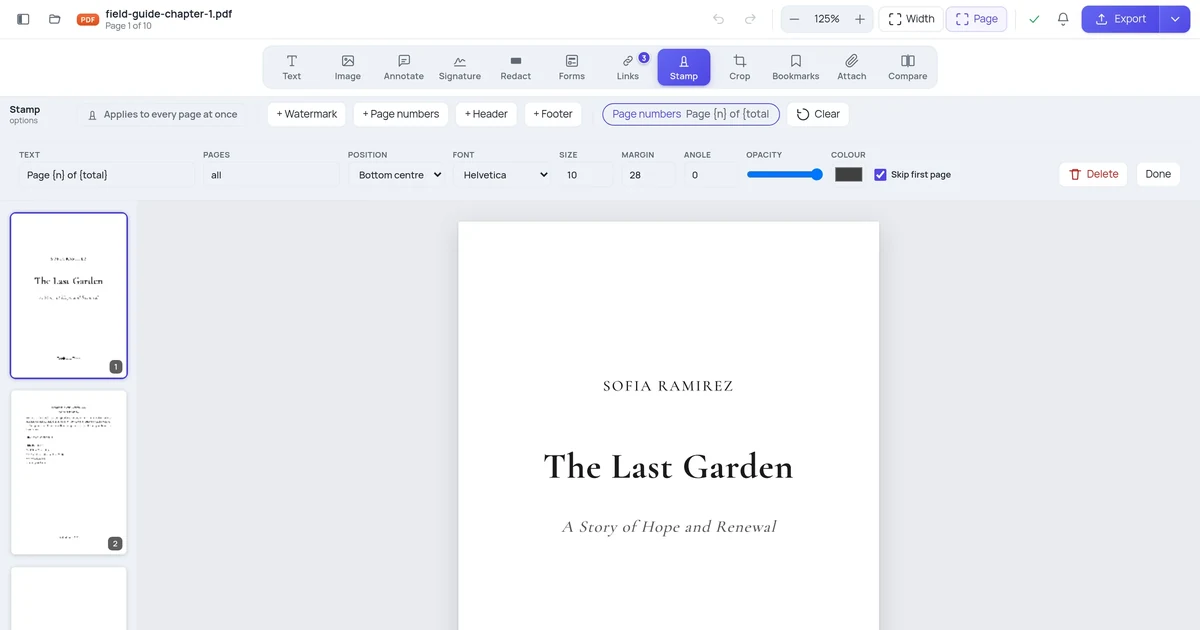
Step 1 — Open the Stamp tool

Click + Page numbers. You get a footer reading "Page {n} of {total}" centred at the bottom of every page, which you can then adjust.
Step 2 — Set the range and the numbering
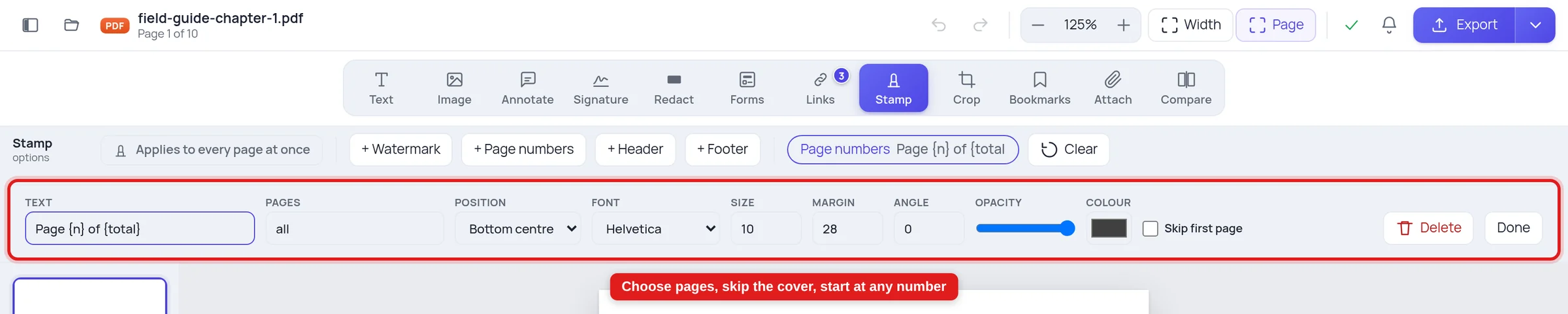
The controls that matter for this job:
Text — the template. {n} becomes the page number, {total} the page count. Plain text works too: — {n} —, or Acme Ltd · {n}.
Pages — which pages get a number. all, odd, even, or a list like 1-3,7. Leave blank for all.
Skip first page — the cover stays clean.
Position — nine anchor points. Bottom centre is conventional; bottom right suits documents that will be bound.
Margin — how far in from the edge, in points. 28 is a sensible footer; increase it if your document already has content low on the page.
Size, font, colour — 9 to 11pt in a plain face is standard. Numbers should be findable, not decorative.
Step 3 — Check the preview
The numbers appear on the pages themselves, with {n} and {total} already worked out for each one.
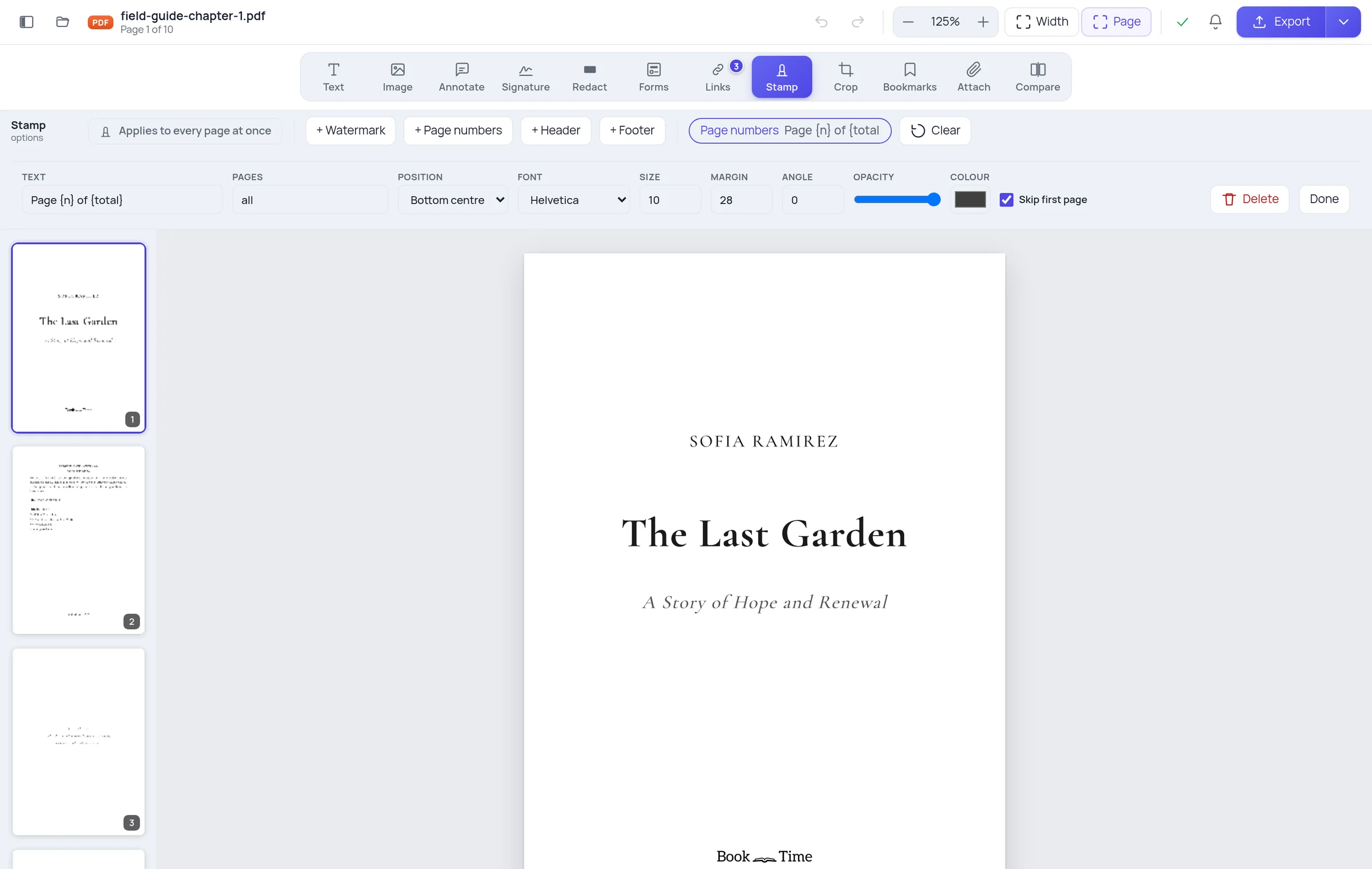
This matters more than it sounds. The preview shows the real number on each real page, so "skip the cover and start at 1" is something you can verify before exporting rather than discover afterwards.
The three numbering patterns people actually need
Skip the cover, number the rest normally. Turn on skip-first. Page 2 gets "2". Use this when the cover is part of the document's page count.
Skip the cover, and page 2 is page 1. Turn on skip-first and set start-at to 1. The cover is untouched and the next page prints "1". This is the classic report layout.
Continue from another document. Set start-at to wherever the last volume ended. If part one finished on page 46, set 47.
The rule underneath: {n} defaults to the page's real position, and start-at overrides it. Get this wrong in either direction and your numbering silently disagrees with your table of contents.
One thing worth knowing: {total} is always the document's page count. If you number pages 5-20 of a 40-page document, "Page 5 of 40" is correct — the document has 40 pages.
Headers, footers and watermarks
The same tool does the rest of the page furniture:
- Header — a line along the top. Document title, client name, "Draft".
- Footer — a line along the bottom. Company name, file reference, date.
- Watermark — large, rotated, translucent text across the middle.
You can stack several. A header with the document title, a footer with the page number, and a DRAFT watermark is three stamps applied in one export.
A note on accuracy
Page numbers go where you asked on every page, including rotated ones and pages that were already cropped. On a landscape page, "bottom centre" is the bottom as you see it, not the bottom of the underlying sheet — a distinction that trips up a surprising number of tools when a document mixes orientations.
The numbers are real, selectable text, not a picture. They're searchable, they print sharply at any size, and screen readers can read them.
Frequently asked questions
Can I number a document that already has page numbers? Yes, but you'll get two sets. Crop or redact the old ones first, or place the new number somewhere the old one isn't.
Can different sections have different numbering? Yes — apply one stamp to pages 1-10 and another to 11-40 with its own start-at. Each is a separate stamp.
Will the numbers show up in a printed copy? Yes. They're page content, not an annotation, so they always print.
Can I put the number in the margin? Yes. Choose a middle-left or middle-right anchor and set the margin.