
How to Sign a PDF Form That Has a Signature Field
Official forms often contain a real signature field rather than a printed line. Here's how to find it, sign in exactly the right place, and return the document.

Official forms — tax forms, bank paperwork, HR documents — often contain a real signature field rather than a printed line. It's a defined region the form's author marked as "sign here."
Signing in the right place matters more than it does on a printed form. Some organisations check that the signature landed in the field.
Key takeaways
- A signature field is a real, detectable part of the form, not a line drawn on the page.
- The Forms tool finds it and labels it Click to sign, so you don't have to hunt.
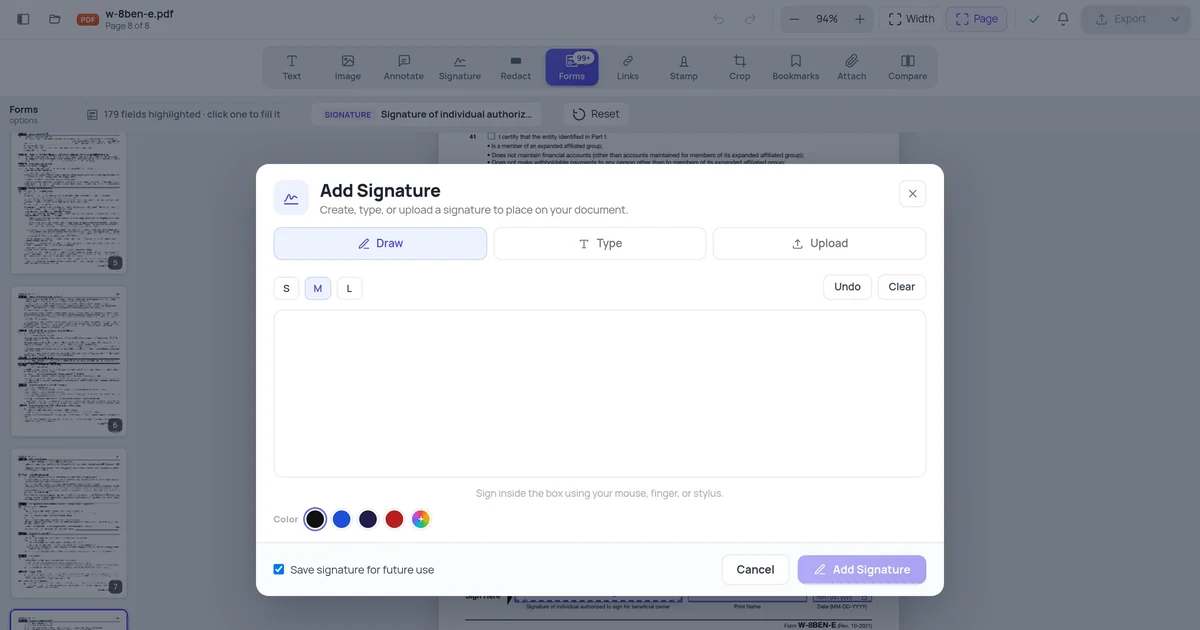
- Clicking it opens the signing dialog: draw, type or upload a mark.
- The signature is placed in the field's exact position and size.
- A drawn or typed signature is an electronic signature — legally recognised in most jurisdictions, but not the same thing as a cryptographic digital signature.
Step 1 — Open the form and switch to Forms
Open the document in the editor and click Forms. The document's fields are read and highlighted.
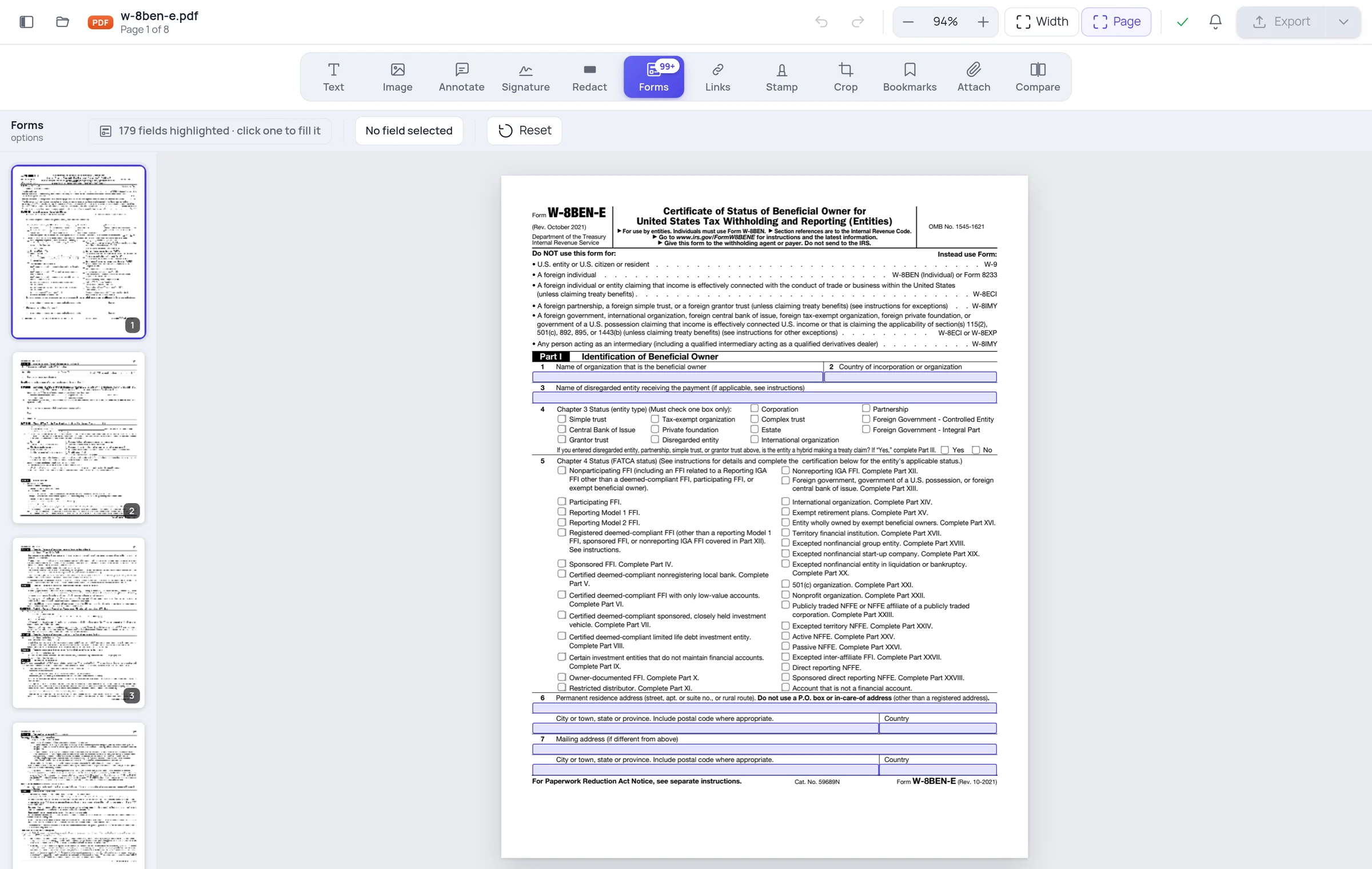
Official forms often have a lot of fields — the example above has well over a hundred, most of them checkboxes. Finding the signature box by eye on page 8 is exactly the kind of tedious that a tool should handle.
Step 2 — Find the signature field
Signature fields are shown differently from everything else: they're marked Click to sign.
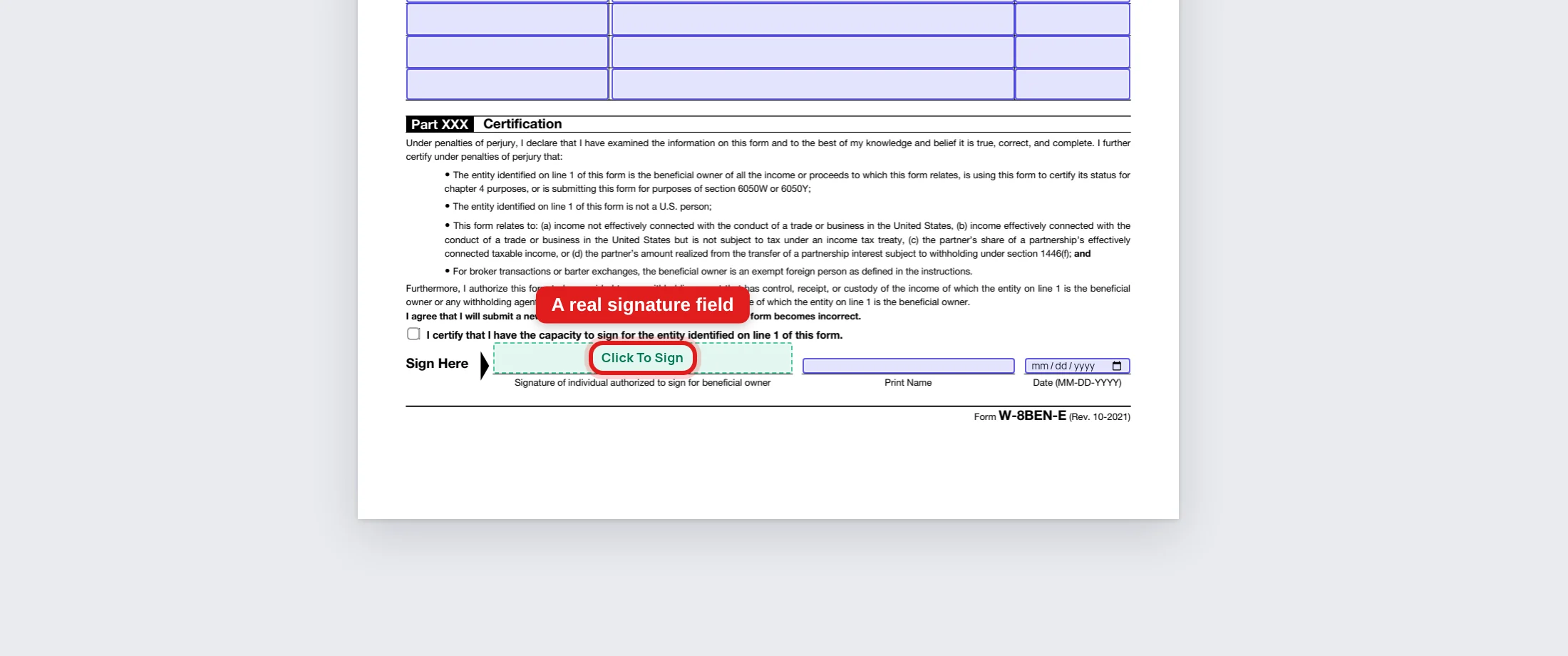
That's deliberate. A signature field isn't a text box, and pretending it is — dropping a text cursor in it and letting you type your name — would produce something that isn't a signature and doesn't sit where the form expects.
Step 3 — Sign
Click the field. The signing dialog opens.

Three ways to produce a mark:
- Draw — with a mouse, trackpad, or a finger on a touchscreen. A finger on a phone gives the most natural result.
- Type — your name is rendered in a signature typeface. Fast and consistent; obviously not a reproduction of your handwriting.
- Upload — a photo or scan of your real signature. Use a PNG with a transparent background, or a clean photo of black ink on white paper.
The signature is placed in the field's position and scaled to fit, so it lands where the form's author intended.
Step 4 — Fill in the rest, then export
A signature field almost never travels alone. There's usually a printed name, a date, a capacity or title. Those are ordinary fields — click and type.
If the form has a date field, it offers a date picker rather than making you guess whether it wants DD/MM or MM/DD.
Then export. Consider flattening on the way out: it makes the signature and the answers a permanent part of the page, so they display identically in every viewer and can't be casually edited. For a signed document that's usually what you want. See making form answers stick.
Electronic vs digital: the distinction that matters
These get used interchangeably and they are not the same.
An electronic signature is a mark indicating intent to sign — drawn, typed, or an uploaded image. This is what filling a signature field with a mark produces. It's legally recognised in most jurisdictions: the ESIGN Act and UETA in the US, eIDAS in the EU, and equivalents in the UK, Canada and Australia.
A digital signature is a cryptographic operation using a certificate. It proves who signed and that the document hasn't changed since. It's what a bank or a court means by "digitally signed," and it needs a certificate from a trusted authority.
For most forms — HR paperwork, supplier agreements, school forms — an electronic signature is accepted and expected. For anything where a challenge is plausible, ask which one is required before you sign.
Some documents are excepted from electronic signing altogether in some jurisdictions: wills, certain family-law and court documents, and a few notice types. When it matters, check.
If the form has no signature field
Then there's nothing to detect, and the "sign here" line is printed decoration. Use the Signature tool instead: create your mark and place it where the line is. The result is the same to a human reader — it just isn't anchored to a defined field.
Frequently asked questions
Is my signature stored anywhere? It's used to place the mark in your document. See our file handling policy for how files are handled.
Can I sign on a phone? Yes, and drawing with a finger usually looks better than a mouse. Zoom in first.
Can I reuse the same signature on several forms? Yes — upload the same image each time for a consistent mark.
The field says "Click to sign" but nothing happens. The field may be read-only, which some forms use to lock a signature block until other fields are complete. Fill the rest of the form first.
Does signing lock the document? No. Filling a signature field places a mark; it doesn't apply cryptographic protection. Flatten on export if you want the values fixed.


