Why Your PDF Form Answers Disappear (and How to Make Them Stick)
You fill in a form, save it, send it — and the recipient opens a blank form. It's one of the most common PDF complaints, and it has a specific cause and a one-checkbox fix.

You fill in a PDF form. Every field looks right. You save it, email it, and the person on the other end replies: "It's blank."
This is one of the most common PDF complaints there is, and it isn't your fault. It comes down to a quirk in how PDF forms store answers.
Key takeaways
- A PDF form stores an answer's value and its appearance as two separate things.
- Some tools write the value but not the appearance. Viewers that don't generate one show an empty field.
- Flattening solves it permanently: the answers become part of the page, so every viewer shows them.
- Flattening also removes the pale blue tint viewers paint over fillable fields.
- The trade-off: a flattened form can't be edited any more. That's usually what you want when returning a completed form.
Why an answer can exist and not show
When you type into a form field, two things should happen:
- The value is stored — the field now knows its answer is "Amelia Hartley".
- An appearance stream is generated — the drawing instructions that put those letters on the page in the right font, size and position.
The second step is the one that gets skipped. Some tools write the value and set a flag meaning "viewer, please draw this yourself." Good viewers do. Plenty don't — browser previews, phone quick-look panes, older readers — and those show you a blank field over a stored answer.
So the answer really is in the file. It just has nothing to draw.
This is also why the same PDF can look filled in on your laptop and empty on someone's phone. The file didn't change; the viewer did.
The fix, in one checkbox
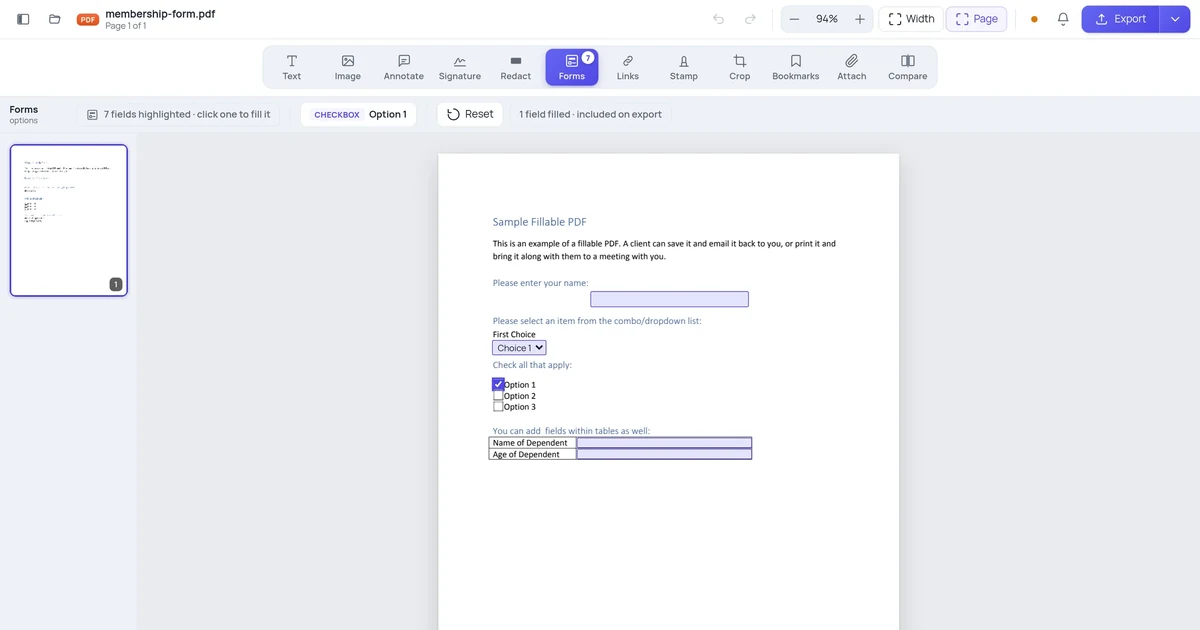
Fill your form in the editor as normal.
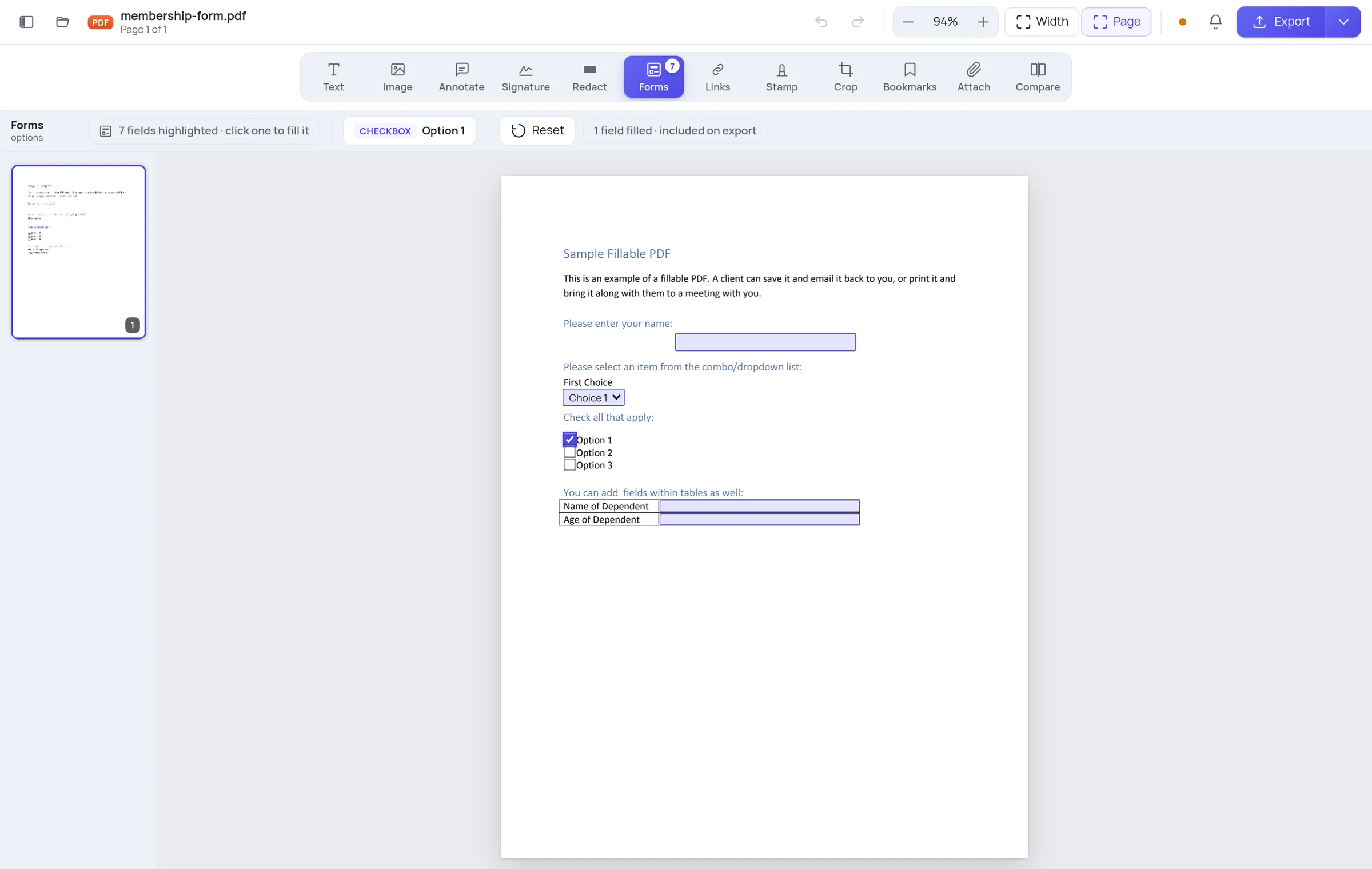
Then click Export. If the document has fillable fields, the dialog offers a choice.
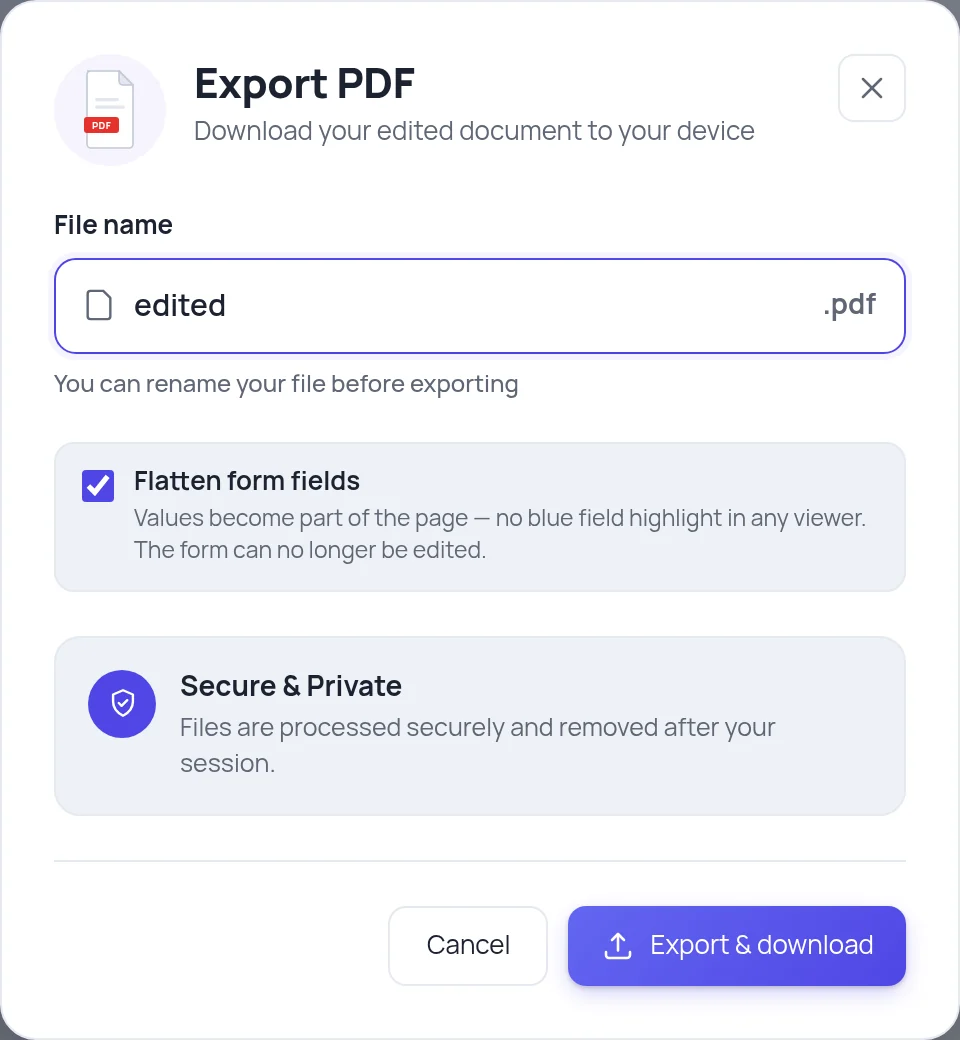
Tick Flatten form fields.
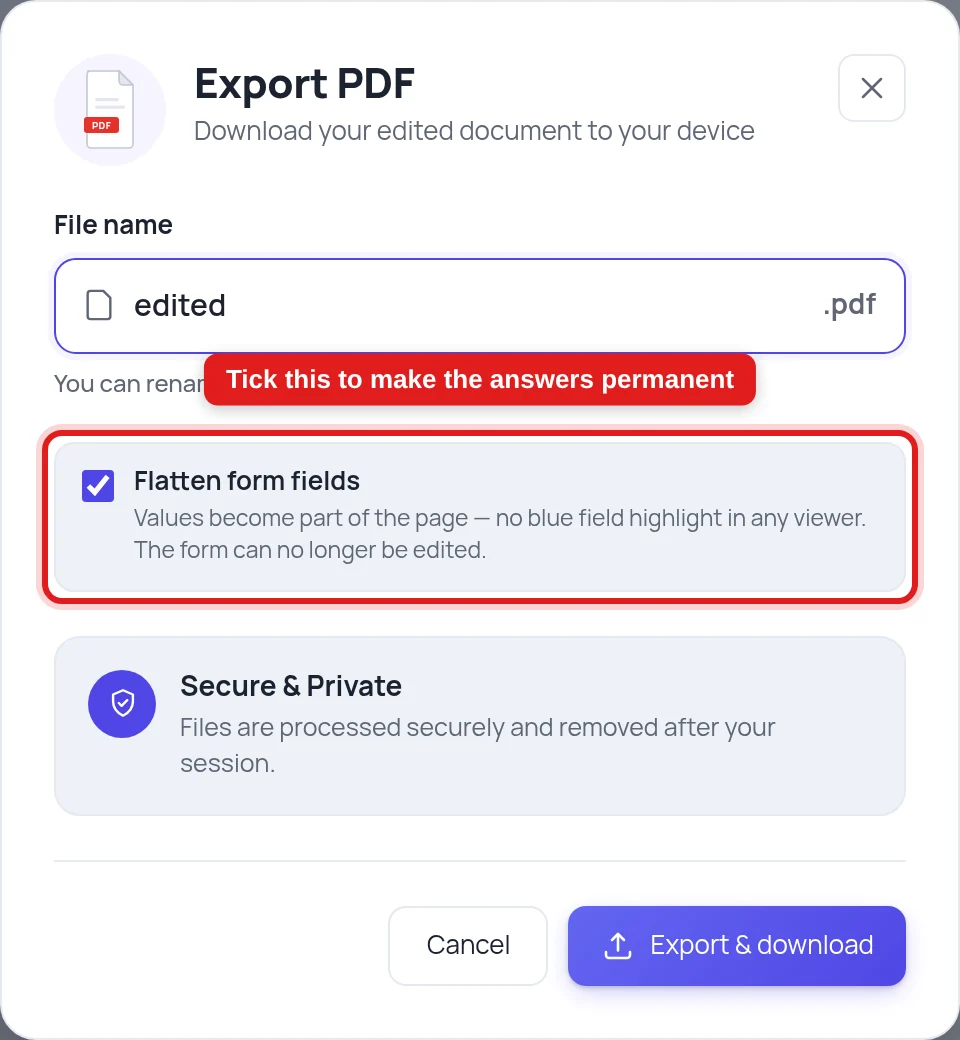
That draws every answer onto the page as ordinary page content and removes the interactive fields. There is no longer a "value" that might not render — there is just text on a page, exactly like the rest of the document.
The result displays identically in every viewer, on every device, forever.
The other thing flattening fixes
Open a fillable PDF in Chrome or Acrobat and the fields have a pale blue tint. People assume the tint is in their file and try to remove it.
It isn't in the file. Viewers add it to show you what's interactive. You can't delete it, because it was never there — it's the viewer's way of saying "this is a form."
Flattening removes it, because after flattening there's nothing interactive left to tint. That's the only way to get rid of it, and it costs you the interactivity — which is why we make it an explicit choice rather than doing it silently.
When not to flatten
Keep the form fillable when:
- You're sending a form out for someone else to complete.
- You're saving a draft you'll come back to.
- The recipient needs to update the answers later.
Flatten when:
- You're returning a completed form.
- The answers should be fixed and not casually editable.
- It's going to be printed or archived.
- You need it to look identical everywhere.
A useful pattern: export a flattened copy to send, and keep an unflattened copy for yourself. Same answers, two purposes.
Other reasons answers vanish
Flattening covers most cases. Two others worth knowing:
You filled it in a browser preview and hit browser-save. Some in-browser viewers let you type but save the original file, silently discarding what you typed. Fill forms in a real editor and export.
The form has JavaScript that clears fields. Some corporate forms reset on open or recalculate on load. Flattening defeats this too — there are no fields left to reset.
Frequently asked questions
Can I undo flattening? No. The fields are gone and the values are page content. Keep an unflattened copy if you might need to edit it.
Does flattening change how it looks? It shouldn't — the answers are drawn where the fields were, in the font the form specified. What changes is that they're now permanent.
Will a flattened form still print correctly? Yes, and more reliably. The blue field tint never printed anyway, but a form that relies on the viewer generating appearances can print blank fields on some printers.
Does flattening protect the document? It stops casual editing of the answers, but it isn't security — the text can still be edited by anyone with a PDF editor. For real protection you need a password or a signature.