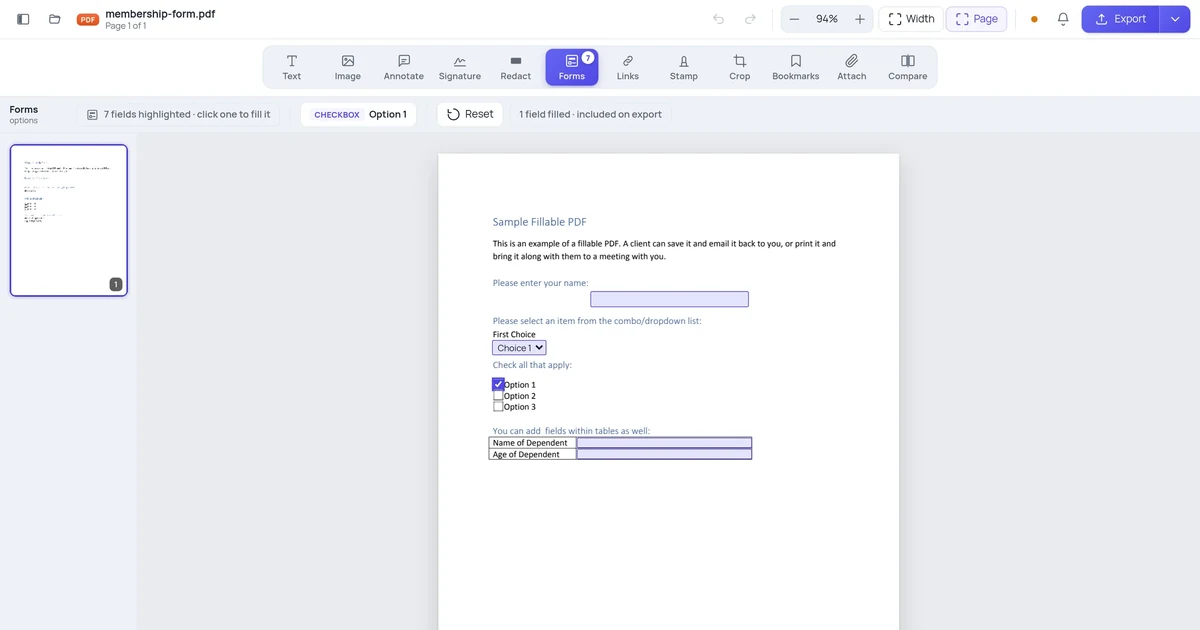
How to Fill Out a PDF Form That Won't Let You Type
You open a form, click a blank line, and nothing happens. Here are the four reasons a PDF refuses to let you type, and how to fill each kind in without printing anything.

You open a PDF form, click on the blank next to "Name," and nothing happens. No cursor, no box, no typing. The form was clearly designed to be filled in — so why won't it let you?
There are four different reasons, and they need four different fixes. This guide shows you how to tell which one you're looking at, then fills the form in free in your browser using the Online PDF Edits editor.
Key takeaways
- A PDF form only accepts typing if it contains interactive fields. Many "forms" are just lines and boxes drawn on the page.
- If the fields are there, the Forms tool finds them and shows you a count — so you know within a second which kind of document you have.
- Real fields keep their type: a checkbox stays a checkbox, a dropdown still drops down, a date field still offers a date.
- If there are no fields, you can still type on the page with the Text tool — you just place the text yourself.
- Nothing is uploaded to a third party and no account is required.
First: which of the four problems do you have?
| What you see | What it means | Fix |
|---|---|---|
| Blanks are underscores or ruled lines, nothing highlights | No interactive fields | Type on the page directly |
| Fields highlight but won't accept input | Form is secured, or the viewer is read-only | Open it in a real editor |
| The text is fuzzy and selecting it selects a whole block | It's a scan — a photo of a form | Type on top of the image |
| Fields work in one app, not another | Viewer doesn't render AcroForm data | Use a viewer that does |
The fastest way to tell them apart is to let the editor count the fields for you.
Step 1 — Open the form and switch to Forms
Open your PDF in the editor, then click Forms in the toolbar.

The editor reads the document's form data as soon as it loads, so the answer arrives immediately.
Step 2 — Read the badge
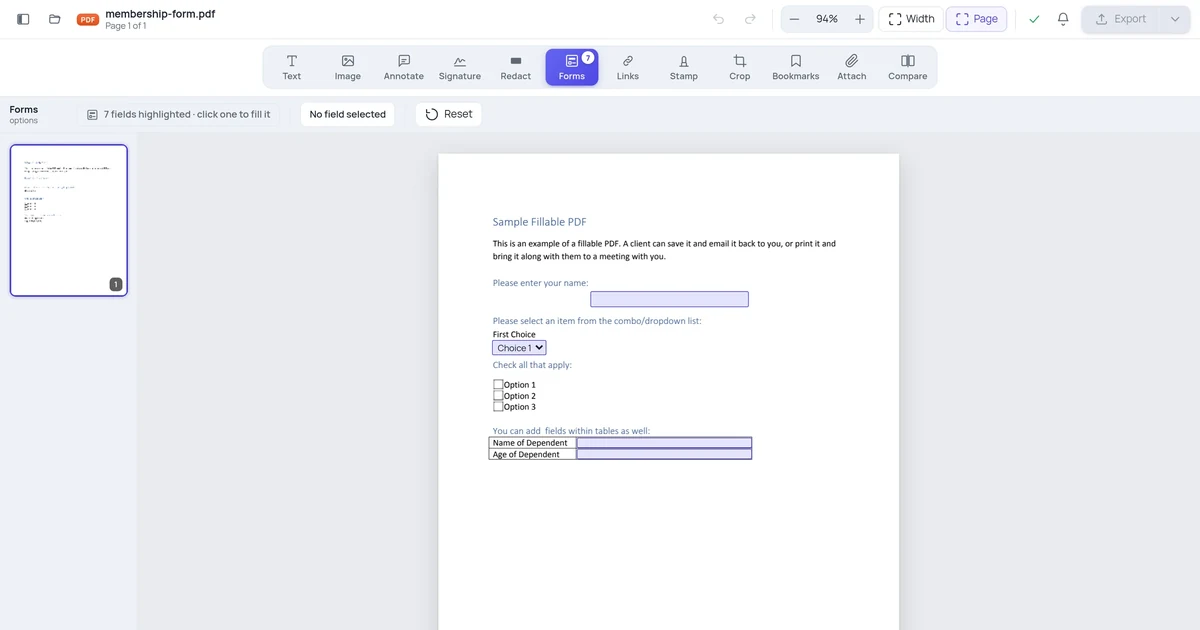
If the PDF has real fields, a number appears on the Forms tool and every field is outlined on the page.
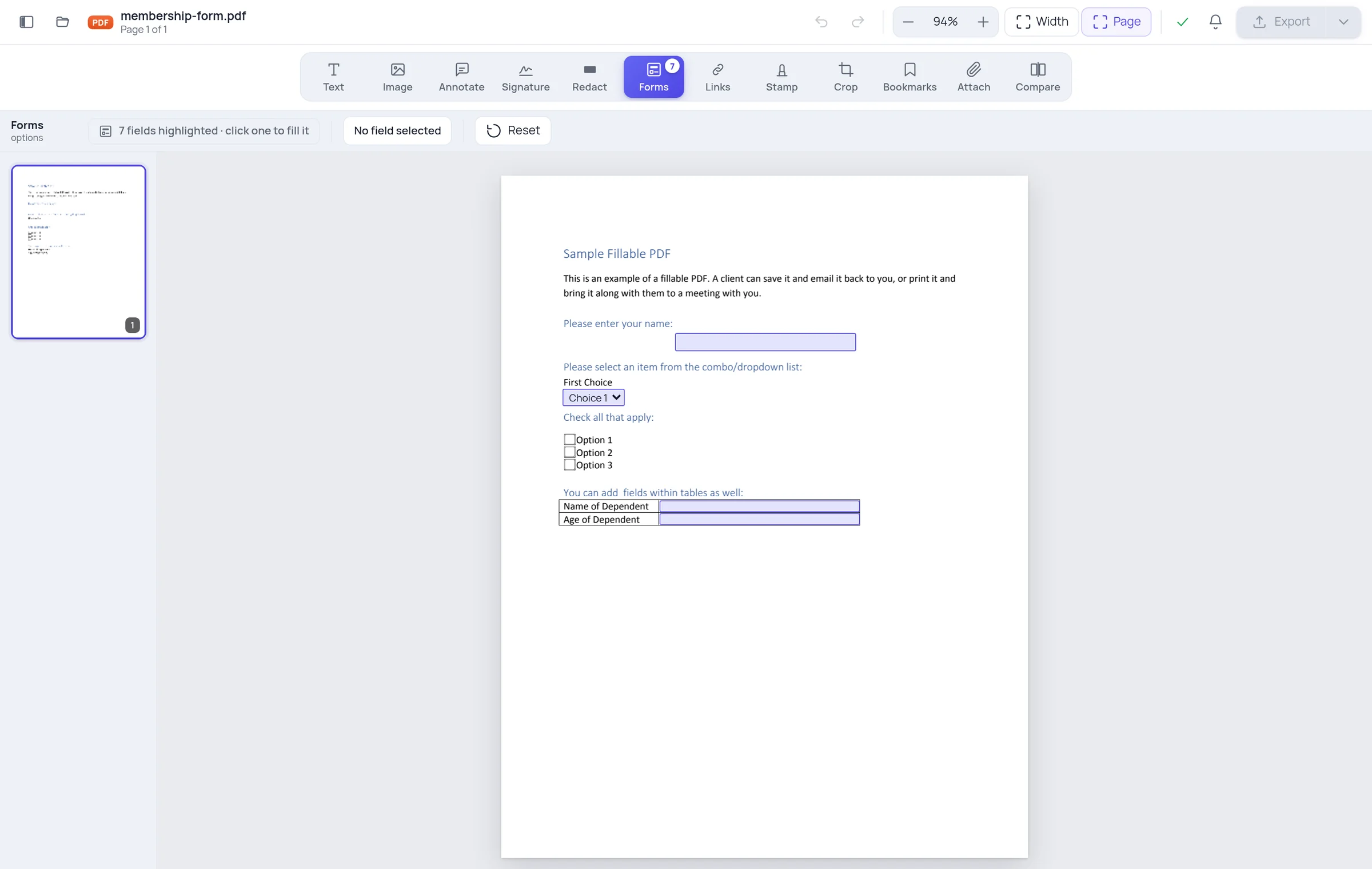
That badge is the whole diagnosis:
- A number — the form is real and fillable. Go to step 3.
- No badge, and a message saying there are no interactive fields — the blanks are printed decoration. Skip to the last section.
Step 3 — Click a field and type
Click any highlighted field and type. That's the entire interaction.
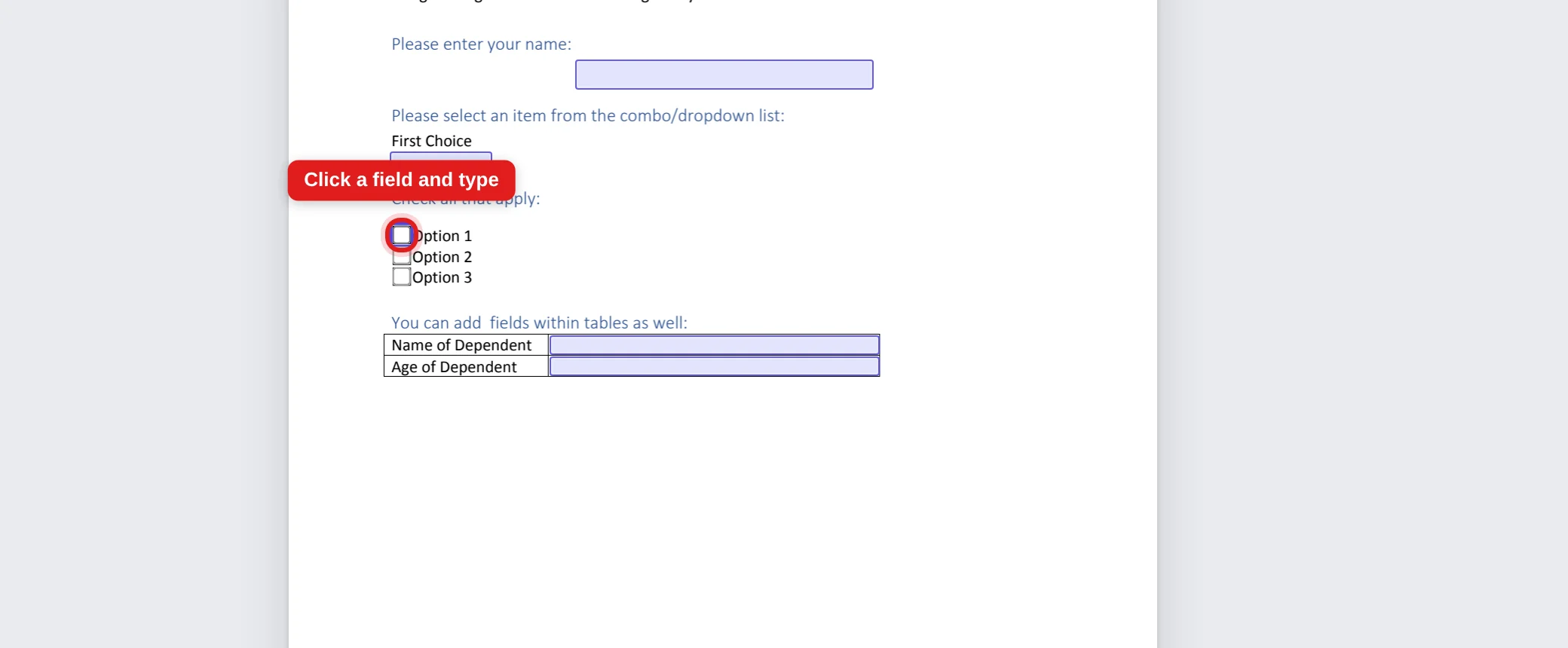
Each field keeps the behaviour its author gave it:
- Text fields accept typing, and respect any character limit the form sets.
- Checkboxes and radio buttons toggle on click, and radio groups still allow only one choice.
- Dropdowns show the list of options the form defines — you can't type a value the form doesn't allow.
- Date fields offer a date picker rather than making you guess the format.
- Signature fields open a signing dialog. There's a separate guide for those.
Fields also stay linked the way the author intended. If a form asks for your name at the top and repeats it on page 3, those are usually one field shown twice — type once and both fill in. That's the form working correctly, not a bug.
Step 4 — Export
Click Export when you're done. Your answers are written into the PDF itself, so they survive being emailed, printed or opened in another app.

If you want the answers to be permanent — so nobody can click a field and change them — see how to make form answers stick.
If there are no fields at all
Plenty of documents that look like forms have no form data in them: a Word file exported to PDF, a scanned application, an old council form. There is nothing to click because there is nothing there.
You have two options.
Type on the page. Switch to the Text tool and add a text box wherever you need. It takes longer than tabbing through fields, but the result is a normal PDF anyone can read, and you never have to print and scan.
Check whether it's a scan first. If the whole page is one image, the text isn't text at all. Zoom in — if the letters go soft and blurry rather than staying crisp, it's a scan. You can still type on top of it.
There's a short guide to telling a real form from a printed one if you want to be sure before you start.
Why some forms refuse even when the fields exist
Two cases worth knowing:
The document is secured. A PDF can carry a permissions flag that forbids changes. Some viewers honour it strictly and grey everything out. If you're the document's owner and know the password, remove the restriction first.
Your viewer doesn't render forms. Browser previews, phone quick-look panes and lightweight readers often show the page but ignore the interactive layer. The form is fine; the viewer isn't. Open it somewhere that reads form data properly and the fields reappear.
This is also why a form you filled in can look empty to someone else — covered in why your answers disappear.
Frequently asked questions
Do I need to install anything? No. It runs in the browser, and there's no account.
Can I fill in a form on my phone? Yes — the editor works on mobile. Fields are small on a phone screen, so zoom in before tapping.
What if I make a mistake? Click the field and retype. Nothing is committed until you export.
Can I save a partly-filled form and come back? Export it. The exported PDF keeps your answers and stays fillable, so you can reopen it and finish later.