Ultimate Guide to PDF Redaction: Remove Sensitive Data Permanently
Placing a black box over text doesn't delete it. Learn what true PDF redaction is, why it fails, and how to do it correctly.

Redaction looks simple: draw a black box over the sensitive text, save the file, done. Except it isn't done. In dozens of high-profile cases — court filings, FOIA releases, corporate disclosures — the "redacted" text was trivially recoverable by anyone who opened the file in a text editor. The black box was cosmetic. The data was still there. This guide explains what true redaction actually is, why the common approach fails, and how to redact PDFs in a way that permanently removes data rather than just hiding it.
What True Redaction Means (and Why a Black Box Isn't Enough)
A PDF is not a flat image. It's a structured document containing layers: rendered text, fonts, graphics, metadata, annotations, and embedded objects. When you draw a shape over text in a PDF editor that doesn't support redaction, you're adding a new layer — the black rectangle — on top of the existing text layer. The original text is completely untouched underneath.
Anyone can expose it. Copy and paste the "redacted" area into a text editor. Remove the annotation layer. Strip the overlay programmatically. Open the file in a PDF viewer that renders annotations differently. The text appears instantly.
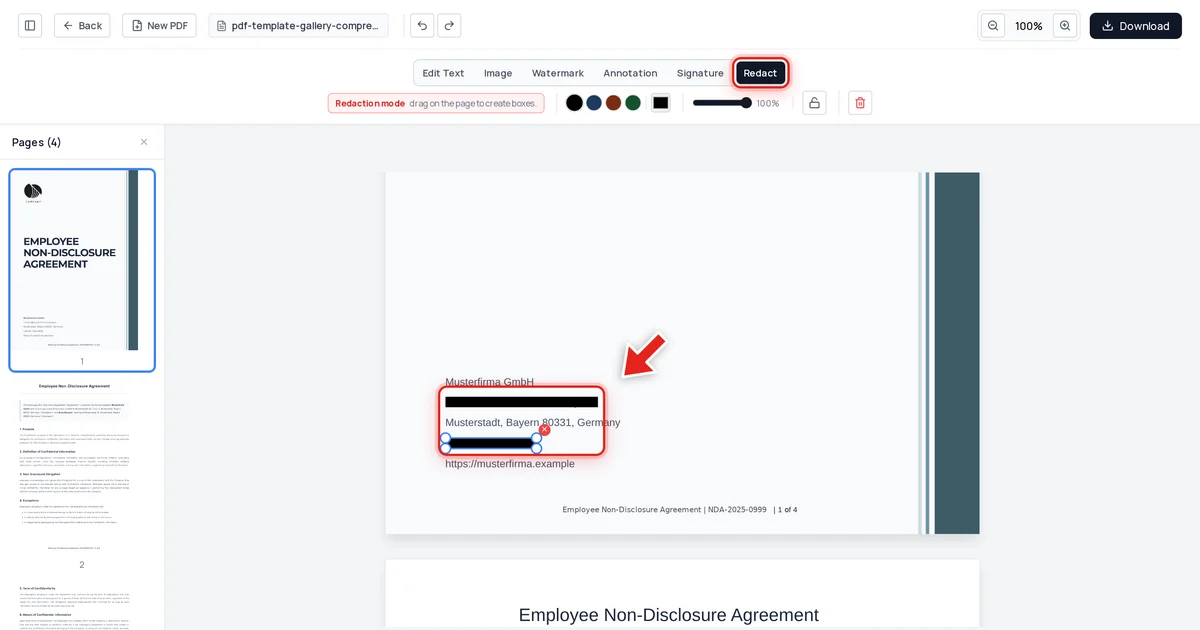
True redaction works at the content-stream level. It doesn't cover the text — it deletes it from the PDF's internal structure and replaces that region with an opaque fill that is part of the page itself, not a floating annotation on top of it. After genuine redaction, there is no text to recover because the text no longer exists in the file.
This distinction matters enormously for legal and compliance purposes. A redaction that can be undone isn't legally a redaction at all. Courts, regulators, and opposing counsel have access to the same basic PDF tools as everyone else.
Why Redaction Fails: The Most Common Mistakes
The most widespread mistake is using annotation tools instead of a dedicated redaction function. Most general PDF editors allow you to draw shapes, add highlights, or place images. None of these modify the underlying content stream. They add objects to the document. Security-conscious attackers — or simply curious recipients — can remove those objects in seconds.
A subtler version of the same problem: exporting a PDF to Word, editing it there, and re-saving as PDF. The exported document may re-embed the text from the "redacted" sections because Word processed the original PDF text, not the visual output.
Other common failure modes:
- Flattening annotations — some tools "flatten" the black box so it merges with the page visually, but the underlying text layer in the content stream remains separate and extractable.
- Screenshot workaround failures — screenshotting each page and reassembling as a PDF creates an image-only PDF, which does eliminate text extraction. However, any OCR tool can recover the text from the images, which means this approach is unreliable against even basic recovery attempts.
- Trusting "print to PDF" — printing to PDF from a browser or application sometimes works like a screenshot (image output), but often doesn't, depending on the renderer. You can't rely on it.
The only reliable route is software that explicitly supports content-stream redaction.
Pattern-Based Redaction: The Most Reliable Workflow
When you have multiple instances of the same sensitive data — a Social Security number, a person's name, an account number — manually selecting each instance is slow and error-prone. Miss one and the document is compromised.
Pattern-based (or search-and-redact) redaction solves this. You define a search term or a regular expression, the tool finds every match throughout the document, and all matches are queued for redaction in a single operation. Common patterns include:
| Data Type | Example Pattern |
|---|---|
| US Social Security Number | \d{3}-\d{2}-\d{4} |
| Email address | [a-zA-Z0-9._%+-]+@[a-zA-Z0-9.-]+\.[a-zA-Z]{2,} |
| Phone number | (\+?\d[\d\s\-().]{7,}\d) |
| Date of birth | \d{1,2}[\/\-]\d{1,2}[\/\-]\d{2,4} |
| Credit card number | \d{4}[\s\-]?\d{4}[\s\-]?\d{4}[\s\-]?\d{4} |
Running a regex pass before finalizing a redacted document is good practice even when you've already redacted manually — it catches instances you might have skipped. Most professional redaction tools include a pre-built pattern library for common data types so you don't need to write the expressions yourself.
OnlinePDFEdits applies redaction to the underlying PDF content, not as a surface overlay, which means the removed text is gone from the file structure, not just hidden from view.
Redacting Metadata and Hidden Content
The visible text on a page is only part of what a PDF may contain. Metadata lives outside the page content entirely, in the document's header and XMP data stream. It routinely includes:
- Author name — typically the account name of whoever created the file
- Creator software — the application used (Word, InDesign, Acrobat, etc.)
- Creation and modification dates — which can reveal a document's history
- Keywords and subject — often populated automatically by enterprise software
- Comments and tracked changes — may survive export even when "accepted"
For a legal brief or compliance document, this metadata can be as sensitive as the redacted text. A document filed in court under a pseudonym, created by software registered to the real name, has already failed at confidentiality.
Embedded objects are a further risk: PDFs can contain attached files, embedded JavaScript, hidden form fields, and annotation layers that don't render visibly but exist in the file. A thorough redaction workflow includes a sanitization pass that strips all of these.
PDF security isn't only a redaction concern. 76% of email malware campaigns used PDF attachments in 2023 (Palo Alto Networks), and 1 in 10 malicious email attachments is a PDF (Barracuda Networks). A document you receive for redaction may itself carry embedded threats — worth keeping in mind if you're handling files from external sources before processing them. If you need to add a layer of protection to a finalized document, password encryption at least controls who can open it.
Legal Compliance: What Regulators and Courts Expect
Redaction failures have consequences well beyond embarrassment. Three regulatory frameworks make this concrete:
GDPR (EU) — Article 5 requires that personal data be processed in a manner that ensures appropriate security. Releasing a document where personal data is "redacted" but recoverable is a data breach. Fines can reach 4% of global annual turnover or €20 million, whichever is higher.
HIPAA (US healthcare) — Protected health information (PHI) in documents must be de-identified in a way that meets the Safe Harbor or Expert Determination standard. A cosmetic overlay doesn't meet either standard. HIPAA penalties for willful neglect of a breach start at $10,000 per violation.
Court documents — Federal Rule of Civil Procedure 5.2 and nearly every state equivalent require personal identifiers to be redacted from court filings. Courts have sanctioned attorneys and parties for submitting improperly redacted documents. In some cases, the underlying data was reproduced verbatim in news coverage before the court noticed the failure.
For healthcare, legal, and financial professionals, the workflow should be: redact content → strip metadata → verify with a text-extraction pass → encrypt the output file → transmit via a secure channel. None of these steps is optional if compliance matters.
Step-by-Step Workflow for Safe PDF Redaction
A reliable redaction process takes about ten minutes per document when you have the right tool. Here's the sequence:
- Work on a copy. Never redact the only copy of an original. Keep the unredacted source in a secure, access-controlled location.
- Run a search-and-redact pass first. Define patterns for every data type you need to remove (SSNs, names, account numbers). Let the tool find all instances.
- Review manually. Scroll through every page and check for context-sensitive data the regex wouldn't catch — a reference to someone's condition without naming them, a partial identifier, an embedded table.
- Apply redaction to content stream. This is the step that matters. Confirm the tool you're using actually removes text from the PDF structure, not just covers it visually.
- Strip document metadata. Remove author, creator, dates, keywords, comments, and any embedded attachments.
- Verify with a text extraction check. Open the saved file, select all, copy, and paste into a plain text editor. If redacted content appears, the redaction failed. Repeat until the paste returns nothing in those regions.
- Apply access controls if needed. For sensitive distribution, password-protect the PDF to restrict who can open it. For additional integrity, consider whether the recipient needs to be able to further edit or print the document, and configure permissions accordingly.
- Log what you redacted. For regulated industries, maintain a record of what was removed, by whom, and when. The log itself should not contain the redacted data.
If you're working with multi-page documents and only need to keep specific pages, extracting the relevant pages into a new file before redacting reduces the scope of work and eliminates the risk of hidden content on pages you didn't intend to include. For related reading on PDF security, the post on why PDFs fail to open and what that reveals about file integrity covers a complementary set of common problems.
FAQ
Is drawing a black box over text in a PDF secure?
No. Drawing a shape over text in most PDF editors adds a visual overlay without touching the underlying text. Anyone can remove the overlay or copy-paste the text underneath to read it. Only tools that perform content-stream redaction — actually deleting the text from the file's internal structure — produce a genuinely secure result.
How do I check whether a PDF has been properly redacted?
Open the file in any PDF viewer, select all text (Ctrl+A or Cmd+A), copy it, and paste into a plain text editor. If the supposedly redacted content appears in the paste, the redaction is cosmetic and the data is recoverable. A properly redacted region will return nothing or a placeholder character, not the original text.
Does converting a PDF to Word and back count as redaction?
Not reliably. When you export a PDF to Word, the conversion engine reads the underlying text — including text under black boxes — and includes it in the Word document. Re-saving as PDF then embeds that text again. This workflow can inadvertently un-redact content you thought was removed. Always use a purpose-built redaction tool rather than a conversion workaround.
What metadata should I strip from a redacted PDF?
At minimum: author name, creator software, creation and modification dates, subject, keywords, and any embedded comments or annotations. For regulated documents, also check for attached files, embedded JavaScript, hidden form fields, and XMP sidecar data. Many redaction tools include a "sanitize" or "document properties" step — run it after applying content redaction and before distributing the file.