How to View and Remove Hidden Metadata from PDF Files
Before you share a PDF, check what's hiding inside it. Author names, GPS coordinates, and revision history are often embedded invisibly in the file.

Every PDF you create carries invisible baggage. Embedded inside the file are fields you never typed into: your name, your company, the software you used, when the document was first drafted, how many times it was revised, and sometimes the GPS coordinates of the phone that took a photo you inserted. None of this is visible when someone opens the PDF to read it — but it is absolutely there, and anyone who knows where to look can extract it in seconds. This post shows what PDF metadata actually contains, why it has caused real legal and privacy problems, and how to strip it out before you share a file.
What Metadata a PDF Actually Contains
PDF metadata lives in two places: the Document Information Dictionary (a simple key-value store baked into every PDF since version 1.0) and XMP metadata (an XML block embedded in later files). Together they can hold:
Standard document fields:
- Title, Author, Subject, Keywords
- Creator (the application that made the source file, e.g. Microsoft Word 16.0)
- Producer (the PDF export engine, e.g. macOS Quartz PDFContext)
- CreationDate and ModDate (timestamps down to the second, often including timezone offset)
Extended XMP fields:
- Company and manager name from Office document properties
- Document version UUID — a unique identifier that links this PDF to every other version exported from the same source file
- Revision count and total editing time (Word embeds cumulative editing minutes)
Embedded content from inserted images:
- EXIF data from photos added to the PDF — this can include GPS latitude and longitude from a smartphone camera, the camera make and model, and the original capture timestamp
Tracked changes and comments:
- In PDFs exported from Word with revision tracking active, the change history and comment threads can travel with the file
- Older versions of content can persist in the file structure even after "final" export
Most of this data is stripped when you print to PDF, but not all of it — and when you export directly from Word, Acrobat, or LibreOffice, the defaults keep almost everything.
Why Hidden Metadata Has Caused Real Problems
Metadata has surfaced in enough high-profile incidents that lawyers now routinely audit PDFs before filing.
Legal cases: In multiple civil litigation cases, opposing counsel extracted Document Information Dictionary fields from PDF exhibits to prove that a "final" contract had been modified hours before submission — the ModDate and revision count told the story. The British government accidentally published a PDF on the Iraq dossier that still contained Word revision history showing editorial changes made by specific named authors.
Anonymous documents exposed: Whistleblowers and journalists have had their identities revealed because the Author field in a PDF pointed directly to their Windows login name. If your username is your real name — which it often is on work laptops — exporting a PDF without clearing metadata is not anonymous at all.
GPS location leaks: A photo taken on a smartphone and inserted into a Word document before PDF export can carry precise GPS coordinates. This has been used to identify the physical location of people who believed they were sharing documents anonymously.
Draft content in final files: Embedded revision history has exposed negotiating positions, internal criticism of clients, and content that was deliberately cut before the "final" version — because the deleted text was still present in the file's tracked-changes record.
Adobe Acrobat Pro subscriptions cost over $300/year partly because professional users need tools to sanitize exactly this kind of data — which is part of why free alternatives have seen such demand growth in recent years.
How to View Metadata Before You Share
Before removing anything, it helps to know what you're dealing with.
Adobe Acrobat (desktop): File → Properties → Description tab shows the basic fields. File → Properties → Custom tab shows any extended fields added by the originating application.
ExifTool (command line): ExifTool is a free, open-source command-line utility that reads metadata from virtually any file format. Running exiftool yourfile.pdf dumps every embedded field — including XMP blocks, EXIF from embedded images, and document statistics. It's the most complete view available and runs on Windows, macOS, and Linux.
Online metadata viewers: Several free web tools accept a PDF upload and display its metadata fields. Search for "PDF metadata viewer online" — most return results within seconds without requiring an account. These are fine for quick checks but avoid uploading sensitive documents to any third-party service.
In-browser check: Chromium-based browsers show basic PDF properties when you right-click an open PDF and choose Document Properties. This only shows a subset of fields but is useful for a fast sanity check.
For images inserted into PDFs, ExifTool is the only reliable way to check whether GPS data survived the export process.
How to Remove PDF Metadata
Print to PDF (quickest, least complete): On any operating system, opening a PDF and printing it to a PDF printer (Microsoft Print to PDF, macOS Save as PDF) strips most standard metadata fields and discards tracked changes. It also flattens form fields and annotations. This works for basic cases but does not guarantee removal of all XMP data, and it re-renders the document which can subtly affect layout.
Adobe Acrobat — Document Sanitize: In Acrobat Pro, Tools → Redact → Sanitize Document performs a thorough wipe: metadata, embedded content, scripts, hidden layers, and overlapping objects. This is the most complete option available in Acrobat. The standard Document Properties clear button only removes visible fields, not XMP or embedded image EXIF.
PDF Optimizer (Acrobat): File → Save as Other → Optimized PDF → Discard User Data lets you selectively remove metadata, comments, form data, and hidden layers while keeping the document structure intact.
ExifTool (write mode): exiftool -all= yourfile.pdf removes all metadata it can reach and writes a clean copy. This is fast, scriptable, and works in batch — useful if you need to sanitize a folder of files before sharing.
Online tools: A number of browser-based PDF tools include a metadata strip option. OnlinePDFEdits processes files server-side and does not store your documents after the session ends, which matters when the whole point is privacy.
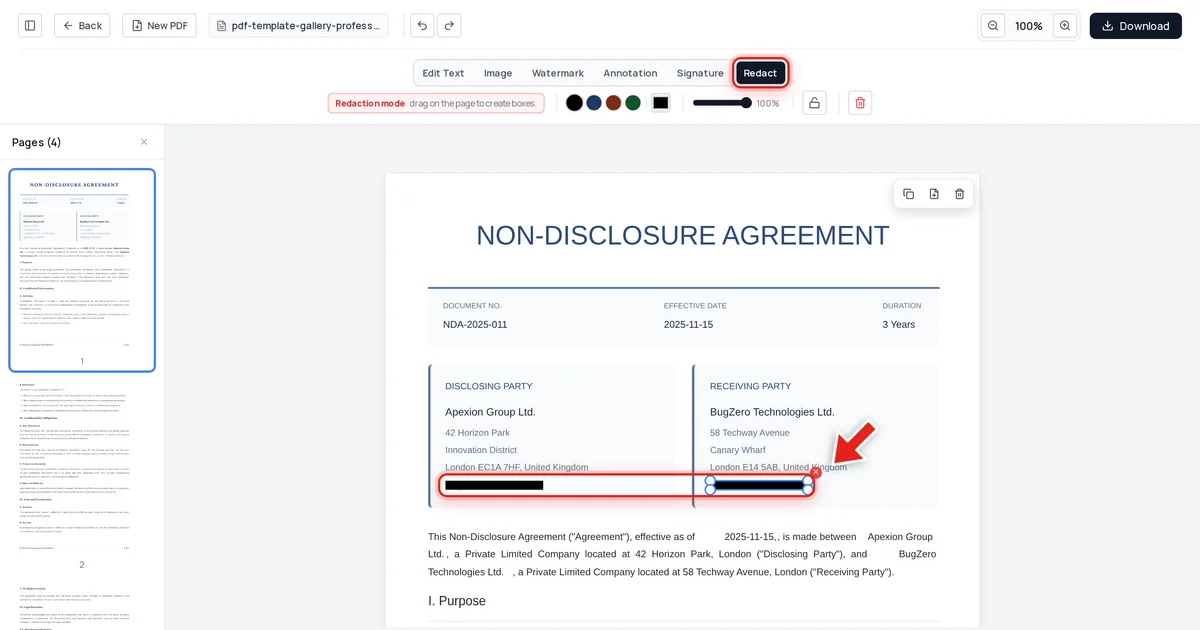
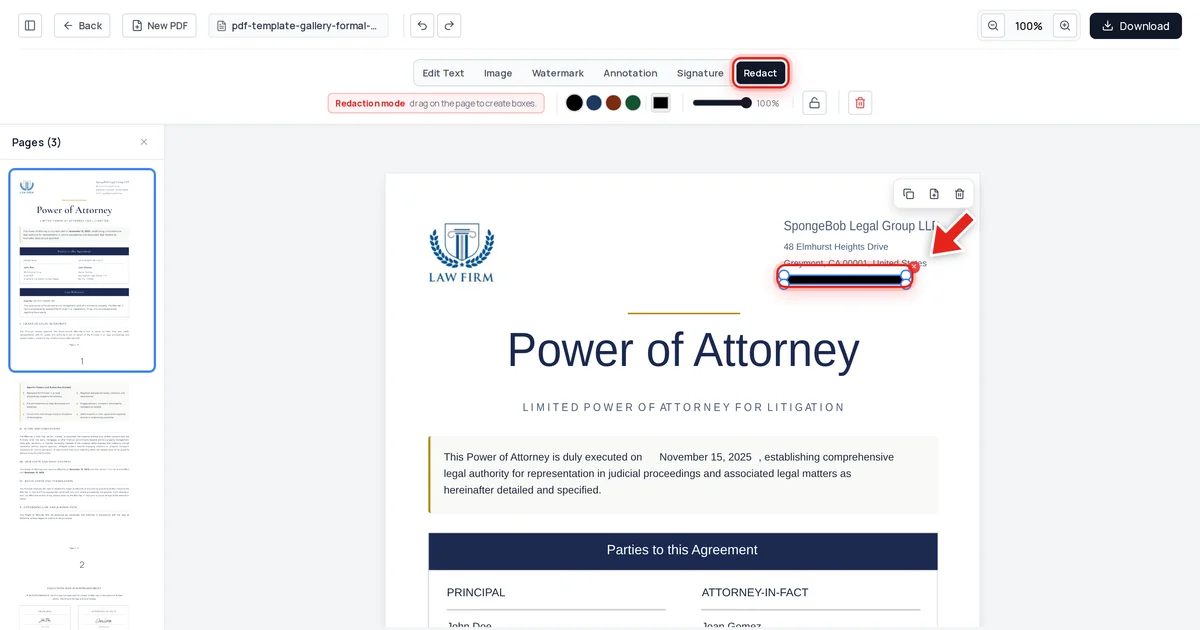
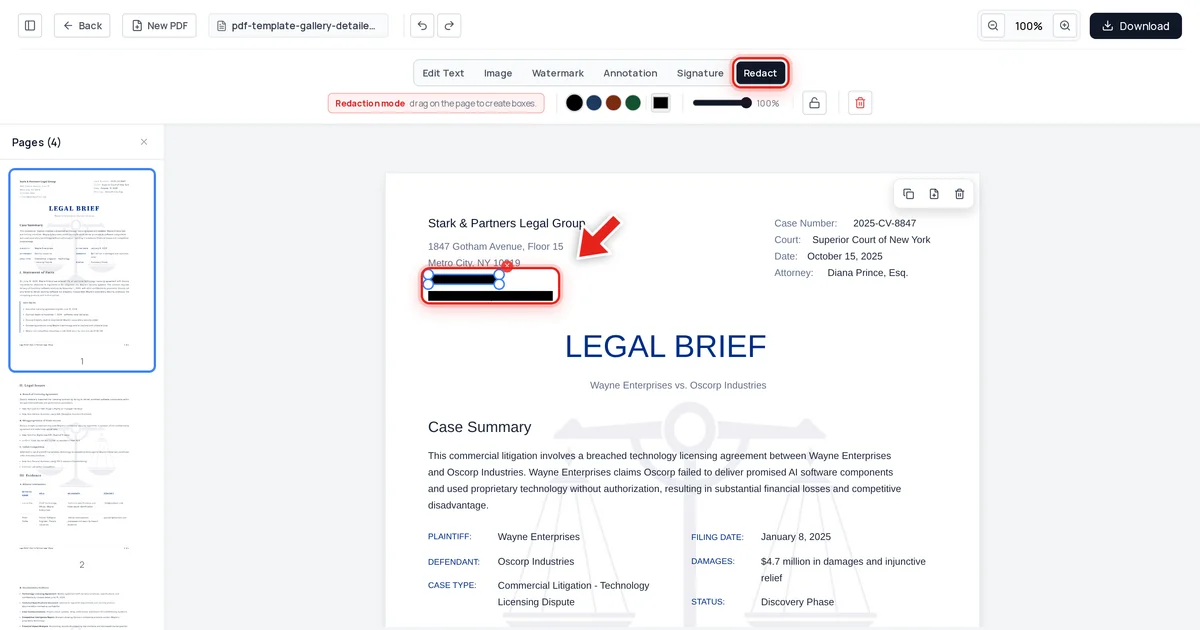
For documents that contain redacted content, always sanitize metadata after redaction — otherwise the original author name and edit timestamps remain in the file even after you've blacked out sensitive text. See our guide on encrypting a PDF for the next step after sanitizing.
Metadata in PDFs Created from Office Documents
Microsoft Word is the most common source of metadata surprises in PDFs, and it deserves its own section.
When you export a PDF from Word using File → Export or Save as PDF, the following travel with the output by default:
- Author (your Windows/Microsoft account display name)
- Company (from Office account settings)
- Last Modified By
- Revision number (increments every time you save the file)
- Total editing time in minutes
- The document's internal UUID, which links all PDF exports from the same source file
Word's Document Inspector (File → Info → Check for Issues → Inspect Document) lets you find and remove this data from the Word file before you export. Running the inspector and removing all flagged categories, then doing a fresh PDF export, produces a significantly cleaner output than trying to strip the PDF after the fact.
Revision history embedded in the PDF itself (from tracked changes that were not accepted or rejected before export) is harder to remove cleanly after export. The safest workflow is: accept or reject all tracked changes → run Document Inspector → export fresh PDF → verify with ExifTool.
PowerPoint and Excel follow the same pattern. Google Docs exported to PDF via the browser download option carry less metadata by default, but still include Creator and Producer fields that identify the source application.
If you regularly produce PDFs from Office documents and share them externally — contracts, proposals, reports — building metadata sanitization into your workflow before sharing is worth the one-time setup cost. Pair this with password protection for documents that need access control, and consider redacting sensitive content directly in the PDF before distribution.
For more on keeping PDF files secure end-to-end, the post on common PDF viewing issues covers complementary steps on file size and compatibility that often matter in the same scenarios.
FAQ
Does printing to PDF remove all metadata?
Print-to-PDF removes most standard Document Information Dictionary fields and discards tracked changes and comments. It does not guarantee removal of all XMP metadata, and EXIF data from images embedded in the source file may or may not survive depending on the PDF renderer. For a complete strip, follow print-to-PDF with an ExifTool pass or use Acrobat's Sanitize Document function.
Can I remove GPS coordinates from images inside a PDF?
GPS coordinates are stored in the EXIF block of the original image file. If the image was embedded in the PDF with its EXIF intact, that data is inside the PDF. ExifTool can remove EXIF from embedded images when run against the PDF directly. The most reliable approach is to strip EXIF from the source images before inserting them into your document.
Does metadata removal affect the visual appearance of the PDF?
No — metadata fields are not part of the rendered content. Removing author names, timestamps, and company fields has no effect on text, images, layout, or fonts. The file will look identical before and after sanitization. The only exception is if you also remove embedded attachments or form data, which does change document functionality.
Is it legal to remove metadata from a PDF before sharing it?
Generally yes — you own your documents and can share them in whatever form you choose. The exception is documents submitted to legal proceedings: courts in some jurisdictions require documents to be produced in native format with metadata intact. If you are involved in litigation or regulatory requests, check with legal counsel before stripping metadata from files that may be subject to discovery obligations.