True multi-page layout
Add, duplicate, reorder, and delete pages. Design one inside page well, duplicate it, and keep every spread consistent.

Brochure Builder
To create a brochure PDF, start the browser-based PDF Creator with the report template, then build your pages: a cover, a story, proof, and a contact page. It costs nothing, needs no account, and never stamps a watermark on your work.
A brochure is not a flyer — it is a narrative with a page order. Page 1 earns attention with one image and one promise; the middle pages explain services and benefits; the last page closes with contact details or a fillable inquiry form. The multi-page tools here are built for exactly that: add, duplicate, reorder, and delete pages, so a layout you perfect once becomes the skeleton of every spread.
Most brochures today are sent, not printed — attached to an email or linked from a proposal. Because the export is vector, recipients get selectable, searchable text, and if you do print, it comes out sharp on any office printer.
Add, duplicate, reorder, and delete pages. Design one inside page well, duplicate it, and keep every spread consistent.
Start from a structured cover-plus-content template instead of a blank page, then restyle it to your brand colors.
Styled tables with a header row, border control, and cell backgrounds — the cleanest way to present packages or comparison grids.
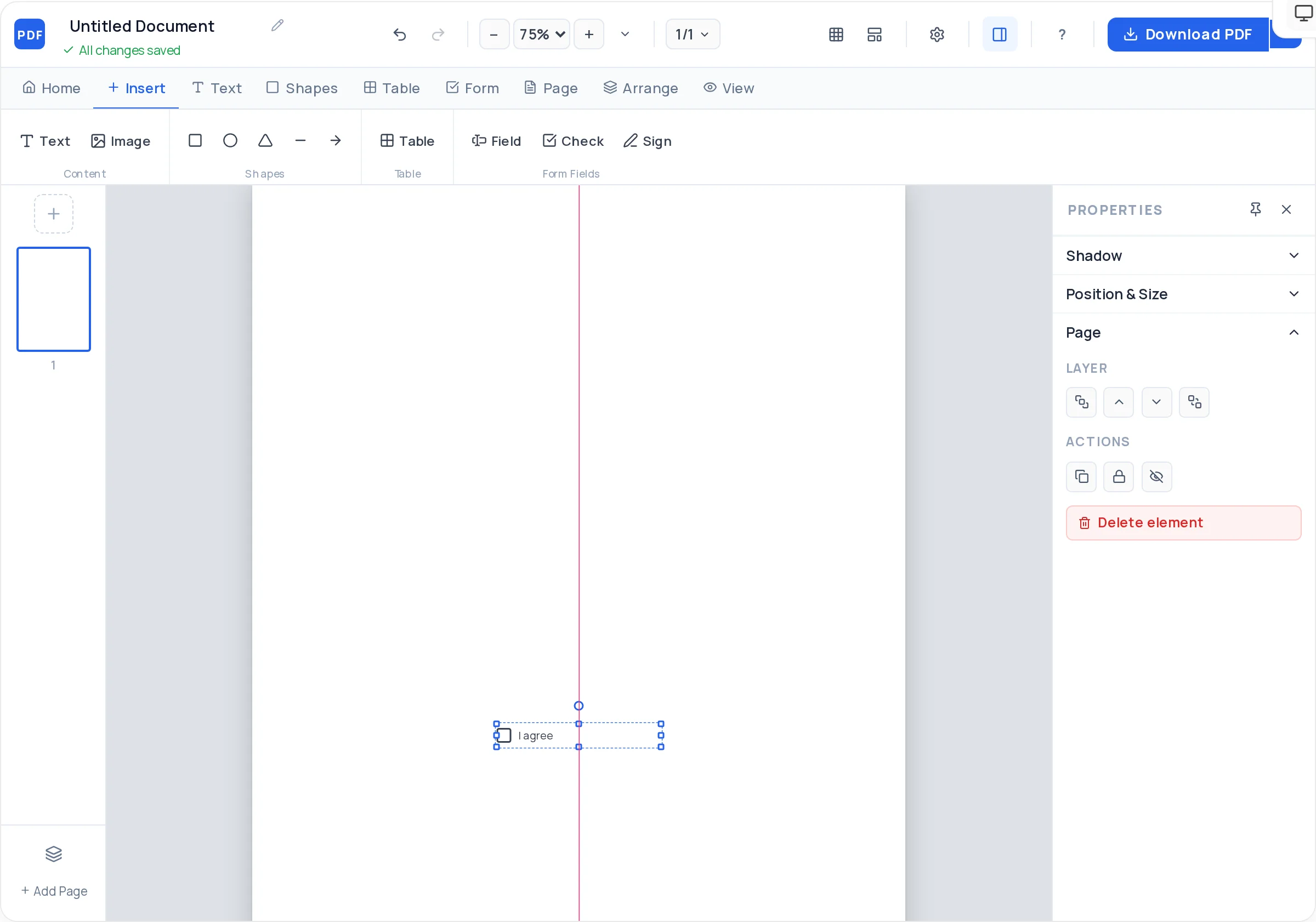
End the brochure with real AcroForm fields — text boxes, checkboxes, even a signature field — so readers can respond inside the PDF.
Upload JPG/PNG photos and use cover or contain fit so images fill their frames without stretching. Opacity makes subtle backdrops.
The finished brochure exports as a crisp vector PDF with selectable text — professional on screen, sharp in print, never watermarked.
Open the PDF Creator with the report template on A4 or US Letter — it gives you a cover and content structure to restyle.
One full-width image, your logo, and a single promise line. Resist listing services on the cover — its only job is to get the page turned.
Lay out one content page with a heading, body text, and an image, then duplicate that page for each section so margins and type sizes stay identical.
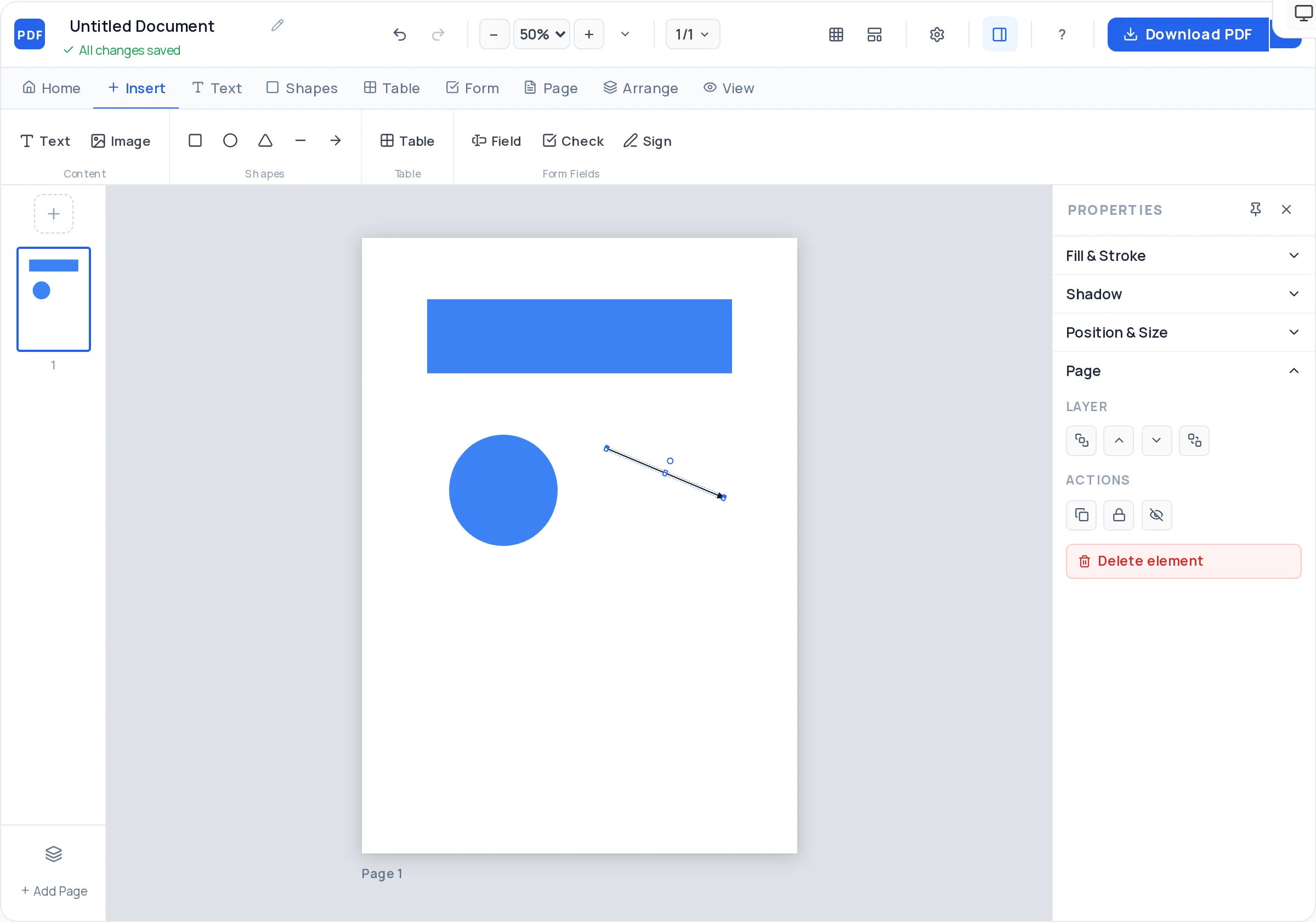
Use a styled table for packages or a comparison grid, and give testimonials or key numbers their own visual block with a background rectangle.
The last page carries contact details prominently — or add fillable text fields and checkboxes so the brochure doubles as an inquiry form.
Drag pages into their final order, check the flow cover-to-close, and export a watermark-free vector PDF ready to email or print.
Write the one-line job of each page first (hook, explain, prove, close). A beautiful brochure with a muddled order still fails.
Readers relax when every inside page shares the same margins, heading size, and image position. Duplicate a master page instead of rebuilding each one.
Pick one font for headings (Georgia or Palatino read as premium) and one for body (Arial or Verdana), and never introduce a third.
Half-empty pages read as confident; packed pages read as a leaflet. If a page fights for space, split it into two — pages are free.
The Creator builds multi-page brochures and booklets rather than fold-marked tri-folds — there are no fold guides or panel presets. You can approximate three panels on one page using snap-to-grid, but the tool is at its best for page-per-section digital brochures.
Four to eight pages covers most businesses: cover, two to five content pages, and a contact page. Beyond ten pages you are writing a company profile or catalog, and readers skim instead of reading.
No. There is no signup, no login, and no usage cap — open the Creator, build the brochure, and download it.
Design one inside page you like, then use duplicate page for each new section and swap the content. Margins, heading sizes, and image frames stay identical without measuring anything.
Yes — the Creator places real AcroForm fields, not drawn boxes. Add text fields, checkboxes, and a signature field on the closing page, and readers can type into the PDF in any standard viewer.
Text and shapes add almost nothing; photos are what add weight. If the file ends up heavy, run it through the free compressor at /compress-pdf — it shrinks image-heavy brochures to email-friendly size.
Yes. The export is server-rendered vector, so all text is real, selectable, and searchable — not a flattened image. That also means it stays sharp at any zoom level.
All of these open the same free online PDF creator — each guide covers what makes that document work.
No signup, no watermark, nothing to install — design your document and download a clean, print-ready PDF in minutes.
Build your brochure — free