Multi-page clause layout
Add, duplicate, reorder, and delete pages as the agreement grows. Duplicating a formatted page keeps clause typography identical from page 1 to page 8.

Employment Contract Builder
You can create an employment contract PDF by laying out numbered clauses on a multi-page canvas in the free browser-based PDF Creator, then adding signature fields for both employer and employee before exporting. Unlike an offer letter, a contract is the full binding agreement — it typically runs three to eight pages and covers duties, pay, termination, confidentiality, and governing law.
The letter template gives you a formal starting page; from there, add pages as your clause list grows and duplicate a laid-out page to keep heading styles and margins identical throughout. Text blocks handle clause numbering (1., 1.1, 1.2…), and you can lock the header on each page so it never shifts while you edit the body.
There is nothing to install and no account to make — the export is an unwatermarked vector PDF with selectable text, which matters when the other side’s lawyer wants to copy a clause into their review notes.
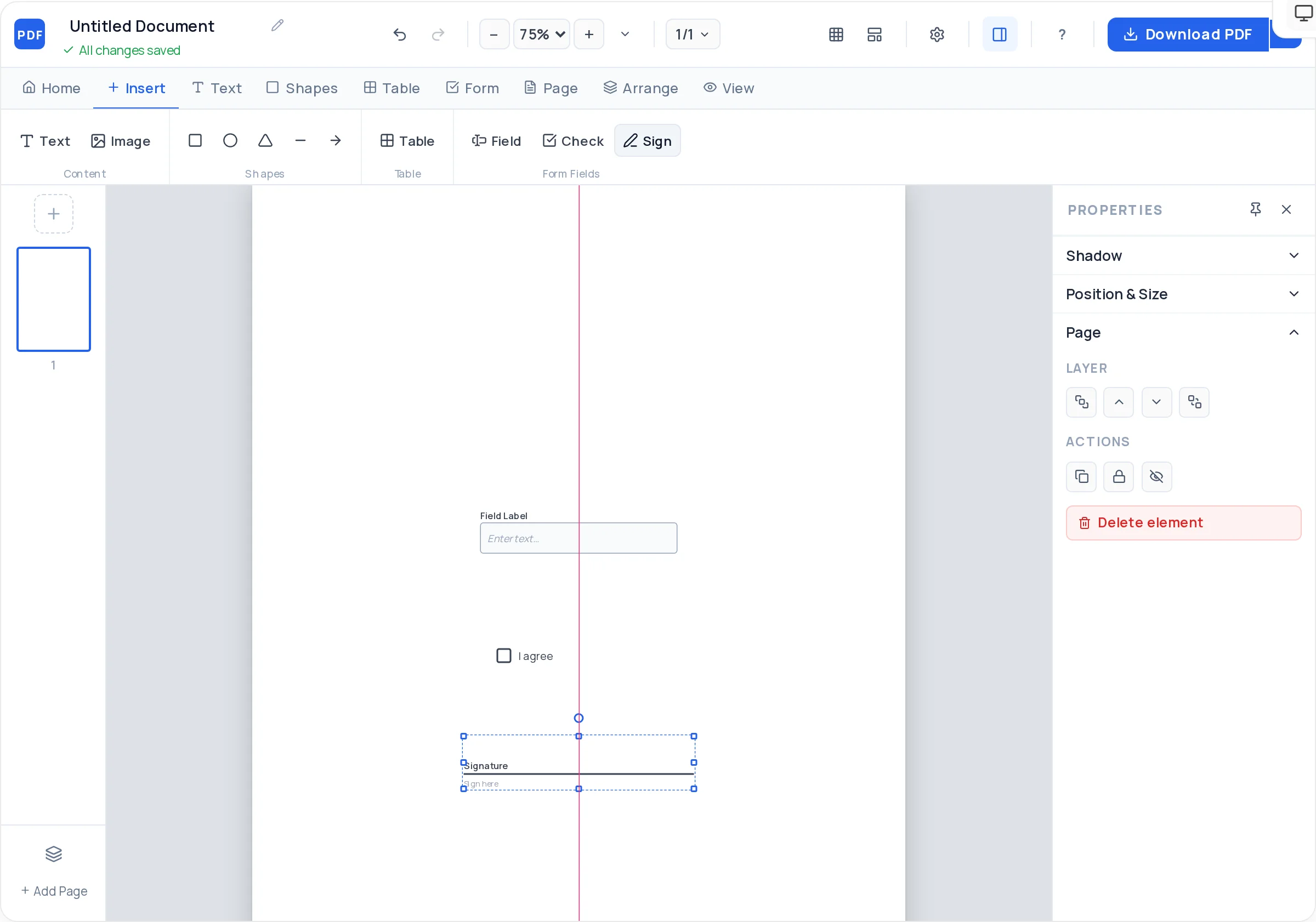
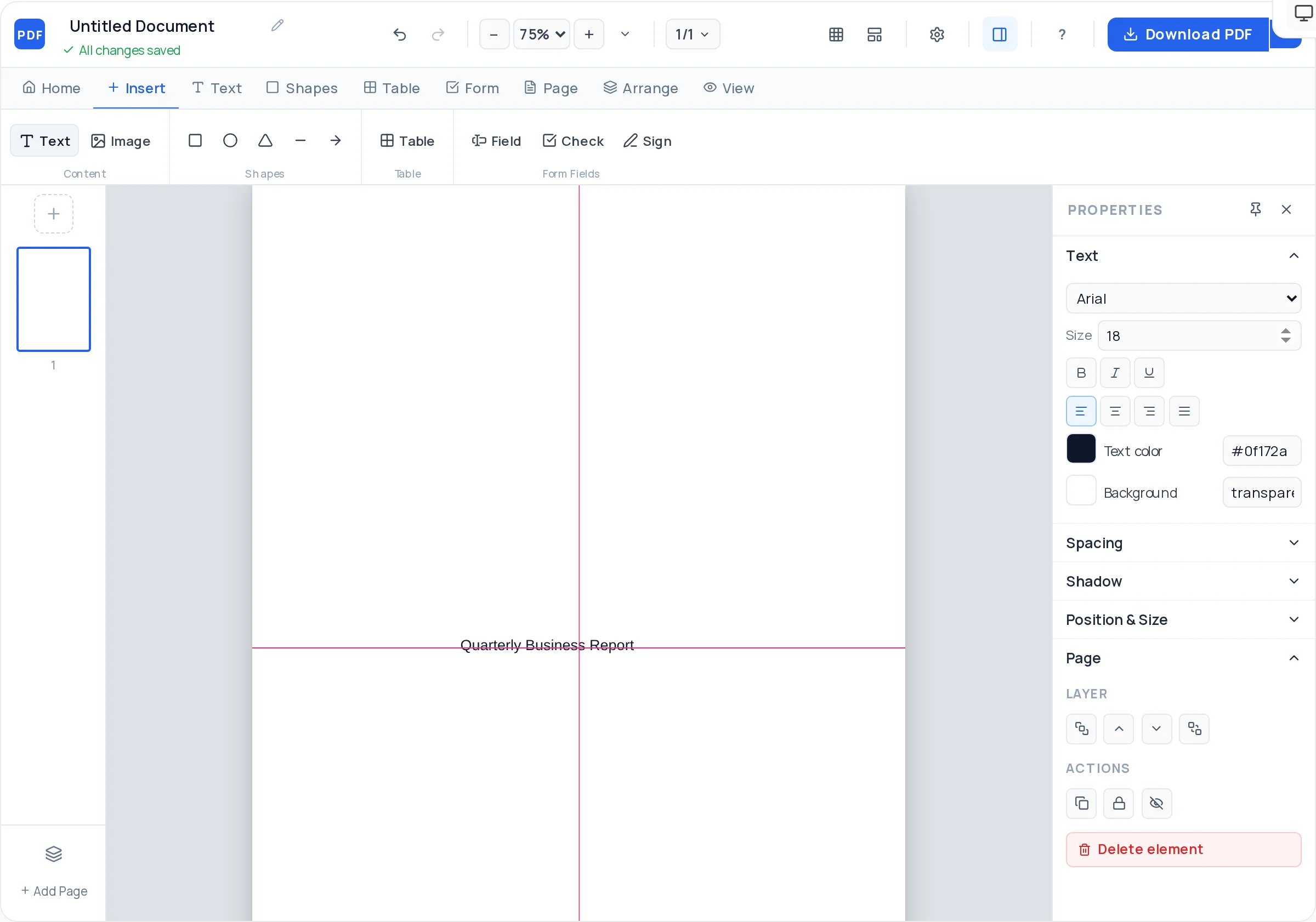
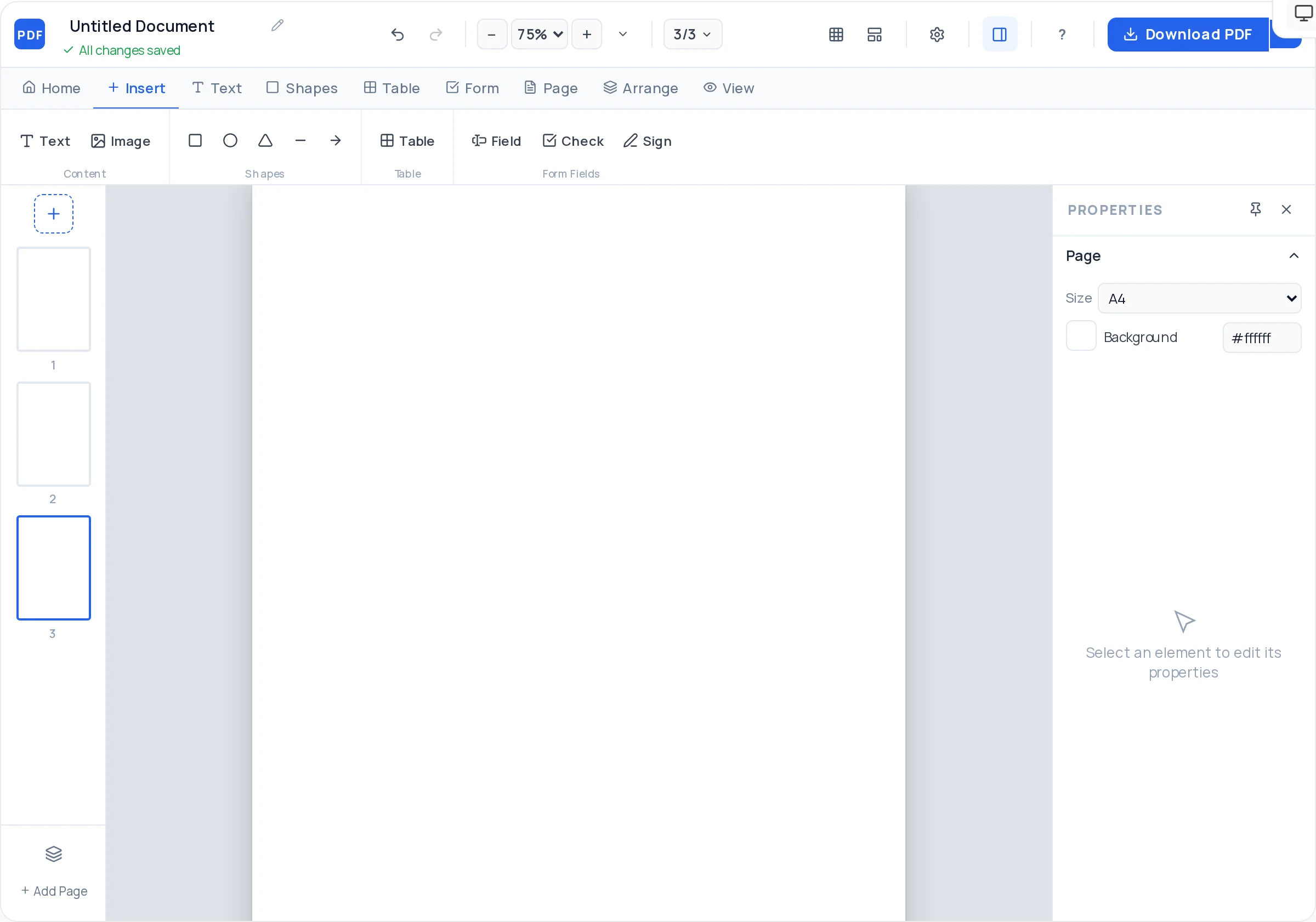
Add, duplicate, reorder, and delete pages as the agreement grows. Duplicating a formatted page keeps clause typography identical from page 1 to page 8.
Use text blocks for hierarchical numbering — 1. Definitions, 1.1, 1.2 — with consistent line height and letter spacing so the document reads like it came from a law firm.
Place separate AcroForm signature and date fields for employer and employee on the execution page. Both parties can sign the exported PDF electronically in any standard reader.
Compensation schedules, benefit summaries, and duty lists sit cleanly in styled tables at the end of the contract instead of clogging the clause text.
Lock the header, footer, and page-number blocks on each page so a late edit to clause 7 can’t accidentally drag the letterhead out of position.
Smart guides and snap-to-grid keep every clause block on the same left edge across all pages — crooked margins are what make a contract look homemade.
Open the PDF Creator with the letter template. Set the page size (A4 or US Letter) first, because it controls margins for every page you add later.
Page 1 names both parties with full legal names and addresses, the effective date, and a short recital of intent. Bold the defined terms (“Employer”, “Employee”) at first use.
Add a text block per clause — position and duties, compensation, hours, leave, confidentiality, IP assignment, termination and notice, governing law. Keep one numbering scheme throughout.
Put salary structure, benefits, and any duty list into tables on the final pages and reference them from the clauses (“as set out in Schedule A”).
Add two signature fields with printed-name and date fields underneath — one block for the employer’s authorised signatory, one for the employee.
Download the vector PDF and send it for legal review before signature. You can password-protect the file with /encrypt-pdf if it carries salary data.
Parties and role, compensation and review mechanism, working hours and location, leave, confidentiality, IP assignment, termination grounds and notice periods, and governing law. A missing termination clause causes more litigation than any other omission.
Introduce “Employer”, “Employee”, and “Confidential Information” in a definitions clause and use those exact words everywhere. Synonyms (“the company”, “the firm”) create ambiguity a court has to resolve.
Put an effective date on page 1 and a small version note in the footer. When negotiations produce three drafts, everyone must be able to tell which one was signed.
Numbers change more often than legal language. Isolating salary and benefits in schedule tables means renegotiating pay doesn’t require re-reviewing the whole agreement.
The Creator handles layout and structure, not legal substance. Employment law varies sharply between jurisdictions, so have counsel adapt the clause wording to where the employee will actually work.
The offer letter is a short summary sent before hiring; the contract is the detailed binding agreement usually signed at or after acceptance. The contract adds clauses the letter skips — termination, confidentiality, IP assignment, dispute resolution — and both parties sign it.
Most run three to eight pages: one for parties and recitals, several for numbered clauses, and one or two for schedules and signatures. The Creator handles multi-page documents — add or duplicate pages as your clause list grows.
Yes. Add two signature fields on the execution page; they export as real AcroForm fields either party can complete in Adobe Reader or a browser. Note this provides signature fields, not a routed e-signature workflow — you email the file between parties yourself.
It is common practice in many jurisdictions to have both parties initial every page so no page can be swapped after signing. You can add a small text field in the footer of each page for initials.
The tool controls how the document looks, not whether its terms are valid — it is not a source of legal advice. Enforceability depends on the clause wording and local employment law, so have a lawyer review the text before anyone signs.
Yes — upload the exported file to the /edit-pdf tool to change text, or use /extract-pages and /merge-pdf to swap a renegotiated schedule page without touching the rest of the agreement.
Serif faces like Times New Roman or Georgia at 10–11pt are the convention for contracts and stay readable in print. Keep one font throughout and use bold — not a second typeface — for clause headings.
Use one text block per clause and duplicate a formatted page when you need a new one, so size, spacing, and margins carry over. Snap-to-grid keeps every block on the same left edge from the first page to the last.
All of these open the same free online PDF creator — each guide covers what makes that document work.
No signup, no watermark, nothing to install — design your document and download a clean, print-ready PDF in minutes.
Lay out your contract — free