Color-coding and highlights
Give every topic its own heading color and use text highlight/background fills to mark definitions, formulas, and likely exam points.

Study Notes Maker
The fastest way to create a study notes PDF is a design canvas, not a word processor: the free browser-based PDF Creator lets you place headings, highlight boxes, arrows, and tables anywhere on the page, so your notes end up structured the way your memory works. No app to install, no account to make — open a blank page and start arranging.
Good revision notes are visual. Color-code each topic’s heading, box key definitions in rounded rectangles with a tinted fill, connect causes to effects with arrow shapes, and compress comparisons into two-column tables. The highlight and background-color controls on text do what your highlighter pens do — except these notes never smudge and every copy is the original.
Because the export is a real PDF with selectable text, your notes are readable on your phone on the bus, printable for a desk session, and small enough to share with your study group.
Give every topic its own heading color and use text highlight/background fills to mark definitions, formulas, and likely exam points.
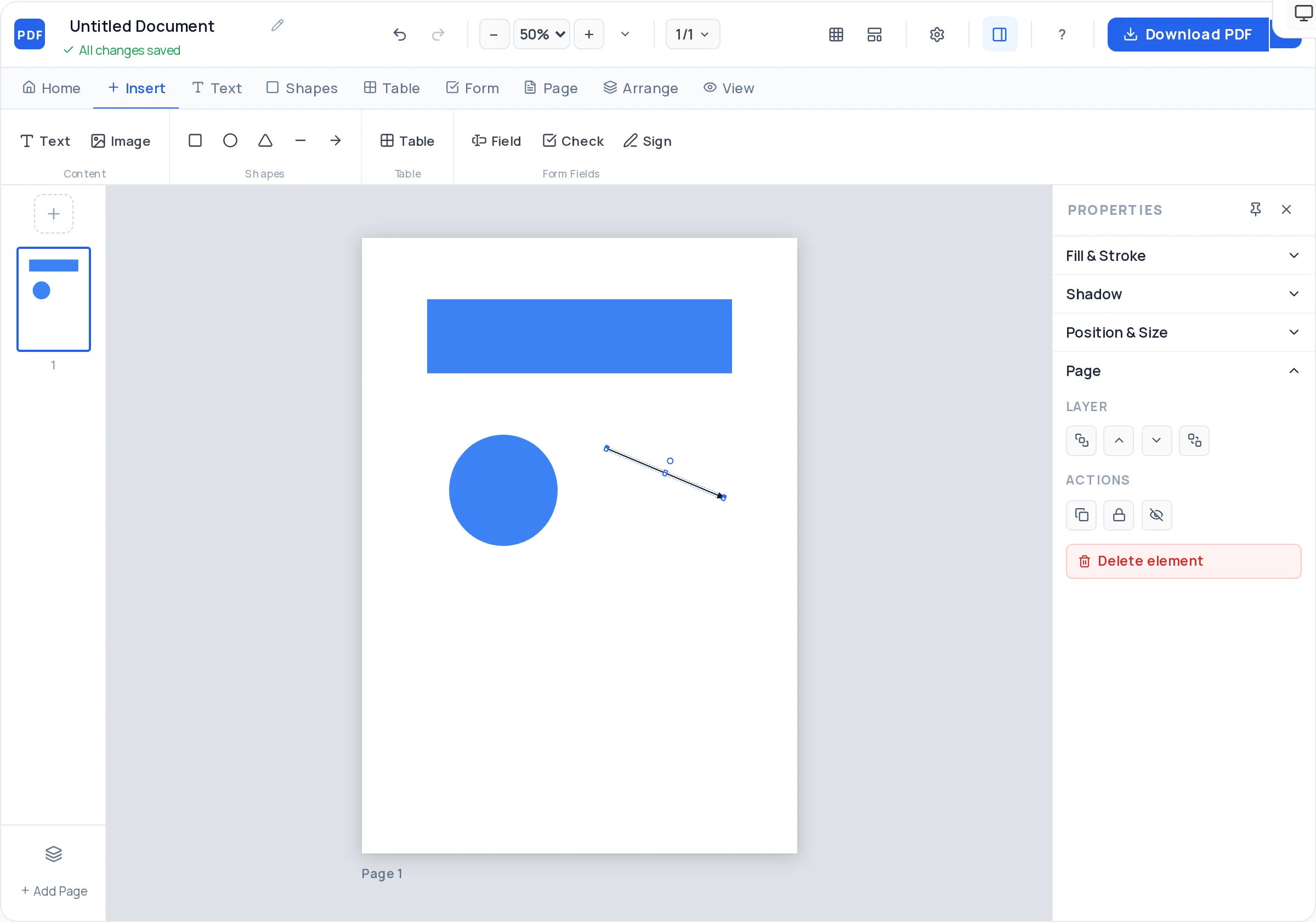
Rounded rectangles with tinted fills make definition boxes; arrows link causes to effects and steps in a process — mind-map style.
Two- and three-column tables compress "compare and contrast" topics — mitosis vs meiosis, causes vs consequences — into scannable grids.
Control line height and letter spacing so dense notes stay legible, with bold key terms and a consistent heading hierarchy.
Upload photos of textbook diagrams, whiteboard shots, or your own sketches and place them right next to the notes they explain.
Add a page per topic, reorder pages as the syllabus makes more sense, and keep an entire subject’s revision in a single file.
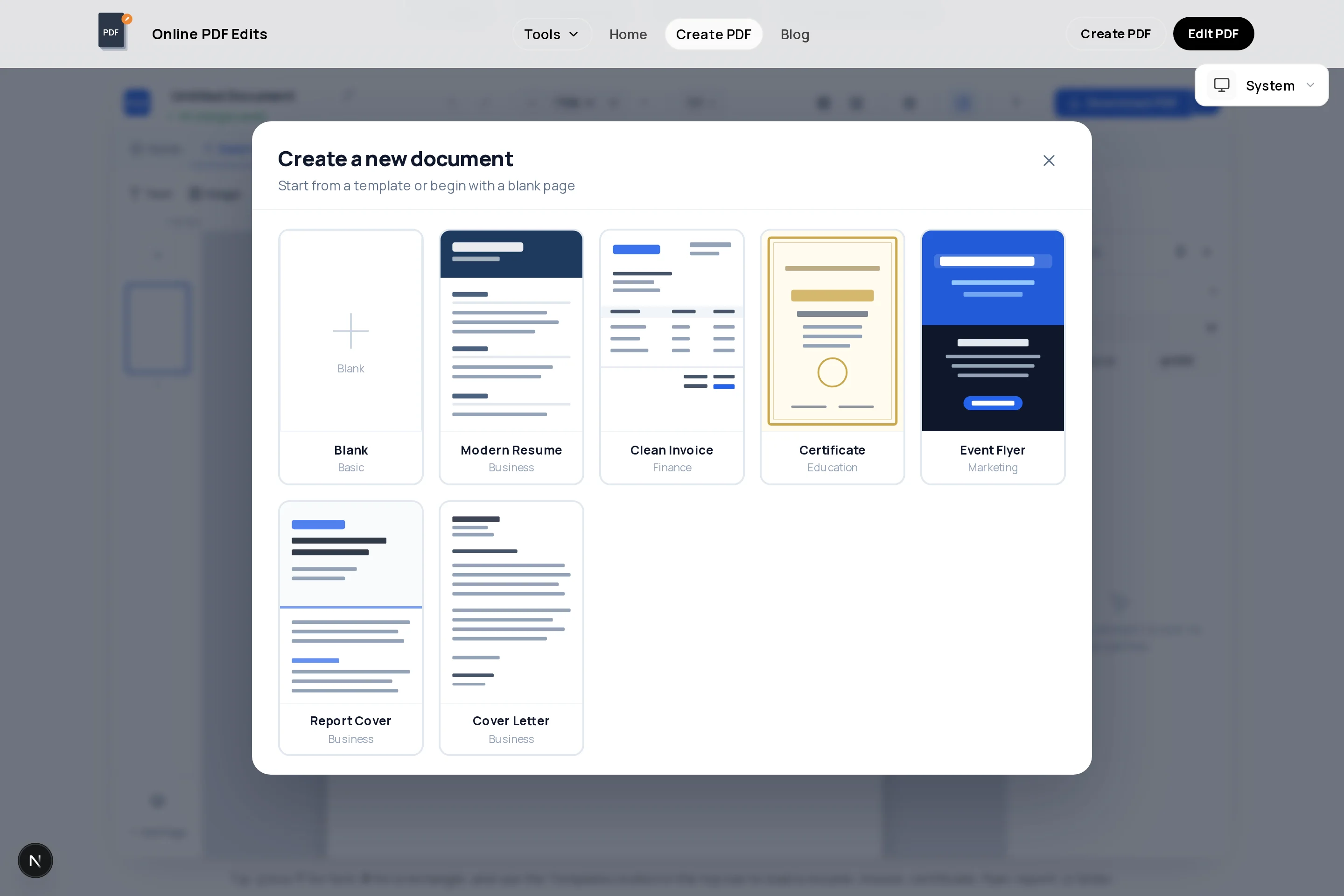
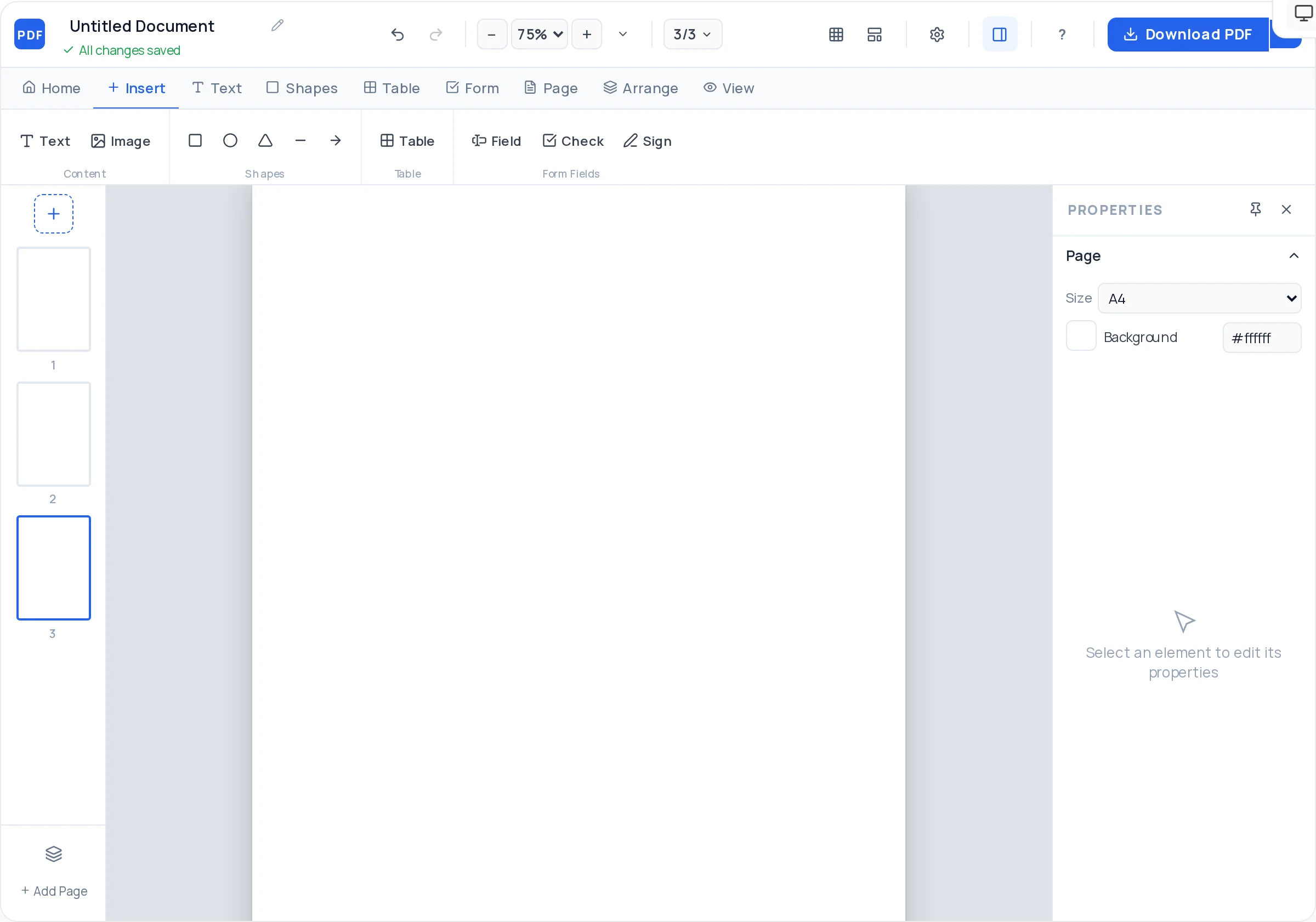
Start the PDF Creator on a blank A4 page — one page per topic keeps a subject’s notes navigable.
Pick one accent color per topic or theme and use it for headings, box fills, and highlights so pages are recognizable at a glance.
Add the topic heading and sub-headings before any detail, spacing them down the page — structure first stops notes turning into paragraphs.
Write definitions and formulas inside tinted rounded rectangles, keep explanations as short bullet-style text blocks, and bold the terms you must recall.
Convert comparisons into tables, draw arrows between linked ideas, and drop in photographed diagrams where words fall short.
Download the PDF to your phone, tablet, and laptop — or print single pages for active-recall practice with the answers folded away.
Notes get read the night before the exam. Short lines, bold key terms, and boxed formulas beat full sentences — if a point takes more than two lines, split it.
Decide up front what each color signals — for example red for formulas, blue for definitions, green for examples — and never mix. Consistent color-coding is what makes visual recall actually work.
Keep a narrow strip on one side of the page with cue questions and put the answers in the main body — cover the body, answer the cues, and your notes double as flashcards.
A "must remember" box at the bottom of each page holding the three to five highest-value points gives you a five-minute skim path through the whole subject.
Use a design canvas instead of a document editor: place a colored heading, tinted definition boxes, arrows between ideas, and comparison tables freely on the page. Alignment guides and snap-to-grid keep everything tidy without fiddling.
Yes — it is completely free with unlimited pages and exports, which matters when you are producing notes for six subjects on a student budget.
Yes. Draw a vertical line shape to split the page, keep cue questions in the narrow left column and detail on the right — a Cornell-style layout you can reproduce on every page by duplicating it.
Yes — upload JPG or PNG photos and place them beside your typed notes, resized and cropped to fit. If you only want to bundle photographed pages into a file, /images-to-pdf converts them directly.
Add a page per topic and reorder pages as your understanding of the syllabus improves. If you made separate files per chapter, combine them later with /merge-pdf.
Yes — the export is a real vector PDF with selectable text, so it stays sharp when you pinch-zoom on a phone. Keep body text at 11pt or larger and it reads comfortably even without zooming.
Export the PDF, and if photos of diagrams have made it heavy, shrink it with /compress-pdf before sending. Text and shapes add almost nothing to file size — images are what grow it.
Yes — reopen your exported notes at /edit-pdf to add points or fix mistakes, or keep building in the creator and re-export. Add new topic pages at the end and reorder them into place.
All of these open the same free online PDF creator — each guide covers what makes that document work.
No signup, no watermark, nothing to install — design your document and download a clean, print-ready PDF in minutes.
Start your study notes — free