Adobe Acrobat Redaction vs True Redaction: What's the Difference?
Acrobat's redaction tool can do the job correctly — but only if you find the right feature, run Sanitize Document afterward, and don't hit one of its known bugs. Here's exactly what "true redaction" requires, side by side.

Adobe Acrobat's redaction tool, used correctly, does remove text from a PDF. The catch is "used correctly" — Acrobat splits the job across two separate steps (redact, then Sanitize Document), users regularly report the redaction button greyed out or over-redacting scanned content, and it's easy to export before running the cleanup step that actually matters. Here's what true redaction requires, and how Acrobat's process compares.
Key takeaways
- Acrobat's "Mark for Redaction" + "Apply Redactions" flow does delete the underlying text — if you complete the full flow.
- A separate step, Sanitize Document, is what removes hidden metadata; skipping it leaves author names and edit history in the file even after a correct redaction.
- Common Acrobat complaints include "Apply Redactions" greyed out and over-redaction on OCR'd/scanned files — both reported broadly enough to be worth knowing about before you rely on the workflow under deadline.
- Whatever tool you use, the test is the same: after export, try to select, copy, and search the redacted area. Nothing coming back is the only real confirmation.
- We ran that exact test against our own export and confirmed the covered text was gone from the extracted content, the raw file data, and the metadata.
What Acrobat actually does
Acrobat's redaction is a two-stage process:
- Mark for Redaction — you select the content, it gets flagged.
- Apply Redactions — this is the step that actually deletes the marked content from the page.
If you stop after step 1, nothing has been removed yet — the marks are just an overlay. This is a common point of confusion: closing or saving the file without applying the redaction leaves the original text fully intact and recoverable.
There's also a second, separate concern Acrobat handles independently: document metadata (author, revision history, hidden layers). Redacting visible content does not touch this. Acrobat's Sanitize Document feature clears it — but it's an extra step, not something the redaction flow does automatically. Skip it, and a "properly redacted" file can still carry the original author's name and edit history in its properties.
What true redaction requires — no matter the tool
Set the specific software aside. Any redaction workflow, to be trustworthy, has to satisfy three things:
- Content removal. The marked text is deleted from the file's actual content when you finish — not just visually hidden.
- Metadata cleanup. Hidden document properties are cleared separately, since they live in a different part of the file than visible text.
- Verification. You (or someone) actually checks the exported file — tries to select, copy, and search the redacted area — before it goes anywhere.
Acrobat can satisfy all three. It just requires knowing that steps 1 and 2 are separate, and that step 3 is on you regardless of which tool you used.
What this looks like in a single-step tool
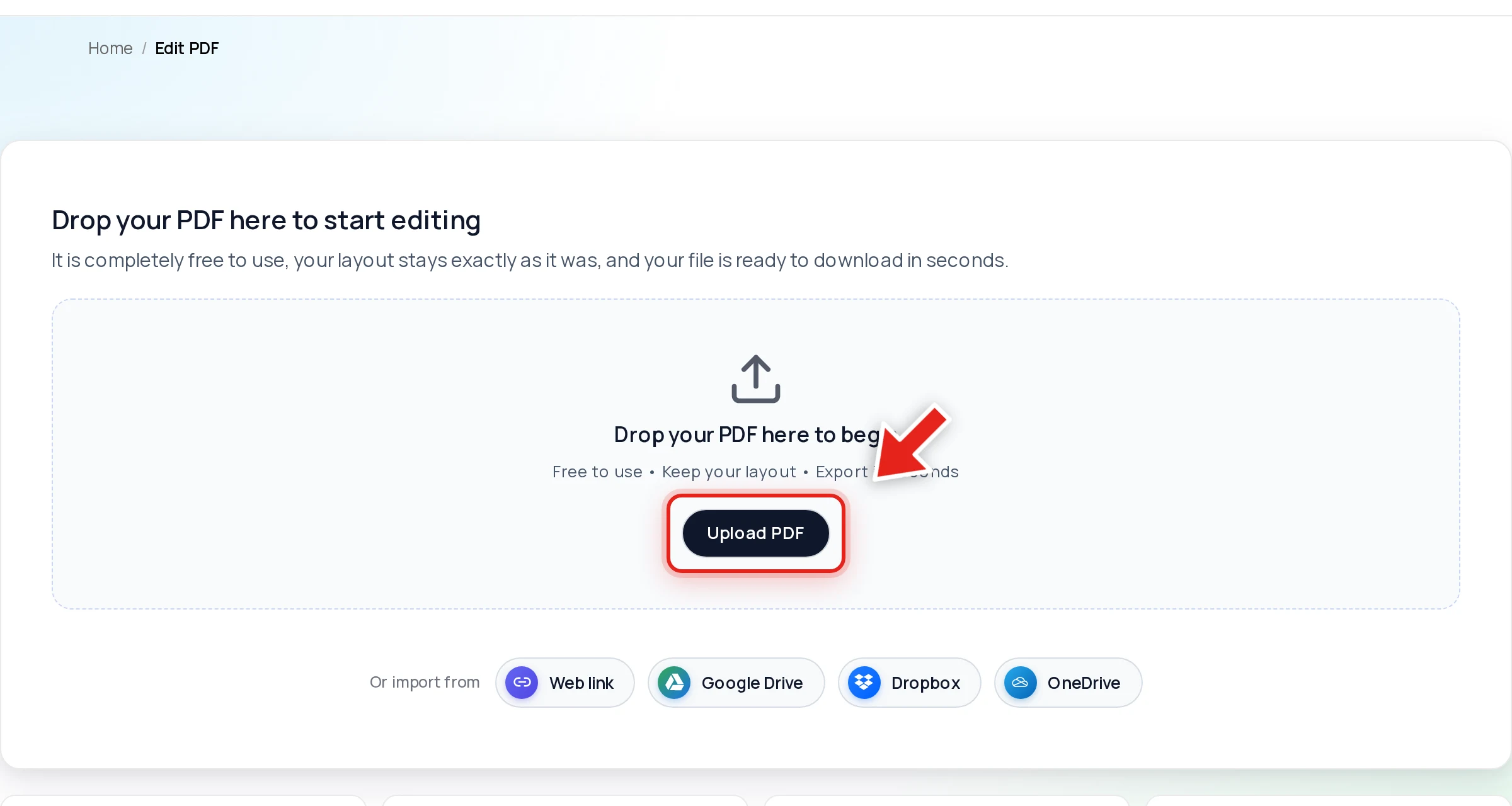
Open your PDF in Online PDF Edits — drop the file onto the upload area, or click Upload PDF.
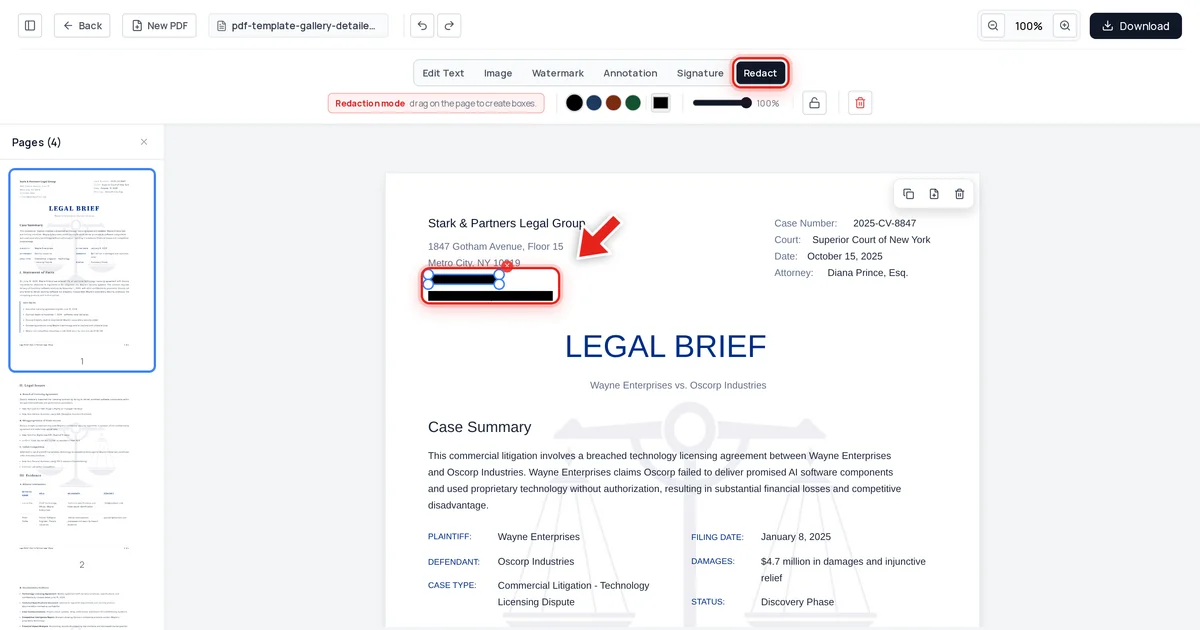
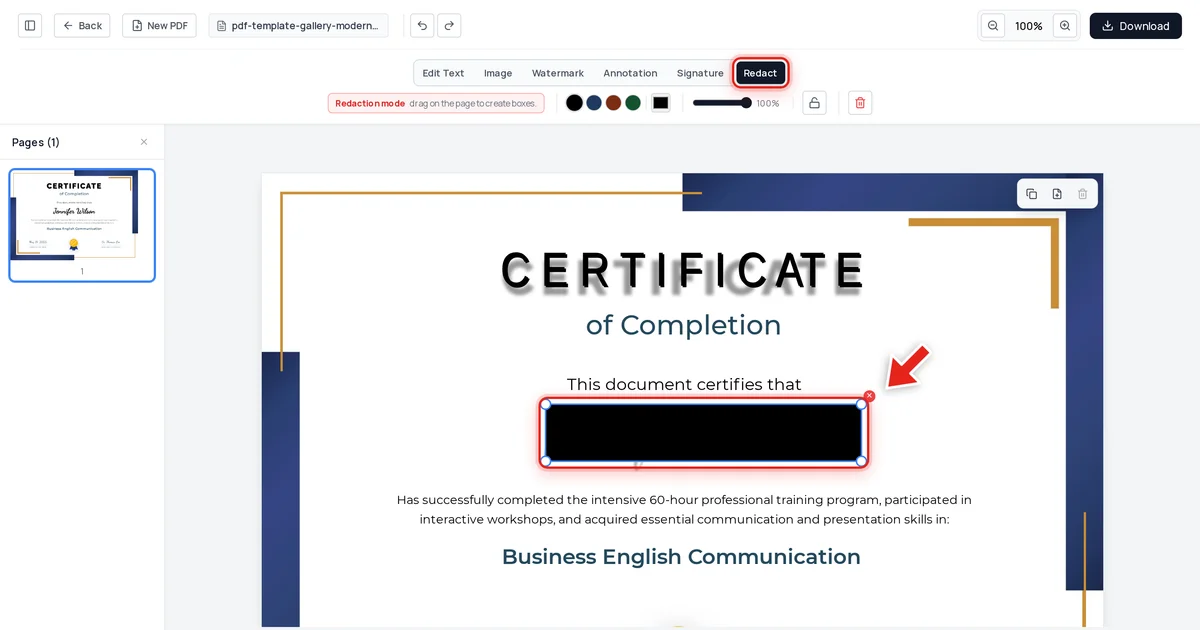
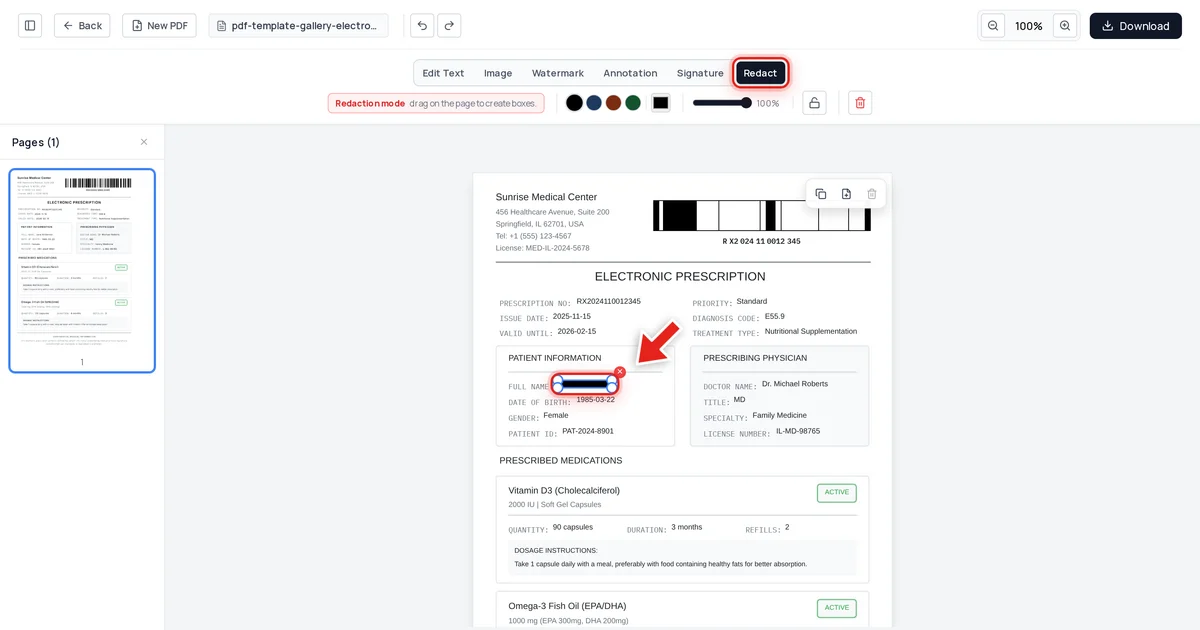
Redaction is one action from there. Click the Redact tab in the toolbar:

Then click and drag over the text, and a live preview shows the box growing as you go.
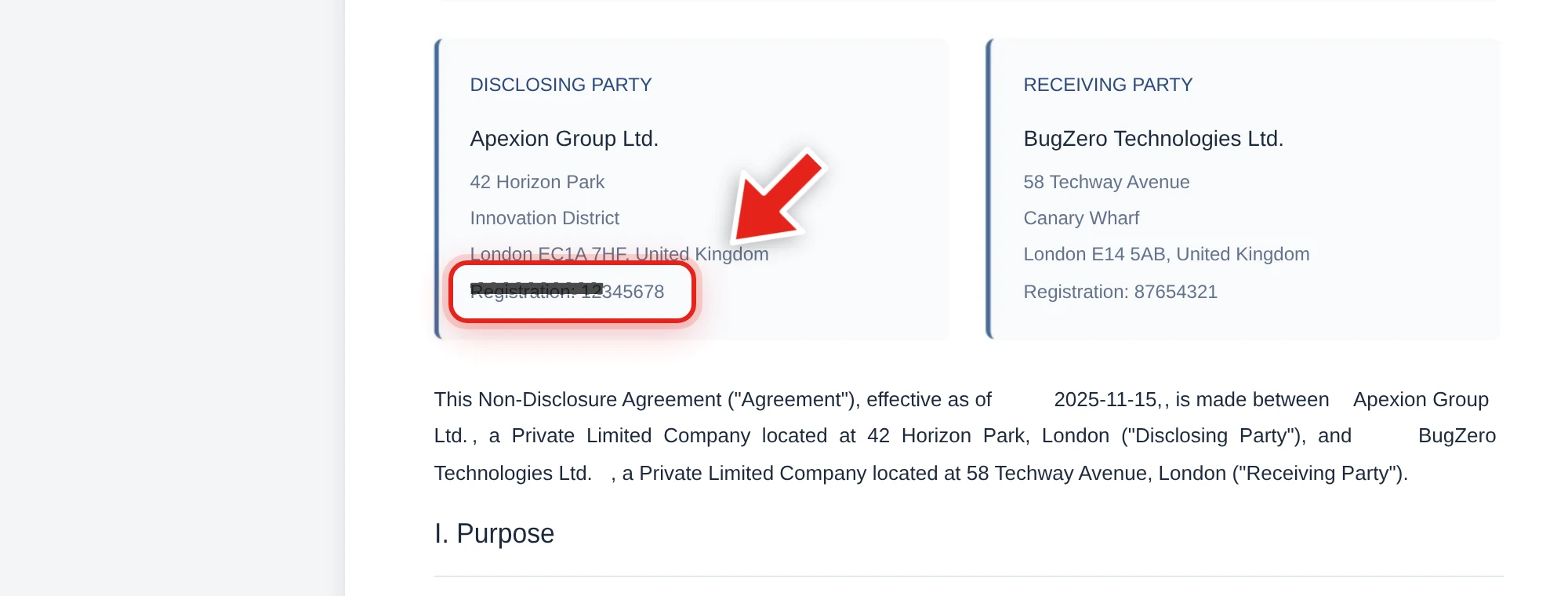
Release the mouse and the covered text is removed from the file's content the moment you export — no separate "apply" step, no separate metadata cleanup screen to remember.
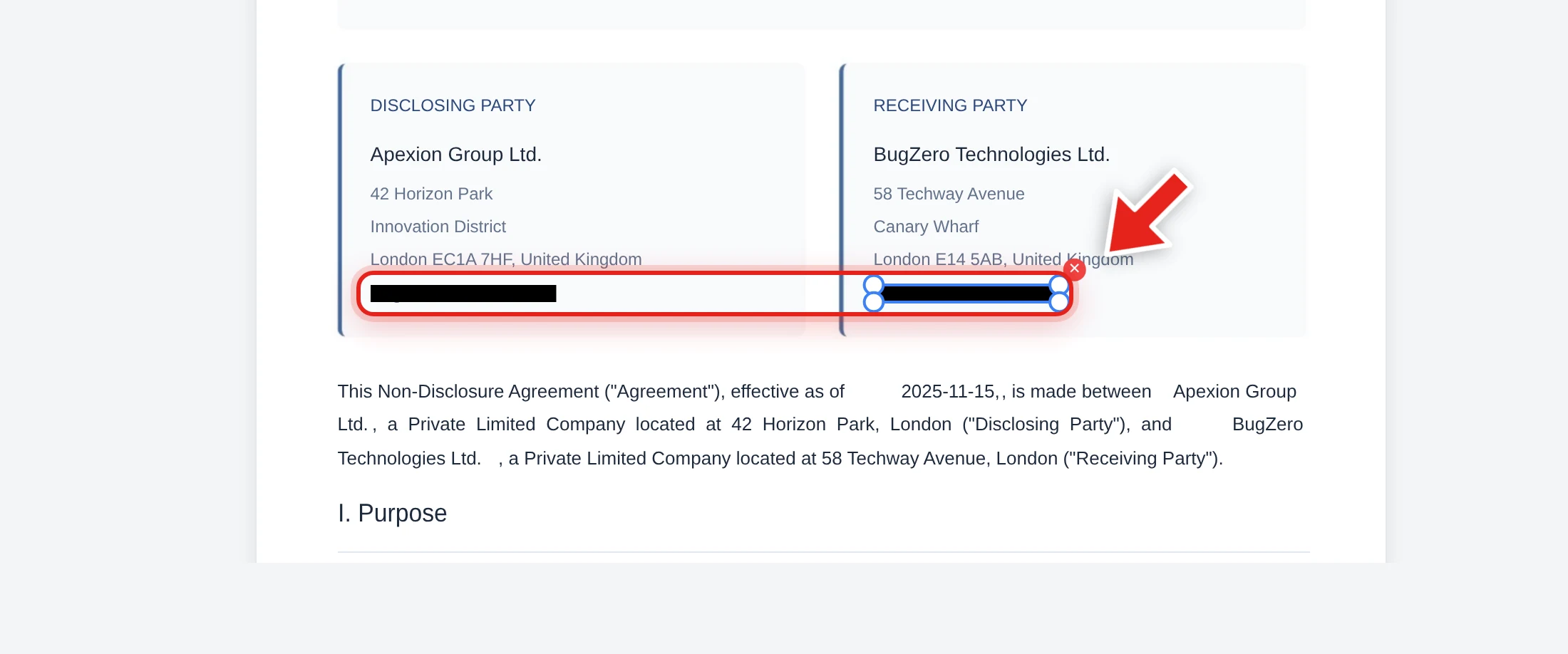
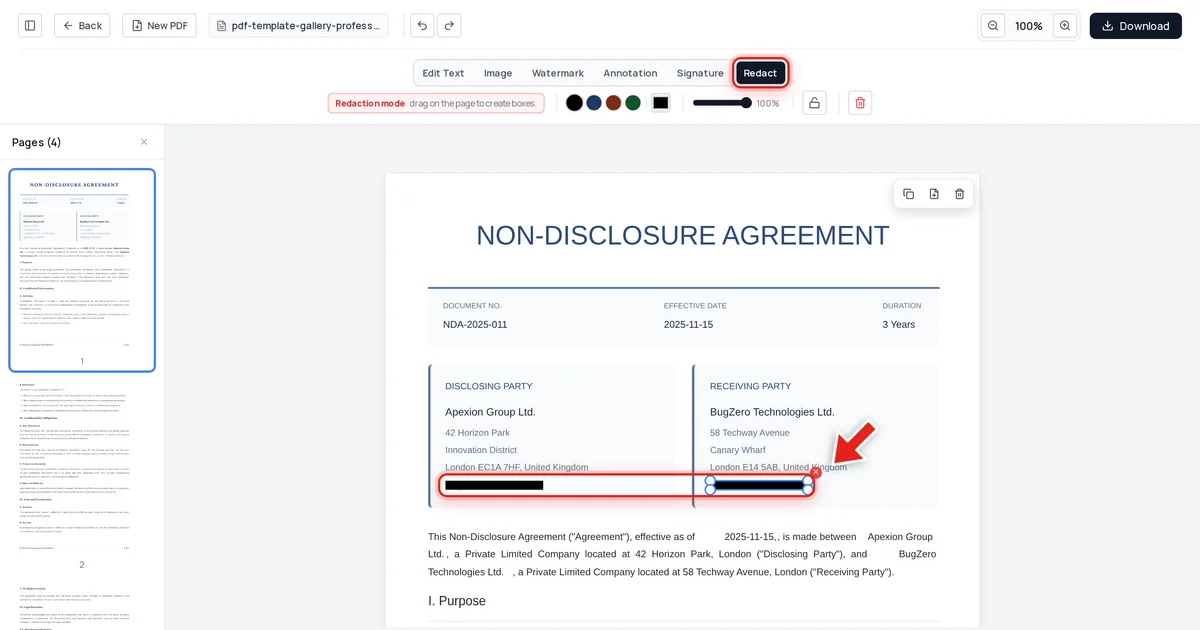
We tested this on the document above — a mutual NDA with each company's registration number redacted. After export, we checked three things: all extracted text from every page, the raw decompressed content of the file, and the embedded metadata. Both registration numbers were completely absent from all three, while every other detail in the agreement — company names, addresses, the NDA reference — stayed intact.
Where Acrobat has real reported friction
To be fair and specific, not just dismissive: the friction with Acrobat's redaction isn't that it's fake — it's operational.
- "Apply Redactions" greyed out. A recurring user complaint, usually tied to permissions, document restrictions, or marks not being finalized correctly before applying.
- Over-redaction on scanned/OCR'd files. Acrobat's redaction can behave inconsistently on image-based text layers, sometimes covering more or less than intended.
- Sanitize Document isn't automatic. It's a distinct menu action; skipping it is an easy mistake that leaves metadata behind even in an otherwise correctly redacted file.
None of these mean Acrobat's redaction is unsafe by design — they mean the workflow has more places to make a mistake than a single-action tool does.
The cost angle
Acrobat Pro runs $19.99/month billed annually ($239.88/year) or $29.99/month billed monthly ($359.88/year). If redaction is the main reason you'd subscribe, see how to redact a PDF without Adobe for the free alternative — same end requirement (content removed, metadata clean, verified), no subscription.
FAQ
Does Adobe Acrobat actually delete redacted text, or just hide it?
When you complete both steps — Mark for Redaction, then Apply Redactions — the marked content is deleted from the underlying page content, not merely covered. The risk is stopping after step 1, where nothing has actually been removed yet.
Does Acrobat redaction also remove hidden metadata?
Not automatically. Metadata cleanup is a separate feature, Sanitize Document, that has to be run in addition to redaction.
Why is "Apply Redactions" sometimes greyed out in Acrobat?
This is a commonly reported issue, typically related to document permissions or restrictions. It doesn't indicate a security flaw — it means the redaction hasn't been applied yet, so no content has been removed.
Is a free tool riskier than Acrobat for redaction?
Risk comes from what the export actually does to the covered content, not the price of the software. A free tool that removes content in one step and a paid tool that removes it in two correctly-completed steps are equally safe; a free OR paid tool that only draws over text is equally unsafe. Verify either way with the copy-paste test.
What's the single most important check regardless of which tool I use?
After exporting, try to select the redacted area, copy it, and paste it into a plain text editor. If nothing comes out, the redaction worked. This test is tool-agnostic and takes about ten seconds.