How to Find and Remove Files Hidden Inside a PDF
A PDF can carry entire files inside it that never appear on any page. Most readers hide them behind a paperclip icon nobody clicks. Here's how to see what's actually in a document before you send it.

A PDF is not only pages. The format lets a document carry whole files inside it — a spreadsheet, an XML invoice, a set of notes — stored in the file and travelling with it wherever it goes. None of it shows on any page.
Most PDF readers put these behind a small paperclip icon in a panel almost nobody opens. So attachments get sent, received and forwarded without anyone noticing they're there.
This guide shows you how to see what's actually inside a PDF, save anything useful, and strip out anything that shouldn't be leaving your building. Free, in the Online PDF Edits editor.
Key takeaways
- PDFs can embed arbitrary files. They're invisible on the page and easy to ship by accident.
- The Attach tool lists every embedded file with its name, size, type and description.
- Attachments hide in two places — a document-level list and pinned to individual pages. Tools that check only the first will tell you a document is clean when it isn't.
- You can save any attachment out, or remove it and export a clean copy.
- Removing an attachment is a real deletion from the exported file, not a hidden flag.
Where attachments come from
They're usually not sinister. They're just forgotten.
- E-invoicing. Formats like ZUGFeRD and Factur-X require a machine-readable XML file inside the PDF. Every invoice from a compliant system carries one.
- Reports built from data. Someone attaches the source spreadsheet "for reference" and it stays there through every later revision.
- Design and CAD exports. Some tools embed the source or a metadata sidecar automatically.
- Templates. Start from last quarter's document and you inherit last quarter's attachments — including the ones with pricing you're no longer offering.
That last one is the reason to check before sending anything externally.
Step 1 — Open the PDF and click Attach

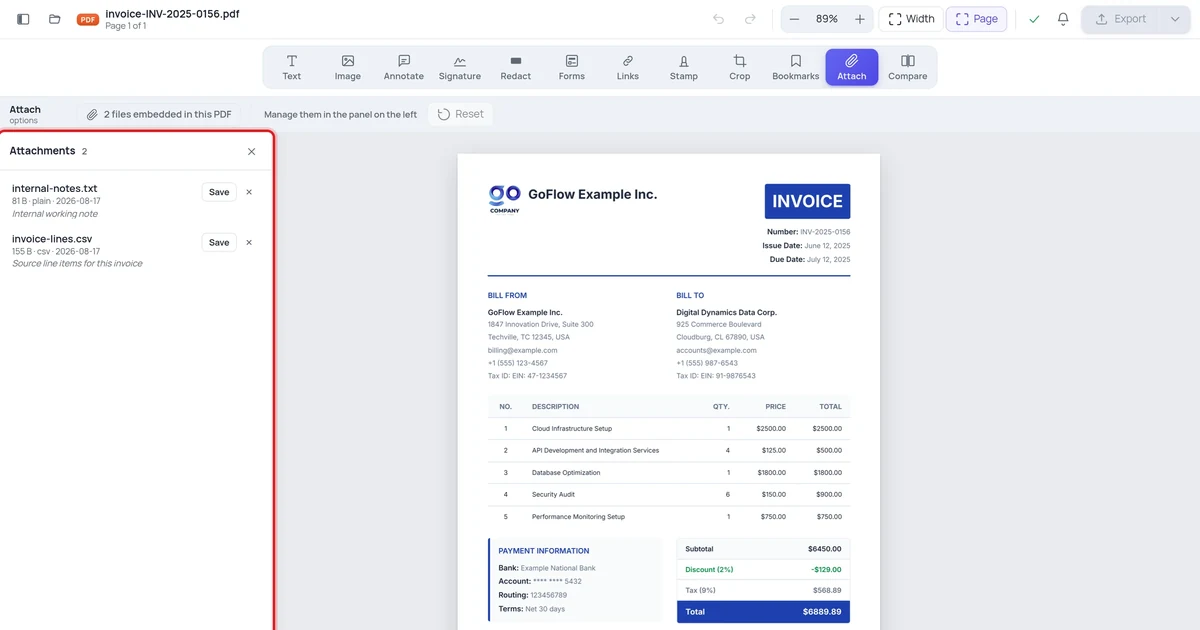
The editor reads the document as it loads and puts the count on the tool, so "does this have attachments?" is answered before you click anything.
Step 2 — See what's in there
The panel lists every embedded file.
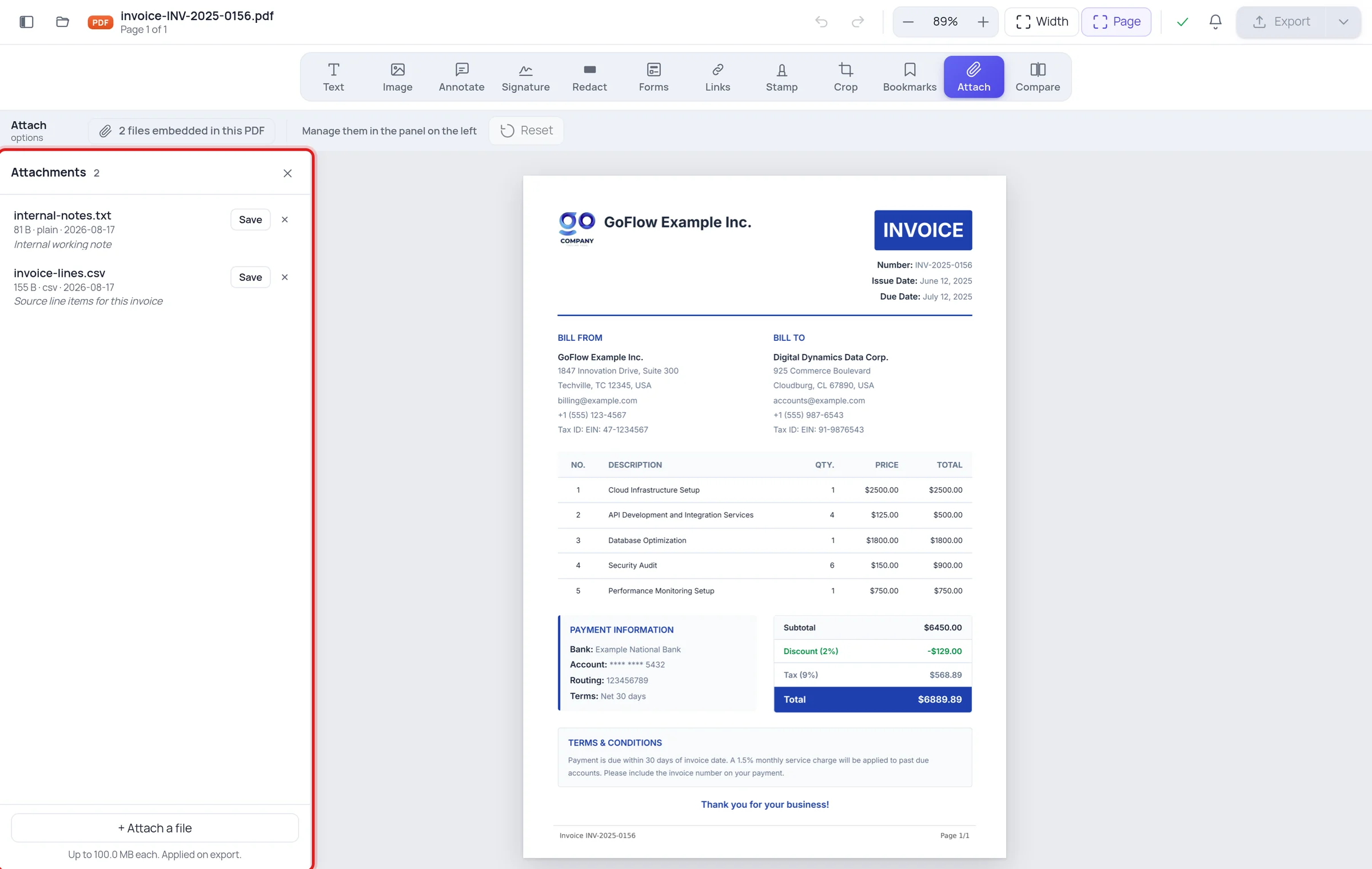
For each one you get the filename, its size, its type, when it was last modified, and the description the author gave it — everything you need to decide whether it belongs.
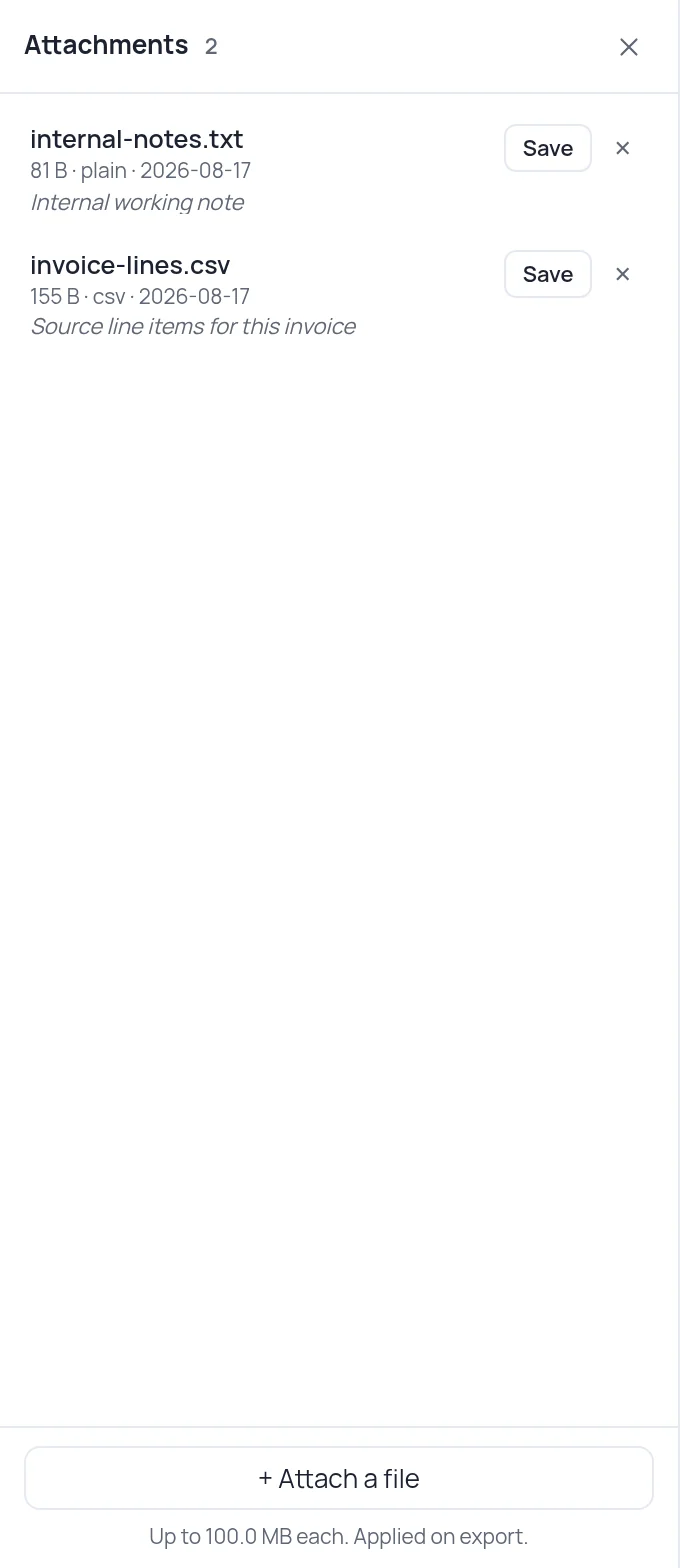
In the example above, an invoice carries two files. invoice-lines.csv is the source data and belongs there. internal-notes.txt is an internal working note — exactly the kind of thing that should never have left. On the page, both are completely invisible.
One important detail: the list shows metadata only. The file contents are never read until you explicitly ask for one, so opening a document with a 200 MB attachment costs nothing.
Step 3 — Save anything you need
Click Save on any row to download it. It comes down as a plain file, always as a download rather than something the browser tries to display, and the filename is cleaned first — an attachment named ../../../etc/passwd is saved as passwd, not somewhere it shouldn't be.
Treat an attachment from a document you didn't create exactly as you'd treat an email attachment from the same sender. Saving is safe; opening runs whatever app handles that file type.
Step 4 — Remove what shouldn't be there and export
Click ✕ on any row to mark it for removal. The row is struck through, with an Undo, and nothing changes until you export.
The exported PDF genuinely no longer contains that file. This isn't a visibility flag — the data is gone from the document.
The second hiding place
Most tools look at a PDF's document-level attachment list and stop there. But attachments can also be pinned to a specific page, stored as an annotation rather than in that list.
Both kinds are listed here, and page-pinned ones show which page they're on. If you're checking a document for anything sensitive, that difference matters: a tool that only reads the document-level list will report "no attachments" on a file that has one sitting on page 6.
A note on what this is and isn't
Removing attachments is one part of getting a document ready to share. It is not the whole job:
- Metadata — author names, software, editing history — lives elsewhere. See checking a PDF for hidden metadata.
- Text you covered with a black box is still in the file. That needs true redaction.
- Links can point at internal servers. See checking every link.
Attachments, metadata, redaction, links. Four separate checks, four separate places to look.
Frequently asked questions
Do attachments make a PDF bigger? Yes — the file is stored in full inside the document. A PDF that's inexplicably large often has something embedded in it.
Can I add my own attachment? Yes. Use + Attach a file in the same panel, up to 100 MB per file. It's applied when you export.
Will the recipient see the attachment? Only if their reader shows attachments — many hide them behind a small icon. Don't rely on an attachment being noticed; if it matters, say so in the document.
Does removing an attachment change the pages? No. The pages are untouched; only the embedded file is removed.