How to Check Whether a PDF You Received Was Altered
An invoice arrives with different bank details than you remember. A contract comes back from the other side with a clause that reads slightly differently. Here's how to find every change in seconds.

An invoice arrives for the amount you expected, from the supplier you expected, with bank details that are slightly different from the ones you have on file. Is it a genuine change or is it fraud?
Or a contract comes back from the other side "with a few small tidy-ups." Which few?
If you have a copy of the original, you can answer both questions in about thirty seconds.
Key takeaways
- Compare the document you received against a copy you trust. Without a trusted copy, there's nothing to compare to.
- The comparison runs two passes: a text diff and a visual diff. Neither alone is enough.
- Text diffing catches wording, numbers and dates. Visual diffing catches swapped logos, moved figures, changed colours and altered images — none of which change any text.
- Every change is listed and highlighted on the page.
- The comparison is read-only: it changes nothing in either file.
Why one pass isn't enough
A text-only comparison reads the words. It's precise and it tells you exactly which sentence changed — but it is completely blind to a swapped signature image, a different logo, a figure whose bars moved, or a table that changed colour. None of those alter a single character.
A pixel-only comparison sees all of that, but it's useless on a document where one word got longer, because everything after it reflowed and now the whole page "differs."
So both run, and they're reported separately, which means you can tell what kind of change you're looking at.
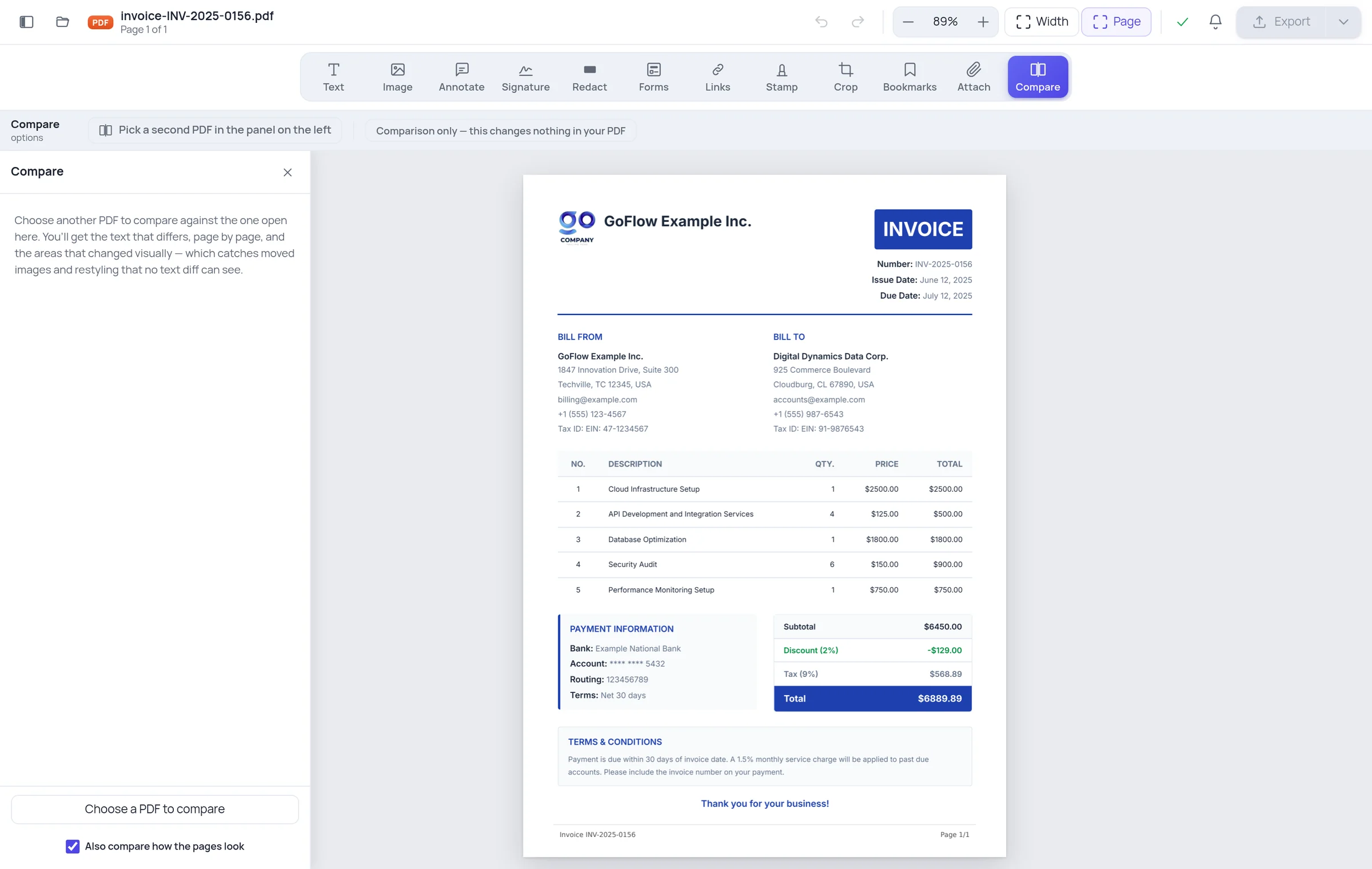
Step 1 — Open the copy you trust, and pick Compare
Open your known-good version in the editor, then click Compare.

The document on screen is the reference. Everything reported is described relative to it.
Step 2 — Choose the copy you're checking
Pick the file you received. The comparison takes a few seconds.
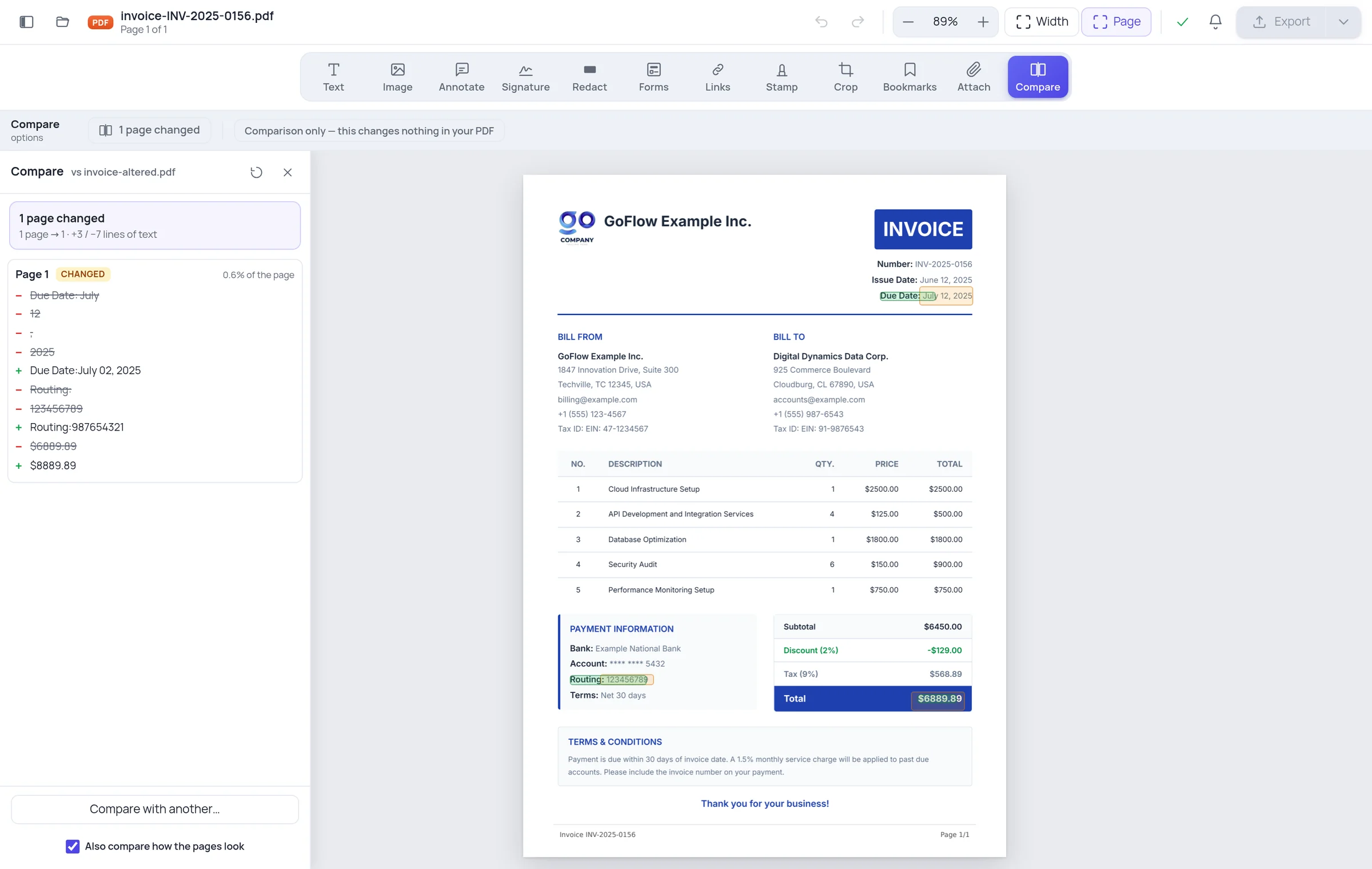
You get a summary — how many pages changed, how many lines were added and removed — and then the detail.
Step 3 — Read the changes
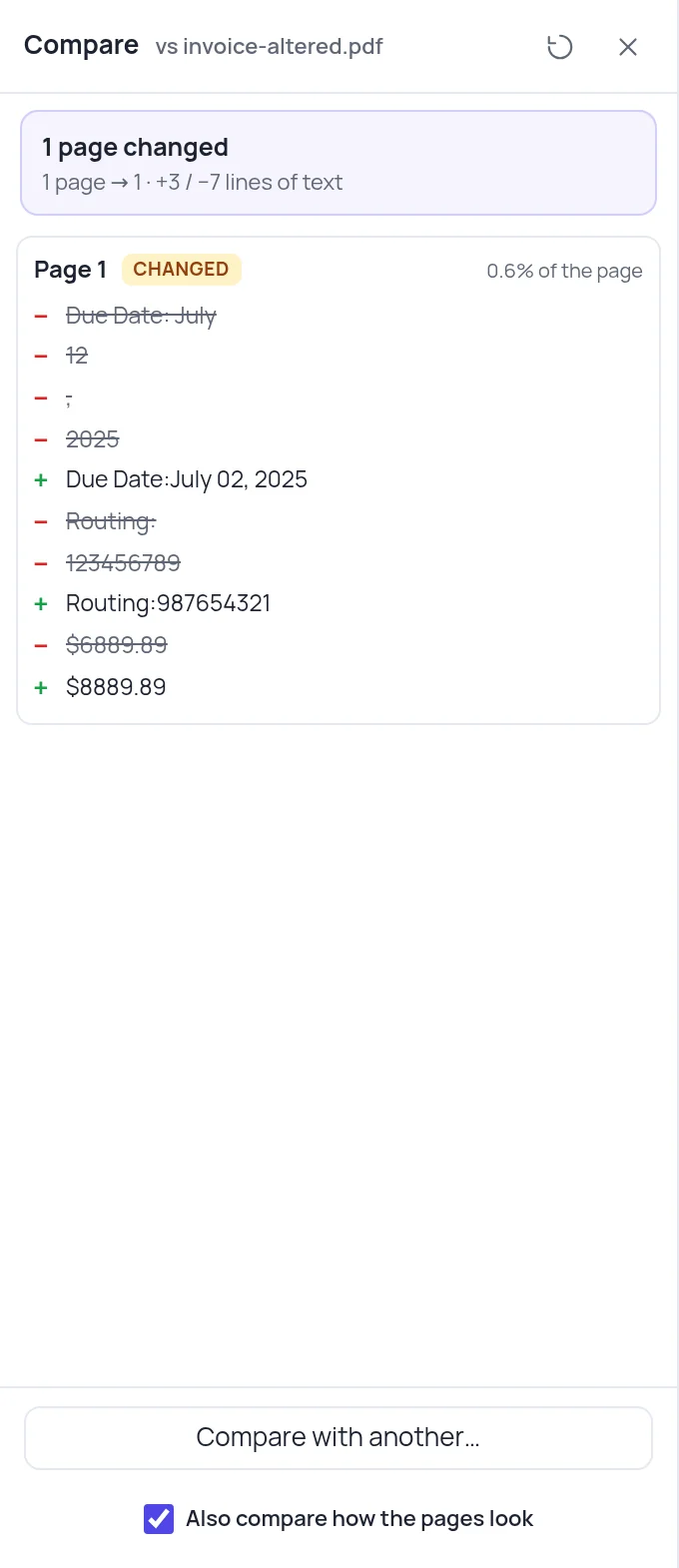
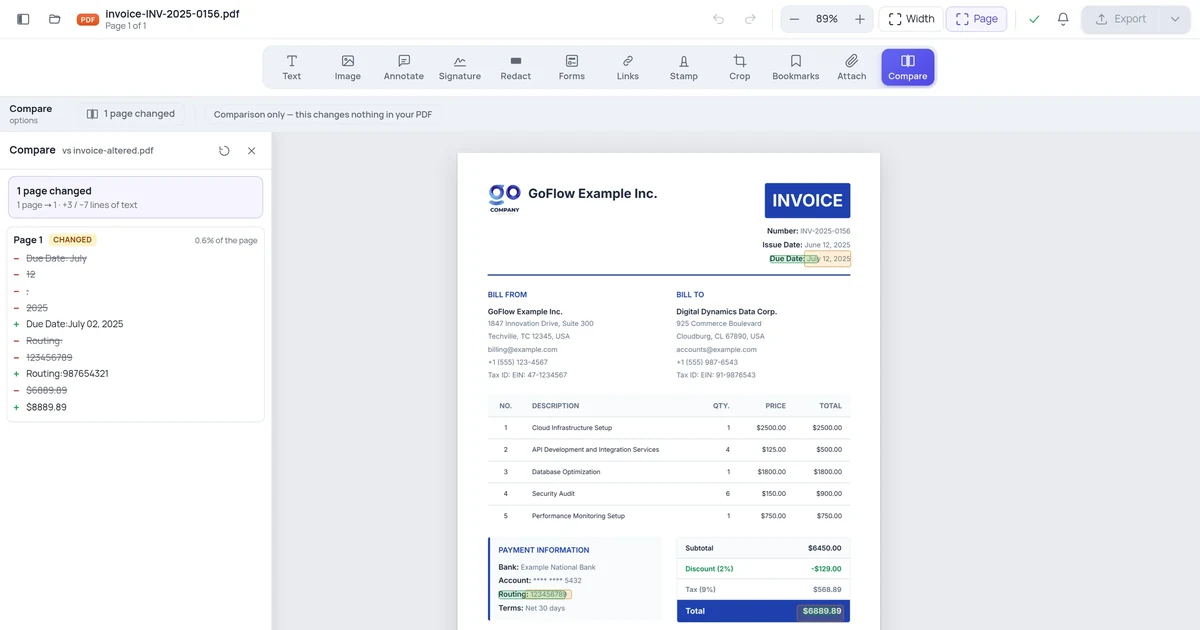
Removed text is struck through, added text is marked, and the affected areas are highlighted on the page itself so you can see them in context.
In the example above, three things changed in an invoice that looks completely normal:
- the due date moved from July 12 to July 02
- the routing number changed
- the total went from $6,889.89 to $8,889.89
That's the shape of real invoice fraud: nothing dramatic, a couple of digits, in fields nobody re-reads because they already approved the document once.
If a page shows highlighted regions but no text changes, the report says so explicitly — that means something visual moved, and it's worth looking at closely.
What "no differences" does and doesn't prove
If the comparison comes back identical, the two files render and read the same. That's strong evidence for the content.
It is not proof the file is untampered in every respect. Metadata, embedded files, links and JavaScript live outside the visible page. A document can be byte-different and page-identical. If you're checking a document for safety rather than content, also check:
If you don't have the original
Comparison needs something to compare against. Without it, your options are weaker but not zero:
Check for a digital signature. A properly signed PDF reports whether it has been modified since signing. Note that a signature proves the file hasn't changed since it was signed — not that its contents were ever true.
Look at the metadata. Creation and modification dates, and the producing software, are sometimes revealing. All of it can be edited, so treat it as a hint.
Ask for the original. For anything involving payment details, confirm through a channel you already trust — a phone number you had before the document arrived, not one printed on it.
A note on how pages are matched
Pages are compared by position: page 1 to page 1, page 2 to page 2. If a page was inserted, everything after it shifts and is reported as changed.
That's deliberate. Guessing which pages correspond by similarity sounds smarter, but a wrong guess quietly scrambles the entire report. Being predictable is worth more: an inserted page is reported as added, and the shift after it is reported as changed — which is exactly what happened to the document.
Frequently asked questions
Does comparing change either file? No. It's read-only, and the toolbar says so.
How many pages can it compare? Up to 300, and it tells you if a document was longer.
Will it work on scanned documents? The visual pass will. Scans have no text layer, so the text pass has nothing to read — you'll get changed regions without changed wording.
Can I compare two versions where one has been flattened? Yes. Flattening changes how content is stored, not what it says, so the text pass still reads both.