How to Flatten a PDF Form (Lock Answers, Remove Fields)
Flattening a PDF form merges the filled-in answers into the page permanently. Here's why you'd do it and the fastest method on each platform.

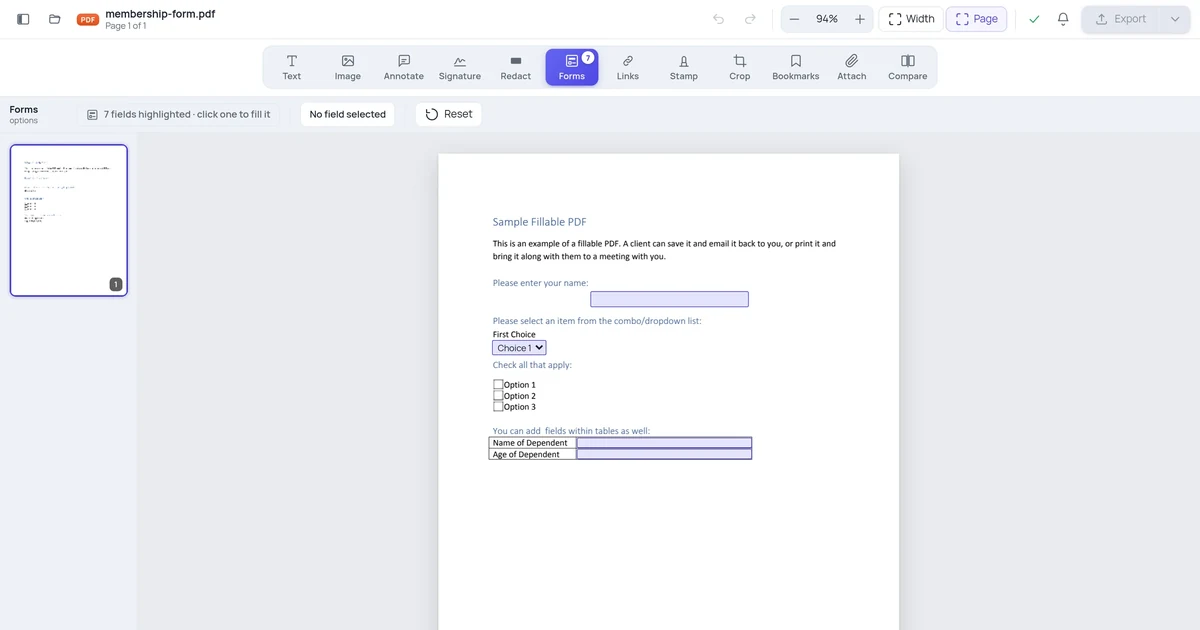
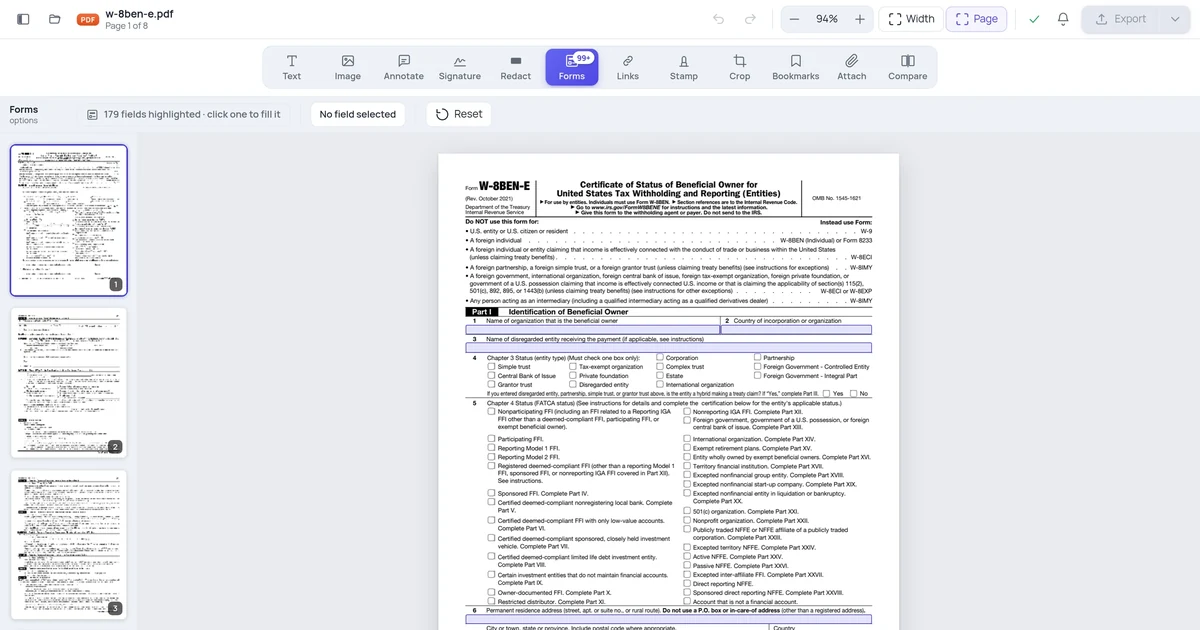
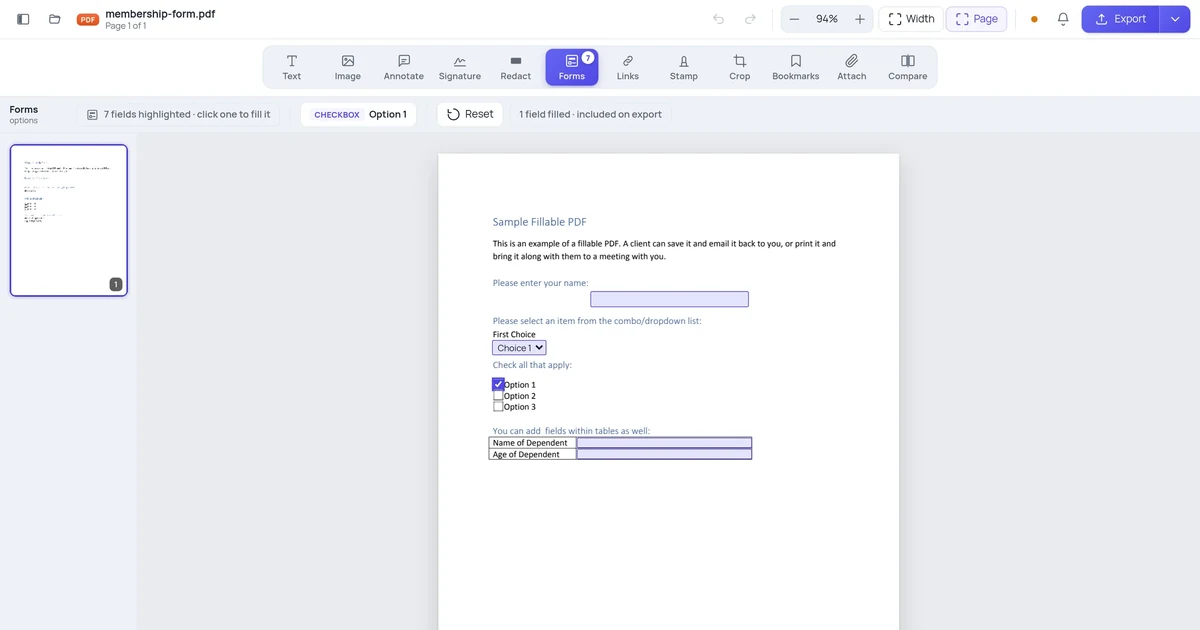
Flattening a PDF form merges the interactive form fields — and all the data filled into them — into the static page content. The result looks identical to the filled form but has no interactive elements: no fields that can be edited, no checkboxes that can be toggled, no signatures that can be removed. It's permanently locked.
Why Flatten a PDF Form
Before archiving a completed form. Once all parties have filled and signed a form, flatten it before archiving. This prevents accidental or deliberate modification of the recorded answers.
Before printing. Some PDF printers don't render form fields correctly — they print the blank form rather than the filled version, or fields appear in the wrong position. Flattening guarantees what you see on screen is exactly what prints.
Before sharing. If you share a filled PDF with someone else, they can change the answers if the fields are still interactive. Flattening prevents this.
To reduce file size. AcroForm metadata adds overhead. Removing it by flattening slightly reduces file size — useful when the form will be stored in large quantities.
To ensure consistent display. Form fields render differently across PDF readers (Acrobat vs Chrome vs Preview). Flattened content always looks the same everywhere.
Method 1: Adobe Acrobat Pro — Print to Adobe PDF
The most reliable flatten method is printing to a PDF printer driver, which re-renders the page with fields baked in.
- Open the filled PDF in Acrobat
- File → Print
- Set the printer to "Adobe PDF" (installs with Acrobat Pro)
- Click Print
- Choose a filename and location for the flattened output
The resulting PDF has all field content merged into the page — no interactive elements remain.
Alternative in Acrobat Pro (direct flatten):
- Open the filled PDF
- Go to File → Save As Other → Reduced Size PDF — this triggers a re-render that often flattens fields
- Or: Tools → Print Production → Flatten for explicit control
Most direct: In Acrobat Pro, go to Tools → Edit PDF → More → Flatten. This flattens in one click. Available in Acrobat Pro but not in the free Reader.
Method 2: Adobe Acrobat Reader (Free) — Print to PDF
Even without Acrobat Pro, Acrobat Reader can flatten via the system's Print to PDF:
- Open the filled form in Acrobat Reader
- File → Print
- Set the printer to "Microsoft Print to PDF" (Windows) or use PDF → Save as PDF in the print dialog (Mac)
The resulting file is a flat PDF — the printed output captured as a new PDF file. This method always works because it uses the operating system's print renderer, not the PDF editor.
Method 3: Preview on Mac (Free, One Step)
Preview flattens PDF forms when you export — because Preview doesn't write AcroForm field data, its exports are always flat.
- Open the filled PDF in Preview
- File → Export as PDF (not File → Save)
- Choose a new filename
- Click Save
The exported PDF from Preview does not contain AcroForm fields, even if the original did. The data you filled in is preserved as static visual content.
Important: This only works if you filled the form in Preview. If you filled it in Acrobat Reader and saved, then open that saved file in Preview and Export, it flattens correctly. But if Preview couldn't read the field data in the first place (some complex forms), the exported file may show blank fields.
Method 4: Online Tool (Any Device, No Software)
Upload the filled PDF to an online PDF flattener:
- Go to an online PDF flattening tool or use OnlinePDFEdits
- Upload the filled form
- Use the flatten or export option
- Download the flat PDF
Most online PDF tools re-render PDFs through a server-side engine (similar to Print to PDF), which inherently produces a flattened output.
Method 5: Ghostscript (Command Line — Best for Batch)
Ghostscript re-renders the PDF completely, merging all form fields into the page content:
gs -dNOPAUSE -dBATCH -sDEVICE=pdfwrite \
   -dFlattenPDF \
   -sOutputFile=flattened.pdf \
   filled_form.pdf
For batch flattening a folder of completed forms:
for f in /path/to/forms/*.pdf; do
    gs -dNOPAUSE -dBATCH -sDEVICE=pdfwrite \
       -dFlattenPDF \
       -sOutputFile="/path/to/output/$(basename "$f")" \
       "$f"
done
Method 6: Python + PyMuPDF
import fitz  # pip install pymupdf

def flatten_pdf(input_path, output_path):
    doc = fitz.open(input_path)
    # PyMuPDF flattens widgets when saving with these flags
    for page in doc:
        # Flatten all widgets (form fields) on this page
        for widget in page.widgets():
            # Each widget's appearance is already rendered —
            # removing the widget flattens it
            widget.update()
        page.clean_contents()

    doc.save(output_path,
             garbage=4,       # Remove all unreachable objects
             deflate=True,    # Compress output
             clean=True)      # Clean up page streams
    doc.close()

flatten_pdf("filled_form.pdf", "flattened_form.pdf")
For a simpler approach that always works (re-render via bitmap):
import fitz

doc = fitz.open("filled_form.pdf")
new_doc = fitz.open()

for page in doc:
    # Render page to a high-res pixmap
    mat = fitz.Matrix(2, 2)  # 2x scale = 144 DPI equivalent
    pix = page.get_pixmap(matrix=mat)

    # Create a new page with the rendered image
    new_page = new_doc.new_page(width=page.rect.width, height=page.rect.height)
    new_page.insert_image(new_page.rect, pixmap=pix)

new_doc.save("flattened_form.pdf")
doc.close()
new_doc.close()
This rasterizes the form — guaranteed flat, but the output is image-based (not text-searchable). Only use the rasterization approach if the widget-removal method doesn't work for a specific form.
Verifying the Flatten Worked
After flattening, verify:
- Open the flattened PDF and try clicking on what were formerly fields — nothing should happen
- Try pressing Tab — no fields should have keyboard focus
- In Acrobat: View → Navigation Panels → Fields — the panel should be empty
- Check that all filled values (text, checked boxes, selected options) are visible as static content
If any field is still interactive after the flatten attempt, the method didn't fully work. Try the Print to PDF method, which is the most reliable universal approach.
What Flattening Does NOT Do
Flattening is not redaction. If you filled a form with sensitive data and want to share a version with that data removed, flatten doesn't help — the data is still visible in the flat version. Use redaction to black out sensitive fields before sharing.
Flattening is not encryption. A flat PDF can still be viewed by anyone who receives it. Add a password after flattening if you need access control.
Flattening is not guaranteed lossless. In rare cases with very complex field rendering (custom JavaScript appearance streams, unusual font embedding), the flat version looks slightly different from the interactive version — typically minor visual differences. Always check the flattened file before archiving or sharing.
FAQ
Can I un-flatten a PDF and get the fields back?
No. Flattening is irreversible — the field metadata and interactivity are gone. Keep a copy of the filled, un-flattened form if there's any chance you'll need to modify it later.
Does flattening affect digital signatures?
Flattening a PDF with digital signatures invalidates the cryptographic signature — the signature covers the original file content, and flattening changes that content. If you need to archive a signed PDF while preserving signature validity, don't flatten it. Keep the signed PDF as-is. If signature validity doesn't matter (you just want a flat archived copy), flatten normally.
Why does my flattened PDF look slightly different from the filled version?
Form field rendering is handled by the PDF viewer, not the PDF file itself. Different viewers render fields slightly differently — font size, padding, background color. When you flatten using Print to PDF, the printer driver captures what your current viewer rendered. Acrobat Reader's rendering becomes the canonical version in the flattened file. Open the original in Acrobat Reader and use its Print to PDF for the most accurate result.
Is there a way to flatten only some fields and leave others interactive?
Yes, in Acrobat Pro: go to the Fields panel, select the fields you want to flatten, right-click → Properties → Locked. Then use a JavaScript action or the Forms Editor to flatten only non-locked fields. This is advanced and requires JavaScript knowledge. For most use cases, either flatten all fields or none.