How to Tell If a PDF Form Is Real or Just Lines on a Page
Two documents can look identical and behave completely differently: one has real fillable fields, the other just has lines drawn on it. Here's the five-second test, using a document that contains both.

Two PDFs can look exactly the same — a heading, some labels, a row of blanks waiting for answers — and behave completely differently. One lets you click and type. The other ignores you entirely.
The difference is invisible until you interact with it. Here's how to tell in about five seconds.
Key takeaways
- A real form contains interactive field data added by the author. A printed form is just lines and boxes drawn on the page.
- Two documents can look equally official and behave completely differently.
- The Forms tool answers it immediately: real fields get highlighted and counted.
- Both kinds can be filled in; only the method differs.
- If nothing highlights, don't hunt for a setting. There is nothing there to switch on.
The test
Open your PDF in the editor and click Forms. Then read the badge:
- A number on the tool — the document has that many real fields. Click one and type.
- A message saying there are no interactive fields — the blanks are decoration.
That's the whole test. The editor reads the document's form data as it loads, so you're reading a fact out of the file rather than guessing from how it looks.
What a real form looks like
Here's an IRS W-8BEN-E — a genuine interactive form.

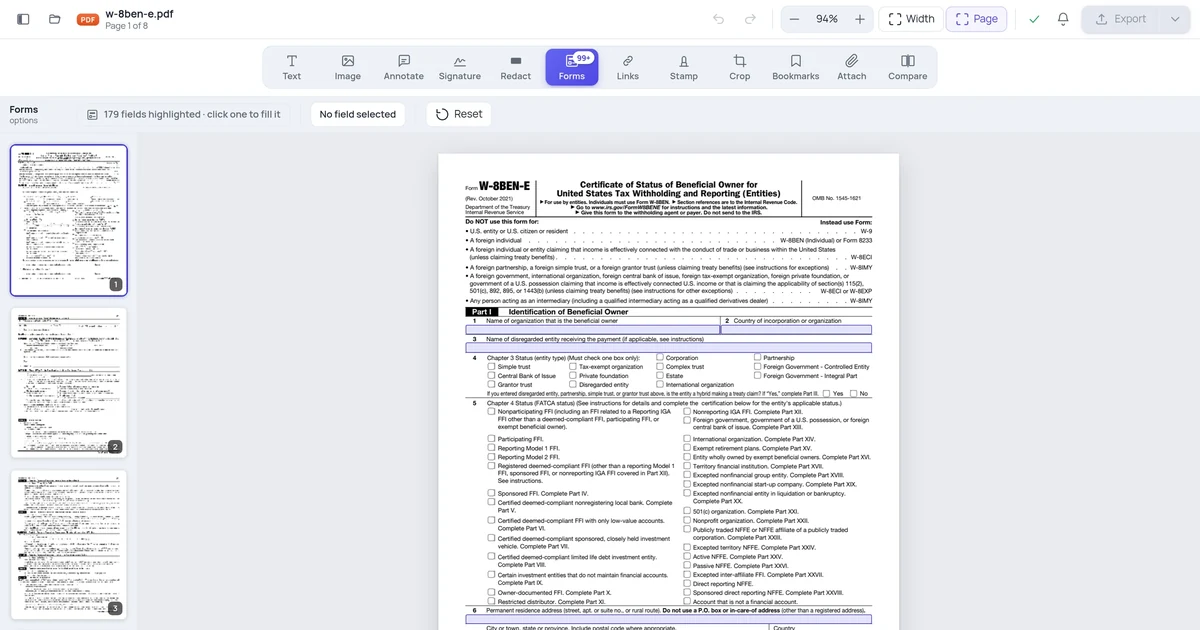
179 fields, and every one of them outlined on the page:
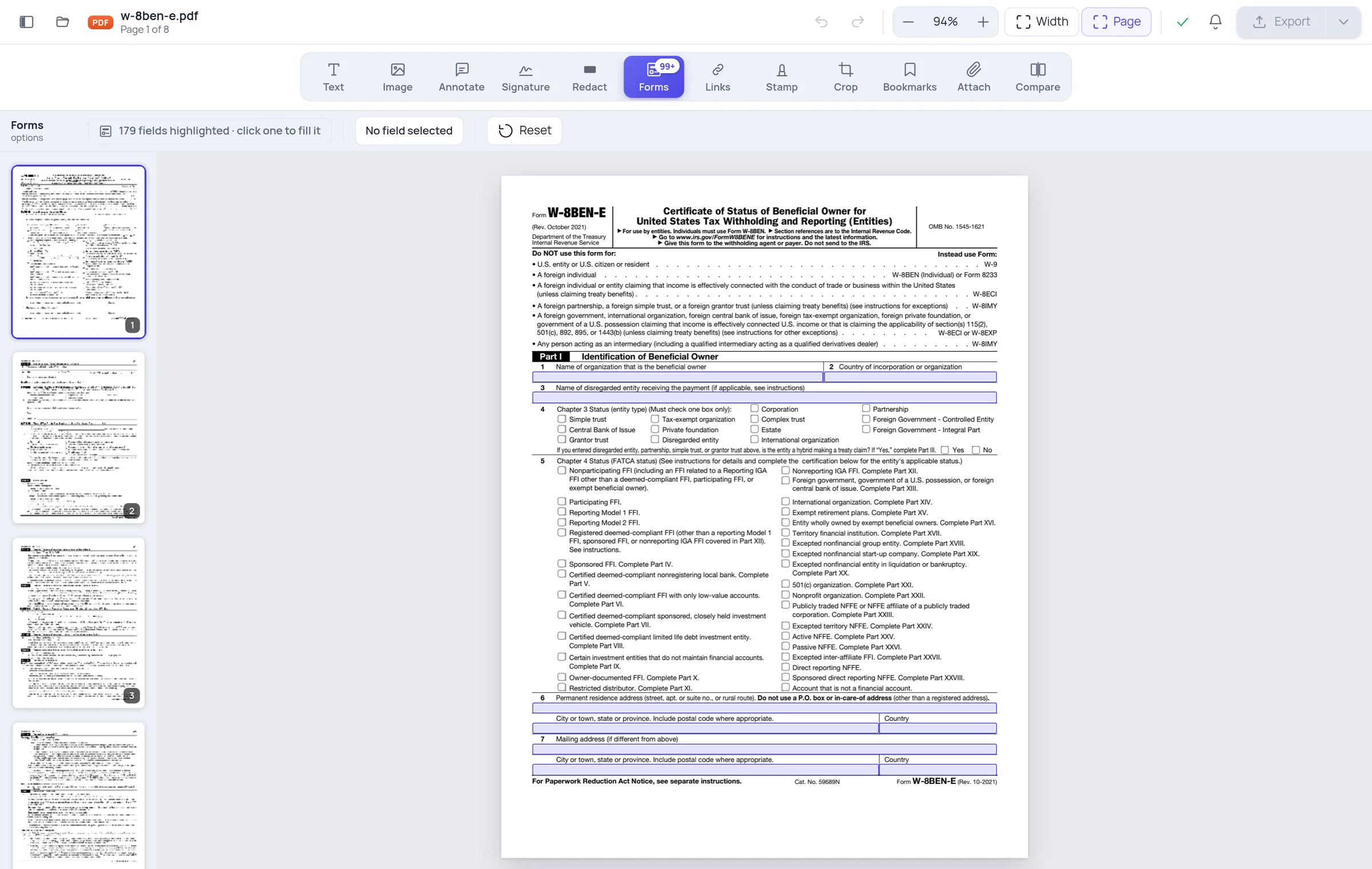
You can see the shape of the form at a glance, including boxes that are easy to miss by eye — the row of tiny checkboxes down the middle of that page is exactly what people skip when filling a form manually.
Real fields also carry their type with them. A checkbox behaves like a checkbox, a dropdown only accepts its listed options, a date field offers a picker. That's information the author stored in the document, and it's why a real form is faster and less error-prone to fill in.
What a document that only looks like a form looks like
Now a performance review. Same idea — labelled rows, boxes, values in cells, obviously designed to be filled in.

"This PDF has no interactive form fields."
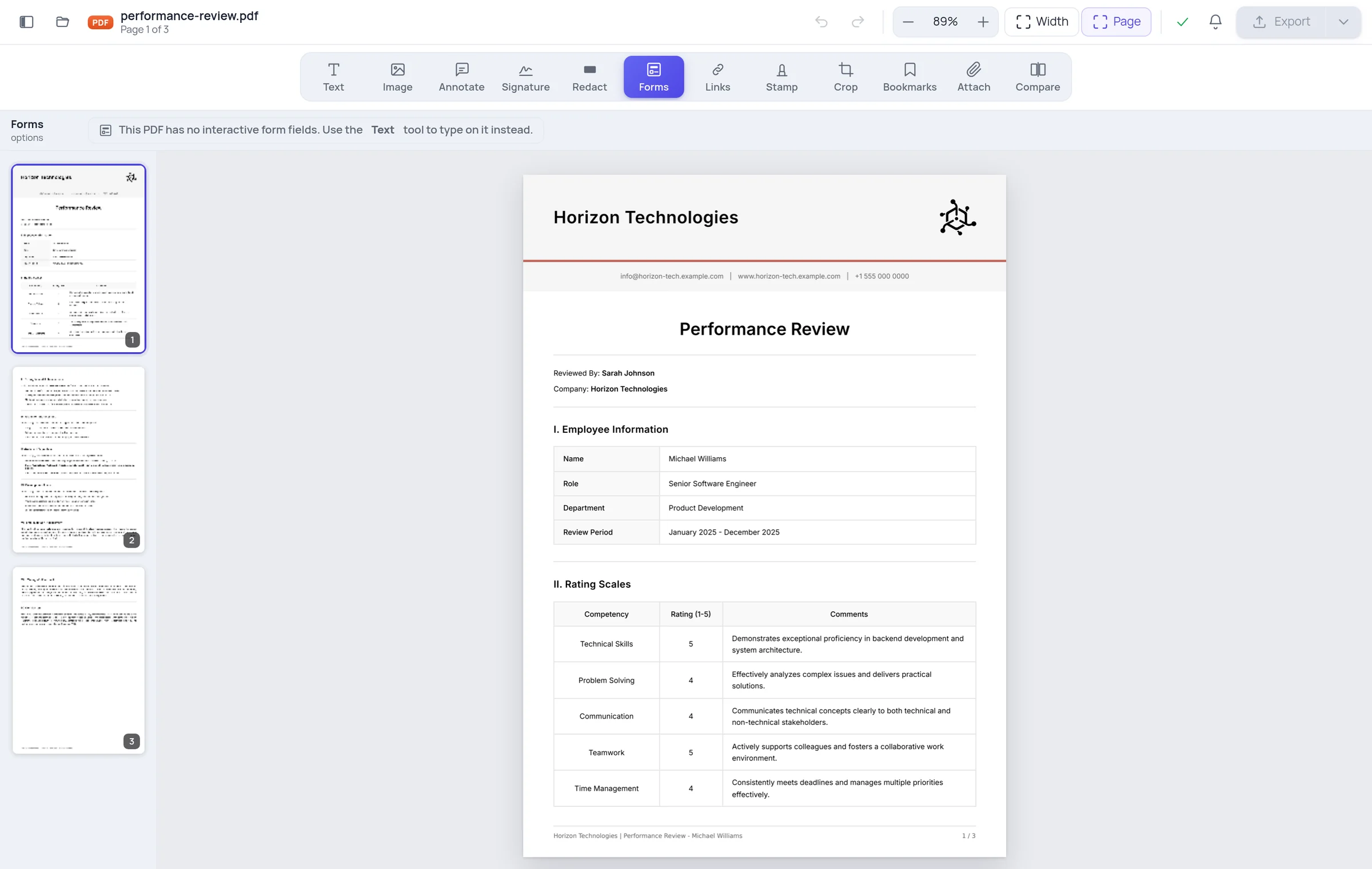
Look at that page and tell me it isn't a form. Employee Information in a bordered table. A ratings grid. A comments column. Every one of those cells looks like something you should be able to click into.
None of them are. The borders are lines, the labels are text, and the values were typed in before it was exported. There is nothing interactive anywhere in the document — which is why it's worth checking rather than assuming.
Don't assume it's the whole document, either
A form can be inconsistent with itself. Documents assembled from several sources, or with a page added later, often have real fields on some pages and printed blanks on others.
So if a form suddenly stops accepting input halfway through, you haven't broken it — you've reached a page nobody added fields to. Check the page you're actually on.
Why some forms have no fields at all
Fields have to be added on purpose. A document has none if it was:
- Exported from Word, Pages or Google Docs. Those export the look of a form. Underlines are underlines.
- Scanned from paper. The page is an image. There's no text, let alone fields.
- Flattened. Somebody exported a filled-in form with flattening on, which permanently converts fields into page content. See making answers stick.
- Built by a designer. Design tools lay out beautiful forms and rarely add interactive fields.
None of these are broken. They just aren't interactive.
Filling in the kind that has no fields
Switch to the Text tool and add text where you need it. You position it yourself, which is slower than tabbing between fields, but the result is an ordinary PDF that anyone can read — and you never have to print, write and scan.
For a scanned form, the same approach works: you're typing on top of an image, and the result reads perfectly.
Should you add real fields instead?
Only if the form will be used repeatedly. Adding fields takes longer than filling one in once. It pays off when you're the one sending the form and want:
- answers that land in consistent places,
- checkboxes people can't half-tick,
- dropdowns that stop invalid entries,
- something people can complete without printing.
For a one-off, typing on the page is the faster answer.
Frequently asked questions
Why does my form work in one app and not another? Some viewers don't render form data at all. The form is fine; open it somewhere that does.
The fields highlight but I can't type in one. It's probably read-only — the author locked it, often because it's calculated from other fields.
Can I tell without any tool? Try pressing Tab. In a viewer that supports forms, Tab jumps between fields. If nothing moves, there probably aren't any. The badge is more reliable.
Does a scanned form ever have fields? Only if someone added them after scanning. Scanning alone produces an image.