How to Add a Digital Signature Field to a PDF Form
A practical guide to adding a signature field to a PDF form, placing it where the signer expects it, labeling it clearly, and sending the file so it can actually be signed.

To add a signature field to a PDF form, open the file in an online editor, choose the Signature or Sign tool, then click on the page where the signature belongs. A signing area appears, which you size and position over the existing signature line. Add a label and a date field if needed, then save and send the file so the recipient can sign in that exact spot.
Key takeaways
- A signature field marks where to sign; it is the box you place so the person filling in the form knows exactly where their signature goes, rather than leaving them guessing on a blank line.
- Placing a field is not the same as signing, so adding the field for someone else to complete is a different job from dropping your own signature onto a document you are finishing yourself.
- Position the field over the existing signature line, lining it up with the printed "Signature" and "Date" labels already on the form so it reads as part of the original layout.
- Add a matching date field next to it, because almost every signature line on a form expects a date, and a separate small field keeps the two from crowding each other.
- Decide who signs before you build the form; a field you complete yourself versus one you send out for someone else to sign changes how you set it up and how you deliver the file.
- No software to install for the basic job; a browser-based sign PDF tool places a signature field on any device, and the field travels with the file when you send it.
What a signature field actually is
A signature field is a defined area on the page that says "sign here." On a paper form it is the printed line with "Signature" underneath. On a PDF, you are recreating that intent digitally: marking the spot, sizing it, and labeling it so the person completing the form drops their signature in the right place and nowhere else.
There are two distinct things people mean by this, and mixing them up is where most confusion starts. The first is adding a field for someone else to sign later: you are preparing a form, leaving a clearly marked space, and sending it on for a signature. The second is adding your own signature to a document you are finishing right now: you are the signer, and you want to drop your signature onto the line and be done.
Both start the same way, by working with the signing area on the page, but the goal differs. This guide covers placing the field cleanly and labeling it so it is unmistakable, whichever side of that you are on. If your main job is getting your own signature onto a contract and you care about it holding up, our guide on how to add a legally binding digital signature to a PDF goes deeper on what makes a signature stand up, beyond just placing it.
How do I add a signature box to a PDF form?
Here is the straightforward path using an online editor. You upload the form, place the signature area, position it over the existing line, and send.
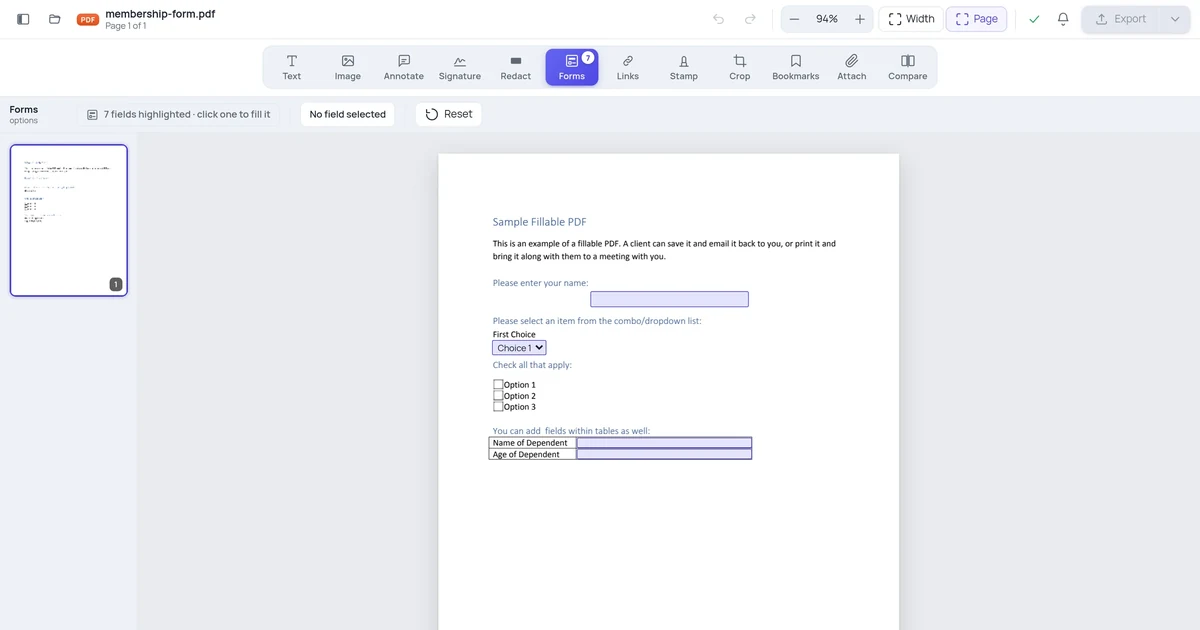
- Open your form in the editor. Go to the sign PDF tool and upload the file. Every page opens in your browser ready to work on.
- Select the Signature tool. In the toolbar, click the signature or sign tool. Your cursor switches to placement mode so the next click drops a signing area.
- Click where the signature belongs. Click on the page at the signature line. A signing area appears at that point, ready to size.
- Size the field to the line. Drag a corner handle so the field is about as wide and tall as the space the form left for a signature. Too small and it looks cramped; too big and it overlaps neighboring fields.
- Position it over the existing line. Drag the field so its baseline sits on the printed "Signature" line. Zoom in for precise placement against the label already on the form.
- Add a label if the form has none. If there is no printed "Signature" text, add a short text label beneath the field so the signer knows what it is for.
- Add a date field next to it. Place a second, smaller field or text box where the date goes, usually to the right of or below the signature line.
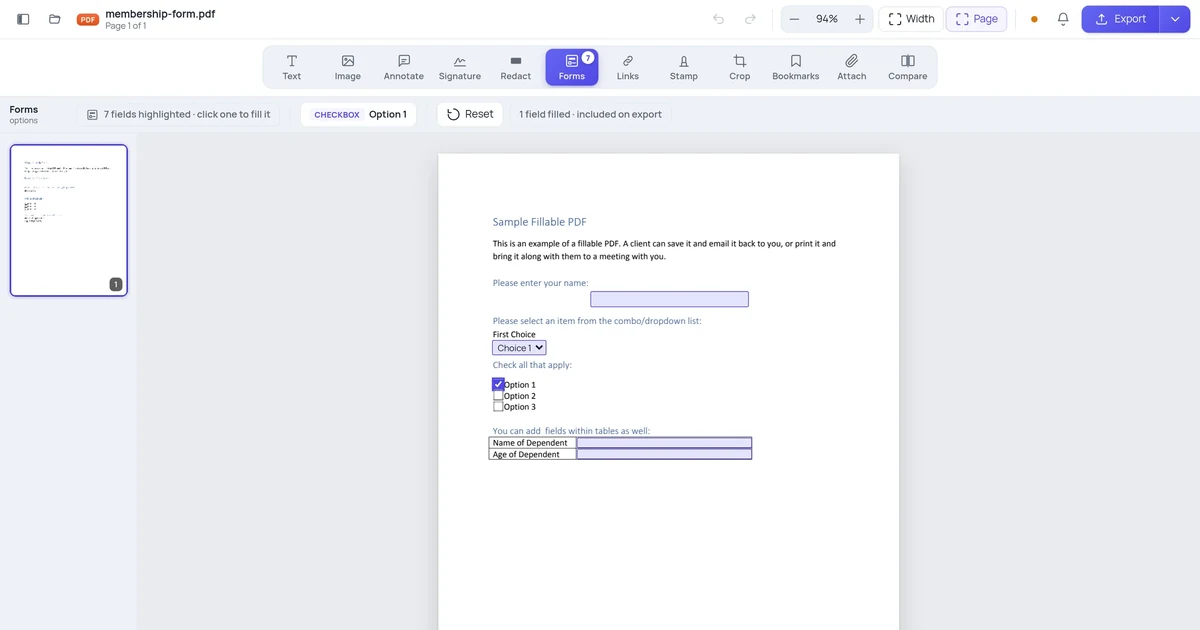
- Save and download or send. Export the file. The field is written into the document and stays in place wherever the form travels.
That is the whole task for a single signature line. The parts most guides skip are who is actually going to sign, and the difference between a true form field and a placed signature, which change how you set this up. Those are next.
The catch: "field for them" vs "signature for you"
Here is the surprise that trips people up. The phrase "add a signature field" hides two completely different jobs, and the right setup depends on which one you mean.
If you are preparing a form for someone else to sign, you want to leave an empty, clearly marked area: the signing box, a label, and a date slot, but no signature in it yet. You are building the container, not filling it. The recipient opens the form and adds their own signature into the space you left.
If you are finishing a document yourself, you do not need an empty field at all. You add your actual signature directly onto the existing signature line: type it, draw it, or upload an image of it, then position it on the line. There is no "field" to leave blank, because you are the one completing it right now.
| You are... | What to place | What the recipient does |
|---|---|---|
| Preparing a form for someone else | An empty signature area + date slot + label | Opens the file and signs into the space you left |
| Signing a document yourself | Your own signature, on the line | Nothing; the file is already signed |
| Building a reusable blank form | Labeled signature and date areas, no content | Each person who gets the form signs their copy |
Most people searching for how to "add a signature field" actually want one of the first or third rows, a marked space for a signature that has not happened yet. If that is you, the work is about clarity: make the box obvious, label it, and pair it with a date. If you are in the middle row and just need your own name on a contract, you are really adding a signature, not a field, and you can skip straight to dropping it on the line.
Place the field where the signer expects it
A signature field in the wrong spot is worse than no field, because it invites someone to sign in a place the form was not designed for. The fix is to anchor it to what is already on the page.
Most forms already have a printed signature line: a horizontal rule with "Signature" or "Authorized Signature" underneath, and often a separate "Date" line beside it. Your job is to put the signing area on that line, not floating somewhere near it. Zoom in, line the bottom of the field up with the printed rule, and align its left edge to where the line starts. When it sits exactly on the existing line, the finished form looks like the field was always part of it.
If the form has no printed line, you are creating the convention yourself, so be explicit. Place the signing area, then add a short text label, "Signature," directly beneath it and a "Date" label beside the date slot. Without labels, a blank box on a page is ambiguous; the person could mistake it for a comment area or skip it entirely.
A few placement habits that keep forms clean:
- Match the form's margins. Align the field's left edge to the same margin as the body text and other fields so the page does not look lopsided.
- Leave room for the date. Signature and date almost always go together; reserve space to the right or below so they do not collide.
- Do not cover existing text. A field dropped over the form's instructions or the line label makes both hard to read; move it to clear space on the line.
- Keep multiple signers separated. If two people sign, give each their own labeled field with clear vertical space between them so signatures do not run into each other.
Adding a signature field on different devices
The flow is the same idea everywhere, but the tooling differs, and some routes only let you sign rather than leave a field for someone else.
| Platform | How you add a signature field | Notes |
|---|---|---|
| Online (any browser) | Open the sign PDF tool, pick the signature tool, click on the line, size and label it | Works on desktop and mobile browsers; nothing to install |
| Windows (desktop app) | A PDF editor's Prepare Form or Sign tool, then place a signature field | True form-field creation is usually a paid feature; free readers often only let you sign yourself |
| Mac (Preview) | Markup toolbar, the Sign button, then place your signature | Designed for signing your own document, not leaving an empty field for others |
| iPhone / iPad | Markup in Files, the signature annotation | Good for adding your own signature on the line; awkward for building a blank field |
| Android | A PDF app with signing or annotation tools | Quality varies a lot; check that an empty field actually saves and is visible to the recipient |
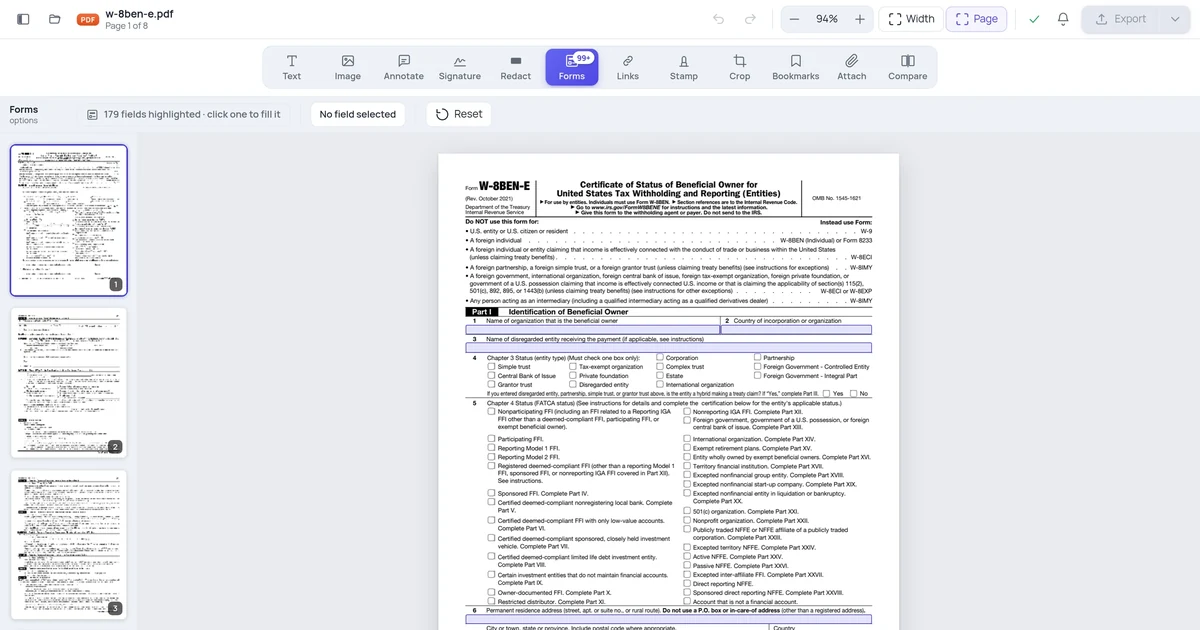
A common gotcha across phones and free desktop readers: most built-in tools are built for you to sign, not for leaving a marked field someone else will complete. If your real need is to send a form out and have another person sign it, the online route is more reliable, because you can place and label the signing area, then send the file with the field already in place. Building a blank, fillable form from scratch is a related but separate task; our guide on how to create a fillable PDF form online without Adobe Acrobat walks through adding the other field types around your signature line.
Sending the form so it can actually be signed
Placing the field is only half the job; the file has to reach the signer in a state they can complete. Two things go wrong here often enough to plan for.
First, flattening. When you export a PDF, some workflows "flatten" the page, baking everything into a fixed image-like layer. If you flatten a form that still has empty fields, those fields can become uneditable, and the recipient is stuck with a box they cannot sign into. If you are sending a form for someone else to complete, export it so the signing area stays interactive, and test it by reopening the file and trying to sign into the field yourself before you send.
Second, clarity in the email. Even a well-placed field gets missed in a multi-page form. A one-line note, "Please sign and date on page 3," saves a round trip. Once the form comes back signed, reopen it to confirm the signature landed in your field and the date is filled.
If you are the one signing and returning a form, the inverse applies: add your signature on the line, fill the date, and download a flattened copy so your signature is baked in and cannot be moved or removed after you send it back.
A quick word on privacy, since you are uploading a document. An online editor processes your file on a server to place the field and save it, and files are not kept long-term. That is normal for browser-based editing, but worth knowing before you upload anything sensitive like a contract.
A worked example
Say you have a one-page approval form exported as a PDF, with a printed "Signature" line and a "Date" line beside it near the bottom, and you need a manager to sign it. You open the file in the sign PDF tool, pick the signature tool, and click on the signature line. A signing area appears in the default size, so you drag a corner handle to make it about the width of the printed line, then zoom in and line its bottom edge up with the printed rule. You drag a small date field onto the "Date" line to the right. The form already has labels, so you do not need to add any. You export the file so the field stays interactive, reopen it once to confirm you can sign into the area, then email it to the manager with a note saying where to sign. When it comes back, you reopen it to check the signature sits in your field and the date is filled, and you file it.
FAQ
How do I add a signature box to a PDF form?
Open the form in an online editor, select the signature or sign tool, then click on the page where the signature belongs. A signing area appears, which you size and drag over the existing signature line. Add a short label beneath it if the form has none, and place a small date field beside it. Save and download or send the file so the recipient can sign in that exact spot. If you are signing the document yourself, you skip the empty box and add your actual signature onto the line instead.
What's the difference between a signature field and just signing the PDF?
A signature field is an empty, marked space you place so someone else can sign later; you are building the container and leaving it blank. Signing the PDF means you add your own signature onto the line right now and the document is done. They start the same way, by working on the signature line, but a field is for a signature that has not happened yet, while signing finishes the document. Decide which you need before you start, because it changes how you set up and deliver the file.
Where should I put the signature field on a form?
Put it directly on the form's existing signature line, not floating nearby. Zoom in and align the bottom of the field with the printed rule and its left edge with where the line starts, so it looks like part of the original layout. Leave room to the right or below for a date field, since signature and date almost always go together. If the form has no printed line, add a "Signature" label beneath your field so the signer knows exactly what it is for.
Why can't the recipient sign the field I added?
Usually the file was flattened on export, which bakes the fields into a fixed layer and makes them uneditable. It can also happen if the field was added as a comment rather than a real signing area, or if the recipient's reader strips annotations. Export the form so the signing area stays interactive, then reopen it and try to sign the field yourself before sending. If you can sign it, so can they. Adding a clear note in your email about which page to sign helps too.
Do I need Adobe Acrobat to add a signature field to a PDF?
No. A browser-based editor places a signature field without any installed software, and works on desktop and mobile. Free desktop readers and phone markup tools usually only let you sign a document yourself rather than leave a blank field for someone else, which is the main reason the online route is more reliable for forms you send out. If you are also adding text boxes, checkboxes, or other inputs around the signature line, an online form builder handles those in the same file.