How to Fill Out a PDF Job Application (2026)
Some job application PDFs have clickable form fields. Others are flat images. Here's how to fill in both types — and how to submit them properly.

Job application PDFs come in two forms: interactive (with clickable form fields) and flat (a static PDF you type over). The method depends on which type you have.
Identify Which Type You Have
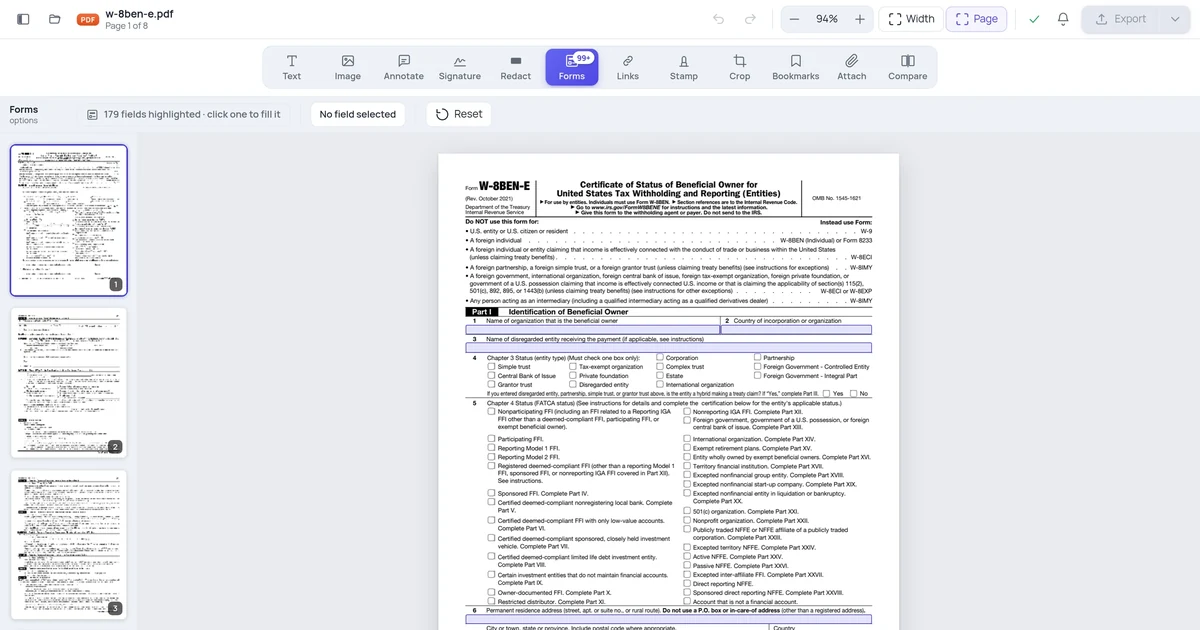
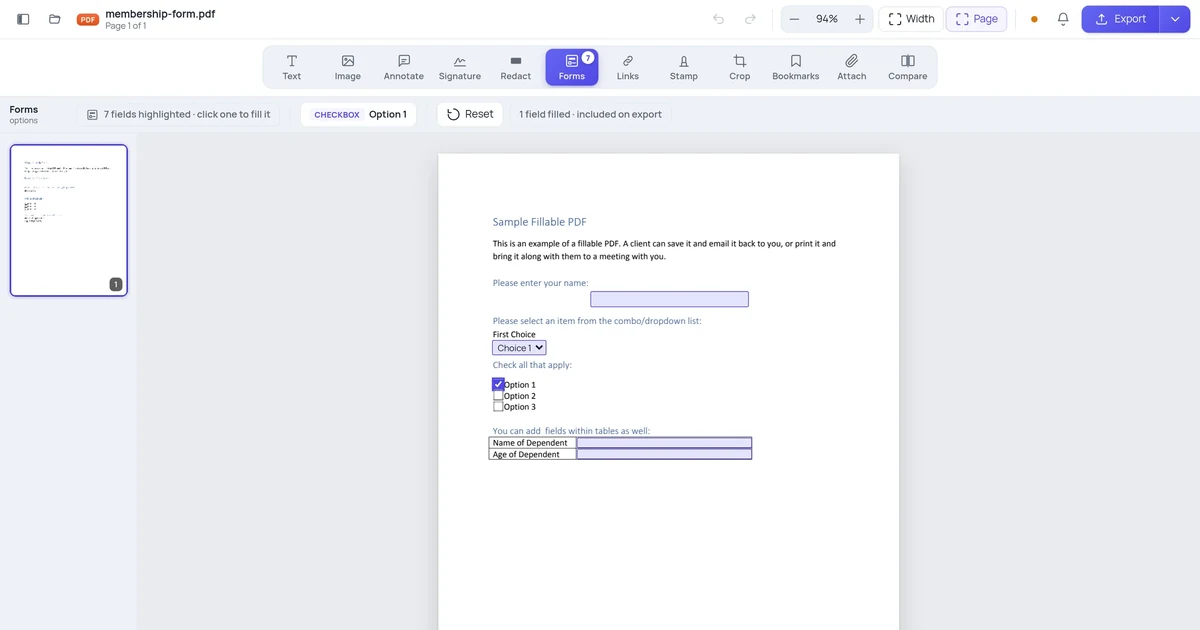
Interactive / fillable form: Click anywhere on the PDF and text boxes highlight or a cursor appears. You can tab between fields. The fields may have labels like "First Name," "Email," "Employment History." This is an AcroForm PDF with proper form fields.
Flat / non-fillable form: Clicking on the PDF does nothing (or just selects text for copying). The form was printed to PDF without making it interactive, or it's a scanned paper form. You need to add text on top of the existing layout.
Filling an Interactive PDF Form
Method 1: Adobe Acrobat Reader (Free, Best Option)
- Open the PDF in Adobe Acrobat Reader (not the browser — save and open locally)
- Click on the first form field — a cursor appears
- Type your information
- Press Tab to move to the next field, Shift+Tab to go back
- For checkboxes and radio buttons: click once to select
- For dropdown menus: click the arrow and select an option
Saving your filled form:
- File → Save (Ctrl+S / Cmd+S)
- The saved PDF includes your filled data
If Save is greyed out: The form creator didn't enable saving in Reader. Use File → Print → Save as PDF instead (this "flattens" your filled data into the PDF). Or use Save As to a different location.
Filling signature fields: If the form has a signature field, click it. Acrobat Reader lets you draw, type, or upload an image of your signature. See how to sign a PDF on mobile for mobile signing options.
Method 2: Browser (Chrome, Edge, Firefox)
Most browsers can fill interactive PDF forms without any software:
- Open the PDF in your browser (drag the file onto a browser window, or right-click → Open with → browser)
- Click form fields and type directly
- To save: Ctrl+P → Save as PDF (Chrome/Edge) or print → PDF (Firefox)
Limitation: Browser PDF viewers handle most form fields well, but some advanced field types (digital signatures, JavaScript-based validation) may not work. If a field refuses input or validation fails, switch to Acrobat Reader.
Method 3: OnlinePDFEdits
- Go to OnlinePDFEdits
- Upload the PDF
- Click form fields and fill them in
- Download the completed PDF
Works well for standard form fields. Useful if you're on a device without Acrobat installed.
Filling a Flat / Non-Fillable PDF
If the PDF has no form fields, you need to add text on top of the existing layout.
Method 1: Adobe Acrobat Reader — Fill & Sign Tool
Acrobat Reader includes a Fill & Sign tool specifically for flat forms:
- Open the PDF in Acrobat Reader
- Click Fill & Sign in the right panel (or Tools → Fill & Sign)
- The cursor changes to a text tool
- Click on a blank line or box in the form
- A small text box appears — type your information
- Reposition and resize the text box to fit within the form field
- Use the signature tool to add your signature where required
- File → Save when done
The text you add appears as an overlay on the original form. The result looks like a filled form when printed or viewed.
Adjusting text size: After clicking to place text, use the small A buttons (decrease/increase font) above the text box to match the form's line height.
Method 2: Online PDF Editor
OnlinePDFEdits lets you add text to any PDF, fillable or not:
- Upload the flat PDF
- Use the text tool to click anywhere and add text
- Position text boxes over the blank lines in the form
- Add a signature element where required
- Download the completed PDF
This is often the fastest method for flat PDF forms when you don't have Acrobat Pro.
Method 3: Mac — Preview
- Open the flat PDF in Preview
- Go to Tools → Annotate → Text
- Click on the form where you want to type
- A text box appears — type your entry
- Drag to reposition over the correct line
- Resize the text box to fit
- File → Export as PDF (not Save) to flatten the annotations
Method 4: Print, Fill by Hand, Scan
If the form is complex and digital text placement is awkward:
- Print the PDF
- Fill in by hand with a black pen
- Scan with your phone camera (Google Drive scan, iOS Notes scan, Microsoft Lens)
- Save the scan as a PDF
This is slower but produces clean results for complex handwriting-expected forms (e.g., government forms where boxes require one character each).
Handling Common Job Application Sections
Employment History
Most job application PDFs have fixed-size boxes for each employer. If your history is long:
- Prioritize the most recent and most relevant roles
- If using a flat form and you run out of space, add a note: "Additional employment history attached" and include a separate page
- For interactive forms with character limits, abbreviate job titles slightly if needed
Education
Enter your highest relevant degree first. If there's only one education field and you have multiple degrees, most forms expect your most recent/highest degree there.
References
"References available upon request" is standard for job applications unless the form requires actual names and contact information. If it asks for references, have 2-3 professional references ready (former supervisors, professors) with their current contact information.
Signature and Date
Most job application PDFs end with a certification statement ("I certify that the information above is true and accurate") followed by a signature line.
- In Acrobat Reader Fill & Sign: click the signature tool → draw your signature or type your name
- In a fillable PDF with a signature field: click the field → use Acrobat's signing dialog
- For the date field: type today's date in the format the form specifies (MM/DD/YYYY or DD/MM/YYYY)
Submitting the Completed Application
Email submission: Save the completed PDF → attach to your email. Use a clear filename: JobApplication_YourName_Position.pdf. Never submit the blank template — verify your filled data is visible by opening the saved file before attaching.
Upload to employer portal: Download the completed PDF → upload through the application system. Some ATS (Applicant Tracking Systems) parse PDF content — native PDFs (not scanned) are parsed more accurately.
In-person submission: Print the completed PDF → deliver or mail. If printing a digitally filled form, check the print preview to confirm all your entries are visible (some text overlays may not print at default settings).
Fax: Still used by some healthcare and government employers. Most online fax services (eFax, MyFax) accept PDF uploads.
FAQ
The form fields accept text but I can't save the filled version. What do I do?
This happens when the form creator restricted saving in Reader. Options: (1) Print to PDF from Acrobat Reader (File → Print → Save as PDF) — this flattens your data into a non-interactive PDF; (2) Use a browser to fill the form and save via Print to PDF; (3) Use Acrobat Pro if you have it — Pro can always save filled forms.
Can I type into the handwriting lines on a paper-style PDF form?
Yes — use the Fill & Sign tool in Acrobat Reader or the text tool in an online editor. Click just above the line (not on it) so your text sits in the right position. Adjust text size to match the line spacing. It may take a couple of tries to position the text block correctly.
The PDF job application has a character limit on a field and I need more space.
Fill the field to the limit with the most essential information. Then attach a separate document (labeled "Continued — Employment History" or similar) and reference it in the main form. For "Cover Letter" fields with character limits, consider whether a separate cover letter attachment would be more appropriate.
Should I save my filled application before submitting?
Always. Save a copy of the completed application for your records before sending or uploading. If there's a question about your application later (interview, offer, or dispute), having your original submission is valuable. Name it clearly with the date and position.