Fillable PDF vs Editable PDF: What's the Difference?
Fillable and editable get used interchangeably but they're technically different things. Understanding the distinction saves you from downloading the wrong tool.

"Fillable PDF" and "editable PDF" are often used interchangeably online, but they describe two different types of PDF documents. Confusing them leads to downloading a tool that can't do what you actually need.
The Core Distinction
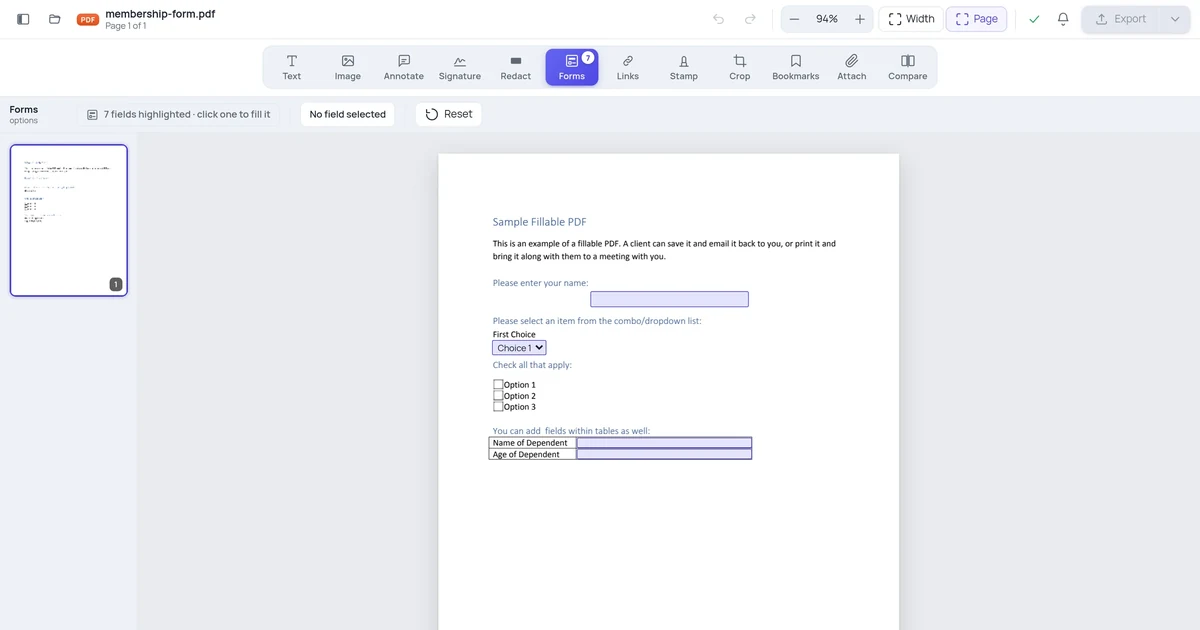
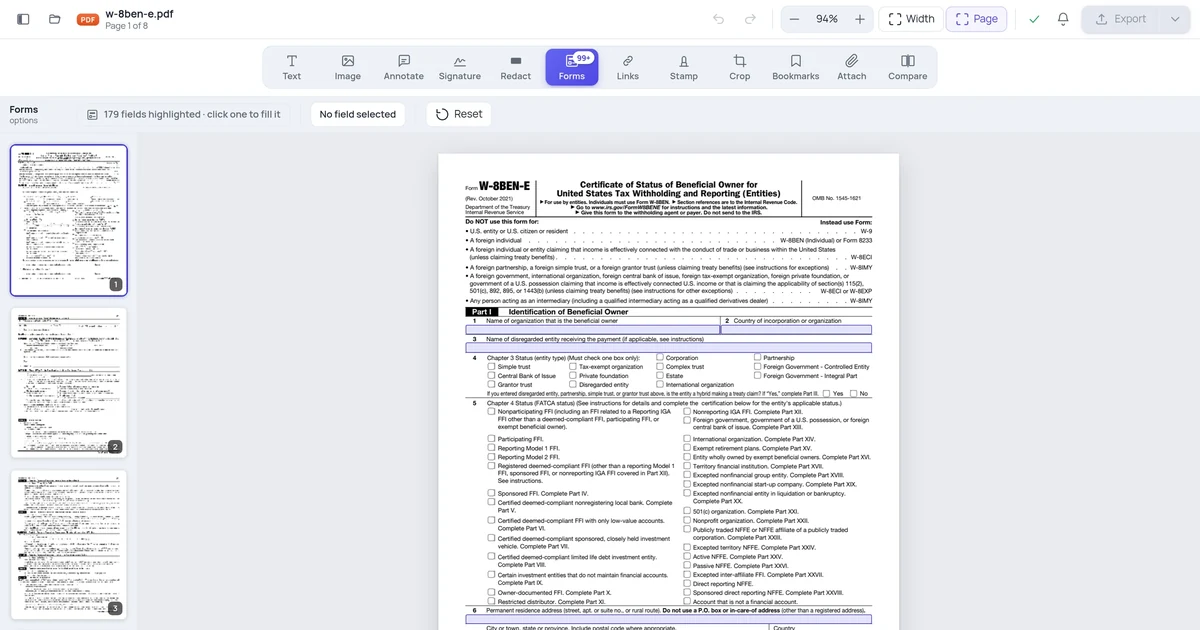
Fillable PDF: Contains interactive AcroForm fields — designated input areas (text boxes, checkboxes, dropdowns, signature fields) where users can type, select, or sign without changing the surrounding document. The document's structure, layout, and non-field content are locked. Only the fields accept input.
Editable PDF: Can have its underlying content modified — text can be changed, images can be replaced, layout can be adjusted. The document is not locked; any element can potentially be altered.
A fillable PDF is like a paper form: the printed labels and layout are fixed, but the blanks are yours to fill in. An editable PDF is like a Word document converted to PDF format — you can change anything.
When You Have a Fillable PDF
Fillable PDFs are designed for collecting structured information. When you open one and click on a field, your cursor appears and you can type. Fields enforce the form's structure: a text field labeled "Phone Number" accepts only what you type there; you can't move it or change the label.
How to tell if a PDF is fillable:
- Click on what looks like a blank field — if a cursor appears and you can type, it's fillable
- In Acrobat, go to View → Navigation Panels → Fields — if the panel populates with a list of field names, the PDF has AcroForm fields
- The file may show a purple "Please fill out the following form" bar at the top in Acrobat Reader
What you can do with a fillable PDF:
- Type into text fields
- Check checkboxes and radio buttons
- Select from dropdown menus
- Apply a signature (if a signature field exists)
- Save the completed form (in Acrobat Reader — not all readers support saving filled data)
- Print the completed form
- Submit via a Submit button (if the form has one)
What you can't do with a fillable PDF (without editing tools):
- Change the field labels or layout
- Add new fields
- Edit non-field text (the printed portions of the form)
- Reorder or add pages
When You Have an Editable PDF
An editable PDF has no AcroForm fields — but the content can be modified with a PDF editor. "Editable" in this sense means a tool like OnlinePDFEdits, Adobe Acrobat Pro, or PDF Expert can select existing text, images, and layout elements and change them.
How to tell if a PDF is editable:
- Try selecting text with your cursor — if you can highlight text, the PDF has a selectable text layer
- A PDF editor can click into text and modify it
- This is different from fillable fields — you're modifying the document itself, not filling in designated blanks
What you can do with an editable PDF:
- Change any text on the page (fix typos, update dates, change names)
- Replace or delete images
- Add new text blocks, images, or shapes
- Reorder or add pages
- Apply redaction
The Four Types You'll Actually Encounter
| Type | Description | What you can change |
|---|---|---|
| Fillable (AcroForm) | Has interactive form fields | Only the field contents |
| Text-selectable | Native PDF with selectable text | Text content (with editor), images, layout |
| Scanned / image-based | Pages are images, no text layer | Nothing directly — needs OCR first |
| Secured / restricted | Owner password restricts editing | Nothing, without removing restrictions |
Most PDFs you receive are either text-selectable (exported from Word, designed in InDesign) or scanned (physically printed then scanned). Only PDFs specifically created as forms are fillable.
"I Want to Fill a Form but It's Not Fillable"
This is the most common frustration. You receive a PDF that looks like a form — it has blank lines, labeled spaces, boxes to check — but when you click on a blank, nothing happens. The PDF has a visual layout that looks like a form but has no AcroForm fields.
Your options:
- Add your own text boxes over the blank areas. A PDF editor lets you place text boxes on top of the visual layout, positioned over the blank lines. This looks filled when printed or sent. Use OnlinePDFEdits for this — click to add a text element, position it on the blank line, and type.
- Print, fill by hand, scan. The old-fashioned approach, still valid for one-off needs.
- Contact the form issuer. If the form is from a government agency, employer, or institution, they often have a fillable version — it just may not have been provided to you. Ask specifically for "the fillable PDF version."
- Convert to a fillable form. Open in Acrobat Pro → Tools → Prepare Form. Acrobat auto-detects blank areas and adds fields. This takes 5–10 minutes for a simple form.
"I Want to Edit a PDF but I Can Only Fill Fields"
The opposite problem: you have a fillable PDF and want to change the labels, layout, or non-field content — but filling in fields doesn't let you change those.
Your options:
- Use a PDF editor to modify the non-field content. A PDF editor (Acrobat Pro, OnlinePDFEdits) can edit the static portions of a fillable PDF — the text labels, images, and layout — separately from the form fields.
- Flatten the form and then edit. Flattening merges the fields into the page content, removing their interactivity. After flattening, the entire page is editable static content. See our guide on flattening PDF forms.
- Go back to the source. If you created the form, edit the original source file (Word document, InDesign file) and re-export.
Protected Forms: Neither Fillable Nor Editable
Some PDFs are locked against all modification — protected by an owner password that restricts editing, form filling, and even printing. These appear as normal PDFs but resist all editing attempts.
Symptoms: you try to type in what looks like a field and nothing happens; you try to select text and can't; Acrobat shows a padlock icon.
If you're the intended recipient of a form like this, it's likely a configuration error by the form creator (they over-restricted it). Contact them. If you're the creator and locked yourself out, the owner password is required to remove the restrictions — there's no legitimate way around this without the password.
Summary: Choosing the Right Tool
| Goal | Tool you need |
|---|---|
| Fill in form fields | Any PDF reader (Acrobat Reader, Chrome, Preview) |
| Fill blank areas on a non-fillable form | PDF editor (OnlinePDFEdits, Acrobat Pro) |
| Edit existing text content | PDF editor |
| Change form field labels or layout | PDF editor (Acrobat Pro recommended) |
| Create new fillable form fields | Acrobat Pro, LibreOffice, or online form builders |
| Lock a completed form to prevent further editing | Flatten the form |
FAQ
Can I convert a fillable PDF to an editable one?
Yes — by flattening it. Flattening merges form fields into the static page content, removing interactivity. After flattening, the entire page is static editable content. However, once flattened, the AcroForm fields are gone — you can't un-flatten back to a form. Always keep a copy of the unflatted form if you might need it again.
Why can't I save a filled-out form in Adobe Reader?
By default, Acrobat Reader doesn't allow saving filled form data to a PDF unless the form creator specifically "Reader-enabled" the form (a setting in Acrobat Pro → File → Save As Other → Reader Extended PDF). Non-Reader-enabled fillable PDFs can be filled in Reader but not saved — you'd need to print instead. Most professionally created forms are Reader-enabled; forms created by non-experts often aren't.
Are fillable PDFs compatible with all PDF readers?
AcroForm fields are part of the PDF specification, so they work in all compliant readers. However, there are differences in how readers handle complex forms: signature fields work fully in Acrobat Reader but partially in Chrome; calculated fields (with JavaScript) work in Acrobat but not in most browser viewers; dropdown lists render differently in Preview on Mac vs Acrobat Reader. For forms where compatibility matters, test in Acrobat Reader — it's the reference implementation.
What happens to fillable fields if I edit the PDF?
Editing non-field content (text, images) in a PDF editor like Acrobat Pro generally preserves existing AcroForm fields. The fields remain interactive and positioned correctly relative to the page, even if surrounding content shifts. However, aggressive PDF edits (restructuring pages, changing the coordinate system) can sometimes orphan fields from their visual positions. If your form has fields that drift after editing, use Acrobat's Prepare Form tool to re-position them.