How to Check Every Link in a PDF Before You Send It
A PDF link looks like ordinary blue text, and you cannot tell where it goes without clicking it. Here's how to see every clickable area in a document at once — and fix the ones pointing somewhere embarrassing.

A link inside a PDF is invisible. It isn't the blue underlined text you can see — that's just styling the author applied. The actual link is a rectangle floating over the page, and it can be bigger than the text, smaller than the text, or sitting somewhere else entirely.
Which means you can't check a PDF's links by looking at it. You have to click every one, or use a tool that shows you all of them at once.
This guide does the second thing, free, in the Online PDF Edits editor.
Key takeaways
- PDF links are invisible rectangles. Visible blue text and an actual clickable link are two different things.
- The Links tool outlines every one and labels it with its real destination, so you can audit a document in a glance instead of clicking through it.
- Links can point outside the web: to another page of the document, to a file on disk, or to embedded JavaScript.
- You can retarget or remove any link, and changes only apply when you export.
- Destinations that could run code are shown but locked — the editor will not point one somewhere new.
Why this is worth doing before you send anything
Three things go wrong often enough to be worth a minute of checking:
Stale links. A report from last year points at a page that has since moved. The document looks fine; every link 404s.
Links that survived a copy-paste. Text pasted from another document brings its links with it. Product sheets regularly ship with links back to a competitor's site or an internal staging server, because nobody could see them.
Mismatched destinations. The visible text says one thing, the link goes somewhere else. In a phishing PDF that's deliberate. In an honest document it's usually a copy-paste error — but the reader can't tell the difference.
Step 1 — Open the PDF and click Links

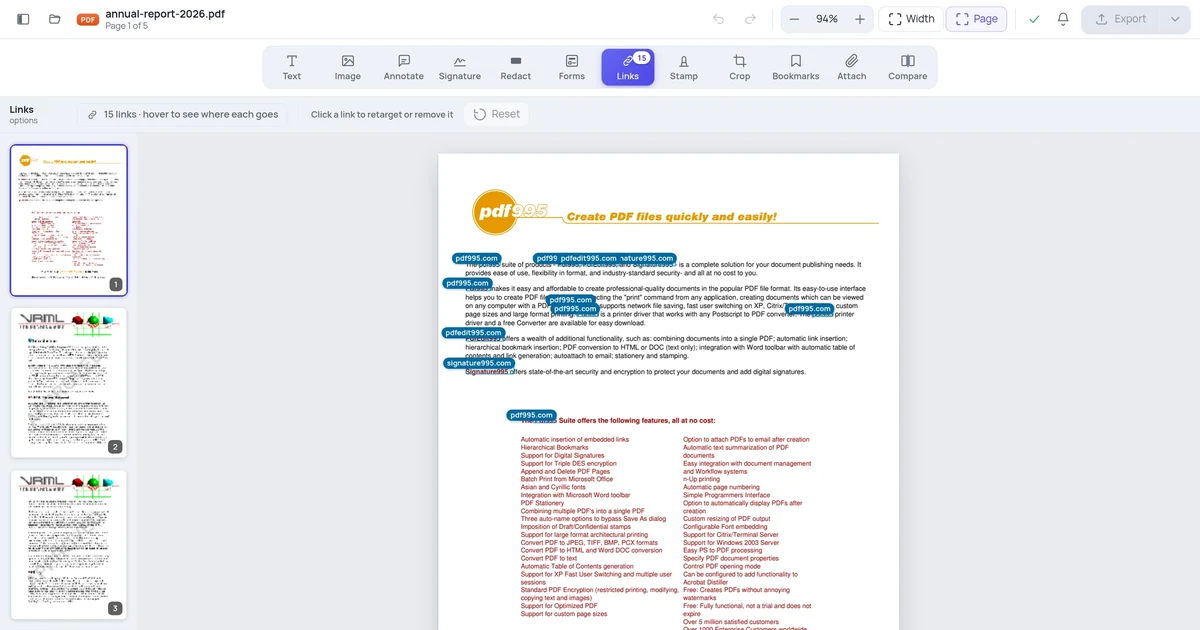
The editor scans the document as it loads and puts a count on the tool, so you know straight away whether there's anything to check.
Step 2 — Look at the whole page at once
Every clickable area is outlined, and each one gets a small badge naming its destination — the domain for a web link, "Page 4" for a jump inside the document.
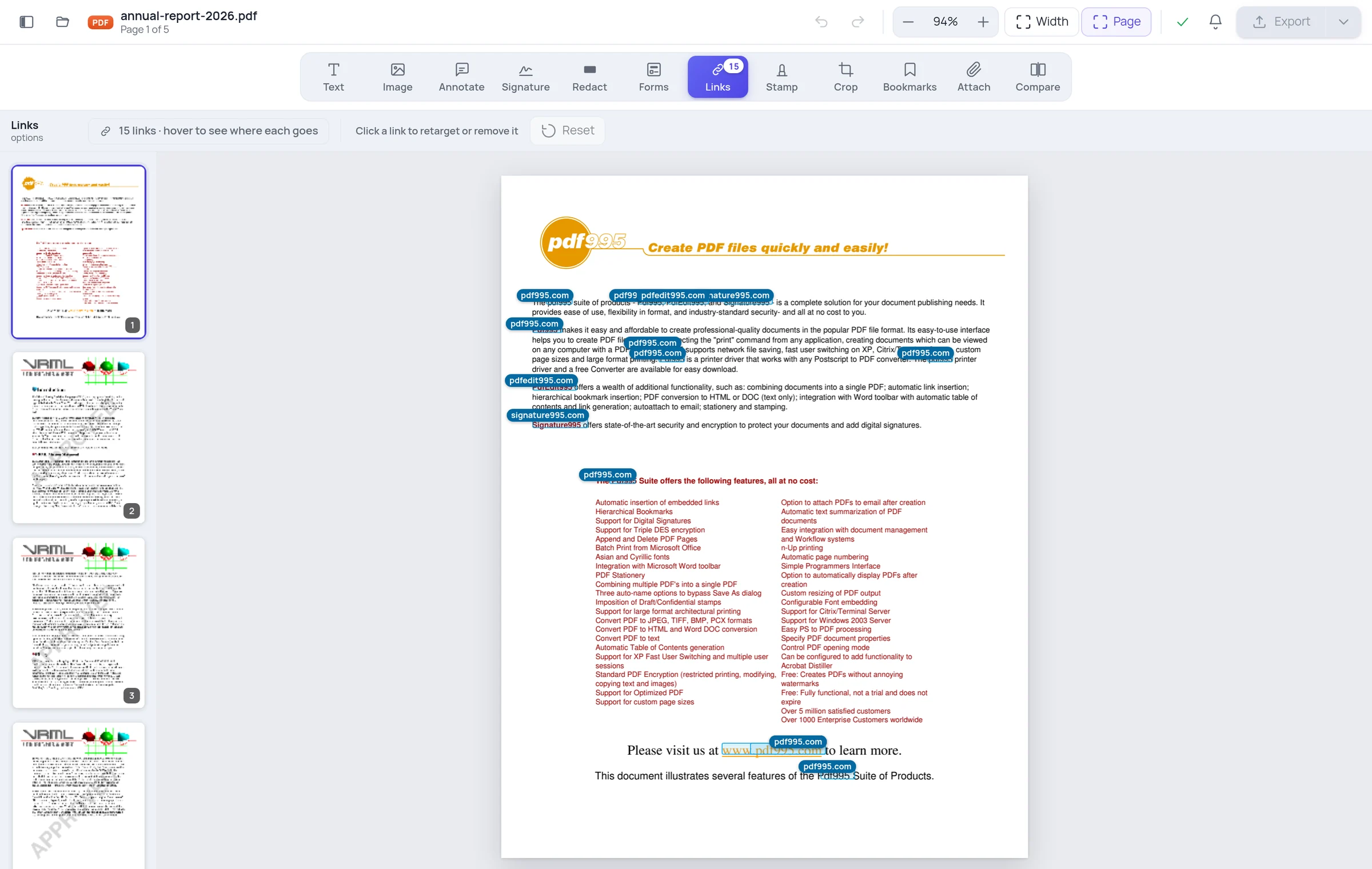
This is the view that catches the problems. You are reading destinations, not guessing from link text. Two things to look for:
- A badge that doesn't match the visible text. Text saying "our pricing page" with a badge showing a domain you don't recognise is the exact pattern worth investigating.
- Clickable areas over things that shouldn't be clickable. An oversized rectangle covering a whole paragraph usually means a link was applied to more text than intended.
Step 3 — Read the full destination
Click any link to see its complete target — the full URL, not just the domain.
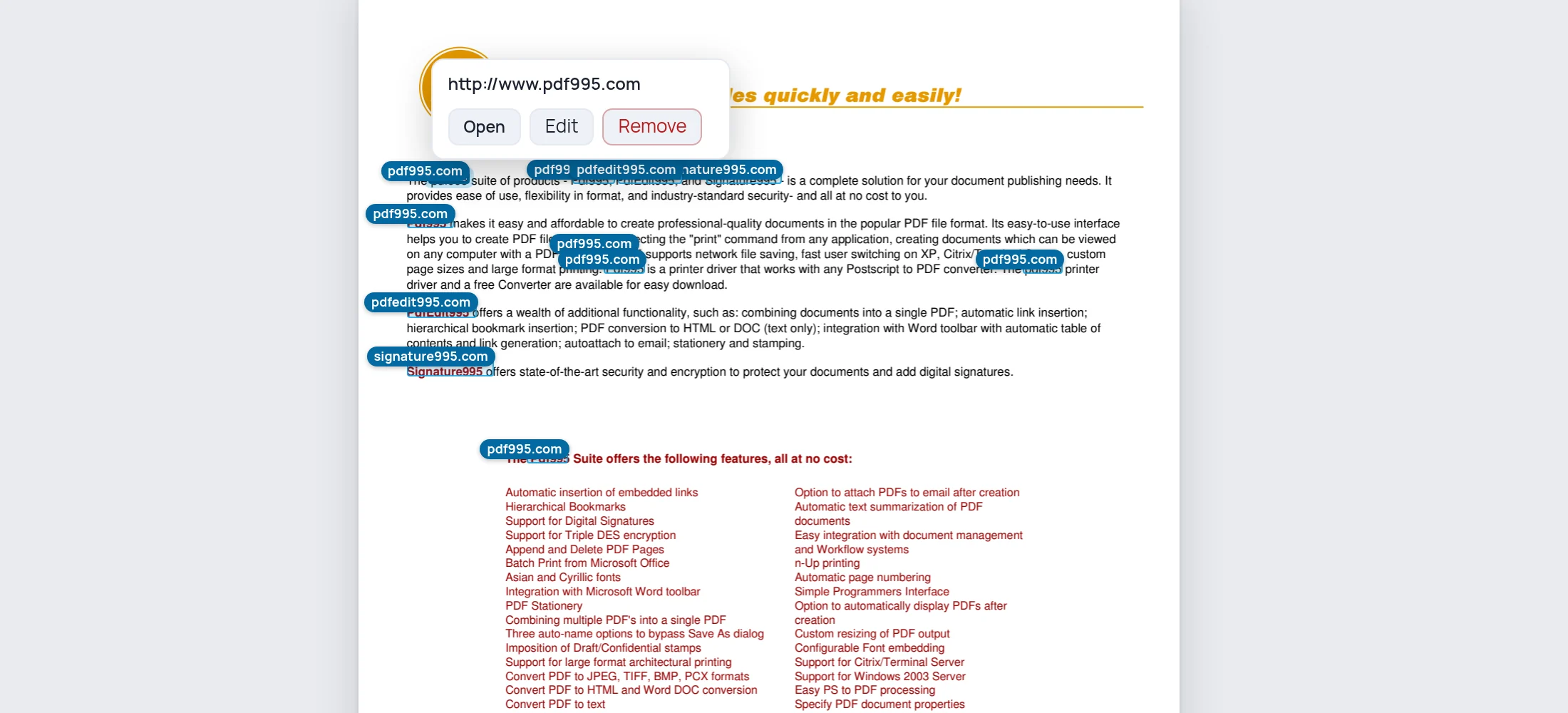
From here you can:
- Open it in a new tab to check it still works. External links open without passing your editor address along.
- Change where it points by typing a new address.
- Remove it, leaving the text exactly as it is and only deleting the clickable area.
Pending changes are shown before you export: retargeted links are marked, removed ones are struck through. Nothing is written until you export the file.
What the different destinations mean
Not every PDF link goes to a website.
| Badge | What it does |
|---|---|
| A domain name | Opens a web address |
| Page 4 | Jumps to another page of the same document |
| Other file | Opens a different document, often by a path that only worked on the author's computer |
| JavaScript | Runs code embedded in the PDF |
| Launch | Tries to open a file or program |
The last two are worth pausing on. A PDF can carry executable JavaScript, and links can trigger it. The editor shows you that such a link exists — you should know — but it will not display the code and will not let you repoint it. Overwriting a script link would silently discard behaviour you can't see well enough to judge. You can still delete it outright, which is a clear, visible choice.
If a document you didn't write contains Launch or JavaScript links, that's worth a second thought before forwarding it.
Step 4 — Fix and export
Retarget the stale ones, remove the ones that shouldn't be there, then export. The rest of the document is untouched — link edits change the link data, not your text or layout.
What this doesn't do
It doesn't test whether links still work. Reading a destination is not the same as checking it responds. That needs a request to every address, which is a separate job — our standalone link extractor does it with a full report.
It doesn't find "links" that were never links. If a URL is printed as plain text with no clickable area behind it, there's nothing to find. It'll look like a link to a human and do nothing when clicked. Worth checking by eye if a document was converted from something else.
It doesn't create new links. You can retarget and remove existing ones, not draw a new clickable area over arbitrary text.
Frequently asked questions
Does checking links upload my PDF anywhere permanent? No, and nothing is stored after processing. See our file handling policy.
Can I remove every link at once? Not in one click today — each is removed individually, which is deliberate for a destructive change.
Will removing a link change how the page looks? No. The text keeps its styling, including the blue underline, since that's just formatting. Only the clickable area goes.