How to Email a Fillable PDF and Collect Responses Automatically
A practical guide to emailing a fillable PDF and collecting responses automatically, from naming fields to setting up a submit path and exporting clean data.

To collect PDF form responses automatically, build a true fillable PDF with named fields, then email it with a submit button that returns the data or a reply path that lands every completed form in one inbox or folder. As people fill and send, you export the answers to a spreadsheet instead of opening each file by hand. The key is naming fields cleanly before you send. No retyping required.
Key takeaways
- "Automatic" lives in the field names, not magic: a PDF can only return tidy data if every field has a clear, unique name, so the answers come back labeled instead of as "Field1, Field2."
- Two collection paths exist: a built-in Submit button that sends form data to an email or URL, or a plain "fill, save, reply" flow where you gather the completed files and export them in a batch.
- A flattened PDF kills collection, because it bakes the answers into a static image and strips the field data, so always export as a real fillable PDF with fields intact.
- The recipient only needs a basic reader to fill and return your form; the form-building features only matter for you, the person creating it.
- Export beats opening files one by one: once you have the completed PDFs, a forms tool can pull every answer into a single spreadsheet so you read results, not documents.
- A web form is sometimes the better call; if you want truly hands-off collection, embedding the answers in a real online form can be less fragile than a PDF round-trip.
What "collect responses automatically" really means for a PDF
It helps to be honest about what a PDF can and cannot do, because "automatically" gets oversold. A PDF is a document, not a web server. It does not, on its own, run a database or drop rows into a spreadsheet the moment someone clicks send. What it can do is hold interactive form fields, and those fields can carry their values back to you in a structured way.
So "automatic" here means two related things. First, the answers come back attached to field names you chose, so a name field returns as full_name and a date returns as start_date, not as anonymous blobs you have to decode. Second, you can pull those values out of many completed forms at once and stack them into a table, instead of opening each PDF and copying by hand. That batch export is where the real time savings live.
The piece that makes all of this work is set before you ever hit send: clean field names. Skip that, and even a perfectly delivered form gives you a mess to untangle. This is the same discipline behind collecting data from PDF forms without printing anything, and it starts at the build stage.
How do I collect answers from a PDF form?
Here is the full path, from building the form to reading the results in one place. The steps assume you are starting with a document and turning it into a fillable, collectable form.
- Open your document in the editor. Go to the PDF editor and upload the file you want people to fill. Every page opens in your browser ready to work on.
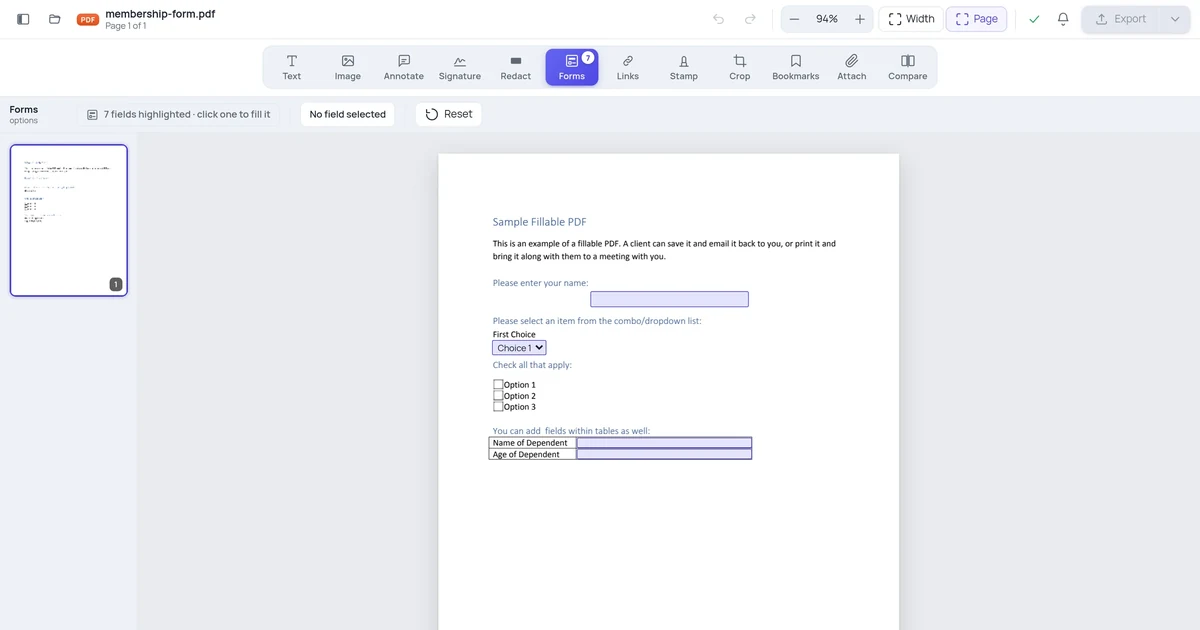
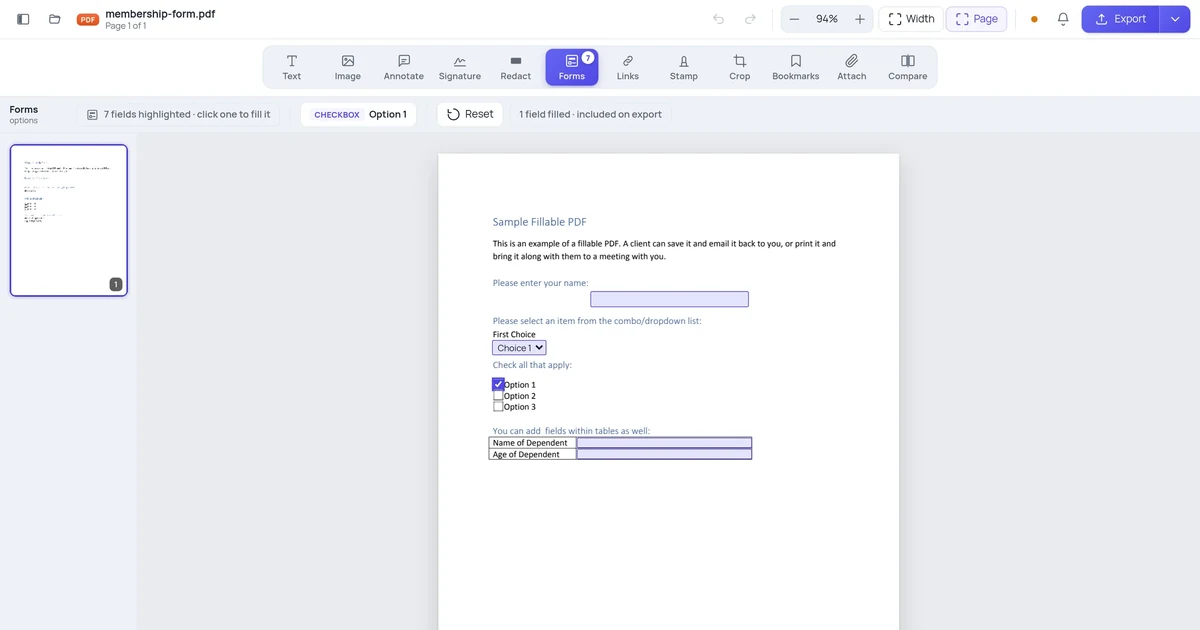
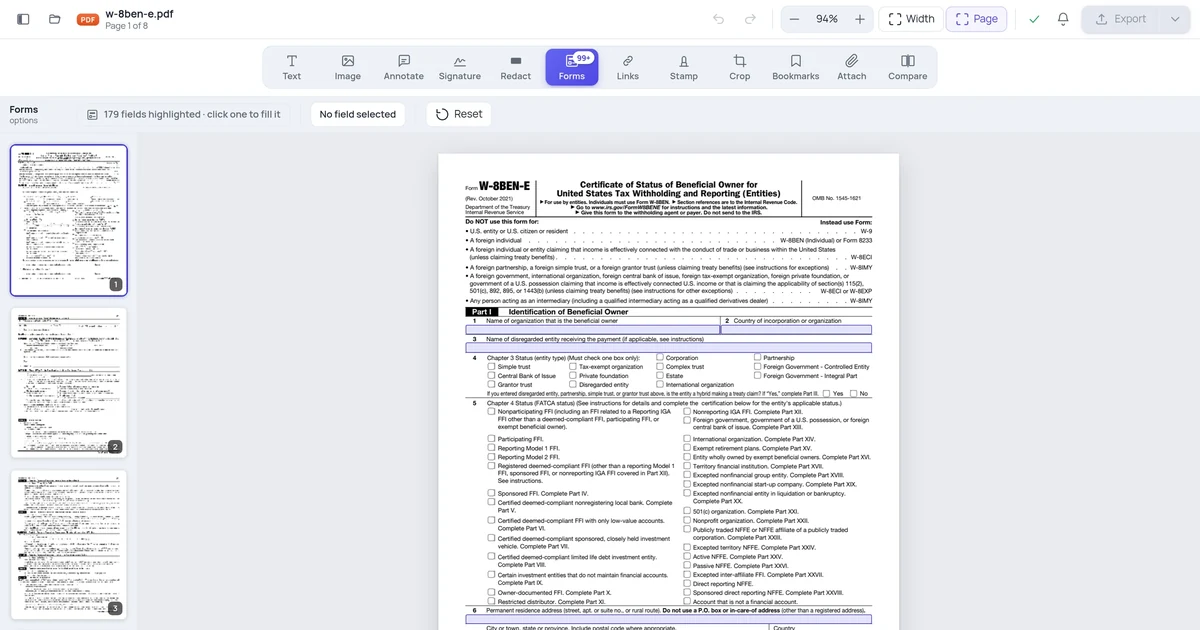
- Add the form fields people will fill. Place text fields, dropdowns, checkboxes, and date fields where each answer belongs, next to its printed label.
- Name every field clearly and uniquely. Use lowercase, no-space names like
full_name,email,department. This is the single most important step for collection, because the name is how each answer comes back labeled. - Decide your return path. Either add a Submit button that sends the data to an email address or URL, or plan a simpler "fill, save, and reply by email" flow. More on the trade-off below.
- Test the form yourself first. Save and download it, reopen it in a plain reader, fill it in, and return it the way your recipients will. Confirm the answers arrive labeled.
- Email the fillable PDF. Attach the form to your message, with a one-line instruction: "Fill the fields, save, and reply with the attachment," or "Fill it in and press Submit."
- Gather the completed forms in one place. Let replies land in a dedicated inbox or folder so they do not scatter across threads.
- Export the answers to a spreadsheet. Use a forms tool to pull the field values from all the completed PDFs into a single table, one row per response.
That last step is the payoff: instead of reading fifty documents, you read one spreadsheet. The parts people get wrong are the field names and the return path, so those come next.
The two ways responses come back
There are really two collection models, and picking the right one up front saves a lot of grief. They differ in how much setup you do and how hands-off the result feels.
A Submit button is a form field that, when clicked, packages the field data and sends it somewhere: to an email address, or to a web URL that can receive it. This is the closest a PDF gets to "automatic." The person fills the form, clicks Submit, and the data travels back without them attaching anything. The catch is that email-based submit depends on the recipient's reader and mail client cooperating, and behavior varies a lot across apps and phones.
A fill, save, and reply flow needs no button at all. People fill the form in any reader, save it, and email the saved file back to you. It is more manual for them by one step, but it is far more reliable, because it does not depend on a submit feature firing correctly in whatever app they happen to use. You then batch-export the answers from the files you receive.
| Submit button | Fill, save, and reply | |
|---|---|---|
| Setup effort | Higher: configure the button and target | Lower: just name fields well |
| Reliability across readers | Inconsistent on email submit | Very high; works in any reader |
| Recipient steps | Fill, click Submit | Fill, save, attach, send |
| Best for | A controlled audience using known software | A wide or unknown audience |
| What you receive | Form data sent to your inbox or endpoint | Completed PDF files to export |
For most people emailing a form to a mixed audience, the fill-save-reply flow is the safer choice, and the export step makes it nearly as fast to process. Reserve the Submit button for cases where you control what software people use.
The catch: a flattened form collects nothing
This is the failure mode that ruins more form projects than any other, so it deserves its own warning. When you export a PDF, some tools offer to "flatten" it. Flattening bakes the current appearance of the fields into the page as a static image and removes the interactive field data underneath.
A flattened form looks fine and even shows the typed answers, but there is nothing to collect. The fields are gone; what is left is a picture of them. If you flatten your blank form before sending, recipients cannot fill it, and the typing-into-fields experience disappears. If a recipient flattens their completed form before returning it, your export tool finds no field values to pull, and you are back to reading by eye.
So the rule is simple: keep the form unflattened end to end. Export your blank form as a real fillable PDF with fields intact, and tell recipients to "save" or "save a copy," not "print to PDF" or "flatten." When the forms come back, the field data is still there, and the batch export works. If you ever need a flattened version, make it a separate final step after you have collected everything.
Naming fields so the data exports clean
Because the field name is the column heading in your eventual spreadsheet, naming is not a nicety, it is the foundation of automatic collection. A form with good names exports into a table you can read at a glance. A form with default names exports into nonsense.
Compare the two. With careful names, a response exports as full_name, email, department, start_date. With defaults, the same response exports as Text1, Text2, Dropdown1, Date1, and now you are guessing which field was which across dozens of rows.
A few rules that keep exports clean:
- Use lowercase with underscores or no spaces:
team_size, notTeam Size. Many tools mangle spaces and capitals. - Make every name unique. In PDF forms, two fields sharing a name share a value, so one entry auto-fills the other. That is occasionally useful for a repeated field, but usually a bug that corrupts your data.
- Name for the answer, not the position.
referral_sourcetells you what the column holds;field_7tells you nothing. - Keep names stable. If you send a second version of the form later, reuse the same names so old and new responses stack into the same columns.
This naming discipline is the same one that pays off whether you collect by email submit or by batch export. Get it right once, at build time, and every downstream step is easier.
Collecting on different devices
Filling and returning a form works almost everywhere, because filling needs only a basic reader. Creating the form and exporting the data is the part that needs real tooling. Here is how the pieces land across platforms.
| Platform | Filling and returning | Building and exporting |
|---|---|---|
| Online (any browser) | Open the form, fill fields, save, reply | Build fields and export answers in the PDF editor; nothing to install |
| Windows | Free readers fill and save fine | A full editor builds fields and runs the export |
| Mac (Preview) | Fills and saves existing fields | Cannot create form fields or export form data |
| iPhone / iPad | A reader app fills and emails back | Most apps only fill, not build or export |
| Android | A PDF app fills and returns | Form-building apps are uncommon; verify fields survive |
The recurring gotcha: the people filling your form almost never need anything special, but you, the collector, need a tool that both creates fields and pulls the data back out. Mac's Preview and most phone apps fill happily but cannot build or export, which is why the online route is convenient: it handles creation and export in the browser, so you do not hunt for desktop software. Just confirm, after building, that the fields are interactive in a plain reader before you send the form to anyone.
When a web form beats a PDF
A fillable PDF is the right tool when the document itself matters: a contract, an application that must look official, a form people may print, or anything that needs to survive as a faithful page layout. In those cases, the round-trip is worth it.
But be honest about the alternative. If your only goal is to gather answers into a spreadsheet with zero friction, a real online form is often less fragile than a PDF round-trip. It collects responses the instant someone submits, with no attachments, no flattening risk, and no reader-compatibility roulette. The trade-off is that you lose the document feel and any need for a signature or a fixed printed layout.
There is also a useful middle path: pair a PDF with a web form. You can attach a reference PDF to a survey so people read the real document and answer in the structured form alongside it. Our guide on attaching a PDF to a Google Form covers that setup, which gives you the document fidelity of a PDF and the effortless collection of a web form at the same time.
A quick, honest word on privacy, since you are uploading a document to build the form. An online editor processes your file on a server to add fields and export data, and files are not kept long-term. That is normal for browser-based editing, but worth knowing before you upload anything sensitive, and it applies to the completed forms you process too.
A worked example
Say you run a small team and need everyone to submit a quarterly request. You open the request document in the PDF editor and add a text field for the person's name, a dropdown for their department, a date field for the deadline, and a text area for details. You name them full_name, department, deadline, and request_details so the export comes back readable. You skip the Submit button because your team uses a mix of apps, and you would rather have reliable replies than a button that misfires on someone's phone.
You save and download the form, reopen it in a plain reader, fill it in yourself, and email it back to confirm the fields survive the trip. They do. You send the form to the team with one line: "Fill it in, save, and reply with the attachment." Replies land in a dedicated folder. At the deadline, instead of opening twelve files, you run a batch export that pulls every field value into one spreadsheet, twelve rows, four clean columns. You read the results in a minute, and nobody had to retype anything.
FAQ
How do I collect answers from a PDF form?
Build the form with named, unique fields, then choose a return path: a Submit button that sends data to your email or URL, or a simpler fill-save-and-reply flow. Email the fillable PDF and let completed forms land in one inbox or folder. Then use a forms tool to export the field values from all the returned files into a single spreadsheet, one row per response. The clean field names you set at build time are what make the answers come back labeled and easy to read.
Why are my form answers coming back as Field1, Field2 instead of real labels?
Because the fields were never given meaningful names, so the form fell back to defaults like Text1 and Dropdown1. The name is invisible on the page but becomes the column heading when you export responses, so generic names produce a useless table. Rename each field for what it captures, in lowercase with underscores, like full_name or start_date, and keep every name unique. Do this before sending the form, then re-export, and the answers will come back properly labeled.
What's the difference between a Submit button and just emailing the form back?
A Submit button packages the field data and sends it to an email address or web URL when clicked, which feels automatic but behaves inconsistently across readers and mail apps. Emailing the form back means people fill it, save it, and reply with the attachment, which is one extra step for them but far more reliable everywhere. For a mixed or unknown audience, the reply flow is safer; you then batch-export the answers. Reserve the Submit button for groups using software you control.
Can the recipient fill my PDF form without special software?
Yes. Filling and returning a form needs only a basic PDF reader, which nearly everyone already has, including free readers and the built-in viewers on phones and Macs. The form-building and data-export features only matter for you, the person creating and collecting the form. Just make sure you exported a real fillable PDF with fields intact, not a flattened image, so the fields are actually there for them to fill. Tell them to "save," not "print to PDF," when they return it.
Why did my exported responses come back empty?
Almost always because the form was flattened somewhere along the way. Flattening bakes the answers into the page as a static picture and removes the interactive field data, so the export tool finds nothing to pull. This happens if you flatten the blank form before sending, or if a recipient flattens their completed copy before returning it. Keep the form unflattened end to end: export it as a real fillable PDF, and ask people to save the file rather than printing it to a new PDF.