How to Redact a PDF Permanently (So Text Can't Be Recovered)
Drawing a black box over text is not redaction — the words underneath are still there. This guide shows how to redact a PDF permanently, in your browser, and how to prove the data is really gone.

Here is the uncomfortable truth about most "redacted" PDFs: the black boxes are just decoration. The text underneath is still in the file — anyone can select it, copy it, and paste it into a notepad to read exactly what you tried to hide. It has happened to lawyers, to Facebook, and to the US Department of Justice.
This guide shows how to redact a PDF permanently, so the sensitive text is deleted from the file itself — not hidden behind a rectangle. You'll do it free in your browser with the Online PDF Edits editor, and at the end you'll know how to prove the data is gone.
Key takeaways
- A black box drawn over text is not redaction. True redaction removes the text from the PDF's internal content, so there is nothing left to recover.
- Copy-paste is the classic attack: if you can select the blacked-out area and paste readable text, the redaction failed.
- In the Online PDF Edits editor, the Redact tab does true redaction: the exported PDF has the covered text stripped from the file, not just painted over.
- We verified this with a real test — text extraction, raw file inspection, and embedded metadata all come back clean. The same test is one you can run yourself in under a minute.
- High-profile redaction failures (the Manafort filing, Facebook court documents, parts of the Epstein files release) all trace back to the same mistake: covering text instead of removing it.
Why most "redacted" PDFs aren't actually redacted
A PDF page is not a picture. It's a set of instructions: draw this text here, this image there, this rectangle on top. When you use a highlighter-style tool to draw a black rectangle over a paragraph, you've only added an instruction — "draw a black box here." The original text instruction is still in the file, sitting right under it.
That's why the copy-paste trick works. Text selection doesn't care what's painted on top; it reads the text instructions directly. Search does too, and so does any text-extraction tool.
The list of victims is long and famous:
- The Manafort filing (January 8, 2019). Paul Manafort's lawyers filed a court brief with black bars over privileged passages. A reporter selected the bars, copied, pasted — and revealed that Manafort had shared 2016 campaign polling data with a Russian-linked associate. The brief had to be pulled and re-filed.
- Facebook / Six4Three (November 2018). A "redacted" court filing let anyone copy-paste the hidden sections, revealing internal discussions about selling access to user data — first noticed by a Wall Street Journal reporter.
- The Epstein files release (December 19, 2025). When the DOJ published roughly 3.5 million pages under the Epstein Files Transparency Act, internet sleuths recovered blacked-out text in some documents "with a simple copy and paste." To be accurate: the PDF Association's analysis found the core release datasets were correctly redacted — the recoverable text traced back to older court filings included in the release, which had been redacted the wrong way years earlier. The lesson stands either way: badly redacted PDFs wait patiently, sometimes for years, for someone to press Ctrl+C.
If professionals with legal teams get this wrong, it's worth being careful with your own bank statements, contracts, and medical records.
What "true redaction" actually means
True redaction changes the file, not the picture. When you export, the redacted text must be deleted from the PDF's content stream — the internal instruction list — so that:
- selecting the area yields nothing,
- searching the document can't find the hidden words,
- text-extraction tools come back empty, and
- no hidden copy survives in the file's embedded data.
That's what the Redact tab in Online PDF Edits does. The black box you draw becomes a permanent opaque fill, and the text it covers is stripped out of the exported file at the content-stream level. There is no "layer" to peel back afterwards, because the words are simply not in the file anymore.
How to redact a PDF permanently (step by step)
The whole process takes about a minute. No Acrobat, no install, no signup.
Step 1 — Open your PDF in the editor
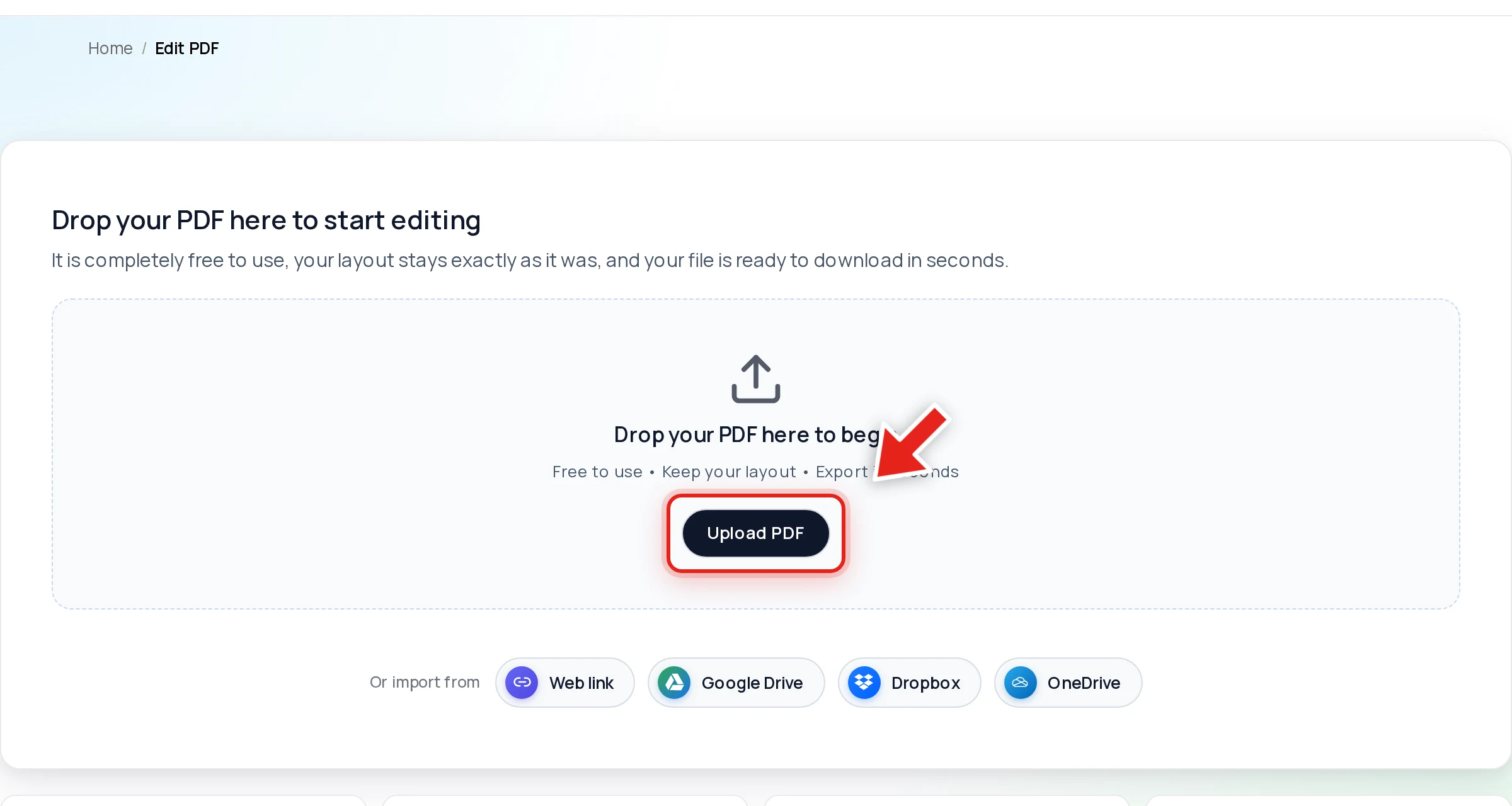
Go to the free PDF editor and drop your file onto the upload area, or click Upload PDF. You can also import from a link, Google Drive, Dropbox, or OneDrive.
Step 2 — Switch to the Redact tab
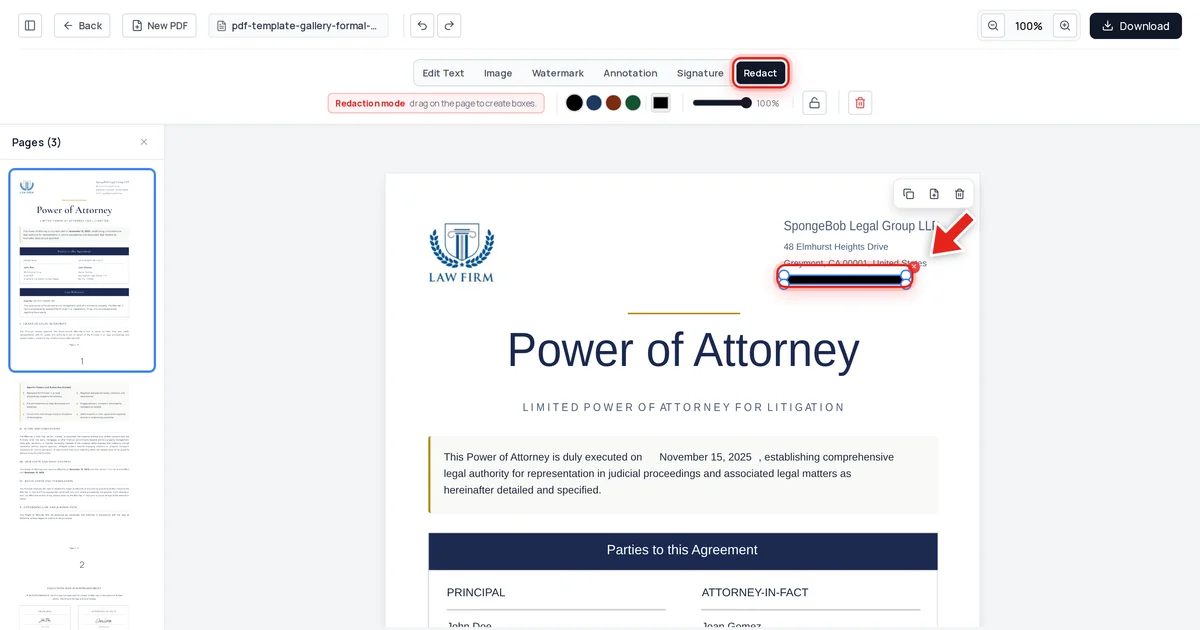
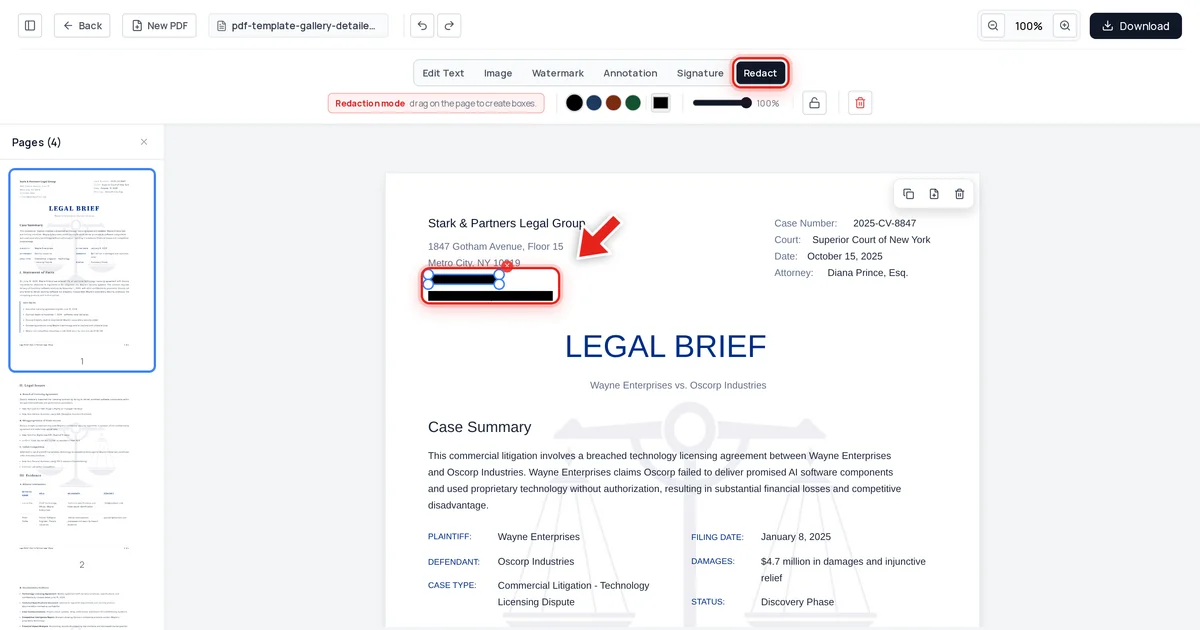
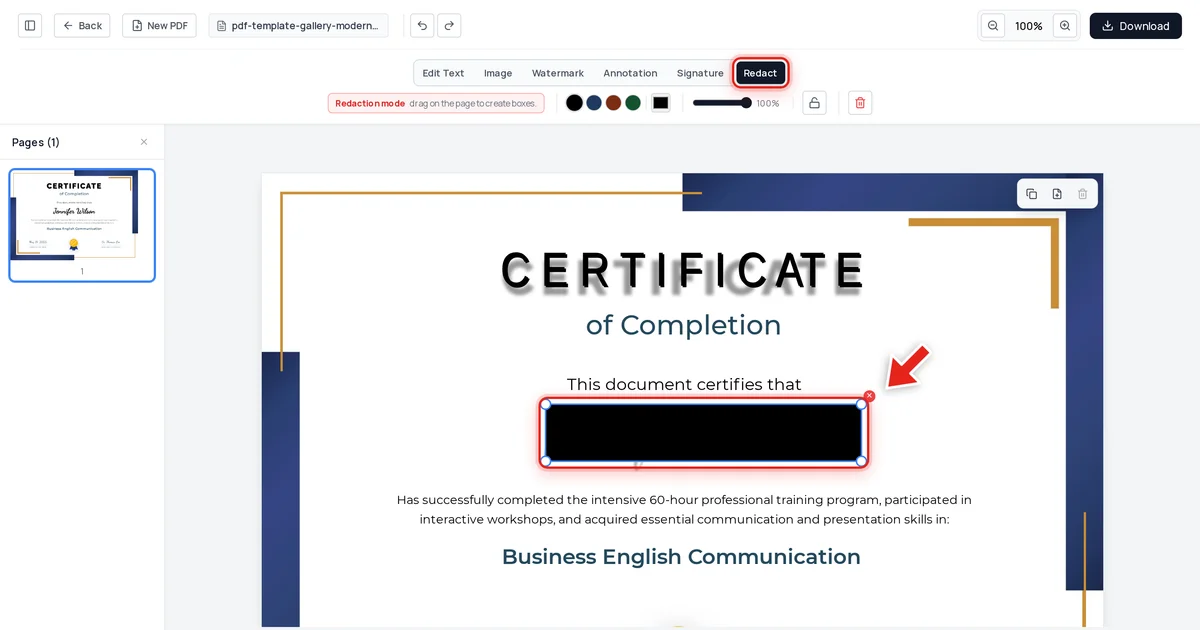
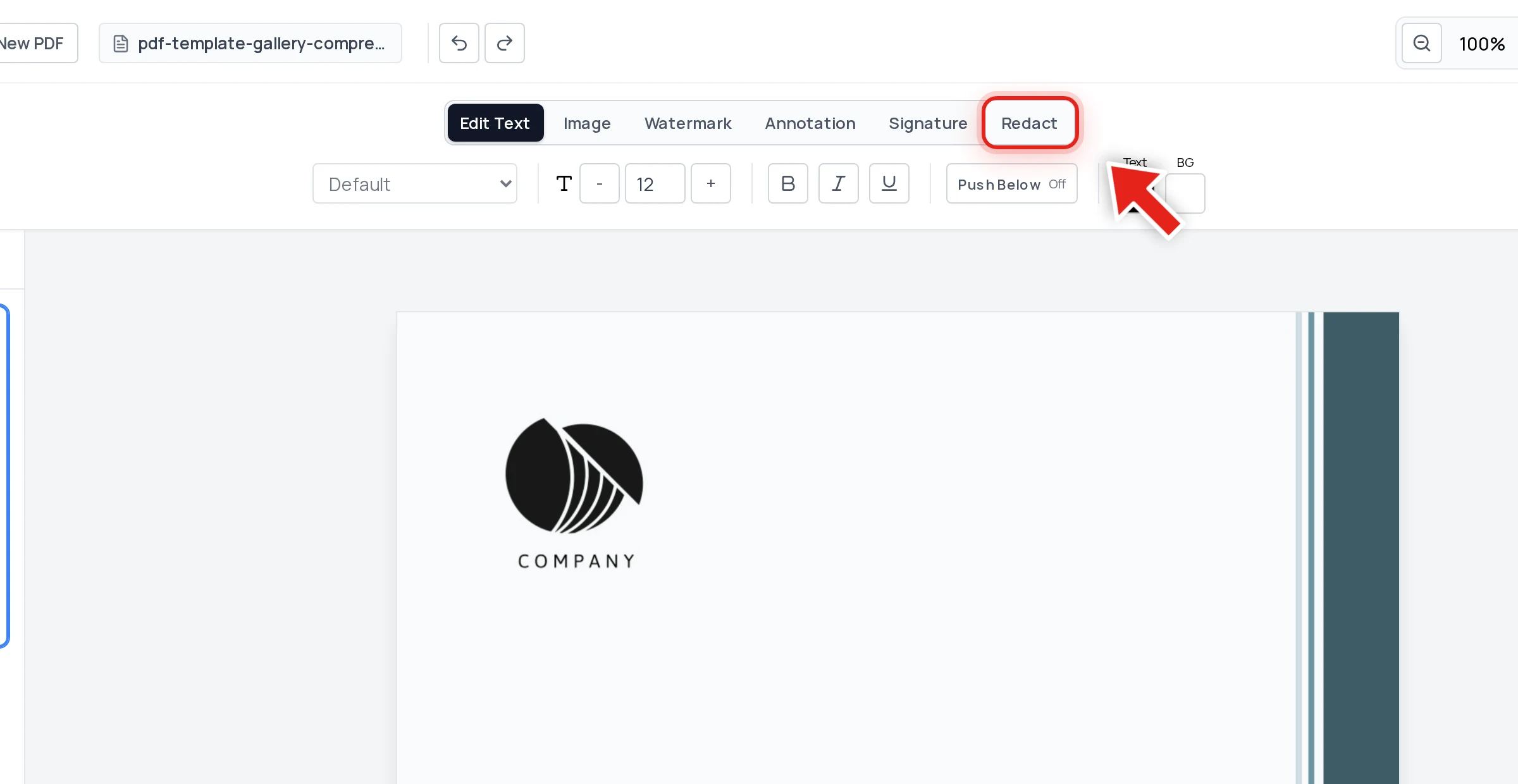
Click Redact in the toolbar. The editor enters redaction mode — you'll see the hint "drag on the page to create boxes," plus options for box color and opacity (keep black at 100% for real redaction work).
Step 3 — Drag a box over anything sensitive
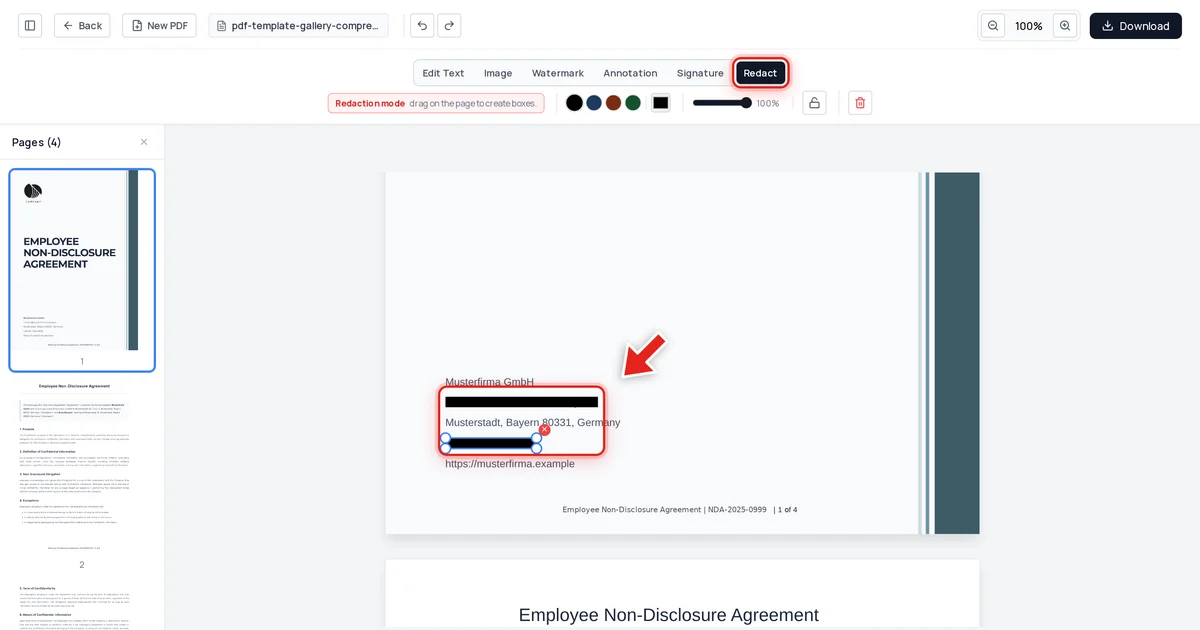
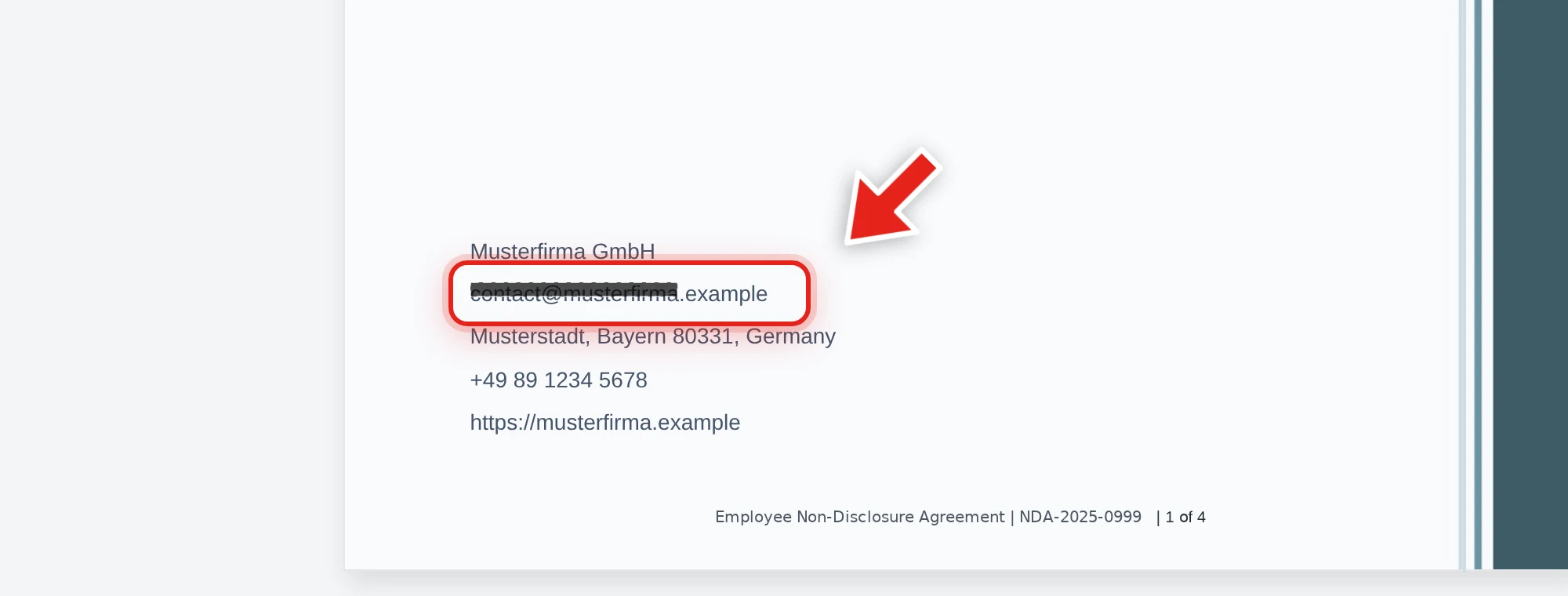
Click and drag across the text you want gone — an email address, a phone number, an account number, a name. As you drag, a live preview shows the box growing to cover it:
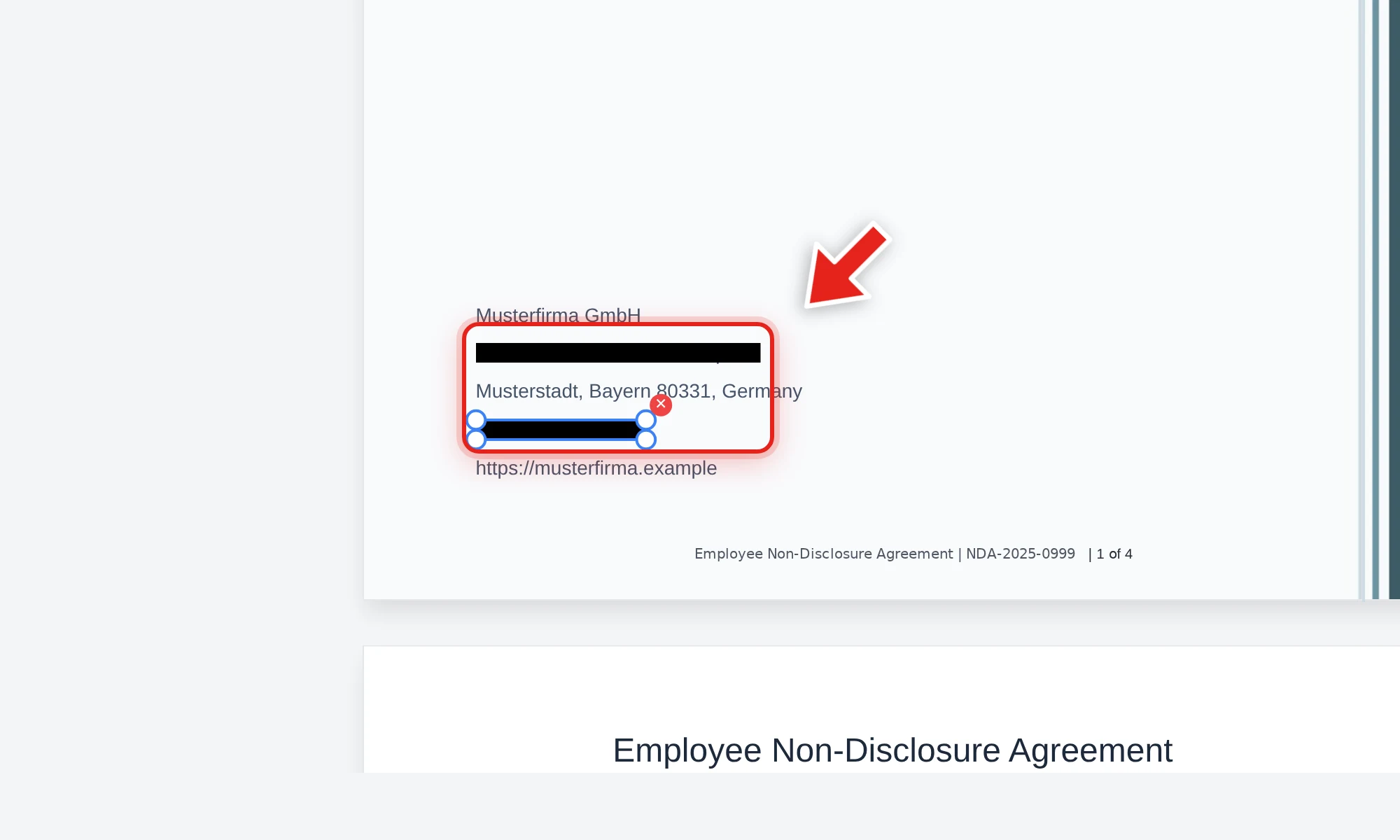
Release the mouse and a solid black bar takes its place. Draw as many as you need, on any page.
Two practical tips:
- Cover the whole value, edge to edge. The exporter removes text the box substantially covers. A bar that clips only half a word is ambiguous — make the box generous, with a little margin on every side.
- You can adjust before exporting. Each bar has drag handles to resize, and a delete button if you change your mind. Nothing is permanent until you export — after that, everything is.
Step 4 — Export the redacted PDF
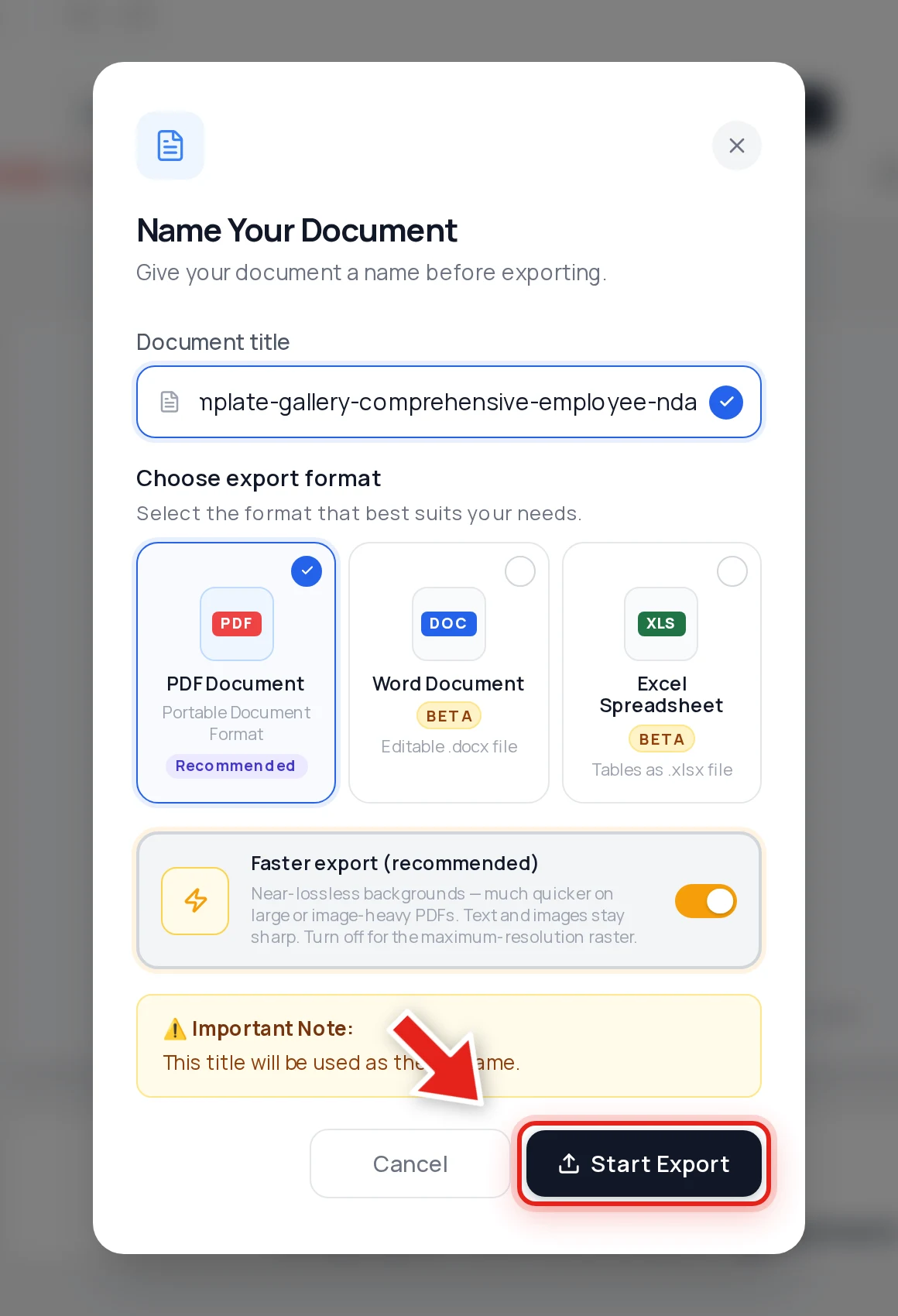
Click Download in the top-right corner, keep PDF Document selected, and hit Start Export. The file that downloads has the covered text permanently removed.
We tested it — here's the proof
Trust, but verify. Before writing this guide, we redacted a real document — an employee NDA containing a company email address and phone number — exported it, and then attacked our own file three ways:
- Text extraction (what copy-paste and search see). We extracted every character of text from all four pages. The email and phone number were gone. Every other word in the document was intact.
- Raw file inspection. We decompressed every internal data stream in the exported PDF and searched the raw bytes. No trace of the redacted strings anywhere in the file's instructions.
- Embedded data. The exported file's embedded metadata was checked too — also clean. No hidden copy of the redacted text survives anywhere in the file.
That is the difference between covering text and removing it. A black-box "redaction" fails test #1 instantly. A true redaction passes all three.
How to verify your own redaction in under a minute
Run these checks on the exported file before you share it — they're the same tricks someone else would try:
- The copy-paste test. Open the redacted PDF, click-drag across the black bar, press Ctrl+C (Cmd+C on Mac), and paste into any text editor. If anything readable appears, the redaction failed.
- The search test. Press Ctrl+F and search for a word you redacted. Zero results is what you want.
- The select-all test. Ctrl+A, copy, paste everything into a text editor and scan for the sensitive values.
If your current tool fails any of these, the data is still in the file — re-do the redaction with a tool that actually removes it. Our guide on why covering text isn't redaction explains what's going wrong under the hood.
What you should be redacting
Before sharing almost any document, scan it for:
- Government IDs — Social Security numbers, passport numbers, tax IDs
- Financial data — account numbers, routing numbers, card numbers, balances
- Contact details — home addresses, personal phone numbers, personal email addresses
- Dates of birth — a key ingredient in identity theft
- Medical information — diagnoses, prescriptions, patient identifiers (see our PHI redaction guide for HIPAA specifics)
- Other people's data — names and details of third parties who never agreed to be in your disclosure
- Signatures — routinely harvested for forgery
One more step worth pairing with redaction: metadata. The document's hidden properties can leak author names and edit history even when the visible content is clean — here's how to check a PDF for hidden metadata before sharing it.
FAQ
Is drawing a black box over text enough?
No. A drawn rectangle sits on top of the text; the text itself remains in the file and can be selected, copied, and searched. That's exactly how the Manafort and Facebook filings leaked. Redaction is only real if the text is removed from the file — which is what the Redact tab does on export.
Can someone recover text after I redact it with Online PDF Edits?
The covered text is stripped from the exported file's content stream — it isn't hidden, it's deleted. We verified this by extracting all text, inspecting the raw decompressed file data, and checking embedded metadata: no trace of the redacted content remained. Text that isn't in the file can't be recovered from it.
Does this work on scanned PDFs?
Partially, and it's important to understand the difference. If your scanned PDF has a hidden text layer (from OCR), the redaction strips that text like any other. But in a scan, the visible "text" is really pixels in a photograph — the black bar covers that region of the image. For highly sensitive scans, the safest workflow is to redact and then verify with the copy-paste test; if you need pixel-level destruction of the image region itself, flatten the redacted PDF to images before sharing.
Do I need Adobe Acrobat to redact a PDF?
No. Everything in this guide runs free in your browser at onlinepdfedits.com — no subscription, no install, no watermark. See our comparison of PDF redaction tools if you're evaluating options.
Can I redact more than text — like photos or signatures?
Yes. The redaction box covers whatever you draw it over, including images and signatures, and the exported box is a permanent opaque fill. For text underneath it, the content is removed from the file as well.
Is redaction reversible if I make a mistake?
Inside the editor, yes — every bar can be moved, resized, or deleted before you export. After export, no. The output file simply doesn't contain the redacted content, so keep your original if you might need the unredacted version later.