How to Check If Your PDF Redaction Is Actually Secure
A redaction that "looks right" isn't the same as a redaction that's actually safe. Here's the exact test to run on any PDF, from any tool, before you send it anywhere.

You redacted the PDF. It looks right — the black bars are exactly where they should be. But "looks right" and "is safe" are different claims, and the only way to know you have the second one is to actually test it. This is the same test that has exposed every major public redaction failure — run it yourself, on your own file, before anyone else does.
Key takeaways
- A redaction can look perfect and still leak the underlying text — the black bar is a picture of a fix, not proof of one.
- The test takes under a minute: try to select, copy, search, and inspect the redacted area in the exported file.
- Four checks catch different failure modes: copy-paste, search, a fresh look at the document, and metadata.
- We ran this exact test against our own tool's export and confirmed it passes on all counts.
- Run this test on every redacted PDF before it leaves your hands — regardless of which tool produced it.
The four-part verification test
1. The copy-paste test
Open the exported PDF. Click and drag to select the area covered by the black bar, exactly as if you were trying to steal the hidden text. Copy it (Ctrl+C / Cmd+C) and paste into a plain text editor.
Pass: nothing pastes, or only whitespace. Fail: any readable text comes through — the redaction only covered the text visually; it's still fully present in the file.
This single test is what exposed the 2019 Manafort court filing and a 2018 Facebook court document — both had "redacted" sections that pasted out in full.
2. The search test
Press Ctrl+F (or Cmd+F) and search for a word or number you redacted.
Pass: zero results. Fail: the search finds it — meaning the text is still indexed in the document, just visually covered.
3. The select-all test
Select the entire document (Ctrl+A), copy everything, and paste into a text editor. Scan the output for anything you redacted.
Pass: the redacted values don't appear anywhere in the pasted text. Fail: they show up — sometimes in an unexpected spot, like a document that repeats a value in a header and a footer.
4. The metadata check
Redaction and metadata are two separate layers of a PDF. A perfectly redacted page can still carry the original author's name, software version, or edit history in the file's properties. Check this separately — see how to check a PDF for hidden metadata for exactly where this lives and how to clear it.
How to redact so the test actually passes
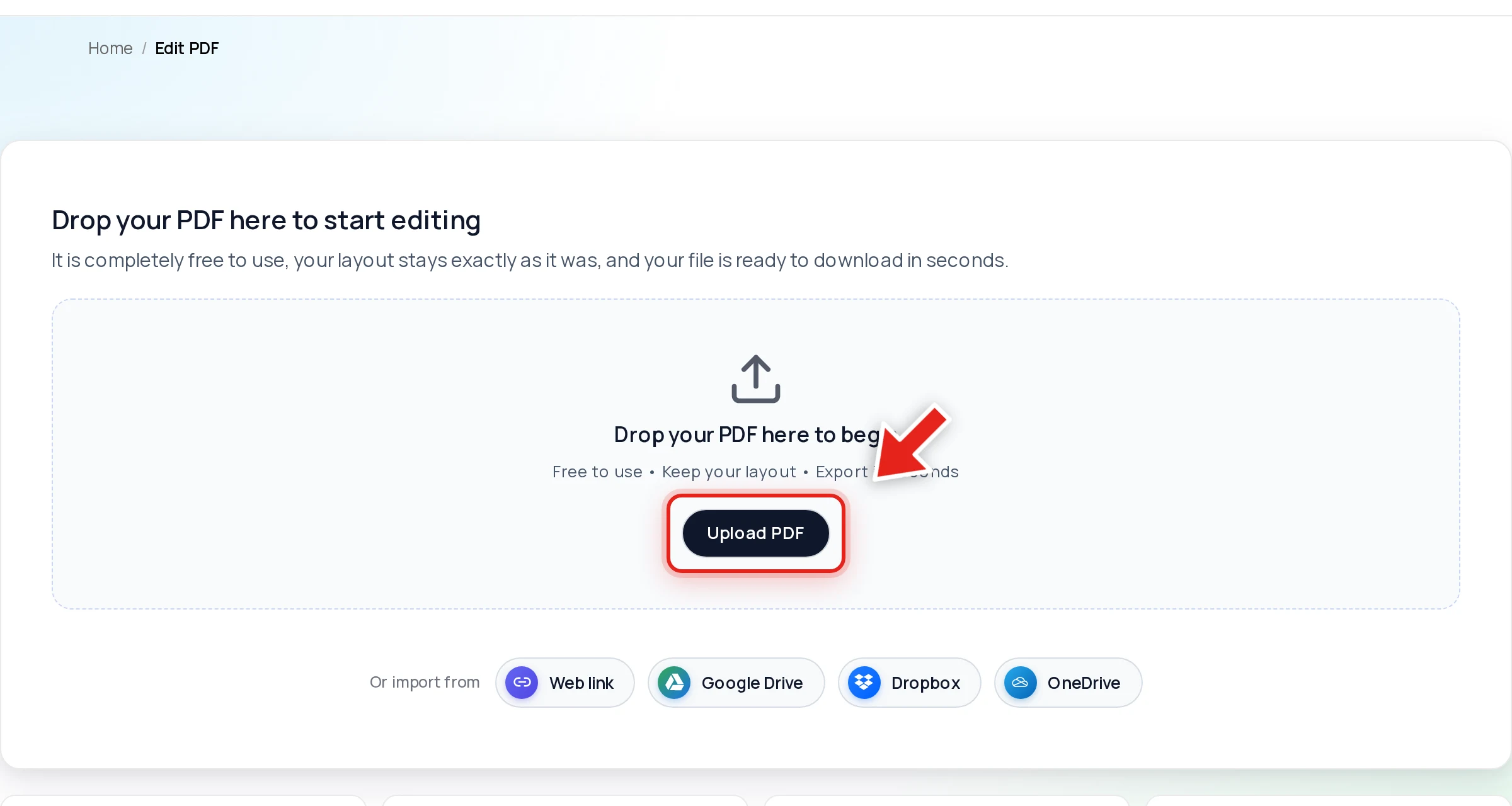
Open your PDF in Online PDF Edits — drop the file onto the upload area, or click Upload PDF.
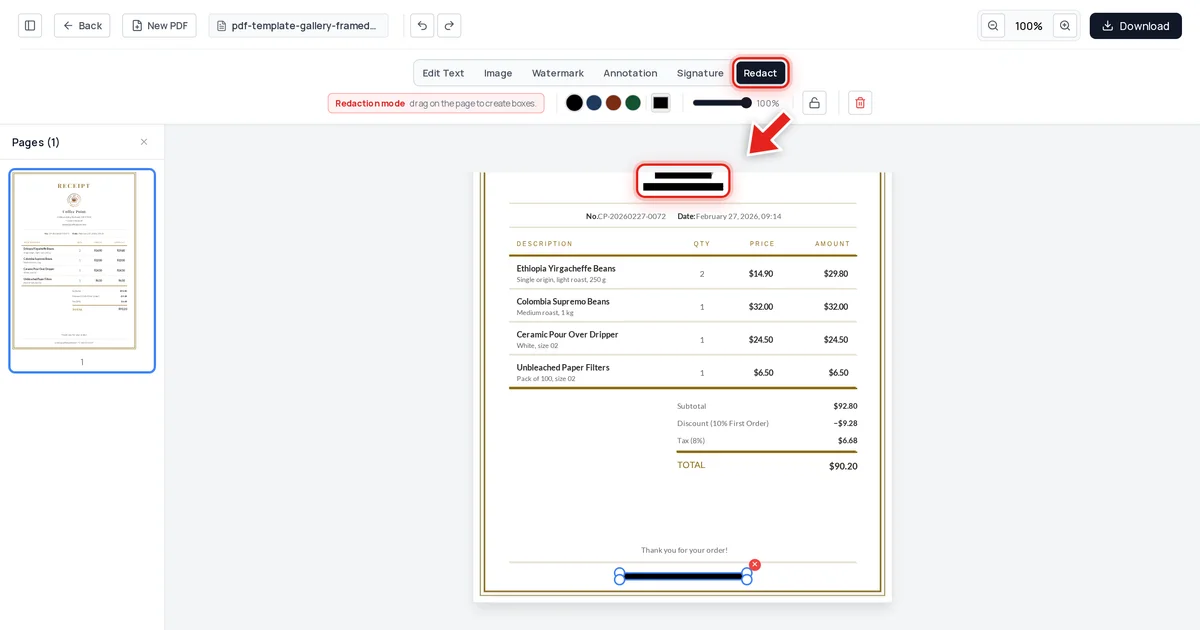
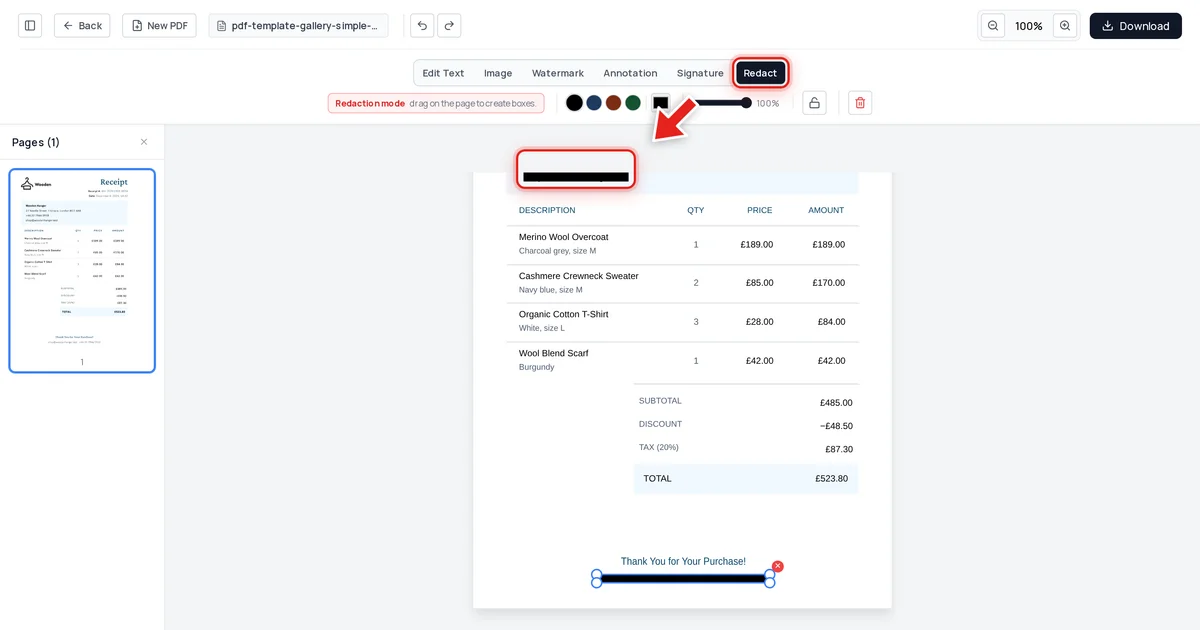
Click Redact in the toolbar:

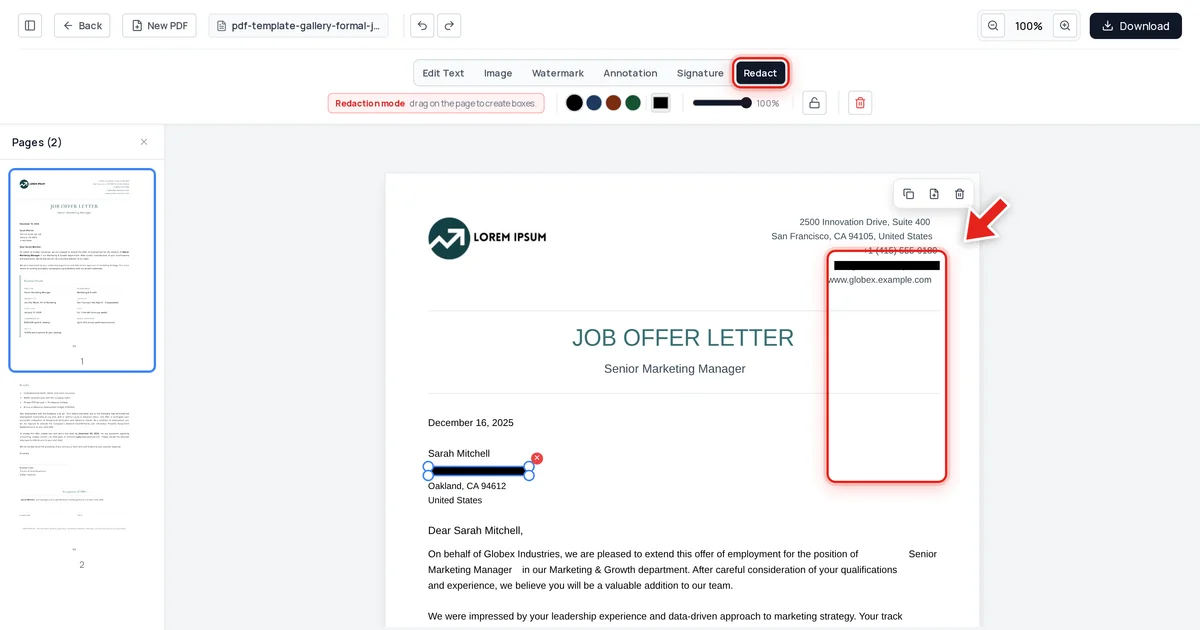
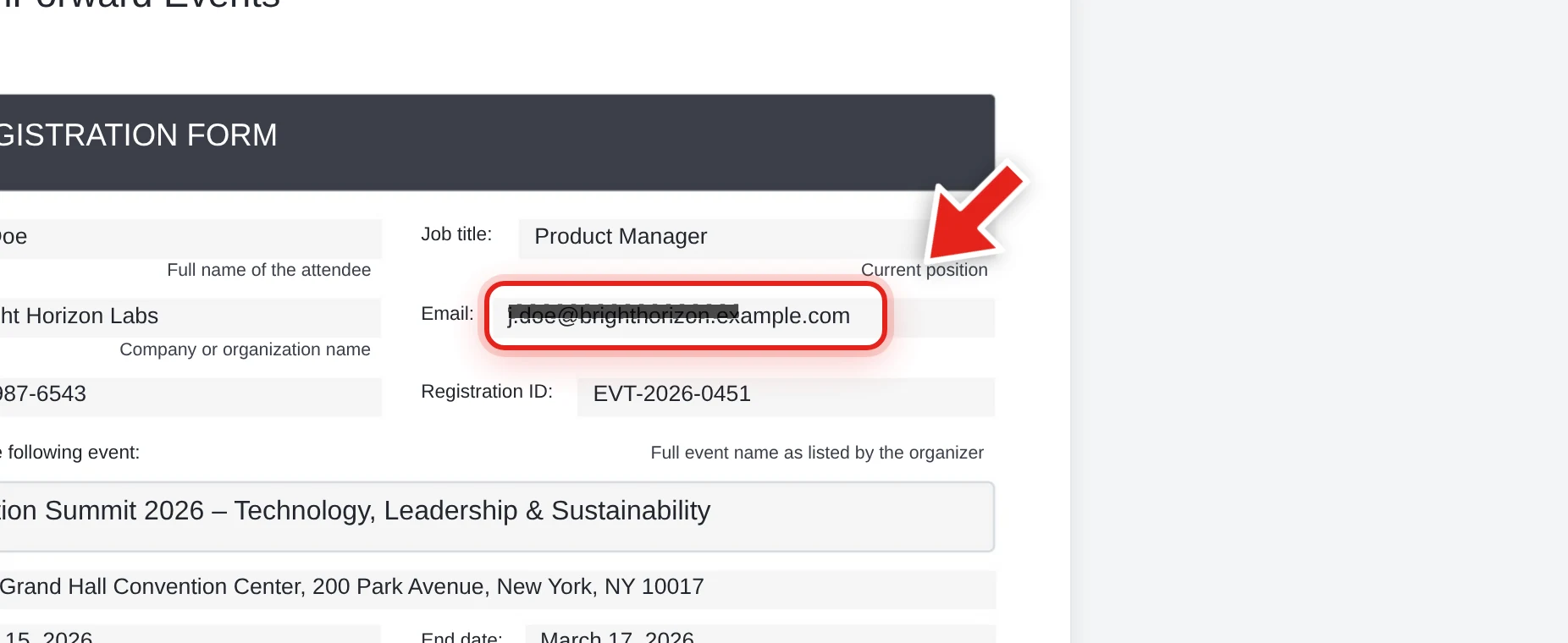
Then click and drag over each value that needs to disappear. A live preview shows the box growing as you drag:
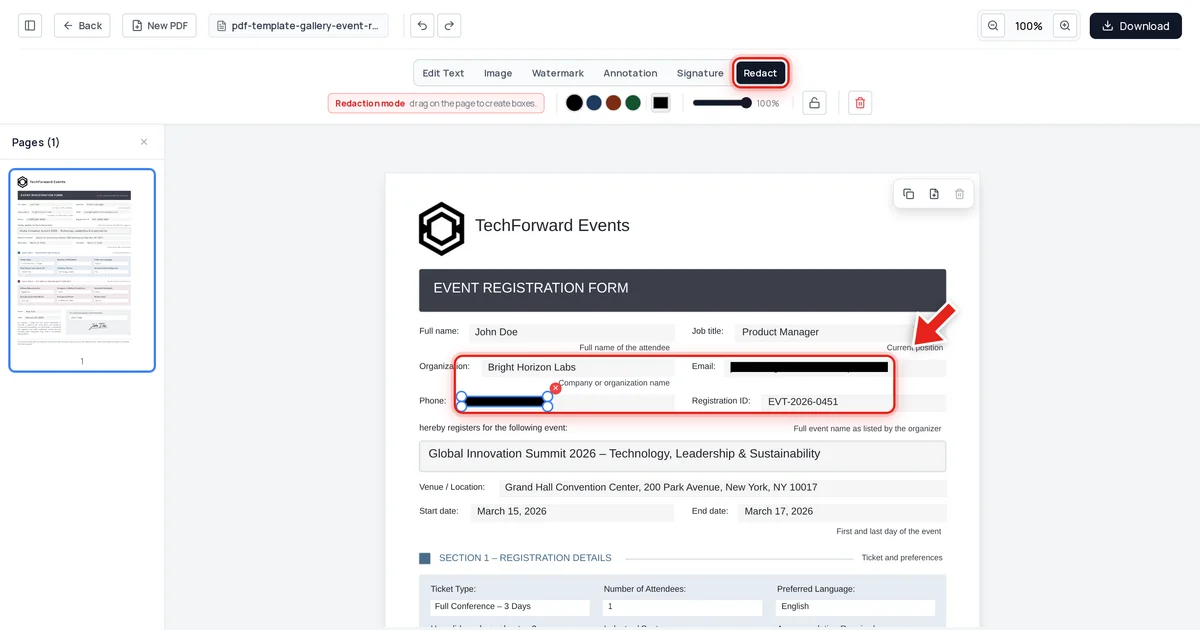
Release the mouse and a solid black bar takes its place.
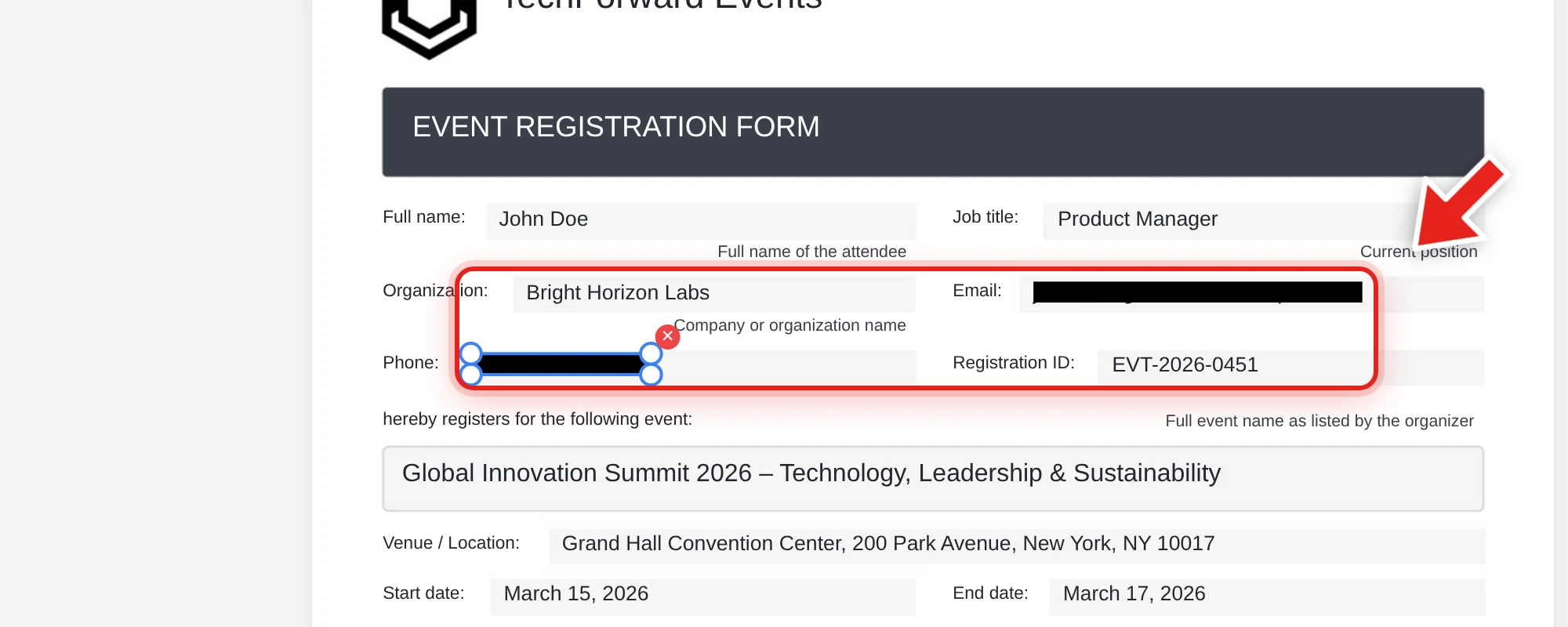
We ran the test on our own export
On the registration form above, we redacted the attendee's email and phone number, exported the file, and ran all three text-level checks ourselves: extracted every line of text from the document, searched the raw decompressed file data, and inspected the embedded metadata attachment. Both redacted values were completely absent from all three — while the attendee's name, event details, and registration ID stayed exactly as they were.
That's a passing result on the test above. If your own redacted file doesn't pass all four checks, the data isn't actually protected yet, no matter how solid the black bar looks.
What to do if it fails
If any check comes back positive — text pastes, a search finds it, or metadata still carries something sensitive — treat the document as unredacted and start over:
- Go back to the original, unredacted file.
- Redact again using a tool that removes the covered content from the file on export (not one that only draws over it) — see how to redact a PDF permanently.
- Re-run all four checks on the new export before sharing it anywhere.
FAQ
How long does verifying a redaction actually take?
Under a minute for all four checks on a typical document — copy-paste, search, select-all, and a metadata glance.
Do I need special software to run this test?
No. A PDF viewer and any plain text editor (Notepad, TextEdit, or similar) are enough.
What if the copy-paste test pastes nothing but the search test still finds the word?
Treat it as a failure. Some viewers render selection differently than they index text for search — if either check surfaces the redacted content, it's still present in the file.
Should I verify redactions I didn't create myself?
Yes — this test works on any PDF from any source or tool. If you've received a "redacted" document and are relying on its redaction being real, verify it yourself rather than assuming.
Does passing this test guarantee the file is completely safe to share?
It confirms the specific redacted values are genuinely removed from the visible content and text layer. Still check metadata separately, and if the document is a scan, remember that pixels under a redaction box in an image-only page are covered visually but the underlying photograph data isn't a separate "text" layer to strip.