iLovePDF vs OnlinePDFEdits: PDF Redaction Compared
iLovePDF's redaction tool does the same basic job most online tools do — draw a box, cover the text. The question worth asking is what happens to that text when you export, not which brand's button you clicked.

iLovePDF is a well-known name in the online PDF space, and it includes a redaction tool alongside its long list of converters and utilities. Here's an honest look at how its redaction compares to true content-removal, and the one test that tells you what actually matters — regardless of which tool's logo is on the page.
Key takeaways
- iLovePDF's redaction is a manual tool: you draw the box, same basic mechanic as most tools in this category, including ours.
- We can't verify or make claims about whether a competitor's export actually deletes covered text — but you can, on your own file, in under a minute.
- Online PDF Edits has no daily task cap and no account requirement.
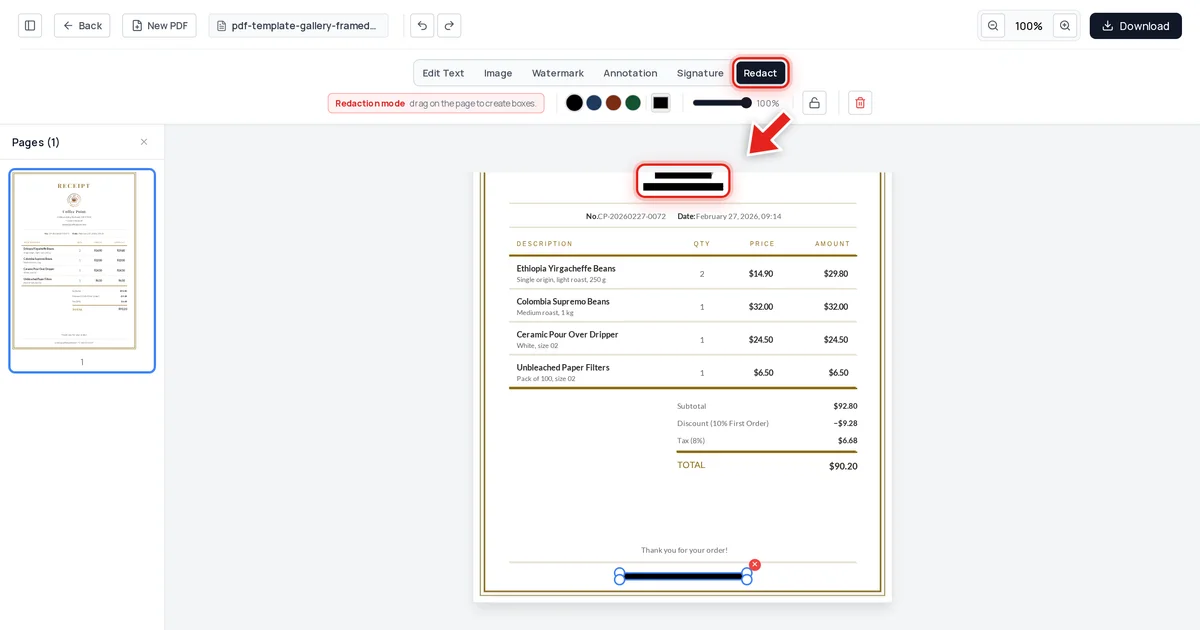
- We tested our own export directly: a receipt's email and phone number, redacted and exported, came back completely clean across text extraction, raw file data, and metadata.
- The real comparison point isn't the brand — it's whether the exported PDF still contains the "redacted" text.
What iLovePDF's redaction does
Like most tools in this space, iLovePDF's redaction is manual selection — you mark the area, it gets covered, you export. This is the same basic mechanic used by the majority of online PDF tools, including this one. The feature category is well-established; what varies between tools is what specifically happens to the marked content when the file is exported.
The test that actually answers the question
We're not going to make claims about a competitor's product we haven't independently verified — that wouldn't be honest, and it isn't necessary. There's a much better approach: a test you can run yourself, on any tool's output, that answers the only question that matters.
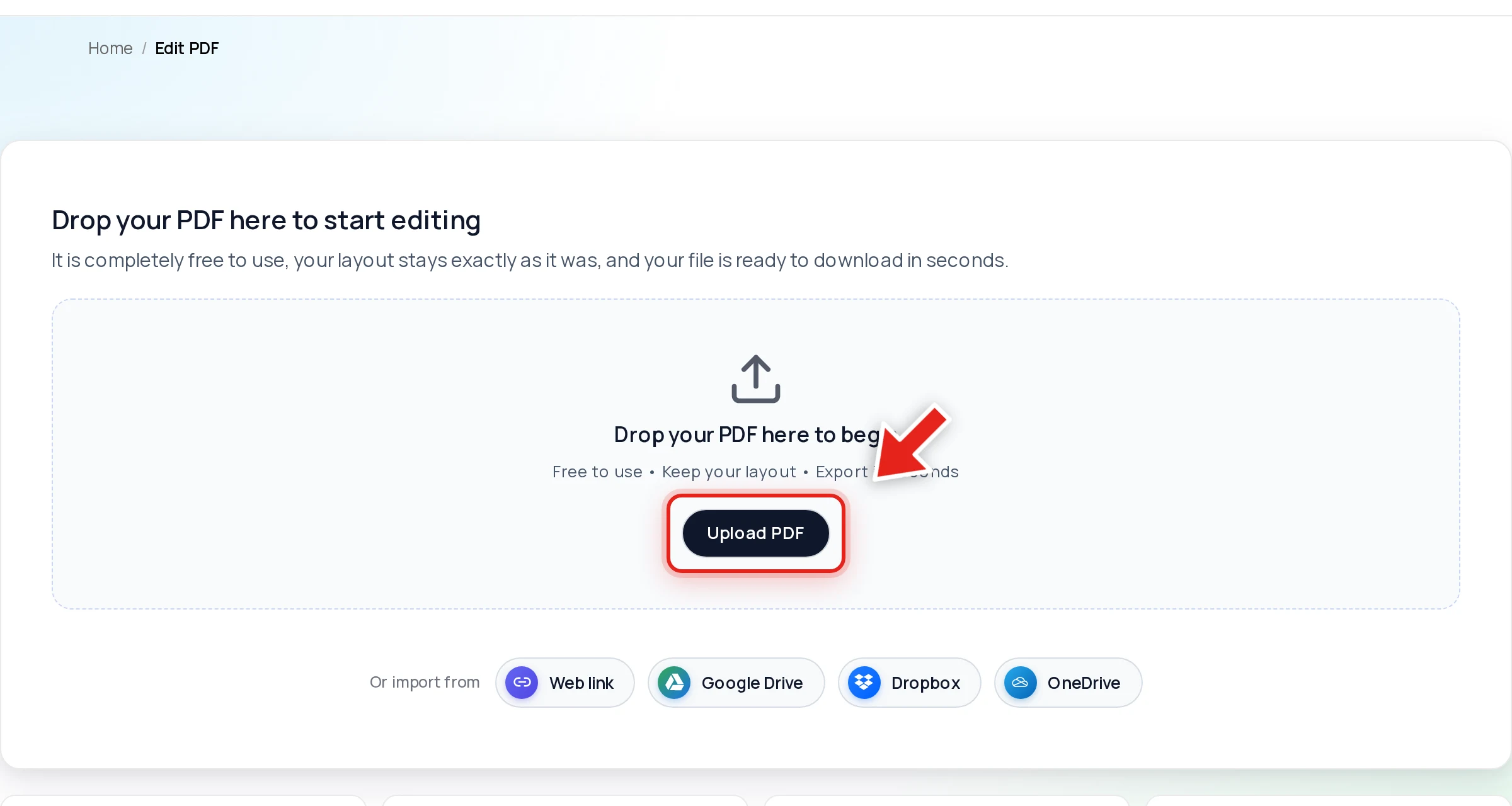
Open your PDF in Online PDF Edits — drop the file onto the upload area, or click Upload PDF.
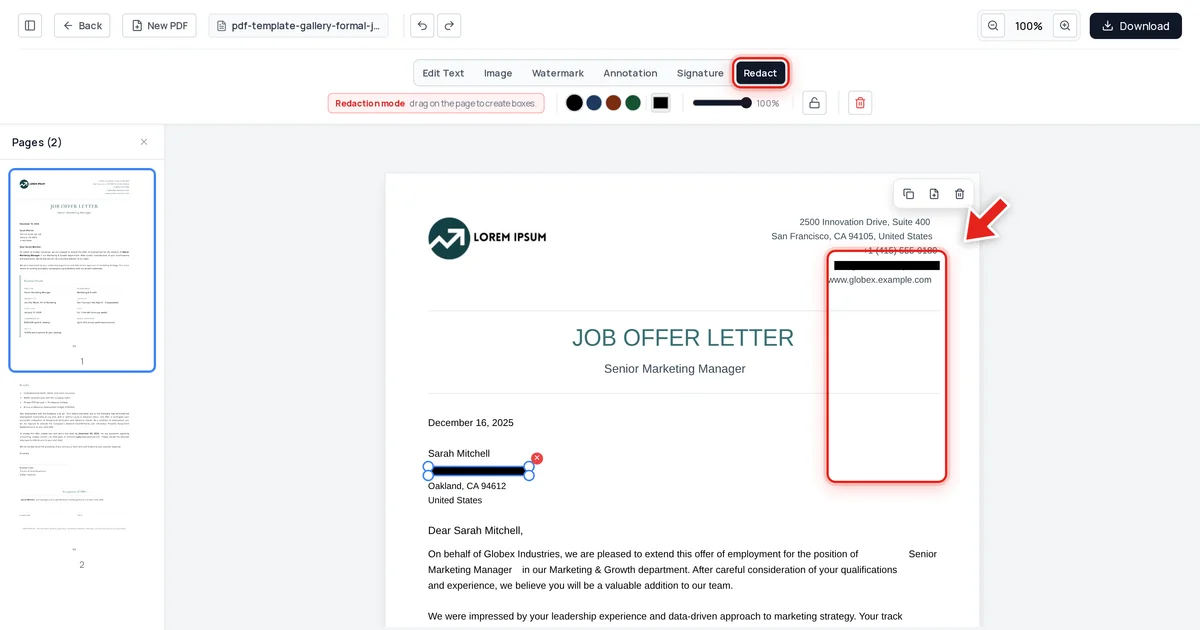
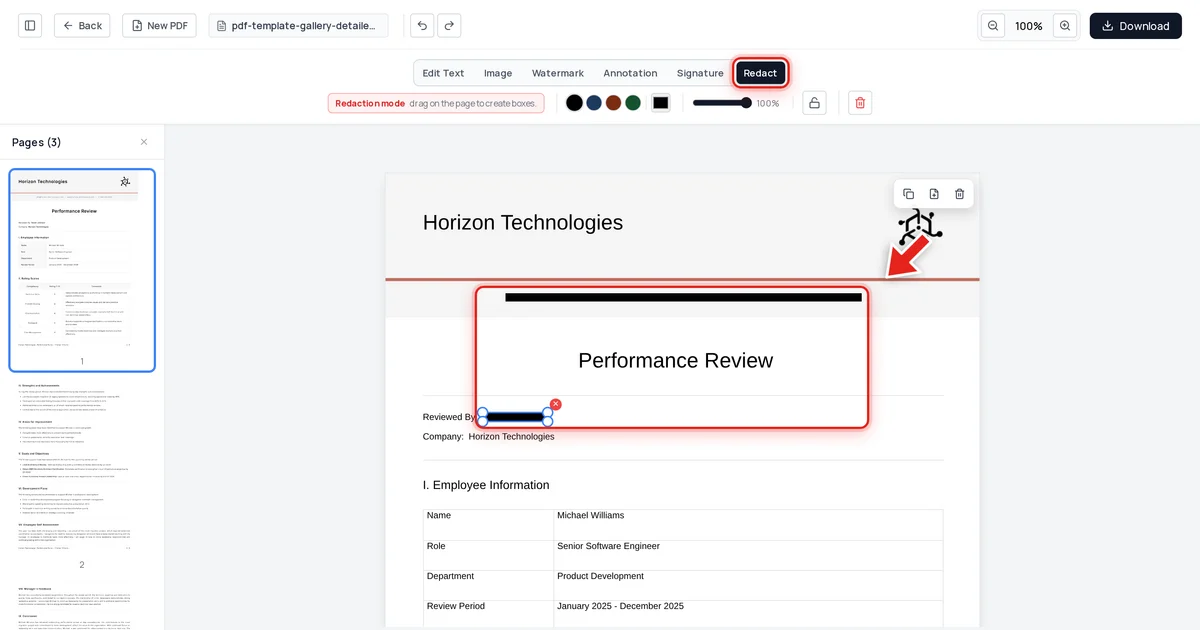
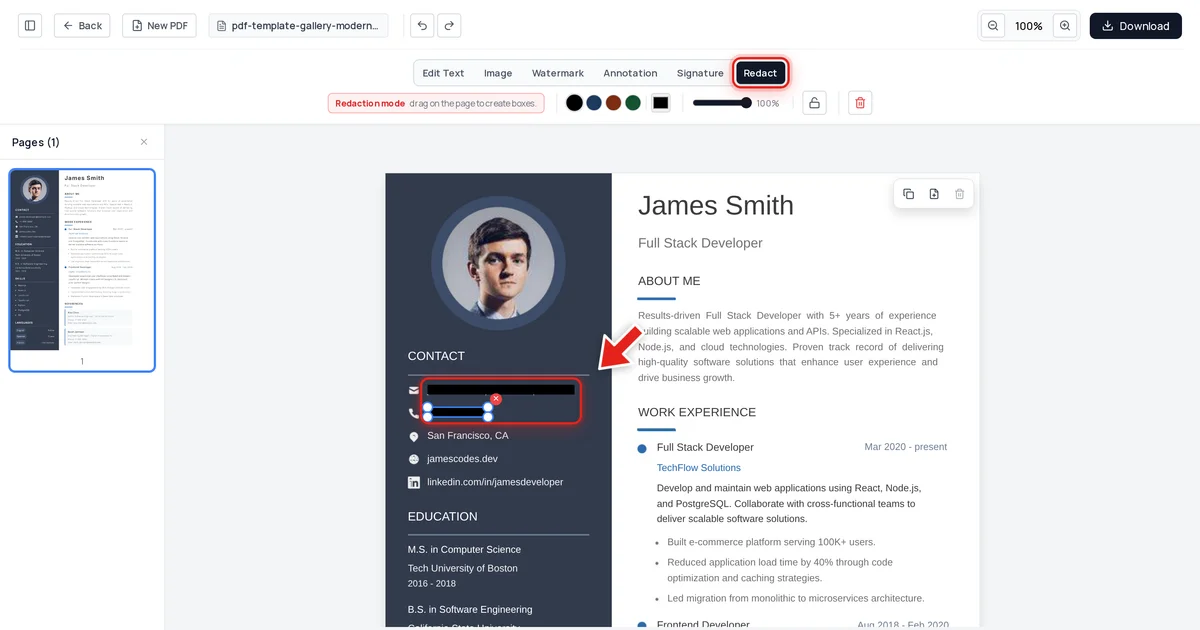
Click Redact in the toolbar:

Then click and drag over the text you want gone. A live preview shows the box growing as you drag:
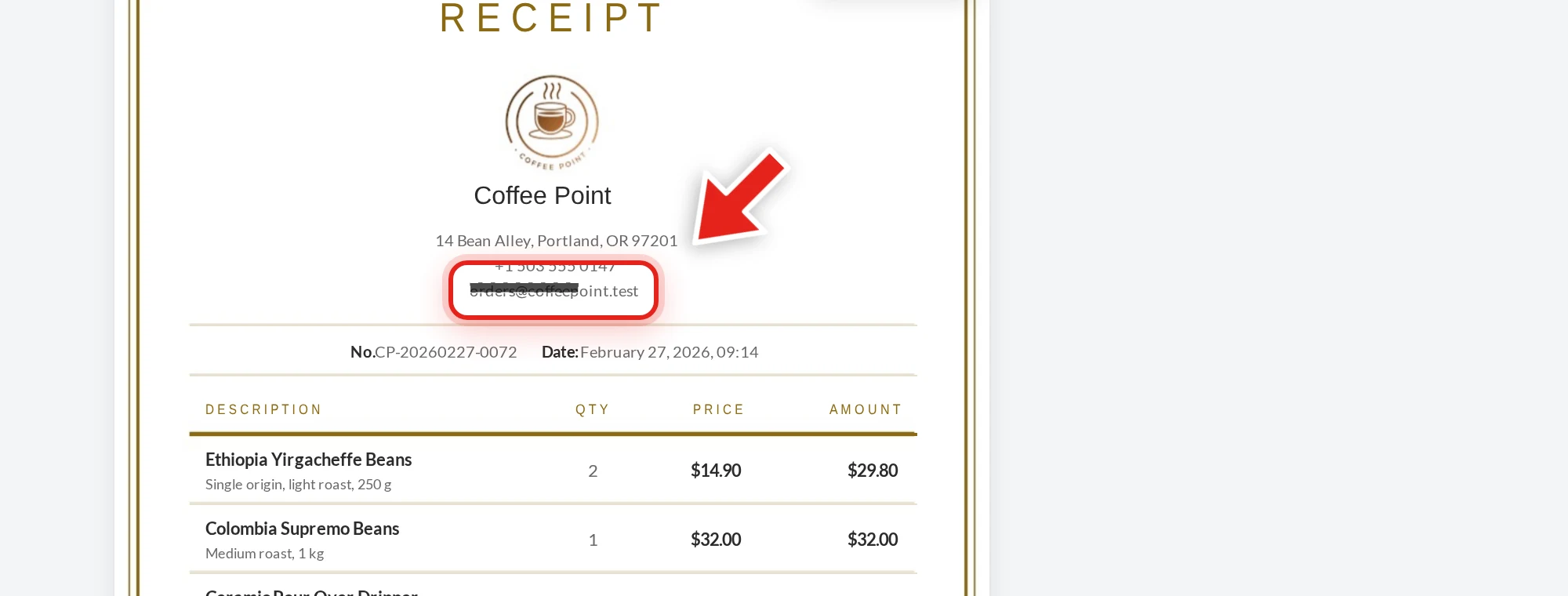
Release the mouse and a solid black bar takes its place.
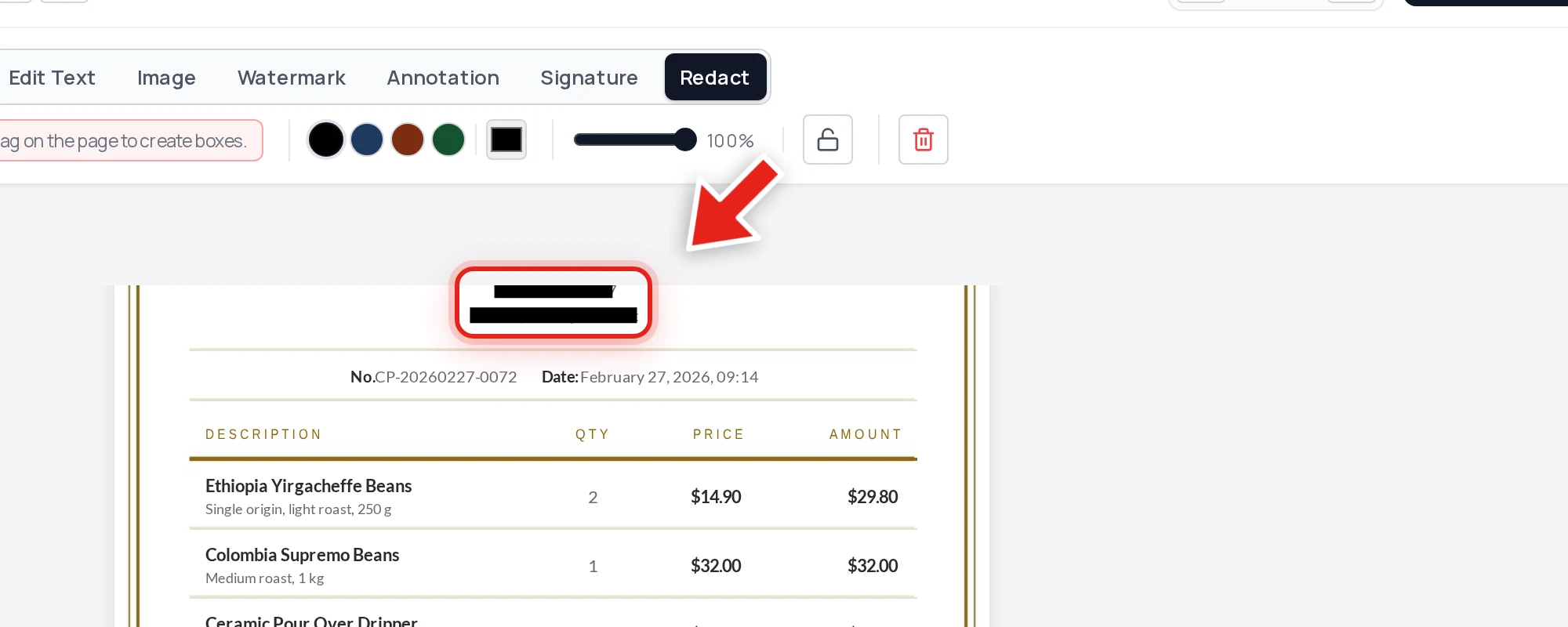
We tested our own export on the receipt above — redacting the shop's email and phone number, which repeated in both a header and a footer line. After export, we extracted every line of text from the file, searched the raw decompressed file data, and inspected the embedded metadata. Both values were completely absent from all three, in both locations, while every other line — prices, totals, order details — stayed exactly as it was.
Run this same test on iLovePDF's export
- Redact a test document in iLovePDF and export it.
- Try to click-drag select the area covered by the black box.
- Copy it and paste into a plain text editor.
- Also press Ctrl+F and search for a word you expect to be hidden.
Nothing pasting and nothing found means it passed. This test works identically regardless of which tool produced the file — see our full verification guide for more on why each check matters.
Where the tools differ in practice
Cost and limits. Check iLovePDF's current free-tier terms directly, as these change; Online PDF Edits has no daily cap and no account requirement for redaction.
Scope. iLovePDF bundles a large number of conversion and utility tools; redaction is one feature among many. Online PDF Edits' redaction lives in the same editor as text, image, and table editing — useful if you're touching other parts of the same document in one session.
FAQ
Does iLovePDF's redaction permanently remove text?
We haven't independently verified this and won't make an unverified claim about a competitor's product. Run the copy-paste and search test on your own iLovePDF export to check.
Is Online PDF Edits' redaction free like iLovePDF's?
Yes, with no daily task cap and no account requirement.
What repeated text should I check for after redacting a receipt or invoice?
Contact details (email, phone) often appear in both a header and a footer. Redact every occurrence, and verify the exported file doesn't still contain a copy you missed.
Which tool should I use?
Whichever one passes the verification test on the specific document you're working with. Test the actual export before trusting either.