Edit PDF Text Online Free Same Font Without Login
Stop settling for mismatched fonts and clumsy whiteout blocks. Discover how to edit original PDF text online in the exact same font for free with zero login.

You open a PDF contract, certificate, or resume to correct a single date or spelling mistake. You upload the file to a standard free tool, type the replacement letters, and immediately notice the problem: the new text looks completely out of place. The font is wrong, the weight is mismatched, the letter spacing is off, or the tool simply drew an opaque white box over the sentence and dropped generic Arial on top.
To make matters worse, when you click download, the screen locks with a compulsory login dialog demanding your email before delivering your file.
Finding a tool that can actually edit PDF text in the exact same font—for free and without logging in—is one of the most common challenges in digital document management.
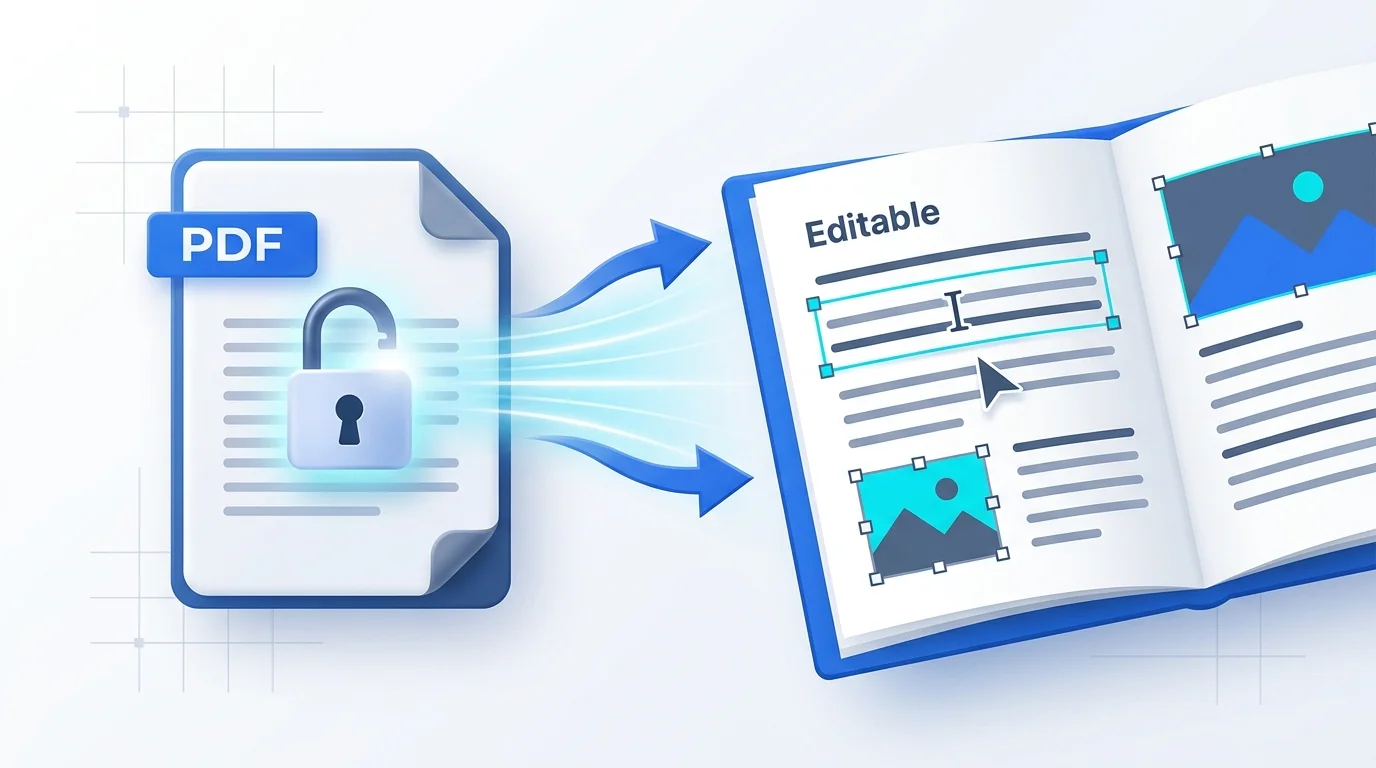
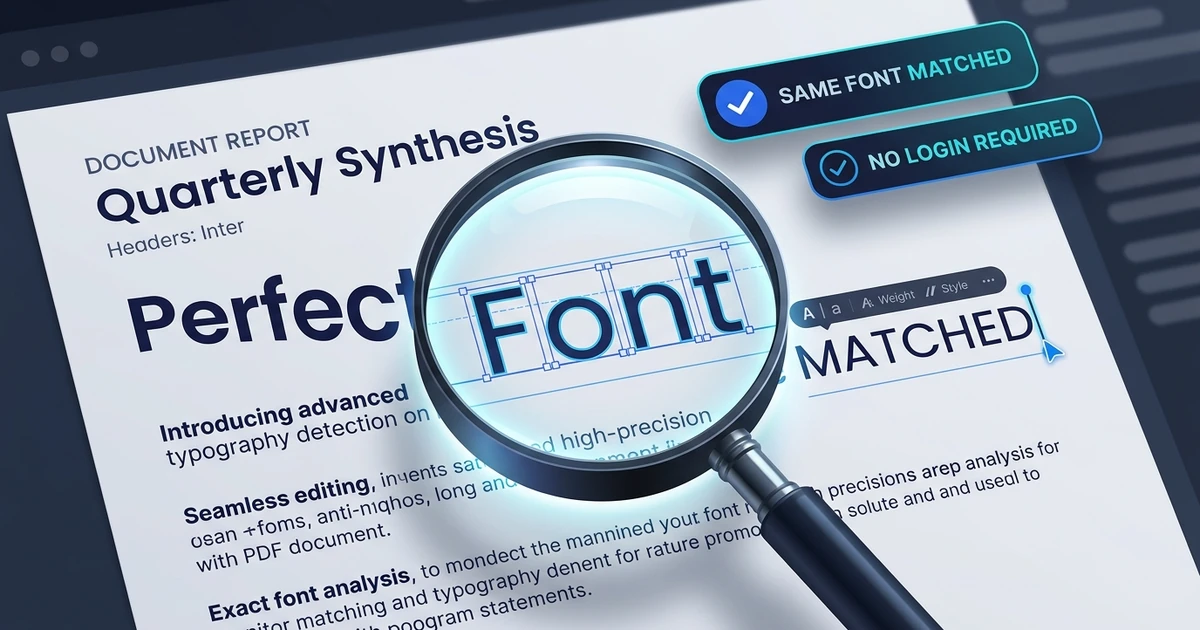
The Quick Answer: Yes, you can edit PDF text online for free in the exact same font without creating an account or logging in. Open the Online PDF Text Editor, upload your document, and select the specific text line you need to adjust. The editor inspects the document's font dictionary, automatically matches the typeface, size, weight, and color, and replaces the underlying vector characters directly. When finished, download the clean PDF with zero watermarks and zero registration requirements.
⚡ Match the Same Font in Your PDF Now
Don't let mismatched fonts ruin your document. Launch the font-matching editor directly:
👉 Open Online PDF Text Editor (No Login Required) →
Automatic Font Matching · Direct Vector Text Replacement · No Sign-Up · 100% Free
The Technical Problem: Why Most Free Editors Fail at Font Matching
To understand why so many online tools create jarring typographic mismatches, it helps to understand how the PDF format (ISO 32000-1 specification) manages typography internally.
Unlike Word documents, which treat text as continuous editable paragraphs with globally linked fonts, a PDF treats text as absolute graphical coordinates. Letters are positioned using text display operators (Tj, TJ, and Tf) mapped to specific font dictionaries (/FontDescriptor).
How Mismatched Tools Work (Cosmetic Overlay):
[Original Text: "Due Date: Oct 12"]
          ▼ (Overlay White Rectangle)
[White Box Covering Text]
          ▼ (Place Generic System Text)
["Due Date: Oct 18" in mismatching Arial/Times] ➔ Visually Obvious & Unaligned

How Matching Tools Work (Direct Vector Modification):
[Original Text Stream: /F1 12 Tf (Due Date: Oct 12) Tj]
          ▼ (Parse Font Metrics, PostScript Name & Size)
[Detect Font Family, Ascenders, Descenders & Tracking]
          ▼ (Rewrite In-Place Character Stream)
[/F1 12 Tf (Due Date: Oct 18) Tj] ➔ Seamless Match
1. Cosmetic "White-Out" Overlays vs. Vector Replacement
Basic web tools do not possess the document parser needed to deconstruct internal content streams. Instead, they flatten your page or slap an opaque rectangle over the old characters. They then place standard browser text on top. Because the tool cannot read the file's embedded font program, your new text looks like a crude sticker pasted over the original document.
2. Subsetted Font Dictionaries (/FontSubset)
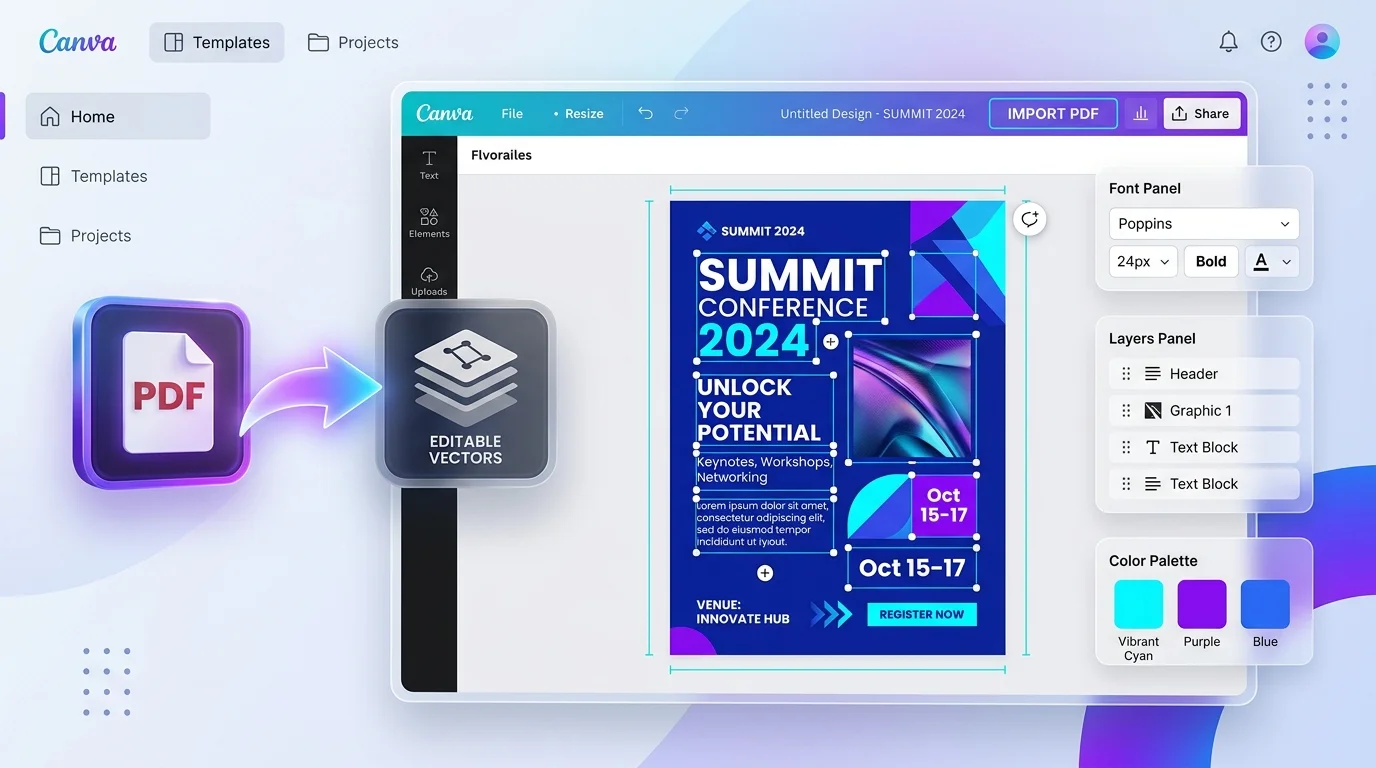
When applications like InDesign, Canva, or Microsoft Word export a PDF, they rarely embed the entire font library. To reduce file weight, they generate a "subset" containing only the exact glyphs used on that page (often tagged with a prefix like ABCDEF+Helvetica). If you try to add a character that was never in the subset, rudimentary tools either crash, render empty boxes (tofu symbols ▯), or default to an unrelated fallback font.
3. Missing Font Metric Calculations
Even when a tool correctly identifies a font name, it often fails to compute horizontal kerning and character spacing (Tc and Tw operators). A true text editor balances tracking and line-height so the edited phrase aligns precisely with adjacent sentences.
How to Edit PDF Text in the Same Font Without Login
Follow these steps to modify your document while preserving typographic consistency and complete privacy:
Step 1: Open the Direct Vector Editor
Go directly to the Online PDF Editor. You do not need to register an account, authenticate with Google, or provide payment details. Drag your PDF file into the upload zone.
Step 2: Click the Text You Need to Modify
Click directly on the text line containing the typo or outdated number. The editor isolates the text run, identifies its typographic attributes (font family, point size, bold/italic style, and hex color code), and opens an active text boundary.
Step 3: Type Your Replacement Characters
Type your corrections. The editing engine renders the replacement text using matching typographic metrics:
- Standard PDF Fonts: If the document uses one of the standard Base 14 PDF typefaces (Helvetica, Times Roman, Courier, Symbol, Zapf Dingbats), the editor matches the vector curves identically.
- Embedded Web Fonts: If the document utilizes standard digital typefaces (such as Roboto, Open Sans, Lato, Montserrat, or Georgia), the editor matches the visual weight and character spacing.
- Fine-Tuning: If the original text utilized custom tracking, use the inline toolbar to adjust font size by half-points (e.g., from 11.5pt to 12pt) to achieve a seamless blend.
(If you need to discard extra pages or reorganize sections before exporting, use the Delete PDF Pages tool or Merge PDF tool in your browser).
Step 4: Download the Finished Document Immediately
Click Save & Download. The revised PDF compiles instantly from your browser's local memory. You receive a clean, high-resolution document with matching typography, zero registration forms, and zero promotional watermarks.
Font Matching Capabilities: Tool Comparison
Here is how true in-browser vector editing compares with other widely used free PDF web tools:
| Feature & Font Handling | Online PDF Edits | FileLumo | Sejda PDF | Smallpdf | Adobe Acrobat Online |
|---|---|---|---|---|---|
| Account Required to Export? | ❌ No (Zero login) | ❌ No | ❌ No (3 free tasks) | ⚠️ Yes (Required for download) | ⚠️ Yes (Adobe ID required) |
| Font Detection & Matching | ✅ Automatic metric match | ❌ Generic text overlay | ⚠️ Basic font match (limited) | ❌ Restricted to Pro plan | ✅ Full font match |
| Editing Method | Direct Vector Stream | Cosmetic Whiteout | Vector replacement | Annotation overlay (Free) | Vector replacement |
| Export Watermark Added? | ❌ Never | ❌ None | ❌ None | ⚠️ Free exports watermarked | ❌ None |
| Usage Restrictions | ✅ Unlimited free use | ⚠️ Limited features | ❌ 3 tasks per hour / 50MB | ❌ 1-2 free tasks per day | ❌ 1 trial export per account |
| Font Kerning / Spacing Control | ✅ Point & spacing control | ❌ None | ⚠️ Preset options | ❌ None on free tier | ✅ Full typographic tools |
(Tired of commercial paywalls on common document suites? Read our complete breakdown of free Smallpdf alternatives).
Common Font Matching Challenges and How to Solve Them
Problem 1: The New Text Overflowed the Original Line
Cause: If you replace a short phrase ("May 1") with a longer phrase ("September 28"), the new text naturally takes up more horizontal space. Because PDFs do not automatically reflow surrounding text across the entire page like a Word document, the longer text can overlap adjacent content. Solution: Slightly reduce the font point size (e.g., drop from 12pt to 11pt) or condense character tracking to fit the exact bounding box without distorting the visual appearance.
Problem 2: The Document Contains Rare Custom Brand Fonts
Cause: Corporate PDFs often use proprietary commercial fonts purchased by design agencies that are not available in public web font registries. Solution: When an exact proprietary font program is not embedded with editable licensing permissions, the editor maps to the closest proportional metric equivalent (matching x-height, stroke width, and serif geometry). For isolated revisions (e.g., updating a phone number or invoice code), the substitution is virtually indistinguishable to the human eye.
Problem 3: The Document Is a Scanned Image (Flattened Bitmap)
Cause: If the PDF was created by a physical office scanner or smartphone camera scanner, it contains no real text characters—only a full-page photo of printed text. Solution: In scanned documents, you cannot highlight individual text characters. Use the Whiteout tool to cover the outdated date or name, select the Text tool, choose a matching standard font family (such as Times New Roman or Helvetica) that mirrors the scanned resolution, and type the updated value on top.
Launch the Tool and Edit in the Same Font
Experience seamless typography matching and vector editing without giving up your email address:
- 👉 Open Online PDF Text Editor — Edit existing text with automatic font family, size, and weight matching.
- 👉 Open Merge PDF Tool — Combine edited attachments and additional pages into one cohesive document.
- 👉 Open Delete PDF Pages Tool — Remove unnecessary pages and clean up your final layout.
Frequently Asked Questions
Can I edit a PDF text online in the same font for free without logging in?
Yes. Open the Online PDF Editor, upload your document, click on the text you wish to edit, and type your changes. The editor automatically detects the font family, point size, and weight, allowing you to export your corrected document immediately without creating an account or paying fees.
Why do some free PDF editors use a different font when I replace text?
Most free online tools do not parse the internal PDF /FontDescriptor dictionary. Instead of editing original vector text, they paste a generic text box on top of the page using default browser typefaces like Arial or Times New Roman. A true vector editor reads the embedded font metrics to maintain typographic consistency.
Will anyone be able to tell that the text in my PDF was edited?
No, provided you use an editor that performs vector replacement rather than cosmetic whiteout. When font style, size, color, baseline alignment, and character tracking match the original document, the updated text blends seamlessly into the surrounding layout.
Do I need to install desktop fonts on my computer to match the PDF text?
No. High-performance web editors parse the embedded glyph metrics and standard font outlines directly inside your browser using WebAssembly. You do not need to install specialized font files on your local operating system.
Is it safe to edit sensitive documents without logging into an account?
Yes. Avoiding account creation actually improves your digital privacy because you never have to supply personal details, email addresses, or account credentials. Furthermore, modern in-browser editors process the document ephemerally in your browser session and purge files automatically after processing.