PDF Edit Fast: How to Edit and Sign PDFs in 30 Seconds
When deadlines are minutes away, you cannot afford slow uploads or account gates. Follow this quick guide to edit, sign, and export PDFs in under 30 seconds.

Your boss needs a signed agreement in five minutes, or you just discovered an embarrassing typo on a client proposal right before sending. You don't have time to download a heavy desktop program like Adobe Acrobat, wait for a software update, or fill out a multi-step user registration form.
You need to edit a PDF fast, make the fix, and download the finished document before your deadline expires.
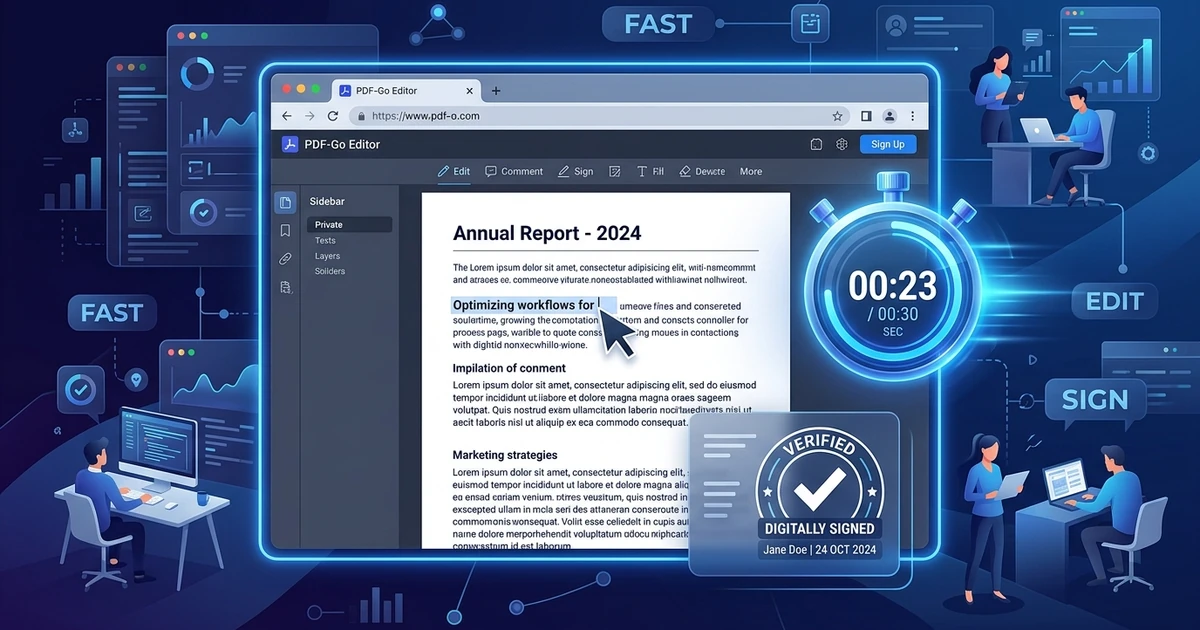
The Quick Answer: Yes, you can edit a PDF in under 30 seconds without installing software or signing up for an account. Open the Online PDF Editor, drag your PDF into the tab, click the line of text you want to fix, and type your correction. Click Save & Download to receive your clean, watermark-free document instantly. The entire process runs in your browser memory with zero waiting queues.
⚡ Launch the Fast Editor Tool
Need to fix your document right now? Launch the workspace directly:
👉 Open Online PDF Editor (No Sign-Up Needed) →
100% Free · Client-Side WASM · Zero Waiting Queues · Instant Download
The 30-Second PDF Editing Blueprint
When speed is your top priority, eliminate every unnecessary step. Here is the fastest path from raw PDF to finished export:
[0:00 - 0:05] Drop PDF into Browser ➔ Instant In-Memory Load
[0:05 - 0:15] Click Text / Draw Signature ➔ Inline Modification
[0:15 - 0:25] Verify Page Alignment & Remove Unneeded Sheets
[0:25 - 0:30] Click Save & Download ➔ File Ready in Downloads Folder
Step 1: Drag and Drop (Seconds 0 to 5)
Open the Online PDF Editor in Chrome, Safari, Edge, or Firefox. Do not waste time looking for a "Create Account" button. Drag your PDF file straight from your desktop or folder directly onto the workspace. The file parses locally in under two seconds.
Step 2: Make the In-Place Correction (Seconds 5 to 15)
- To Fix Text: Click directly on the sentence or number you want to change. An active cursor appears. Backspace the mistake and type the correct text. The editor automatically preserves the existing font size, color, and weight.
- To Sign: Click the Signature icon, draw your signature with your mouse or finger, and drag it into position.
- To Hide Sensitive Data: Click the Redact / Whiteout tool and drag a clean box over sensitive numbers or phone numbers.
Step 3: Clean Up Pages (Seconds 15 to 25)
If your PDF contains extra blank pages or upside-down sheets, handle them immediately inside the same tab. If you only need to delete unnecessary sheets, use the Delete PDF Pages tool to strip them in one click. If a page was scanned sideways, rotate it 90 degrees instantly.
Step 4: Download Without Gates (Seconds 25 to 30)
Click the Download button in the top navigation bar. The browser saves the updated PDF directly to your device. There is no email verification, no credit card prompt, and no promotional watermark added to your pages.
(If the file is too large to email, pass it through the Compress PDF tool to reduce its size to under 1MB in seconds).
4 Common Obstacles That Slow Down PDF Edits (and How to Avoid Them)
Most users lose 10 to 15 minutes on simple document revisions because they run into predictable digital bottlenecks:
1. Waiting for Desktop Software to Launch
Heavy desktop suites like Adobe Acrobat Pro take 15 to 30 seconds just to initialize, and often trigger background license checks or system updates. In-browser WebAssembly tools boot in less than two seconds because they run lightweight native code inside your browser tab.
2. The "Create an Account to Save" Trap
Many freemium portals let you spend five minutes modifying a document, but block the final download button with a registration pop-up. If you have to check your inbox, click an activation link, and choose a password, you've lost the speed advantage. Always choose an editor that allows zero-login downloads.
3. Server-Side Processing Queues
Older web tools upload your PDF to a remote server farm, rasterize the pages into images, and queue your job behind dozens of other users. On high-traffic days, a simple 2-page invoice can take minutes just to process. Modern client-side tools parse vector text directly on your own computer's CPU.
4. Re-uploading Between Multiple Tools
If you need to edit text, sign a page, and combine it with an attachment, don't use three separate websites. Every file upload and download cycle adds friction. Combine multi-document tasks using the Merge PDF tool and handle text modifications in one coordinated workflow.
Fast PDF Editing: Workflow Comparison
| Action Needed | Fastest In-Browser Method | Traditional Desktop Method | Time Saved |
|---|---|---|---|
| Fix a Typo in a Sentence | Click text in Online PDF Editor ➔ Type fix ➔ Export | Open Word ➔ Convert PDF ➔ Fix typo ➔ Re-export to PDF | ~5 minutes |
| Add a Legal Signature | Click Signature ➔ Draw / Apply ➔ Download | Print document ➔ Sign with pen ➔ Scan to computer ➔ Save | ~10 minutes |
| Delete Blank Pages | Select page thumbnail ➔ Click Trash ➔ Save | Open Acrobat ➔ Navigate Tools ➔ Organize Pages ➔ Delete | ~3 minutes |
| Combine Two Documents | Drag both files into Merge PDF ➔ Click Combine | Open third-party app ➔ Arrange files ➔ Export | ~4 minutes |
Keyboard Shortcuts for Lightning-Fast PDF Editing
Power users can accelerate their document workflow using standard browser and editor shortcuts:
- Ctrl + Z / Cmd + Z: Instantly undo an accidental text change or misplaced image.
- Ctrl + S / Cmd + S: Save and compile the current document without clicking menus.
- Delete / Backspace: Remove any highlighted element, annotation box, or signature.
- Shift + Click: Select multiple page thumbnails to rotate or delete simultaneously.
Launch the Tool and Edit Your PDF Fast
You do not need an account, a software download, or a paid subscription to make quick document corrections. Access the free tools directly below:
- 👉 Open Fast Online PDF Editor — Edit original text, add new words, and draw digital signatures in under 30 seconds.
- 👉 Open Delete PDF Pages Tool — Strip unneeded sheets, duplicates, or blank pages in one click.
- 👉 Open Compress PDF Tool — Shrink your finished document for quick email sending without losing clarity.
Frequently Asked Questions
How can I edit a PDF fast for free without installing software?
Open the Online PDF Editor in any web browser, drag your file into the window, click on the text you want to alter, and click Download. You do not need to install plugins or software packages.
Can I edit a PDF quickly on an iPhone or Android phone?
Yes. Navigate to the editor URL in mobile Safari or Chrome, tap the upload zone to choose a file from your device, tap the text box to make your edits, and download the finished file immediately.
What is the fastest way to sign a PDF document?
Upload your document to the Online PDF Editor, click the Sign tool in the top bar, draw your signature or type your initials, drag the signature onto the document's sign line, and click Save.
Why does editing a scanned PDF take longer than a normal PDF?
Standard digital PDFs contain live vector text characters that you can click and edit instantly. Scanned PDFs are flat images of paper; to modify text on a scan fast without waiting for slow OCR processing, place a white shape over the old text and type replacement text directly on top.
Will my fast-edited PDF contain watermarks or trial branding?
No. Documents edited through the direct browser editor export cleanly with zero promotional watermarks, trial stamps, or quality loss.