Real fillable text fields
Name, phone, email, and address become genuine AcroForm text fields — applicants type into the PDF itself instead of printing and handwriting.

Application Form Builder
To create an application form PDF that applicants can actually type into, build it in the free PDF Creator using real AcroForm fields: text fields for name and contact details, checkboxes for availability and role preferences, and a signature field for the declaration. The exported form works in Adobe Reader, Preview, and every major browser.
Start from a blank page and think in sections — personal details, position applied for, education, employment history, references, declaration. A grid overlay and snap-to-grid keep every field edge aligned, which is the difference between a form that looks official and one that looks improvised.
The whole thing is browser-based with nothing to install, and the download is watermark-free, so you can hand the same file to walk-in applicants as a printout and to online applicants as a fillable PDF.
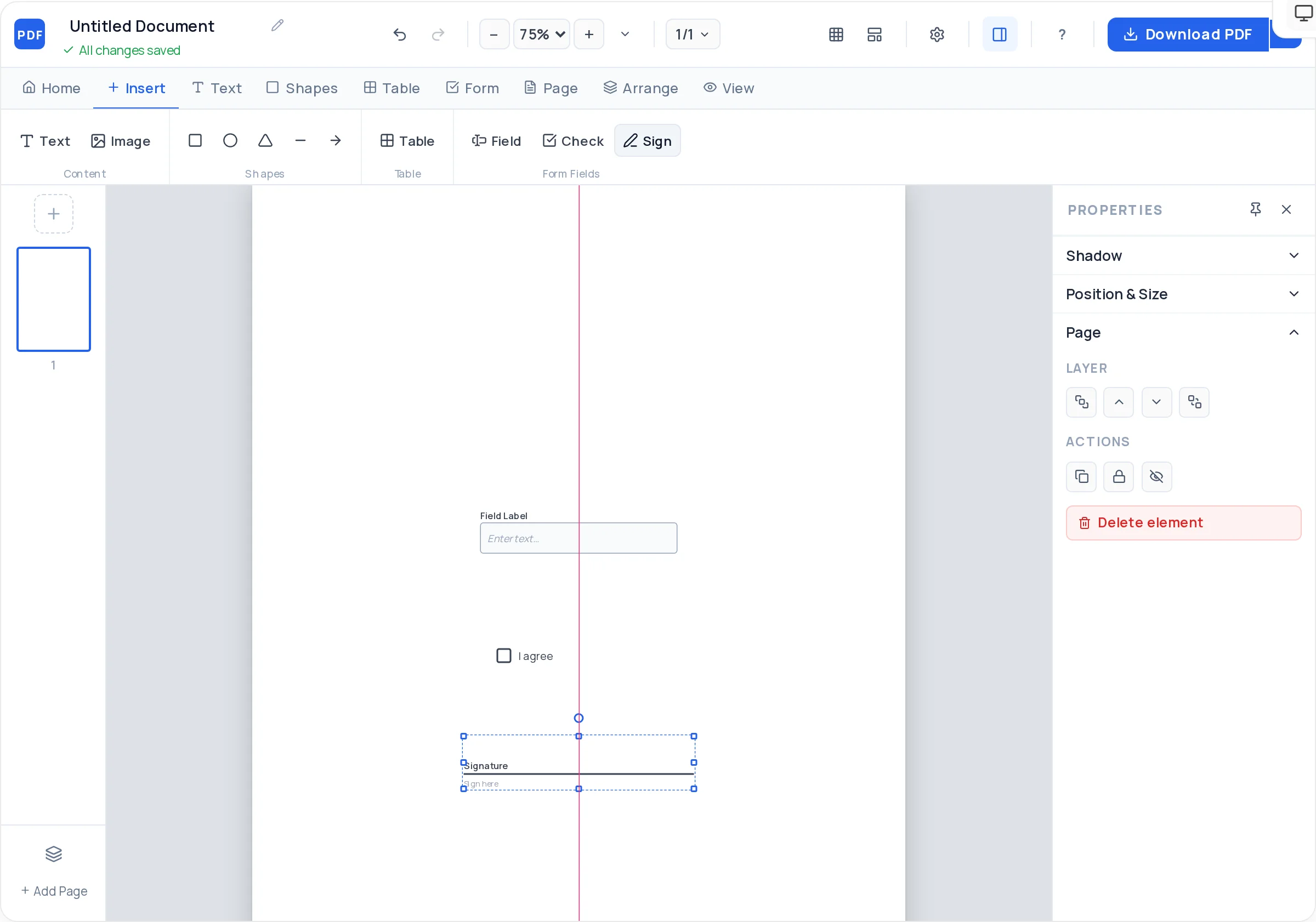
Name, phone, email, and address become genuine AcroForm text fields — applicants type into the PDF itself instead of printing and handwriting.
Availability (weekdays / weekends / nights), employment type (full-time / part-time), and yes–no questions work as tidy checkbox rows applicants tick in one click.
A styled table with columns for employer, role, dates, and reason for leaving keeps work history structured — far easier to compare candidates than free-text answers.
End with a declaration paragraph and a signature-plus-date field, so the applicant certifies the information is accurate before submitting.
Snap-to-grid and the grid overlay keep every field the same height and every label on the same baseline — crooked boxes are what make forms feel untrustworthy.
Bold section titles with a background highlight bar break the form into scannable chunks, so applicants always know how much is left.
Open the free PDF Creator on a blank A4 or US Letter page. Turn on the grid overlay and snap-to-grid before placing anything — alignment is everything on a form.
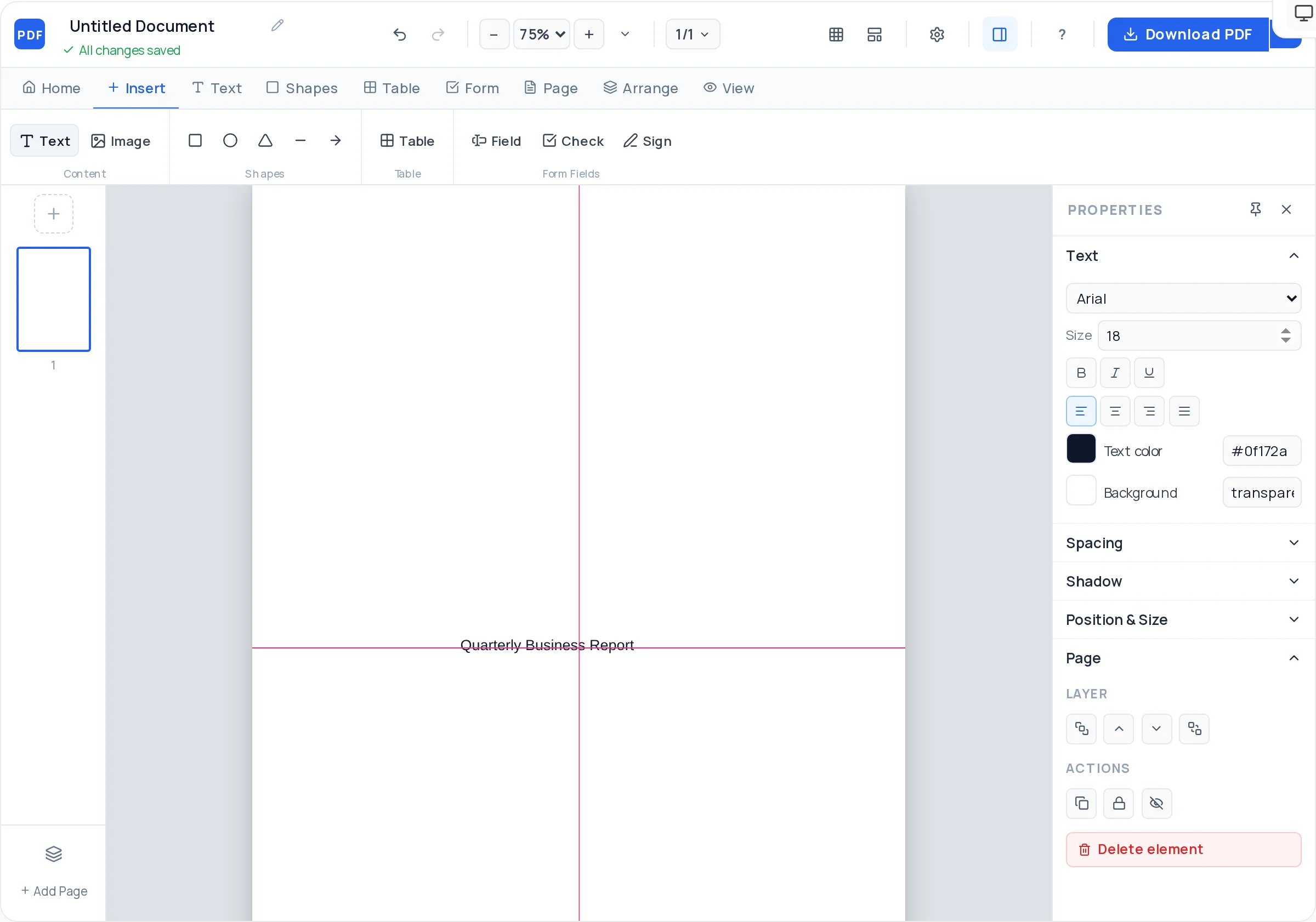
Put your company name or logo at the top, the form title (“Employment Application”), and a text field for the position being applied for plus the date.
Add labeled text fields for full name, phone, email, and address. Keep all fields one consistent height and align their left edges to the grid.
Insert checkbox rows for availability and employment type, then a table for education and one for employment history with employer, role, and date columns.
Add two reference blocks, a short declaration that the information given is true, and a signature field with a date field beside it.
Download the fillable PDF. Email it, link it from your careers page, or print copies — the same file works on screen and on paper.
Every extra field lowers completion rates and increases the personal data you must protect. Name, contact, eligibility, availability, history, references — resist adding more.
Questions about age, marital status, health, or arrest history are restricted or prohibited in many jurisdictions. This tool lays out the form but is no substitute for legal advice — have HR counsel confirm your question list complies with local hiring law.
An email field needs to be wide; a middle-initial field does not. Fields sized to their expected content signal care and stop applicants running out of room.
Put each checkbox group under one bold question and keep options on a single row where possible. Scattered, unlabeled boxes are the most common source of unusable answers.
A sentence certifying the information is accurate, above a signature and date field, gives you documented grounds to act if an applicant misrepresents their history.
Yes. Fields you add in the Creator export as standard AcroForm fields, so the form is fillable in Adobe Reader, macOS Preview, and modern browsers like Chrome and Edge. Applicants type their answers, save, and email the file back.
Yes — fillable fields print as empty boxes, so one file covers both cases. The export is vector, so printed copies stay sharp, and the field borders give handwriting applicants clear spaces to write in.
Use a table with columns for employer, job title, start and end dates, and reason for leaving, with three to four empty rows. A structured table is much easier to compare across candidates than a free-text “describe your experience” box.
Many jurisdictions restrict questions about age, marital or family status, health and disability, religion, and criminal history at the application stage. Rules vary widely, so run your final question list past an employment lawyer — the form builder can’t judge legality for you.
One to two pages. Page 1 for personal details, position, and availability; page 2 for education, employment history, references, and the signed declaration. Longer forms noticeably cut completion rates for hourly roles.
No — the Creator is free without signup or export caps, and downloads never carry a watermark, so you can maintain separate application forms per role or location at no cost.
PDF forms can’t accept file attachments through a field, so ask applicants to email their resume alongside the completed form. If you need a photo on file, leave a labeled empty box and request a printed photo, or collect it separately.
Turn on snap-to-grid and the grid overlay before placing fields, keep one standard field height, and use arrow-key nudging for fine adjustments. Smart alignment guides appear as you drag, showing when edges and centers line up.
All of these open the same free online PDF creator — each guide covers what makes that document work.
Create a New-Hire Onboarding Form PDF
Create a fillable PDF anyone can type into
Design a PDF form from a blank page
Create a registration form PDF for your event, course, or club
Create a checklist PDF you can actually tick off
No signup, no watermark, nothing to install — design your document and download a clean, print-ready PDF in minutes.
Build your application form — free