How to Create a Fillable PDF Form From Scratch (2026)
Creating a fillable PDF form is straightforward in Acrobat Pro — and doable for free with LibreOffice or Word if you know the steps.

A fillable PDF form lets recipients type directly into designated fields rather than printing, filling by hand, and scanning back. The file stays clean, the data is extractable, and it works in any standard PDF reader — no special software for the person filling it out.
Creating the form requires a tool that can add interactive form elements. Here are the main options from most to least capable.
What Makes a PDF Form "Fillable"
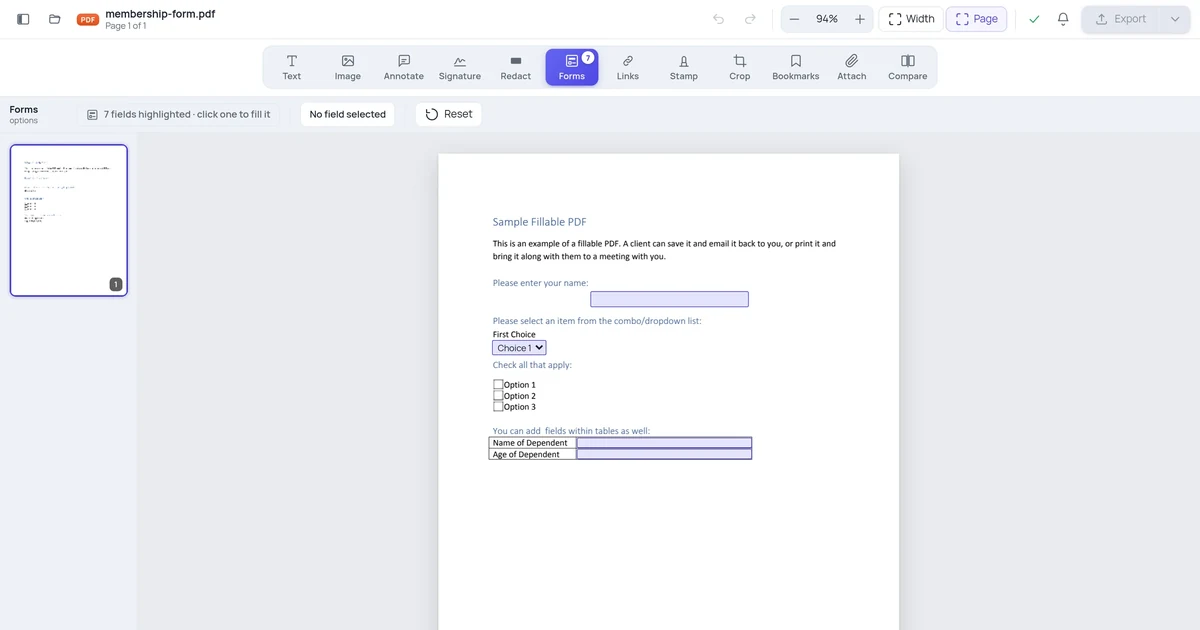
A fillable PDF has AcroForm fields embedded in the file — these are interactive elements (text boxes, checkboxes, radio buttons, dropdowns, list boxes, signature fields) that PDF viewers recognize and render as interactive controls. When someone opens the PDF, they click into a field and type; the data is stored inside the PDF file alongside the visual layout.
This is different from a PDF with text boxes added by an editor. Text boxes are static content — they look like fields but aren't interactive in the AcroForm sense. True AcroForm fields are the basis for fillable forms.
Method 1: Adobe Acrobat Pro (Most Complete)
Acrobat Pro's Form tool is the most capable form creation tool available. It can auto-detect form fields from a visual layout and gives full control over field properties.
Starting from a visual design (existing PDF or document):
- Open your PDF in Acrobat Pro
- Go to Tools → Prepare Form
- Click Start — Acrobat scans the PDF and auto-detects areas that look like form fields (underlines, boxes, labeled spaces) and places form fields automatically
- Review the auto-placed fields — Acrobat does a reasonable job but always misses some and misidentifies others
- Add missing fields: click the field type buttons in the toolbar (Text Field, Checkbox, Radio Button, Dropdown, List Box, Signature Field) and click on the page to place them
- Double-click any field to open its Properties and set the field name, tooltip, validation rules, and appearance
- File → Save when done
Starting from scratch (blank canvas):
- Create a blank PDF (or use one with a visual layout but no fields)
- Tools → Prepare Form → Start
- Add all fields manually using the toolbar
- Set tab order: Edit → Form → Set Tab Order to control the keyboard navigation sequence
- Test the form: Preview (the eye icon in the Form toolbar) to see how it looks and behaves for the recipient
- Save
Field types and when to use each:
| Field type | Use for |
|---|---|
| Text Field | Name, address, date, any open-ended response |
| Checkbox | Multiple-choice where more than one answer is allowed ("check all that apply") |
| Radio Button | Single-choice from a group ("select one") — all buttons in a group share the same field name |
| Dropdown | Pick one from a long list — saves space compared to radio buttons |
| List Box | Pick one or more from a list shown in a scrolling box |
| Signature Field | Legal signature with certificate and audit trail |
| Date Field | Date input with optional format enforcement |
Setting validation rules: Double-click a text field → Properties → Format tab. You can set the field to accept only numbers, dates, currency, or custom formats. The Validate tab allows range checking (e.g., "value must be between 1 and 100"). This reduces errors in submitted forms.
Method 2: LibreOffice Writer (Free)
LibreOffice can create fillable PDF forms without any paid software. The form authoring is less visual than Acrobat, but all standard field types are supported.
- Open LibreOffice Writer
- Go to View → Toolbars → Form Controls to show the form toolbar
- Design your form layout with regular text for labels
- Use the form controls toolbar to insert fields:
- Text Box, Check Box, Option Button (radio), List Box, Combo Box, Push Button
- Right-click each control → Control Properties to set the name, default value, and other properties
- When the layout is ready: File → Export as PDF
- In the PDF export dialog, check "Create PDF form" and set the "Submit format" to PDF or FDF
- Click Export
The resulting PDF has interactive AcroForm fields that work in any standard PDF viewer. One limitation: LibreOffice's form controls become AcroForm fields on export, but some advanced properties (validation, conditional logic) require JavaScript and don't transfer cleanly.
Method 3: Microsoft Word (Convert to Fillable PDF)
Word has a Developer tab with form content controls. These don't directly create AcroForm fields in an exported PDF, but with the right export method they produce functional fillable forms.
Enable the Developer tab:
- File → Options → Customize Ribbon → check "Developer" → OK
Add form controls:
- Click where you want a field
- Developer tab → Controls group:
- Text Box for text input
- Check Box Content Control for checkboxes
- Drop-Down List Content Control for dropdowns
- Date Picker Content Control for dates
Export to fillable PDF (requires Acrobat):
- File → Save As → PDF does NOT preserve Word form controls as AcroForm fields in standard export
- To get fillable fields, print to the Adobe PDF printer or use Acrobat's PDF Maker (installs with Acrobat Pro) which respects Word form controls
Alternative without Acrobat: Export to PDF, then open in Acrobat Pro's Prepare Form tool — it auto-detects the visual layout from your Word form design and places fields automatically.
Method 4: Google Forms + PDF Export (For Data Collection Only)
Google Forms is excellent for data collection but doesn't produce fillable PDF forms — it produces web forms. Recipients fill it in a browser, not in a PDF reader. If your goal is collecting data (not delivering a fillable PDF file), Google Forms is the simplest tool with no software required.
If you need an actual fillable PDF, not a web form, Google Forms won't serve you here.
Method 5: Online PDF Form Builders
Several online tools let you create fillable PDF forms without software:
- PDFescape (browser-based, free for basic forms)
- JotForm (cloud form builder with PDF output)
- 123FormBuilder (drag-and-drop form builder)
These are useful for simple forms (contact forms, intake forms, basic applications) but lack the field validation, conditional logic, and calculation features that Acrobat Pro provides.
Essential Form Design Practices
Name every field. Field names are the keys when extracting data. A field named "first_name" extracts cleanly; a field named "Text1" is meaningless in a data export. Use lowercase with underscores for machine-readable names.
Set tooltips. Tooltips appear when users hover over a field. Even a single descriptive sentence helps ("Enter your date of birth in MM/DD/YYYY format") and reduces errors.
Set tab order. Recipients navigate forms with the Tab key. Without an explicit tab order, Tab moves in document reading order — which may jump unpredictably in complex multi-column layouts. Set tab order explicitly in Acrobat's Properties panel.
Test in multiple readers. Fill the form yourself in Acrobat Reader, in Chrome's built-in viewer, and in Preview (Mac). Some field types (especially dropdowns and signatures) render differently across viewers.
Flatten before archiving. Once you receive a completed form, flatten it to prevent editing. See our guide on flattening PDF forms.
Calculating Fields
Acrobat Pro supports calculation fields — text fields that automatically calculate a value based on other fields. Common uses: totaling invoice line items, calculating tax, summing checkboxes.
To add a calculation:
- Double-click the result field → Properties → Calculate tab
- Choose "Value is the [sum/product/etc.] of the following fields" and select the source fields, OR
- Choose "Custom calculation script" and write JavaScript for complex logic
Calculated fields update automatically when the source fields change. LibreOffice also supports basic calculations via macro-linked fields, though the implementation is less clean.
FAQ
Can recipients fill the form without Adobe Acrobat?
Yes. AcroForm fields are part of the PDF standard and work in any compliant PDF viewer: Adobe Acrobat Reader (free), Chrome's built-in viewer, Firefox, Edge, Preview on Mac, and most mobile PDF apps. Signature fields require a viewer that supports electronic signatures — Acrobat Reader handles this; some other viewers don't.
How do I collect the data from filled forms?
Several options depending on volume: (1) Recipients email the filled PDF back to you — you open each file and read the fields manually. (2) Acrobat Pro can import and merge data from multiple filled forms: Forms → More Form Options → Manage Form Data → Merge Data Files. (3) For higher volume, add a Submit button to the form that sends data to a web server or email address. (4) Use a platform like JotForm or DocuSign that handles collection automatically.
Can I add a digital signature field that verifies the signer's identity?
Yes, using Acrobat Pro's Signature field type. This creates a field where the signer can apply a digital certificate-based signature (not just a drawn image). The resulting signature is cryptographically tied to the signer's certificate and can be verified by anyone who opens the PDF. For most business use cases, this requires the signer to have a digital certificate — either from a certificate authority or from a service like Adobe Sign.
What's the difference between a fillable PDF and an e-sign document?
A fillable PDF is a file recipients fill and return via email or your own process — you manage the workflow. An e-sign document is a fillable PDF managed by a platform (DocuSign, Adobe Sign, HelloSign) that handles delivery, tracking, reminders, authentication, and legally-certified audit trails. For occasional signing, a fillable PDF is simpler. For high-volume or legally sensitive signing, an e-sign platform adds important verification and compliance infrastructure.