How to Add a Date Picker Field to a PDF Form
A practical guide to adding a date picker field to a PDF form, placing the field, locking the format, naming it, and saving so every date comes back clean and consistent.

To add a date picker to a PDF form, open the file in an online editor, choose the Date form field, then click on the page to place it next to its label. Open the field's properties, set the date format like MM/DD/YYYY, give the field a clear name, then save and download. Anyone who opens the form can type a date or, in a full reader, tap the field to pick one from a calendar. No installs needed.
Key takeaways
- A date field is a formatted text field, not a separate widget: in the PDF format itself, a "date picker" is a text field with a date format and validation attached, so you build it like any field and the format does the work.
- Lock the format before anything else, because MM/DD/YYYY, DD/MM/YYYY, and YYYY-MM-DD all look fine until two readers disagree about whether 03/04 means March 4 or April 3.
- The calendar popup is reader-dependent: a true date picker only appears in full PDF readers; everywhere else the field accepts typed dates and the format guides what to enter.
- Name every field clearly, because the field name labels each answer when the form is collected or exported, and "Date1" turns a tidy column into a guessing game.
- Decide between a fixed date and a fillable one: stamping today's date is a different job from giving the recipient a blank field to fill, and they use different tools.
- No software to install for the basic job; a browser-based editor adds a working date field on any device, and the field stays interactive once you export.
What a date field actually is
When people say "date picker," they picture a little calendar that pops up so you click a day instead of typing. That calendar exists, but it is the reader's feature, not a permanent part of the PDF. Underneath, a PDF date field is a text field with two extra settings: a date format that controls how the entry is displayed and stored, and validation that rejects nonsense like "13/45/2026."
This matters because the calendar popup is not guaranteed. In a full-featured PDF reader, clicking the field opens a small calendar. In a stripped-down reader, a browser's built-in viewer, or a printout, the same field is just a labeled box where someone types the date. Both work; the difference is convenience, not function. So your real job is not "make a calendar appear" but "make the field accept dates in one consistent format."
That is also what separates a date field from a plain text box. A text box lets someone write "next Tuesday" or "Q3" or "ASAP." A date field constrains the answer to a real, parseable date in the format you chose, which is what keeps your collected data clean enough to sort by.
How do I add a date field to a PDF form?
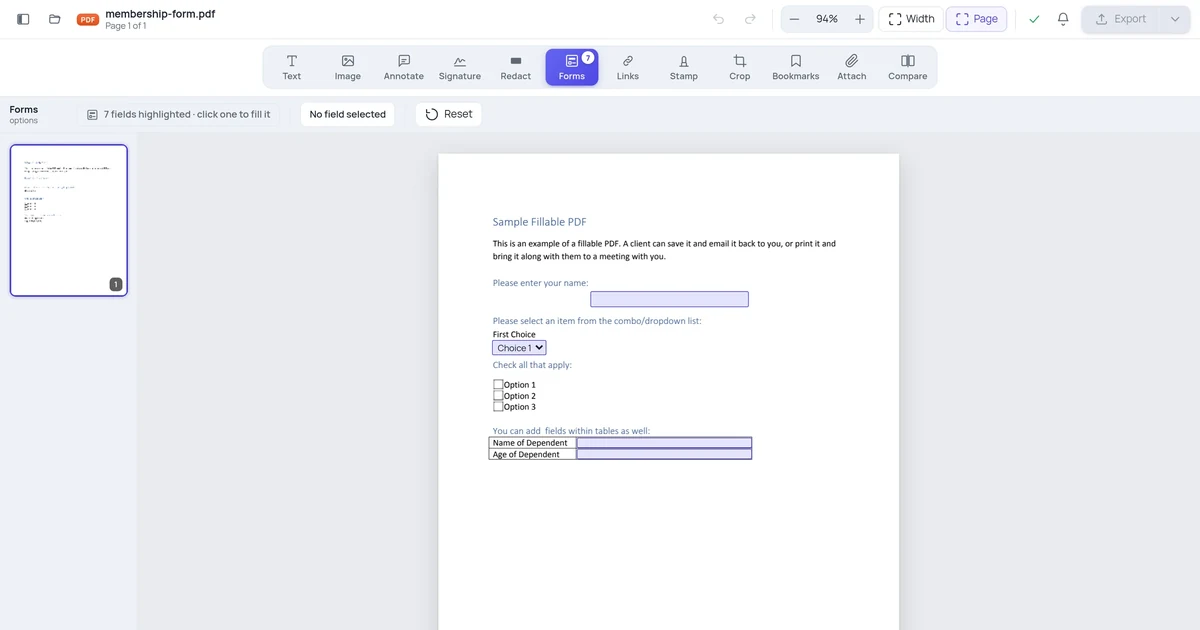
Here is the straightforward path using an online editor. You open the file, place a date field, set its format, and name it.
- Open your PDF in the editor. Go to the PDF editor and upload the form. Every page opens in your browser ready to work on.
- Choose the Date form field. In the forms tools, pick the date control (sometimes labeled Date, Date Field, or a text field with a "Date" format option). Your cursor changes to placement mode.
- Click or draw the field on the page. Click where the date should sit, or drag to size it. Place it right next to its label, like a "Date of birth:" or "Signed on:" line.
- Open the field's properties. Double-click the field or open its properties panel. This is where you set the format, the name, and any limits.
- Set the date format. Pick one format and commit to it: MM/DD/YYYY, DD/MM/YYYY, or YYYY-MM-DD. Show the pattern near the field so the person knows what to enter.
- Name the field. Give it a clear, unique name like
date_of_birthorsigned_on. This name labels the answer when the form is exported or collected. - Add a placeholder or hint if your tool allows. A faint "MM/DD/YYYY" inside the empty box removes all doubt about the order.
- Size the box and match the font. Make it wide enough for the full date and set the font to match the rest of the form instead of leaving it on Auto.
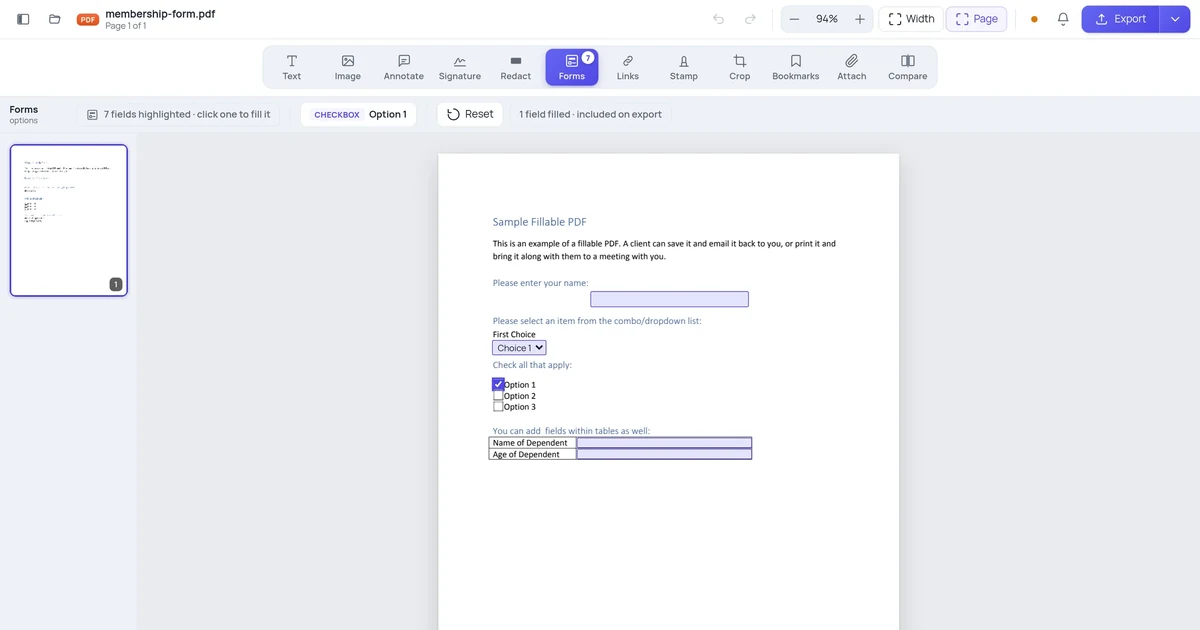
- Save and download. Export the file. The date field stays interactive, so anyone who opens the form can type a date, and full readers will show a calendar popup.
That is the whole task for one date field. Repeat for each date your form needs. The parts most guides skip are the format trap and the difference between a fillable field and a stamped date, so those come next.
The catch: the calendar popup is not universal
Here is what nobody warns you about. You add a date field, test it in a full PDF reader, see the calendar pop up, and assume everyone who fills your form gets the same experience. They often do not.
The calendar popup is rendered by the PDF reader, not stored in the file. So the same field behaves differently depending on what the recipient opens it with:
- A full desktop PDF reader shows the calendar when the field is clicked. This is the "date picker" people imagine.
- A web browser's built-in PDF viewer usually shows the field as a plain text box with no calendar. The person types the date.
- A printout has no interactivity at all; it is just a labeled line to write on by hand.
- Some mobile PDF apps show a calendar, others do not, and a few use the phone's native date wheel instead.
None of this breaks your form. A typed date in the right format is just as valid as a picked one. The takeaway is to never rely on the calendar to teach people the format. Put the pattern on the page, set a placeholder, and the field works the same whether or not the popup appears. If the calendar is the main reason you wanted a date field, set expectations: it is a bonus in capable readers, not a promise.
The format trap that ruins date data
The single most common date-field mistake is leaving the format ambiguous. "03/04/2026" is March 4 to an American and April 3 to most of the rest of the world. If your form does not pin the order down, you will get both interpretations mixed in the same column, and there is no reliable way to untangle them after the fact.
Pick one format, set it in the field's properties, and signal it everywhere a human looks.
| Format | Reads as | Best when |
|---|---|---|
| MM/DD/YYYY | 06/28/2026 | A US-only audience expects month-first |
| DD/MM/YYYY | 28/06/2026 | A UK, EU, or international audience |
| YYYY-MM-DD | 2026-06-28 | You want unambiguous, sortable data (ISO 8601) |
If your form crosses borders or you are not sure who fills it, YYYY-MM-DD is the safe default. It cannot be misread, it sorts correctly as plain text, and it is the international standard. The only downside is that it looks slightly technical to a general audience, so pair it with a visible "YYYY-MM-DD" hint by the field.
Whatever you choose, set the same format in the field's display settings so a picked or typed date is normalized on the way in. A field that just stores raw text gives you no protection; a field with a real date format coerces the entry into your chosen pattern and rejects entries it cannot parse.
Stamping a fixed date vs. a fillable date field
These two jobs sound the same and are not, and confusing them is why people end up with the wrong tool.
A fillable date field is what this guide is about: a blank, interactive field the recipient completes when they fill the form. The value is empty until someone enters it.
A fixed date is a date you place on the page yourself, like printing today's date in a header or footer, where it is the same for everyone and not meant to be edited. That is a different task, closer to adding text or a timestamp than to building a form field. If that is what you actually need, our guide on how to add a date or timestamp to a PDF covers placing a static date that stays put for every reader.
| You want | Use this | Result |
|---|---|---|
| The recipient fills in a date | A date form field | Empty, interactive, one date per person |
| The same date shown to everyone | A static text date or stamp | Fixed on the page, not editable |
| A date that updates to "today" automatically | A date field with a default of the current date, or a script | Pre-filled but still editable unless flattened |
Decide which one you mean before you start. A surprising number of "my date field won't fill in" problems are really "I stamped a fixed date and now nobody can edit it."
Why the field name matters more than you think
Every form field needs a name, and with a date field it is easy to accept the default like "Date1." Resist that. The name is invisible on the page, but it is the key that labels every answer when the form comes back.
If you collect or export responses, a field named date_of_birth produces a tidy column called "date_of_birth." A field named Date1 produces a column called "Date1," and now you are guessing which of three date fields that was. On a form with several dates, generic names turn the export into a puzzle.
Name each field for what it captures, in lowercase with no spaces if your tool allows: start_date, end_date, signed_on. Keep names unique on the form. Two fields sharing a name will, in PDF forms, share a value, so a date typed in one auto-fills the other, which is occasionally useful for a repeated date but usually a bug. This is the same naming discipline that pays off across all fields, including any dropdown menu you add to the form, and it matters the moment you actually read the results.
Adding a date field on different devices
The flow is the same idea everywhere, but the tooling differs, and not every tool can create true form fields.
| Platform | How you add a date field | Notes |
|---|---|---|
| Online (any browser) | Open the PDF editor, pick the date form field, click to place, then set the format in properties | Works on desktop and mobile browsers; nothing to install |
| Windows (desktop app) | A full PDF editor's Prepare Form tool, then a date or formatted text field | Free readers can fill date fields but usually cannot create them |
| Mac (Preview) | Not supported for creating fields | Preview can fill existing date fields but cannot add new form fields |
| iPhone / iPad | A PDF form app with field creation; most only fill | Fine for filling a date someone else built; rarely creates them |
| Android | A PDF app with form-building, which is uncommon | Quality varies; confirm the field is interactive after saving |
The big gotcha across platforms: many tools, including the free readers most people already have, can only fill form fields, not create them. Mac's Preview and most phone apps fall in this bucket. If your date field tool seems to be missing, that is usually why. Building the form needs an editor with form-creation features; filling it needs only a basic reader. The online route handles creation in the browser, so you do not have to hunt for desktop software.
Setting a sensible default and avoiding the flattening trap
A default value is a small decision with real consequences. For a date field you have a few sensible choices:
- Leave it blank when the date is personal to the filler, like a date of birth or an appointment they choose. A blank field reads as "please enter your date."
- Default to today's date when the form is signed or submitted on the spot, so the common case is pre-filled but still editable. Some tools offer a "current date" default; others need a tiny script.
- Avoid a fake placeholder as a real value, like putting "MM/DD/YYYY" as the field's actual content, because it can come back as a submitted answer. Use a true placeholder or an on-page hint instead.
Then there is the trap that quietly breaks date fields: flattening. When you flatten a form, the editor bakes the current appearance into the page and removes the interactivity, so the date field stops being fillable. If you flatten before sending, the recipient sees only a printed box they cannot type into. Export the form with its fields intact, then reopen the file yourself to confirm the date field still accepts input. Flatten only at the very end, when you specifically want a locked, non-editable copy, never while the form is still meant to be filled.
For accessibility and clarity, keep a visible label and the format hint next to the field on the page. The field does not always announce its purpose, so the printed "Date of birth (MM/DD/YYYY):" beside it does the work for anyone reading or using a screen reader.
A worked example
Say you have a one-page consent form exported as a PDF, with a printed "Date signed:" line and a blank space beside it. You open the file in the PDF editor, choose the date form field, and click just to the right of the "Date signed:" label. A field appears, and you drag its corner so it is wide enough for a full date. You open its properties and set the format to YYYY-MM-DD, since the form goes to an international audience and you want it sortable. You name the field date_signed so the answers come back labeled clearly. You add an on-page hint reading "YYYY-MM-DD" so nobody guesses the order, and you leave the value blank so each person enters their own date. You set the font to match the form's body text instead of leaving it on Auto. You download the form, reopen it, and confirm the field accepts a typed date and, in a full reader, opens a calendar. Then you send it out, knowing every date will land in one clean, unambiguous format.
FAQ
How do I add a date field to a PDF form?
Open the PDF in an online editor, select the Date form field, then click on the page to place it next to its label. Open the field's properties, choose a date format like MM/DD/YYYY or YYYY-MM-DD, and give the field a clear, unique name such as date_signed. Add an on-page hint showing the format, size the box for a full date, then save and download. The field stays interactive, so anyone can type a date, and full PDF readers will show a calendar popup when the field is clicked.
Why doesn't my PDF date field show a calendar popup?
The calendar is provided by the PDF reader, not stored in the file. Full desktop readers show it; browser-built-in viewers and many mobile apps display the field as a plain text box instead, where the person types the date. Your field still works either way. So never rely on the popup to teach the format. Put the pattern, like YYYY-MM-DD, on the page and as a placeholder, and the field behaves consistently whether or not the calendar appears.
What date format should I use in a PDF form?
Pick one and signal it everywhere. Use MM/DD/YYYY only for a US-only audience, DD/MM/YYYY for UK, EU, or international fillers, and YYYY-MM-DD when you want unambiguous, sortable data. If your audience is mixed or unknown, YYYY-MM-DD is the safest choice because it cannot be misread as month-first or day-first and it sorts correctly as plain text. Set the format in the field's properties and add a visible hint, since a date field with no fixed format gives you no protection against mixed interpretations.
How is a date field different from just typing the date as text?
A typed text entry can be anything, "next week," "Q3," or "13/45/2026," which is useless for sorting or filtering. A date field is a text field with a date format and validation attached, so it normalizes entries into your chosen pattern and rejects ones it cannot parse. That constraint is the whole value: it keeps your collected dates clean and comparable. If you only need a single fixed date printed on the page, a plain text date or stamp is simpler than a form field.
Will the date field still work when I email the form to someone?
Yes, as long as you export it as a real fillable PDF and do not flatten it. Flattening bakes the current look into the page and removes interactivity, so the date field would become a non-editable printed box. Save and download the form with its fields intact, then reopen the file yourself to confirm the date field still accepts input. Any standard PDF reader the recipient has can then fill it; they do not need the editor you built it in.