How to Add a Dropdown Menu to a PDF Form
A practical guide to adding a dropdown menu to a PDF form, placing the field, entering your list of choices, naming it, setting a default, and saving so it works for everyone.

To add a dropdown to a PDF form, open the file in an online editor, choose the Dropdown or Combo Box form field, then click on the page to place it. Open the field's properties, type each choice on its own line, give the field a clear name, set a default if you want one, then save and download. Anyone who opens the form can now pick from your list. No installs needed.
Key takeaways
- A dropdown is a form field, not a text box: it stores a list of options the person filling the form picks from, so you build the list once and they just choose, which keeps answers clean and consistent.
- Place first, then fill the list: drop the dropdown where it belongs on the page, then open its properties to type the choices, one option per line.
- Name every field clearly, because the field name is how the answer gets labeled when the form is collected or exported, and a vague name like "Field 1" makes the data useless.
- Decide between a dropdown and a combo box early: a plain dropdown limits people to your list, while a combo box also lets them type their own answer, and that choice changes how you build it.
- Set a sensible default or leave it blank on purpose; a blank dropdown signals "please choose," while a pre-selected option can bias answers or get left unchanged by accident.
- No software to install for the basic job; a browser-based editor adds a working dropdown on any device, and the field stays interactive once you export.
What a dropdown field actually is
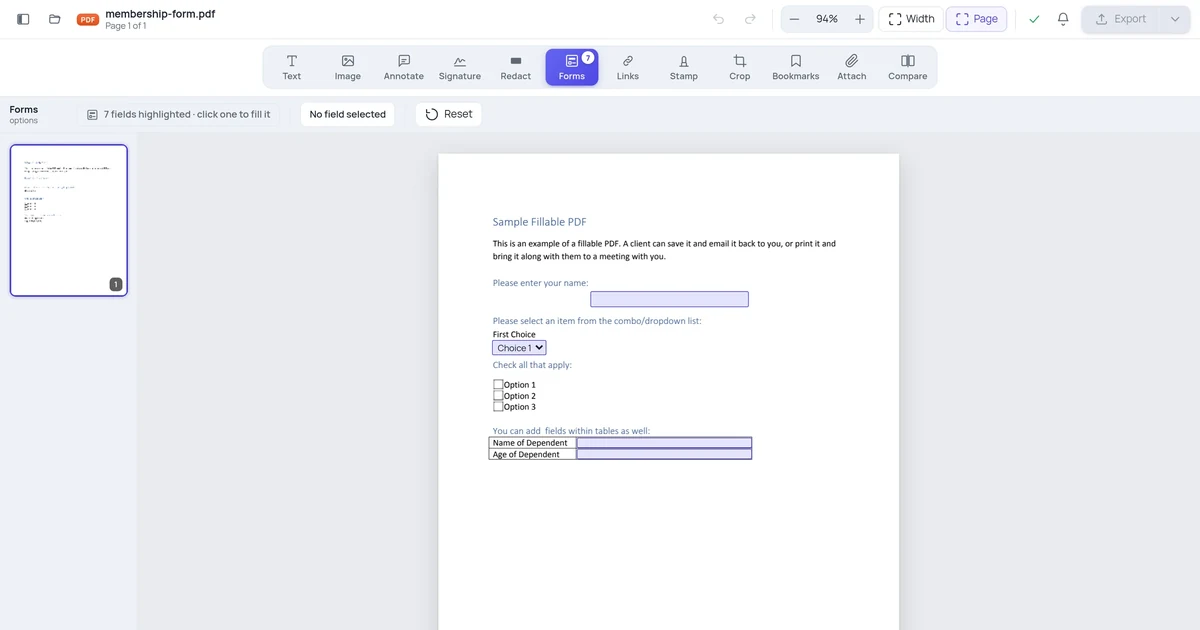
A dropdown is one of the interactive form fields a PDF can hold. Instead of a blank line where someone types whatever they want, it shows a small box with an arrow, and clicking it reveals a list of choices you defined. The person filling the form picks one, and that selection becomes their answer.
This is the right control whenever the answer should come from a fixed set: a country, a department, a size, a rating, a job title, a yes/no/maybe. You are deciding the options up front, which means everyone answers in the same vocabulary. No more "USA" versus "United States" versus "U.S." in the same column. That consistency is the whole point of a dropdown, and it is what makes the collected data actually usable.
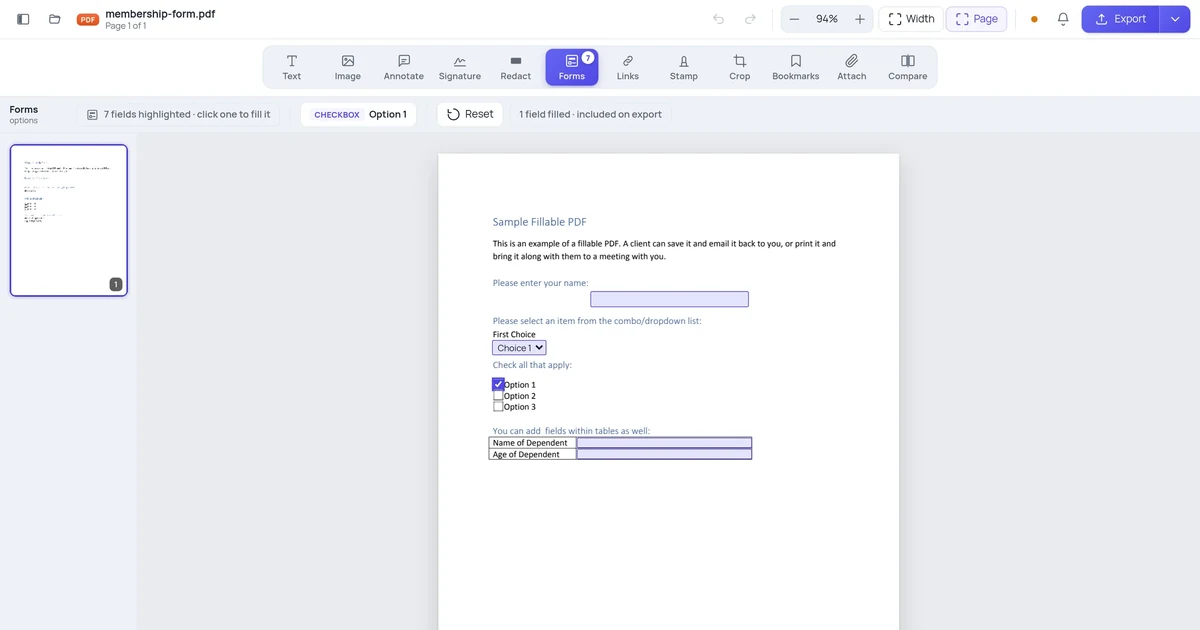
It is different from a text field, where people type freely, and different from checkboxes and radio buttons, which show every option on the page at once. A dropdown hides its options until clicked, so it is the space-efficient choice when your list is long. Five options fit fine as radio buttons; fifty countries belong in a dropdown.
How do I add a dropdown to a PDF form?
Here is the straightforward path using an online editor. You open the file, place a dropdown field, type your choices, and name it.
- Open your PDF in the editor. Go to the PDF editor and upload the form. Every page opens in your browser ready to work on.
- Choose the Dropdown form field. In the forms tools, pick the dropdown control (sometimes labeled Dropdown, List, or Combo Box). Your cursor changes to placement mode.
- Click or draw the field on the page. Click where the dropdown should sit, or drag to size it. Place it next to its label, like a "Department" line, so the question is clear.
- Open the field's properties. Double-click the field or open its properties panel. This is where you define the list and the name.
- Type your choices, one per line. Enter each option on its own line, in the order you want them shown. Keep wording short and consistent: "Sales," "Marketing," "Support."
- Name the field. Give it a clear, unique name like
departmentorcountry. This name labels the answer when the form is exported or collected. - Set a default value, or leave it blank. Choose a starting option if one makes sense, or leave it empty so the person is prompted to pick.
- Adjust the size and font if needed. Make the box wide enough to show your longest option without cutting it off, and match the font to the rest of the form.
- Save and download. Export the file. The dropdown stays interactive, so anyone who opens the form can click it and choose.
That is the whole task for one dropdown. Repeat for each list you need. The parts most guides skip are the dropdown-versus-combo-box decision and why field names matter so much, so those come next.
The catch: dropdown versus combo box
Here is the distinction that trips people up, because the labels sound interchangeable but behave differently.
A plain dropdown (sometimes called a list box in dropdown form) restricts the person to the choices you supplied. They can only pick from your list, full stop. That is exactly what you want for a country, a state, or any field where a stray answer would break your data.
A combo box is a dropdown that also accepts typed input. The person can pick from your list or type their own answer in the field. That is useful when your list covers the common cases but you want to allow an "other" without forcing a separate field. The trade-off is that you lose the guarantee of consistent answers, because someone can type anything.
| Use a plain dropdown when | Use a combo box when |
|---|---|
| The answer must come from your exact list | Common answers are listed but exceptions happen |
| You need clean, consistent data to sort or filter | You want to allow an "other" without a second field |
| Examples: country, state, department, rating | Examples: job title, referral source, product variant |
Many editors expose both as the same tool with a "allow custom text" or "editable" checkbox in the properties. If your dropdown is mysteriously letting people type into it, or refusing to, that checkbox is the reason. Decide which behavior you want before you send the form out, because changing it later means editing the field again.
Why the field name matters more than you think
Every form field needs a name, and with a dropdown it is easy to skip it and accept the default like "Dropdown1." Resist that. The field name is invisible on the page, but it is the key that labels every answer when the form is filled and the data comes back.
If you collect responses or export them, a dropdown named department produces a tidy column called "department." A dropdown named Dropdown1 produces a column called "Dropdown1," and now you are guessing which field that was. On a form with a dozen dropdowns, generic names turn the export into a puzzle.
So name each field for what it captures, in lowercase with no spaces if your tool allows: country, team_size, priority. Keep names unique on the form. Two fields sharing a name will, in PDF forms, share a value, so picking an option in one auto-fills the other, which is occasionally what you want for repeated fields but usually a bug. This is the same naming discipline that matters across all form fields, and it pays off the moment you actually read the results.
Sizing, fonts, and a default that helps
A dropdown that is too narrow clips its options, showing "United Sta..." instead of "United States." Size the box to fit your longest entry, and test by opening the list to confirm nothing is cut off. If the font is set to "Auto," very long options can shrink to fit, which looks inconsistent next to your other fields, so consider setting a fixed point size that matches the rest of the form.
The default value is a small decision with real consequences:
- Leave it blank when you want people to consciously choose. A blank dropdown reads as "you must pick something," which reduces accidental defaults sliding through.
- Set a real default only when one answer is genuinely the common case and a pre-selection saves time, like "United States" on a US-focused form.
- Avoid a fake default like "Select one..." as an actual list item, because it can come back as a submitted answer. If your tool supports a true placeholder that is not a choosable value, use that instead.
For accessibility and clarity, keep a visible label next to the dropdown on the page. The field itself does not always announce what it is for, so the printed "Department:" label beside it does the work for anyone reading or using a screen reader.
Adding a dropdown on different devices
The flow is the same idea everywhere, but the tooling differs, and not every tool can create true form fields.
| Platform | How you add a dropdown | Notes |
|---|---|---|
| Online (any browser) | Open the PDF editor, pick the dropdown form field, click to place, then fill the list in properties | Works on desktop and mobile browsers; nothing to install |
| Windows (desktop app) | A full PDF editor's Prepare Form tool, then the dropdown/list field | Free readers can fill dropdowns but usually cannot create them |
| Mac (Preview) | Not supported for creating fields | Preview can fill existing dropdowns but cannot add new form fields |
| iPhone / iPad | A PDF form app with field-creation; most only fill | Fine for filling a dropdown someone else built; rarely creates them |
| Android | A PDF app with form-building, which is uncommon | Quality varies; confirm the field is interactive after saving |
The big gotcha across platforms: many tools, including the free readers most people have, can only fill form fields, not create them. Mac's Preview and most phone apps fall in this bucket. If your dropdown tool seems to be missing, that is usually why. Building the form needs an editor with form-creation features, while filling it needs only a basic reader. The online route handles creation in the browser, so you do not need to hunt for desktop software.
When a dropdown is the wrong tool
A dropdown is perfect for a fixed list of choices that should hide until clicked. It is the wrong reach in a few cases.
If you have only two or three options and the page has room, checkboxes and radio buttons are friendlier, because every choice is visible at a glance and takes one tap instead of a click-then-pick. Reserve dropdowns for longer lists where showing everything would clutter the page.
If the answer is genuinely open-ended, like a comment or a full address, use a text field, not a dropdown. Forcing free-form input into a fixed list frustrates people and loses information.
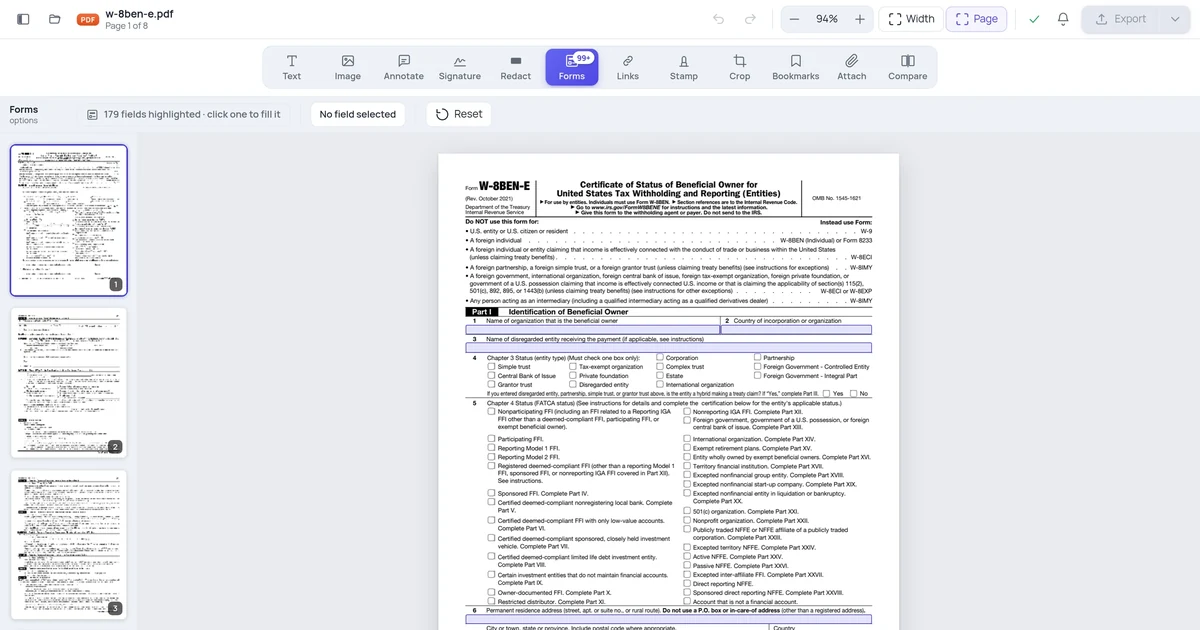
And if you are working from a scratch form that has no fields at all, do not bolt dropdowns onto a flat page one at a time without a plan. It is worth mapping which questions need dropdowns, which need text fields, and which need checkboxes first. Our guide on how to add form fields to an existing PDF without starting over walks through turning a static document into a real fillable form, which is the bigger job a single dropdown is usually one piece of.
A quick word on privacy, since you are uploading a document. An online editor processes your file on a server to build the form, and files are not kept long-term. That is normal for browser-based editing, but worth knowing before you upload anything sensitive.
A worked example
Say you have a one-page request form exported as a PDF, with a printed "Department:" line and a blank space beside it. You open the file in the PDF editor, choose the dropdown form field, and click just to the right of the "Department:" label. A field appears, and you drag its corner so it is wide enough for your longest option. You open its properties and type the choices one per line: Sales, Marketing, Support, Operations, Finance. You name the field department so the answers come back labeled clearly. You leave the default blank, so whoever fills it has to choose on purpose. You set the font to match the form's body text instead of leaving it on Auto. Then you repeat the process for a "Priority" line, with High, Medium, and Low. You download the form, reopen it to confirm both dropdowns open and let you pick, and send it out knowing every answer will land in a clean, consistent set.
FAQ
How do I add a dropdown to a PDF form?
Open the PDF in an online editor, select the Dropdown or Combo Box form field, then click on the page to place it next to its label. Open the field's properties, type each choice on its own line, and give the field a clear, unique name like department. Set a default value or leave it blank, size the box to fit your longest option, then save and download. The dropdown stays interactive, so anyone who opens the form can click the arrow and pick from your list.
What's the difference between a dropdown and a combo box in a PDF form?
A plain dropdown limits people to the exact choices you supplied, so they can only pick from your list, which keeps answers consistent. A combo box is a dropdown that also lets people type their own answer if none of your options fit. Use a plain dropdown for fields where stray answers would break your data, like country or state. Use a combo box when you want to allow an "other" without adding a separate field. Many editors toggle between the two with an "editable" or "allow custom text" checkbox.
Why can't I create a dropdown in Preview or my phone's PDF app?
Most free readers, including Mac's Preview and the majority of phone apps, can only fill existing form fields, not create new ones. Creating a dropdown needs a tool with form-building features, often called Prepare Form or a forms toolset. That is why the dropdown option seems missing. An online editor with form creation handles this in the browser, so you do not need desktop software. Once the form is built, anyone can fill the dropdown with just a basic reader.
How many options can I put in a PDF dropdown?
There is no practical hard limit, so a long list like 195 countries works fine. The real constraints are usability and layout. A very long list still needs scrolling, which is fine for a known set like countries but tedious for a list people have to read through. Keep options short and in a logical order, alphabetical or by frequency, so people find their choice fast. If a list grows past a few dozen, double-check that the field width shows your longest entry without clipping.
Will the dropdown still work when I email the form to someone?
Yes, as long as you export it as a real fillable PDF rather than flattening it to a static image. A flattened form bakes the current appearance into the page and loses the interactivity, so the dropdown would no longer open. Save and download the form with its fields intact, then reopen the file yourself to confirm the dropdown still clicks and lists its options. Any standard PDF reader the recipient has can then fill it; they do not need the editor you built it in.