How to Add Checkboxes and Radio Buttons to a PDF Form
A practical guide to adding clickable checkboxes and radio buttons to a PDF form, naming fields correctly, grouping options, and saving so the boxes work when someone fills them in.

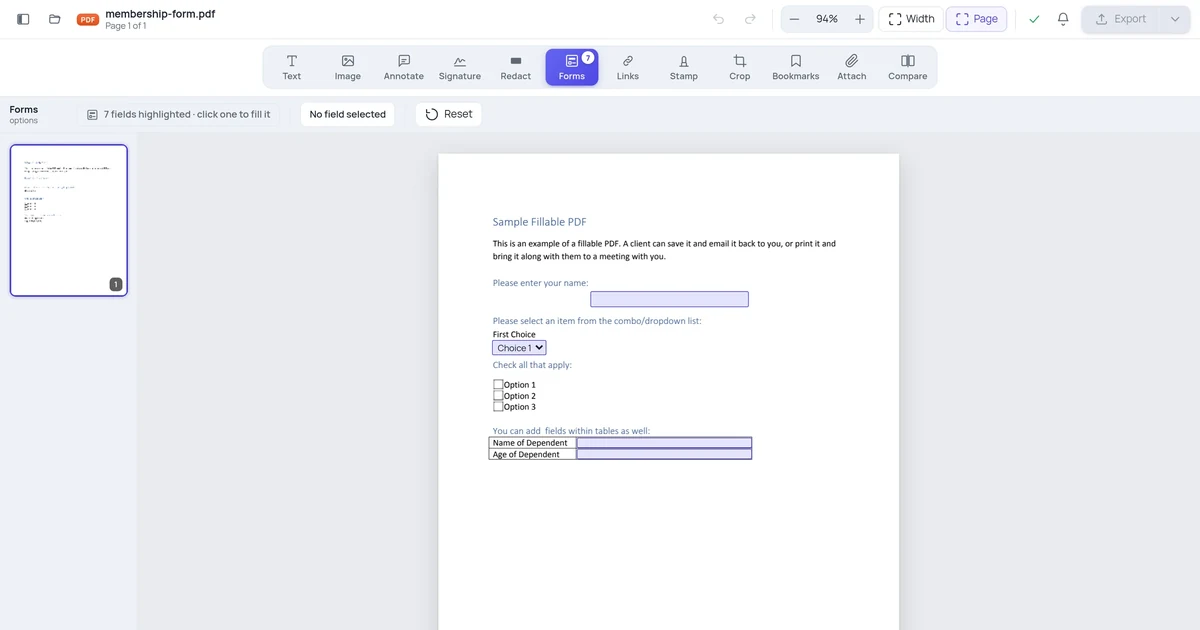
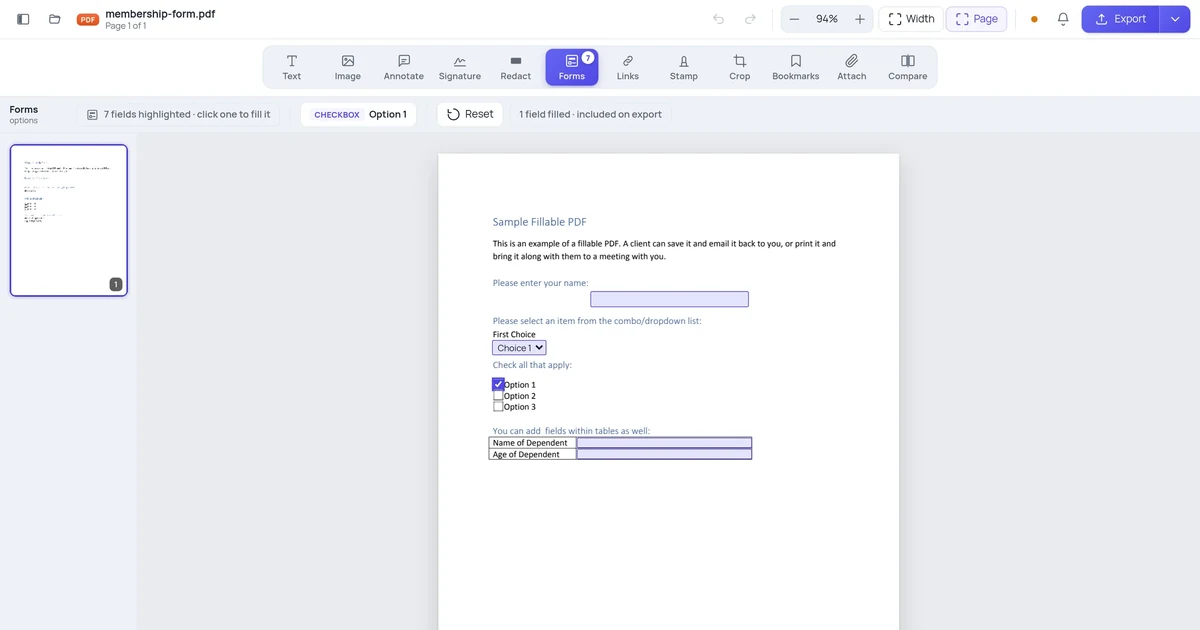
To add a checkbox to a PDF form, open the file in an online editor, pick the Checkbox field tool, then click on the page next to the option it controls. Give the field a name, set its export value, and size the box to sit on the line. For a pick-one question, use radio buttons instead and give every option in the group the same field name, so selecting one clears the rest. Save and download to make the fields clickable.
Key takeaways
- Checkbox versus radio button is a logic choice, not a style one: checkboxes let someone tick several boxes independently, radio buttons force a single choice from a group, so pick the type by how the question should behave.
- Radio buttons only work in a group, which means every option must share the exact same field name with a different export value each; same name is what makes selecting one deselect the others.
- Every field needs a name and an export value, because that is what shows up when the form is processed; a box with no value just records "on" or "off" and tells the reader nothing.
- Place the box, then align it to the label, since a checkbox that sits a few pixels off its line reads as sloppy and can confuse whoever fills the form.
- A drawn checkbox is not a clickable field; a tick mark you draw on the page is a static graphic, while a form field is something the recipient can actually click to toggle.
- No software to install for the basic job; a browser-based editor adds real form fields on any device and the fields stay clickable once you export.
Checkbox or radio button: pick the right one first
Before you place anything, decide what the question is asking, because that decides the field type. Getting this wrong is the single most common mistake, and it makes a form behave in ways that annoy whoever fills it.
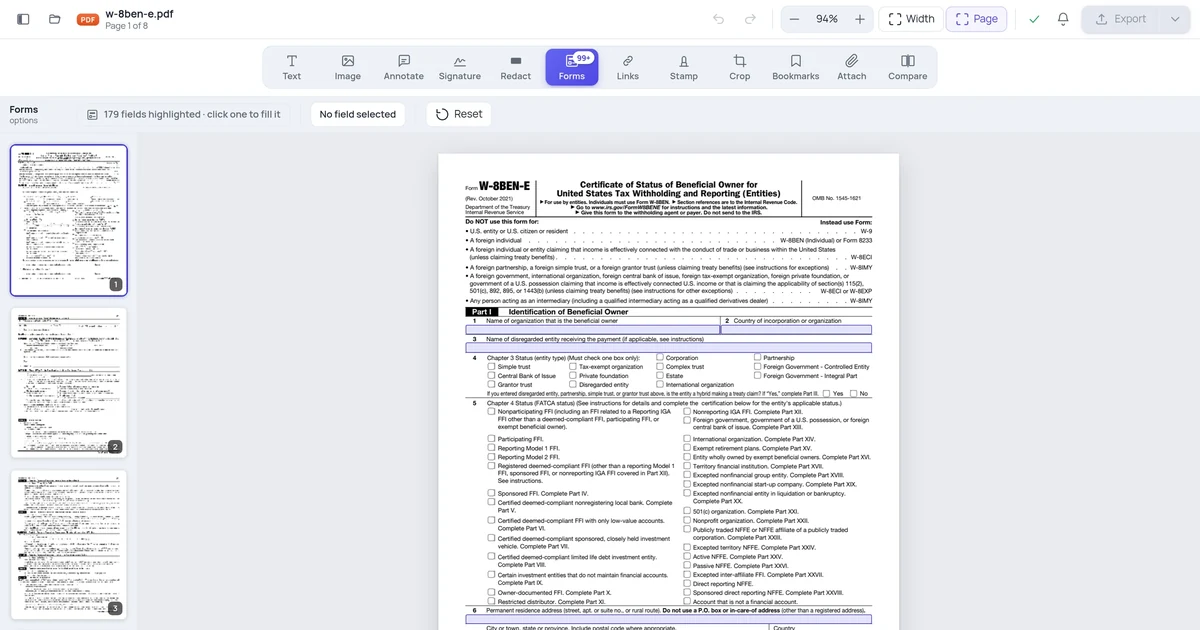
A checkbox is an independent toggle. Each box turns on or off by itself, and ticking one has no effect on any other. Use checkboxes when the answer can be "more than one" or "none of these": dietary restrictions, "select all that apply," agreeing to two separate terms, a list of features someone wants.
A radio button is one of a set, and only one in the set can be chosen at a time. Selecting a second option clears the first automatically. Use radio buttons for "pick exactly one": yes or no, a single payment method, one shipping speed, a rating from one to five.
| Question type | Use | Behavior |
|---|---|---|
| Select all that apply | Checkboxes | Each box toggles independently; any number can be on |
| Agree to one or more terms | Checkboxes | One checkbox per term, ticked separately |
| Pick exactly one | Radio buttons | Choosing one clears the others in the group |
| Yes / No | Radio buttons (two options) | Mutually exclusive; only one can be selected |
| Rating 1 to 5 | Radio buttons (five options) | One selection per group |
If you ever feel tempted to use checkboxes for a pick-one question because they look the same, resist it. Nothing stops someone ticking three boxes when you wanted one answer, and you will be cleaning that up later.
How do I add a checkbox to a PDF form?
Here is the straightforward path in an online editor. You upload the file, drop a checkbox field, name it, and set its value.
- Open your PDF in the editor. Go to the PDF editor and upload the form. Every page opens in your browser ready to work on.
- Select the Checkbox field tool. In the form or fields section of the toolbar, click the checkbox tool. Your cursor changes to show you are placing a field.
- Click where the box should go. Click next to the option label, usually just left of the text. A small square field appears at that point.
- Name the field. Open the field's properties and give it a clear name, like
agree_termsordiet_vegetarian. The name is how the answer is identified when the form is read back. - Set the export value. This is the value recorded when the box is ticked, often "Yes" or the option's own label. A meaningful value makes the collected data readable.
- Size and align the box. Drag a corner handle so the box matches the line height, then nudge it so it lines up with its label. Zoom in for precise placement.
- Repeat for each independent option. Each checkbox gets its own unique name and its own value, because they toggle separately.
- Save and download. Export the file. The checkboxes are written in as real form fields and stay clickable wherever the file goes.
That is the whole task for a set of tick-anything boxes. The part most guides skip is what happens when the question is actually pick-one, which needs radio buttons and one extra rule. That is next.
How to add radio buttons that actually behave
Radio buttons look like little circles, but the thing that makes them work is invisible: the field name. This is where people get stuck, so it is worth being precise.
For a group of radio buttons to act as a set where choosing one clears the rest, every button in that group must share the identical field name. What changes between them is the export value. So a "Shipping speed" question with three options would be three radio buttons all named shipping_speed, with export values standard, express, and overnight. Because they share a name, the form treats them as one control, and only one can be on at a time.
- Pick the Radio Button field tool in the editor's form section.
- Click next to the first option to drop the first button.
- Name it for the question, not the option. Use
shipping_speed, the same name you will reuse for every option in this group. - Set this button's export value to its own option, like
standard. - Drop the next button next to the second label, give it the same field name
shipping_speed, and set its export value toexpress. - Repeat for every remaining option, always the same name, always a different value.
- Test the group. Click one button, then another; the first should clear. If both stay selected, they are not actually grouped, which almost always means the field names do not match exactly.
The export value matters here as much as with checkboxes. When the form comes back, a radio group reports a single value, the export value of whichever button was chosen. If your values are standard, express, overnight, the result is human-readable. If they are blank or all "Yes," you learn that something was selected but not what.
The catch: a drawn checkbox is not a fillable field
Here is the surprise that trips people up. There are two completely different things people mean by "add a checkbox," and they behave nothing alike.
The first is a form field: a real interactive control the recipient clicks to toggle on or off. That is what everything above creates, and it is what you want if someone else has to fill the form on screen.
The second is a drawn graphic: a square or a tick mark you draw or stamp onto the page. It looks like a checkbox, but it is frozen. Nobody can click it to change it. It is just a picture of a box. That is fine if you are the one filling the form and you just want to mark your own answer before sending it, but it is the wrong tool if you are building a blank form for others to complete.
So before you start, ask: who is going to tick this box?
- Someone else fills it on screen later → add a real checkbox or radio button field, as above.
- You are marking your own answers now → you can draw a tick instead; our guide on how to add a checkmark or tick mark to a PDF covers placing a static check exactly where you want it.
- The form gets printed and filled by hand → a drawn empty square is fine, since nobody is clicking anything; you just need a box to print.
Mixing these up is why someone sends out a "fillable" form that turns out to be uncheckable, or draws a static tick and wonders why the recipient cannot change it. Decide which you need first.
Name your fields like you mean to read the data
A form is only as useful as the answers you can pull out of it, and the field name and export value are what carry those answers. Treat them as the real deliverable, not an afterthought.
Give each field a name that says what it is, in plain words with no spaces, like newsletter_optin or payment_method. Avoid generic names like Check Box 1, Check Box 2, which the editor may assign by default; they tell you nothing when fifty responses come back. For radio groups, name the field after the question and let the export value carry the answer.
| Field | Field name | Export value | What you get back |
|---|---|---|---|
| "I agree to the terms" checkbox | agree_terms | Yes | agree_terms: Yes |
| Vegetarian option checkbox | diet_vegetarian | Yes | diet_vegetarian: Yes |
| Shipping radio: Standard | shipping_speed | standard | shipping_speed: standard |
| Shipping radio: Express | shipping_speed | express | shipping_speed: express |
Notice the two shipping rows share a name and differ only in value, which is exactly the grouping rule. When the form is processed, you read one clean line per question instead of trying to decode Check Box 7: On. If your form mixes checkboxes, radio buttons, and other inputs, the same discipline applies across all of them, and adding a dropdown menu to a PDF form follows the same logic of a named field with meaningful values.
Adding form checkboxes on different devices
The idea is the same everywhere, but not every tool can create true interactive fields, which is the thing to watch.
| Platform | How you add a checkbox field | Notes |
|---|---|---|
| Online (any browser) | Open the PDF editor, pick the Checkbox or Radio Button field tool, click, name it | Creates real fillable fields; works on desktop and mobile browsers |
| Windows (desktop app) | A PDF editor's Forms or Prepare Form tool, then place the field | Full editors do this well; free readers usually cannot create fields, only fill them |
| Mac (Preview) | Not really supported | Preview can fill existing fields and draw shapes, but cannot create new clickable checkbox fields |
| iPhone / iPad | Markup can draw a box; field creation is rare | Fine for ticking your own answer, not for building a fillable form |
| Android | A PDF app with form-building support | Many apps only fill forms; check it can actually create fields before relying on it |
The recurring gotcha across phones and free desktop readers: they let you fill a form's existing checkboxes but cannot create new ones. What looks like adding a checkbox is often just drawing a square or placing a comment, which is the static graphic, not a clickable field. If you need a form others will complete on screen, use a tool that explicitly creates form fields and confirm the boxes are clickable by reopening the saved file and toggling one.
Test the form before you send it
A form that looks right but does not work is worse than no form, because someone discovers the problem after they have tried to fill it. Spend two minutes checking it.
- Click every checkbox to confirm each toggles on and off independently.
- Click through each radio group: select one option, then another, and watch the first clear. If both stay lit, the field names in that group do not match, so fix them.
- Tab through the form. Pressing Tab should move from field to field in a sensible order. A jumpy tab order frustrates anyone filling it quickly.
- Reopen the exported file in a plain PDF reader, not just the editor, and check the fields are still clickable. This is the real test that the fields baked in as interactive content rather than getting flattened.
- Check alignment one last time at the zoom level a reader will use, so boxes sit on their lines.
If you flatten the form on export, the fields stop being interactive and become part of the page image, which is occasionally what you want for a final record but never what you want for a blank form. Keep the form fields live until you are sure the form is filled.
A worked example
Say you have a one-page event signup PDF with two questions: "Which sessions will you attend? (select all)" listing three sessions, and "Meal preference" with three single-choice options. You open the file in the PDF editor and start with the sessions, because those allow multiple answers. You pick the Checkbox tool, click next to "Morning workshop," name the field session_morning, and set its export value to Yes. You repeat for session_lunch and session_afternoon, each its own checkbox with its own name, so attendees can tick any combination. Then you move to meal preference, which is pick-one, so you switch to the Radio Button tool. You drop a button next to "Vegetarian," name it meal_preference, value vegetarian. You drop the next two buttons next to "Vegan" and "No preference," giving both the same name meal_preference with values vegan and none. You click the vegan button, then the no-preference one, and watch vegan clear, confirming the group works. You align every field to its label, export the file, reopen it in a reader, and tick a few boxes to make sure they hold. The form is ready to send, and when responses come back each one reads as clean named values.
FAQ
How do I add a checkbox to a PDF form?
Open the PDF in an online editor, select the Checkbox field tool, then click on the page next to the option the box controls. A small square field appears. Open its properties to give it a clear field name, like agree_terms, and set an export value such as "Yes" that gets recorded when the box is ticked. Size and align the box to its label, then save and download. The checkbox is written in as a real, clickable form field that anyone can toggle when they fill the form.
What is the difference between a checkbox and a radio button?
A checkbox is an independent toggle: each box turns on or off by itself, and you can tick as many as you like. Use it for "select all that apply." A radio button is one of a group where only one can be chosen at a time, and selecting another clears the first. Use it for "pick exactly one," like yes or no. The behavior is the deciding factor, so choose the type by how you want the question answered, not by how the control looks.
Why don't my radio buttons deselect each other?
Almost always because they do not share the exact same field name. Radio buttons only act as a group, where choosing one clears the rest, when every button in the group has the identical field name and a different export value each. If two buttons both stay selected, open their properties and check the names match character for character. The export values should differ, like standard and express, but the field name must be the same across the whole group.
Can I add clickable checkboxes to a PDF on my phone?
Usually no for creating them, though you can often fill existing ones. Most mobile PDF apps and tools like iPhone Markup let you tick checkboxes that already exist or draw a static square, but they cannot create new interactive form fields. A drawn square is just a picture, not something a recipient can click. To build a fillable form with real checkbox and radio fields, use a browser-based editor that creates form fields, then confirm they are clickable by reopening the saved file.
Why are my checkboxes not clickable after I save?
The most common reason is the form was flattened on export, which turns interactive fields into part of the page image so nothing can be toggled anymore. The other is that you drew square shapes instead of placing actual form fields, so they were never clickable to begin with. Re-export without flattening, make sure you used the Checkbox or Radio Button field tool rather than a drawing tool, and test by reopening the file in a plain reader and clicking a box.