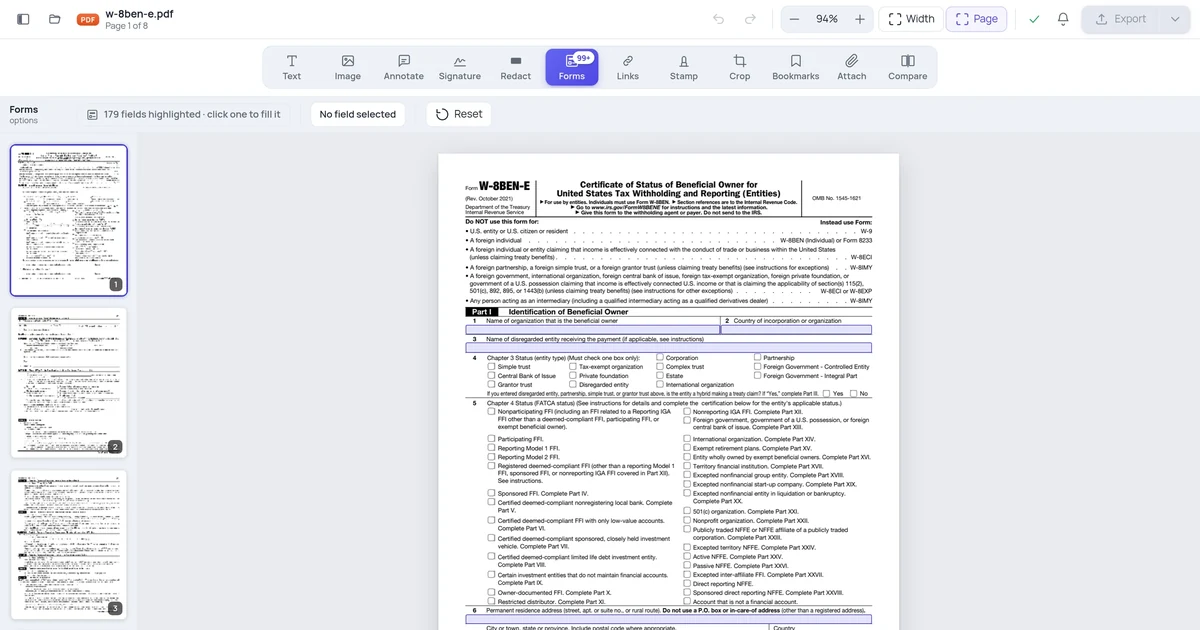
How to Add Auto-Calculating Fields to a PDF Form
A hands-on guide to adding auto-calculating fields to a PDF form, from naming your number fields to setting sums, products, and tax lines that update on their own.

To add auto-calculating fields to a PDF form, give each number field a clean name, then add a numeric form field for the result and set its calculation: pick "sum" to add fields, "product" to multiply, or write a simple formula. Reference the source fields by name, set them to a number format, and the total updates on its own as someone types. Save the form so the calculation travels with it.
Key takeaways
- Naming is the whole job: calculations reference fields by name, so before you can sum anything you need clean, predictable names like
qty1,price1, andtotalrather than the auto-generatedText1,Text2. - Pick the calculation type that matches the math: "sum" adds a list of fields, "product" multiplies them, and a custom formula handles anything mixed like quantity times price plus tax.
- Set every number field to a number format, because a field formatted as plain text will not add up correctly and can silently break the total.
- Calculation order matters: a grand total that depends on subtotals must calculate after those subtotals, or it reads stale values for a moment.
- Flattening kills the math: if you flatten or "print to PDF" the finished form, the fields become static text and stop calculating, so keep an editable master copy.
- Calculations are a PDF form feature, not a magic OCR trick; they only work on real form fields you add, not on numbers printed into a scanned page.
What an auto-calculating field actually is
A PDF form field is an interactive box layered on the page, the same kind of object you place when you build any fillable PDF form online without Adobe Acrobat. Most fields just hold whatever someone types. A calculating field is different: instead of waiting for input, it watches other fields and computes its own value from them.
So on an order form, you might have qty and price fields a person fills in, and a line_total field that does nothing but multiply those two and display the result. The person never types into line_total, it fills itself. Stack several of those line totals together and feed them into a subtotal, add a tax line, and roll everything into a grand_total, and you have a form that does its own arithmetic.
The important mental model: the calculation lives on the result field, and it points at the source fields by their names. Nothing happens on the source fields themselves. This is why naming comes first and the math comes second, and why a sloppy naming scheme is the single most common reason a total refuses to add up.
How do I make a PDF form add up numbers?
Here is the end-to-end flow for a simple total. Open your form in an editor, name the fields, add the total field, and tell it to sum.
- Open your form in the editor. Go to the PDF editor and upload the PDF you want calculations on. If it has no fields yet, you will add them; if it already has fields, you will name and wire them.
- Add your number fields. Place a text/number field for each value a person enters, for example
item1,item2,item3. These are the inputs. - Name each field clearly. Open each field's properties and give it a short, predictable name. Avoid spaces and reuse a pattern, so
item1,item2,item3rather thanAmount,Cost of thing,Field 7. - Set each input to a number format. In the field's format options, choose Number (and a decimal setting like 2 places for currency). A field left as plain text will not sum reliably.
- Add the result field. Drop one more field where the total should appear and name it
total. Set its format to Number too. - Open the result field's calculation options. In its properties, find the Calculate tab or section.
- Choose the sum operation and pick the fields. Select "Value is the sum (+) of the following fields" and tick
item1,item2,item3. Save the field. - Test it. Type numbers into the inputs. The
totalfield should update on its own with no clicking required. - Save and download. Export the form. The calculation is written into the document and runs wherever the form is filled, as long as the file is not flattened.
That is the basic case. The parts most guides gloss over are multiplication, mixed formulas, calculation order, and the flattening trap that quietly breaks everything. Those come next.
Sum, product, or a custom formula: pick the right one
Most calculating fields fall into three buckets. Choosing the right one keeps your form simple and avoids hand-writing formulas you do not need.
| You want to | Use this calculation | Example |
|---|---|---|
| Add several fields into a total | Sum (+) of fields | subtotal = sum of line1, line2, line3 |
| Multiply two or more fields | Product (×) of fields | line_total = qty1 × price1 |
| Average a set of fields | Average of fields | avg_score = average of q1, q2, q3 |
| Anything mixed (qty × price, then + tax) | Custom / simplified formula | grand_total = subtotal + subtotal × 0.08 |
The first three are point-and-click: you choose the operation and tick the fields. The fourth is where you write a short expression yourself, and it is the one that unlocks real forms. An invoice line is almost never a plain sum, it is quantity times unit price. A grand total is usually a subtotal plus tax, maybe minus a discount. For those, you reference fields by name inside a small formula, for example qty1 * price1 on the line total, or subtotal * 0.08 on a tax field.
Keep formulas boring. The more arithmetic you cram into one field, the harder it is to debug when a number looks wrong. It is almost always cleaner to break a calculation into stages, line totals feed a subtotal, the subtotal feeds tax and grand total, than to write one monster expression on the final field.
The catch: a number field formatted as text will not add up
This is the failure mode that wastes the most time. You wire up a perfect sum, type 10 and 20 into the inputs, and the total shows 0, or shows 1020 jammed together instead of 30. The cause is almost always that the input fields are formatted as plain text, not as numbers.
When a field is text, the editor treats 10 as the characters "1" and "0", not the value ten. A sum across text fields either ignores them or concatenates them. The fix is to open each input field's format settings and explicitly set it to Number, with the decimal places you want. Do this on every field involved in the math, the inputs and the result. It feels redundant, but one stray text-formatted field is enough to throw off the whole total. After setting formats, retype a value to force a recalculation and confirm the total reacts.
Build a real example: a line-item order form
A single sum is easy. A working order form is where calculations earn their keep, so here is the structure.
- Create the line fields. For each row, add
qty1,price1, andline1. Repeat forqty2/price2/line2, and so on. Set all of them to Number format. - Set each line total to a product formula. On
line1, use a custom calculation:qty1 * price1. The person types a quantity and a price, and the line total fills itself. - Add a subtotal. Create
subtotaland set it to the sum ofline1,line2,line3. Now the subtotal adds up every line on its own. - Add tax. Create
taxwith the formulasubtotal * 0.08(swap in your rate). It recalculates whenever the subtotal changes. - Add the grand total. Create
grand_totalas the sum ofsubtotalandtax, or assubtotal + taxin a formula. - Lock the result fields from typing. Mark
line1,subtotal,tax, andgrand_totalas read-only so nobody can overtype the computed values. They should only ever be filled by the calculation. - Test the chain. Enter a quantity and price on row one. The line total, subtotal, tax, and grand total should all update in sequence with a single value entered.
The same pattern scales to expense reports, quotes, timesheets, and donation forms. The skeleton is always the same: inputs the person fills, line-level math, a subtotal, adjustments, and a grand total. If you also want people to choose from a fixed list, like a product or a tax region, pair these number fields with a dropdown menu in your PDF form so the choices stay consistent and your formulas have predictable inputs to work with.
Calculation order is a real setting, not an afterthought
Here is something almost no quick guide mentions. PDF forms calculate fields in a defined order, and if a field that depends on others runs too early, it reads their old values for a beat before catching up, or shows a wrong number until the next edit.
The classic symptom: your grand_total is always one step behind, showing the previous subtotal instead of the current one. The cause is that grand_total is calculating before subtotal and tax have finished. The fix is to set the calculation order so dependent fields run last: line totals first, then subtotal, then tax, then grand total. Most editors expose a calculation-order list where you can move fields up or down. Order them the way the math flows, parents after their children, and the lag disappears.
Where auto-calculation works and where it does not
Calculations are powerful, but they are a PDF form feature with hard edges. Knowing the limits saves you from chasing impossible setups.
| Situation | Will calculations work? | Why |
|---|---|---|
| Real form fields you added to the PDF | Yes | Calculations read named, interactive fields |
| Numbers printed into a scanned page | No | Scanned text is an image, not a field; there is nothing to reference |
| A flattened or "printed" PDF | No | Flattening converts fields to static text and removes the logic |
| Filling on desktop PDF viewers | Usually | Most full PDF apps run field calculations |
| Filling in a basic browser preview | Sometimes | Lightweight viewers may show fields but not run the math |
The headline limit: calculations only exist on genuine form fields. If your "form" is a scanned questionnaire, there are no fields to add up, just pixels, and you would need to rebuild it as a fillable form first. And on the output side, the moment the form is flattened, the fields collapse into plain numbers and stop recalculating. That is sometimes what you want (a finished, locked record), but it means you should always keep an editable master so you can change the form later.
One more honest trade-off: if the calculation gets genuinely complex, multi-tier pricing, conditional discounts, currency conversion, a PDF form is the wrong tool. PDFs are great for a self-totaling invoice or expense sheet that people fill and email. For anything resembling a spreadsheet's logic, build it in a spreadsheet and export a clean PDF at the end. Reach for PDF calculations when you need a portable, fillable document, not when you need a calculation engine.
A quick note on saving, sharing, and privacy
Two practical things once the math works. First, when you download the form, export it as a fillable PDF, not a flattened copy, or the calculations vanish. Test the downloaded file by reopening it and typing a number to confirm the total still reacts. Second, send recipients a viewer that runs field calculations; a full desktop PDF app is safest, since some minimal in-browser previews show the fields but skip the math.
Since you upload your document to build the form, a browser-based editor processes the file on a server and does not keep it long-term. That is standard for online editing, and worth knowing before you upload anything with real customer numbers in it. If the data is sensitive, build the form from a blank template first and let people fill in the figures themselves.
FAQ
How do I make a PDF form add up numbers?
Give each number field a clear name and set it to a Number format, then add a result field for the total. Open the result field's calculation options, choose "value is the sum of the following fields," and tick the fields you want added. The total then updates on its own as numbers are typed. The most common mistake is leaving an input formatted as text instead of a number, which makes the sum read zero or jam the digits together, so set every field involved to a number format.
Why isn't my PDF total calculating?
Three usual culprits. One, an input field is formatted as text, not a number, so it is not counted, fix the format on every field in the math. Two, the field name in your formula does not match the actual field name exactly, including case, so the reference resolves to nothing. Three, you are filling the form in a viewer that does not run calculations, or the file was flattened and the fields became static. Open it in a full PDF app, retype a value, and confirm the names match.
What's the difference between sum and product in PDF calculations?
Sum adds fields together: subtotal as the sum of line1, line2, line3 gives you their total. Product multiplies them: line_total as the product of qty and price gives you quantity times unit price. Use sum for totaling a column of values, and product for per-line math like quantity by price. For anything mixed, such as a subtotal plus tax, write a short custom formula like subtotal + subtotal * 0.08 instead of forcing it into a single sum or product.
Will my calculations survive when I send the form to someone?
Yes, as long as you export it as a fillable PDF and the recipient opens it in a viewer that runs field calculations. The calculation logic is written into the document and travels with it. What breaks it is flattening: if you flatten the form or "print to PDF," the fields turn into static text and stop computing. Keep an editable master copy, send the fillable version, and tell recipients to use a full PDF application rather than a bare-bones browser preview that may not run the math.
Can I add calculating fields to a scanned PDF?
Not directly. A scanned PDF is an image of a page, so the numbers on it are pixels, not fields, and there is nothing for a calculation to reference. You would first have to rebuild it as an actual fillable form by placing real number fields on top, then wire up the calculations between those fields. If you only need new fields over a scan, you can add and name them in the editor; the calculation works on the fields you add, never on the printed image underneath.