How to Make a Scanned Paper Form Fillable
A practical guide to turning a scanned paper form into something people can type into, covering the quick text-box method, true form fields, OCR, and the traps that ruin a clean result.

To make a scanned paper form fillable, scan it to PDF, open it in a PDF editor, and place a typeable text box on top of each blank line or box. Position one box per field, set the font size to match the printed lines, then save. The scan stays as the background image while your text boxes accept typing, so anyone can fill it on screen and print or email it back.
Key takeaways
- The fastest method is overlaying text boxes, not building "real" form fields. You drop a typeable box onto each blank space, and the scan becomes the printed background behind it.
- A scan is a picture, not text, so the form's lines and labels are baked into an image. You're not editing the original; you're adding a fillable layer on top.
- True interactive form fields are better for forms you reuse, because they tab in order, validate input, and look native, but they take longer to set up.
- OCR is optional for most fill-in jobs. You only need it if you want the form's own text to become selectable or want fields detected automatically.
- Alignment is the whole game. Get one box sized and placed right, then copy it so every answer sits on the line instead of floating above or below it.
- Watch for flattening and blur: saving the wrong way can fuse your typed answers into the image, and upscaling a low-resolution scan makes everything fuzzy.
First, understand what a scanned form actually is
When you scan a paper form, the scanner takes a photograph of the page and wraps it in a PDF. Every line, checkbox, and label you see is part of that single flat image. There is no text underneath and no clickable fields, which is exactly why you can't just tab through it and type the way you would in a web form.
That changes how you make it fillable. You are not editing the form's existing content, because there is nothing editable to grab. Instead, you add a new transparent layer of typeable boxes that sit on top of the picture: the scan becomes the printed background, and your boxes are where the answers go. Once you understand that split, you stop fighting the file.
This is the same core idea behind turning any flat document into something interactive. If your starting point is a digital PDF rather than a scan, the approach overlaps heavily with how to make a non-fillable PDF fillable, the difference being that a scan needs no text removed first, since it has none.
Method 1: Overlay text boxes (the fast way)
This is the method most people actually need. It works on any scan, requires no OCR, and you can finish a one-page form in a few minutes by dropping a typeable text box onto each blank.
- Get the form into PDF. Scan the paper at 300 DPI if you can, or photograph it in good light and save as PDF. Higher resolution keeps the lines crisp.
- Open the scan in a PDF editor. Upload it to the PDF editor or open it in a desktop app that lets you add text on top of a page.
- Add a text box on the first blank. Choose the Add Text or Text Box tool, click on the first empty line or field, and type a sample answer.
- Match the look. Set the font size so your text sits on the printed line, not floating above it, and pick a font close to the form's labels (a plain sans-serif or a typewriter style usually blends in).
- Duplicate and reposition. Copy that tuned box and drop a copy onto every other blank. Reusing one good box keeps all your answers the same size and baseline.
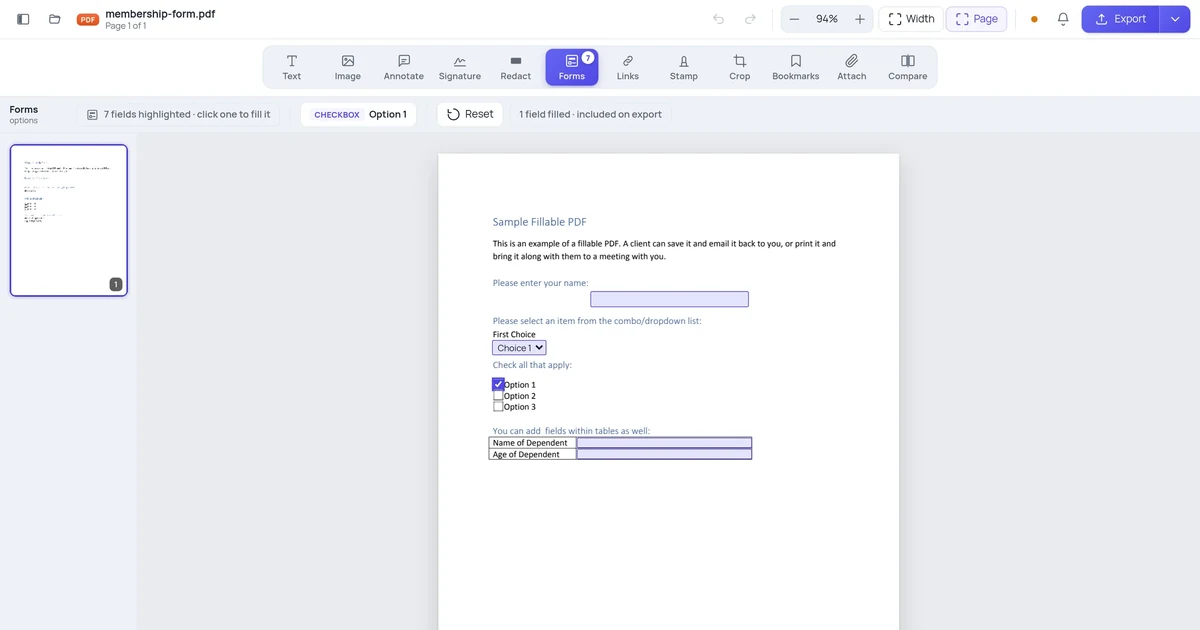
- Handle checkboxes. For tick boxes, add a small "X" or a checkmark character instead of a text box. Our guide on adding a checkmark or tick mark covers the cleanest ways.
- Save or download. Export the PDF. The scan stays as the background, and your typed answers ride on top.
The beauty of this method is that the person filling it just clicks a box and types, without needing to know it's a scan. For forms you fill once, like a single application or a school slip, this is almost always the right call.
The catch: alignment drift and floating text
Here is what nobody warns you about. Your first text box looks perfect, but as you add more, the answers start sitting slightly above the line, or creeping left and right so the form looks messy. That's because each box's vertical anchor and padding need to match the line height of the scan, and eyeballing every placement invites drift.
The fix is discipline, not effort. Tune exactly one box, then copy and paste it for every field so size, font, and baseline stay identical. Move copies with arrow keys for pixel-level nudges rather than dragging, and let answers snap to a shared baseline if your editor has alignment guides. Two extra minutes on the first box saves redoing the whole page.
Method 2: Build true interactive form fields
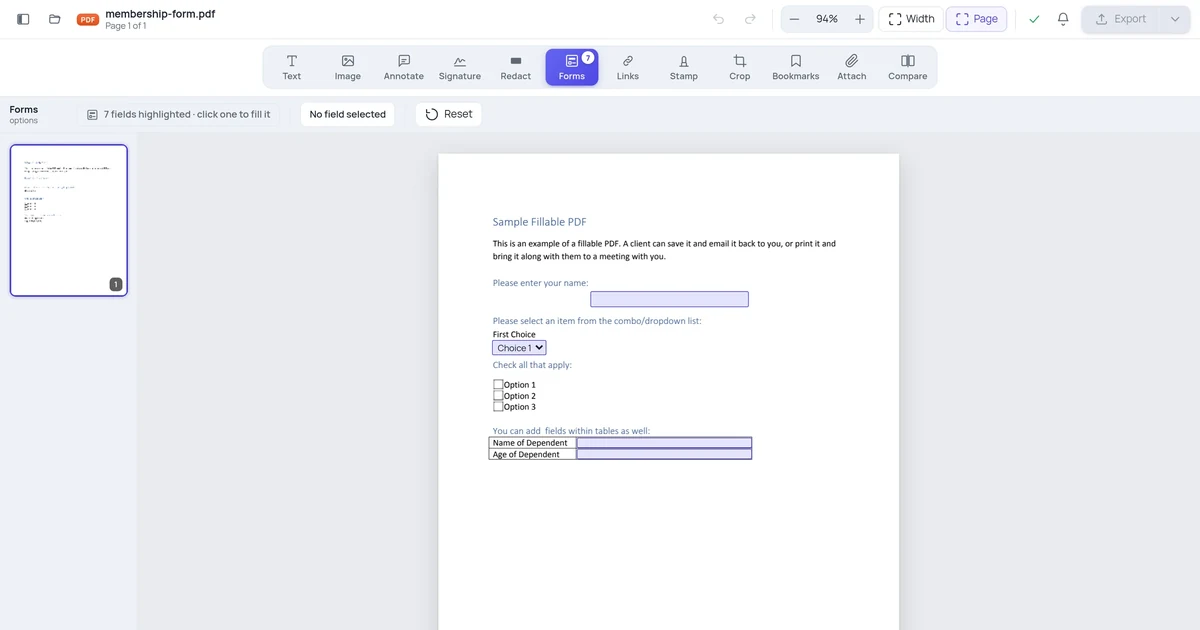
If you'll send this form to many people, or reuse it every month, real form fields are worth the extra setup. These are the clickable, tabbable boxes you see in professional PDFs. They keep typed input separate from the page, validate entries, and let people move field to field with the Tab key.
- Open the scan in a PDF editor that supports adding form fields (sometimes called "Prepare Form" or a Forms mode).
- Add a text field over the first blank. Draw the field box to cover the line, then size and name it.
- Set the field type per blank: a text field for names and dates, a checkbox for tick boxes, a dropdown for fixed choices like a country or department.
- Set the tab order so pressing Tab walks through fields top to bottom, left to right. A logical order makes the form feel native.
- Add formatting rules where they help, such as a date format or a required flag, so people can't leave a key field blank.
- Test it yourself. Fill the form once, tab through every field, and check that nothing overlaps the printed labels.
- Save the interactive PDF. It now behaves like a designed digital form, even though the background is your scan.
True fields are more robust because the answers are stored as form data, not painted onto the image, so the form can be cleared and refilled and the typed text stays sharp at any zoom. The trade-off is time: laying out, naming, and ordering fields on a busy form takes real effort. For a one-off, the text-box overlay wins; for a template, fields pay off fast.
Method 3: Use OCR when you need the form's own text
OCR (optical character recognition) reads the letters in a scan and rebuilds them as selectable text. You don't need it just to add fillable boxes, but it helps in two cases: when you want the form's labels to be selectable or searchable, and when you want a tool to detect blanks and place fields automatically.
- Run OCR on the scan using your editor's "Recognize Text" feature or an OCR-capable tool. It lays an invisible text layer over the image.
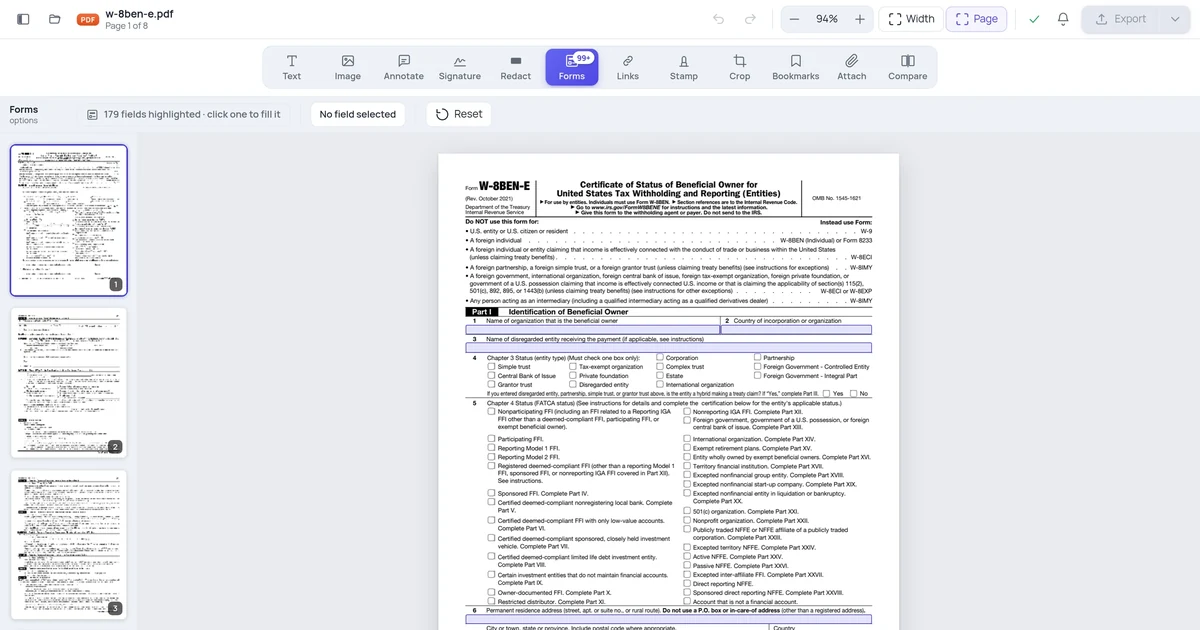
- Let auto-detect place fields if the tool offers it. After OCR, some editors can guess where the blanks are and drop form fields for you.
- Review every detected field. Auto-detection is a starting point, not a finished form. Fix misplaced boxes, add ones it missed, and delete false hits.
- Fill and save as with any interactive PDF.
For a deeper walkthrough of this route, including how to clean up auto-detected fields, see how to convert a scanned PDF to a fillable form using OCR. The honest summary: OCR is powerful but adds steps and isn't required for plain fill-in jobs. Reach for it when you specifically need searchable text or auto-detection, not as a default.
The catch: OCR errors and crooked scans
OCR is good, not perfect, and a scanned form gives it harder material than clean printed text. A crooked, faint, or low-resolution scan produces more mistakes, lookalike characters get confused (0 and O, 1 and l, rn read as m), and auto-detected fields land in the wrong place when the scan is skewed even slightly.
If you go the OCR route, scan straight and at 300 DPI, then proofread the recognized text and check every auto-placed field by hand. Treat detection as a rough draft that saves typing, not a finished layout. For many simple forms, overlaying text boxes by hand is faster and more reliable than fixing what auto-detect got wrong.
Which method should you use?
| Your situation | Best method | Why |
|---|---|---|
| Fill one form once and send it back | Overlay text boxes | Fastest, no OCR, no field setup |
| Reuse the form for many people | True form fields | Tab order, validation, refillable |
| Need the form's text searchable | OCR first | Makes baked-in labels selectable |
| Busy form with many blanks | OCR auto-detect, then fix | Saves drawing every field by hand |
| Just a few checkboxes and a signature | Overlay boxes + checkmark | Minimal effort for a quick turnaround |
Match your row before you start. Most people filling a scanned form once are best served by the text-box overlay; the field-building and OCR routes earn their extra effort only when you're building something reusable or text-aware.
Platform notes: online, Windows, Mac, and phone
Online. A browser-based editor is the most portable route because nothing installs. Upload the scan, add text boxes or fields on top, and download the filled PDF. This works the same on Windows, Mac, or a Chromebook.
Windows and Mac. Desktop PDF apps offer a "Prepare Form" mode for true fields and a typewriter or Add Text tool for quick overlays. On Mac, Preview alone handles the text-box overlay for one-off fills; you'll want a dedicated editor for interactive fields.
iPhone and Android. You can fill a scanned form on a phone by adding text annotations in a PDF app, and the built-in scanner (Notes on iPhone, Google Drive's scan on Android) creates the PDF in the first place. Phones are great for capturing and quick fills, but laying out true form fields is far easier on a larger screen.
A quick, honest note on privacy: online editors and OCR tools process your file on a server to do the work, and files aren't kept long-term. That's normal for browser-based tools, but worth knowing before you upload anything with sensitive personal details.
The mistakes that ruin a clean result
A few traps catch people repeatedly. Knowing them up front saves a re-do.
- Blur from upscaling. A low-resolution scan turns fuzzy when zoomed or enlarged, because you can't add detail that was never captured. Re-scan at 300 DPI rather than stretching a small image.
- Flattening your answers too early. Some "save as image" or print-to-PDF steps fuse your typed boxes into the background, and once flattened you can't edit those answers again. Keep an editable copy before you flatten anything to send.
- Fields that overlap the labels. A text box that's too tall covers the printed line above or below it. Size boxes to the blank space, not the whole row.
- Forgetting it's a scan. You can't edit the baked-in printed labels without OCR; you can only add typeable boxes on top of them.
Get these right and your filled scan looks like it was always meant to be typed into, rather than a paper form awkwardly photographed and scribbled on.
FAQ
How do I make a scanned form fillable?
Scan the paper form to PDF, open it in a PDF editor, and add a typeable text box on top of each blank line or box. Tune one box's font and size so it sits on the printed line, then copy it onto every other field. Save, and the scan stays as the background while your boxes accept typing. For forms you'll reuse, build true interactive fields instead; for one-off fills, the text-box overlay is fastest.
Do I need OCR to fill in a scanned form?
No, not for plain fill-in jobs. Overlaying text boxes works on any scan without OCR, because you're adding a new typeable layer rather than editing the image. You only need OCR if you want the form's own printed text to become selectable or searchable, or if you want a tool to auto-detect blanks and place form fields for you. For most one-off forms, skipping OCR is faster and avoids recognition errors.
What's the difference between a text box and a real form field?
A text box is annotation you paint onto the page; it's quick to add and great for filling a form once. A real form field is an interactive element stored as form data, so it supports Tab navigation, validation, dropdowns, and clearing and refilling. Fields look more native and stay sharp at any zoom, but they take longer to set up. Use boxes for one-offs and fields for templates you'll reuse.
Why does my filled scanned form look blurry?
Almost always because the original scan was low resolution and got enlarged. A scan is a fixed-pixel image, so zooming or stretching it can't add detail that wasn't captured, and the lines and labels turn fuzzy. Re-scan the paper at 300 DPI instead of upscaling a small file. Your typed text boxes stay crisp regardless, since they're not part of the image, but the background scan is only as sharp as the original capture.
Can I make a scanned form fillable on my phone?
Yes. Use your phone's scanner (Notes on iPhone, Google Drive scan on Android) to turn the paper into a PDF, then open it in a PDF app and add text annotations on top of each blank. That covers quick one-off fills well. Building true interactive form fields, with tab order and validation, is much easier on a computer's larger screen, so reach for a desktop or online editor when you're making a reusable form.