How to Make a Non-Fillable PDF Fillable
A step-by-step guide to turning a flat, non-fillable PDF into a real form by adding text fields, checkboxes, and signature lines that recipients can actually click and type into.

To make a non-fillable PDF fillable, open the file in an online editor, then add a text field on top of each blank line or box where someone needs to type. Drop checkboxes next to pick-one or tick-all options, add a signature field where required, name each field, and align it to its line. Save and download, and the flat page becomes a form people can click into and complete on screen.
Key takeaways
- "Non-fillable" usually means a flat page, not a broken form: the lines and boxes are just printed ink with no interactive fields behind them, so you add the fields yourself on top.
- A text field over each blank line is the core move, because that is what turns "a picture of a form" into something a recipient can click and type into.
- Naming fields is not optional, since the field name is what carries each answer back when the form is processed; generic names like
Text 1make collected data unreadable. - A scanned form needs the same treatment but one extra check, because the text on a scan is an image and is never selectable until you place fields over it.
- Typing on a flat PDF is different from making it fillable, as adding text directly is fine for your own one-time use but does nothing for someone else who has to complete it later.
- No software to install: a browser-based editor adds real fillable fields on any device, and the fields stay clickable once you export.
Why a PDF is "non-fillable" in the first place
A PDF can carry interactive form fields, but most PDFs do not. When you open a contract, a registration sheet, or a government form and find you cannot click into the blank lines, it is almost never broken. It just never had fields to begin with. The page is flat: the labels, the lines, and the empty boxes are printed graphics with nothing interactive behind them.
There are two common situations, and they are worth telling apart because the fix is slightly different:
- A digitally created flat PDF. Someone exported a document to PDF from Word, Pages, or a design tool. The text is real and selectable, but no form fields were ever added, so there is nothing to click.
- A scanned form. Someone printed a form, filled or left it blank, and scanned it back to PDF. The whole page is an image. Not only are there no fields, the text itself is a picture and cannot be selected.
Either way, the job is the same in spirit: you put your own fillable fields on top of the flat page. The scan just needs one extra awareness, covered below. If you are not sure whether your form has fields at all, our guide on why you can't type in a PDF form walks through how to tell a flat page apart from a real form that is misbehaving.
How to make a PDF fillable, step by step
Here is the straightforward path in an online editor. You upload the flat file, lay fields over the blanks, name them, and save.
- Open your PDF in the editor. Go to the PDF editor and upload the form. Every page opens in your browser ready to work on, with the original layout intact.
- Find the form or fields tools. Look for the form fields section of the toolbar, where the text field, checkbox, radio button, and signature tools live.
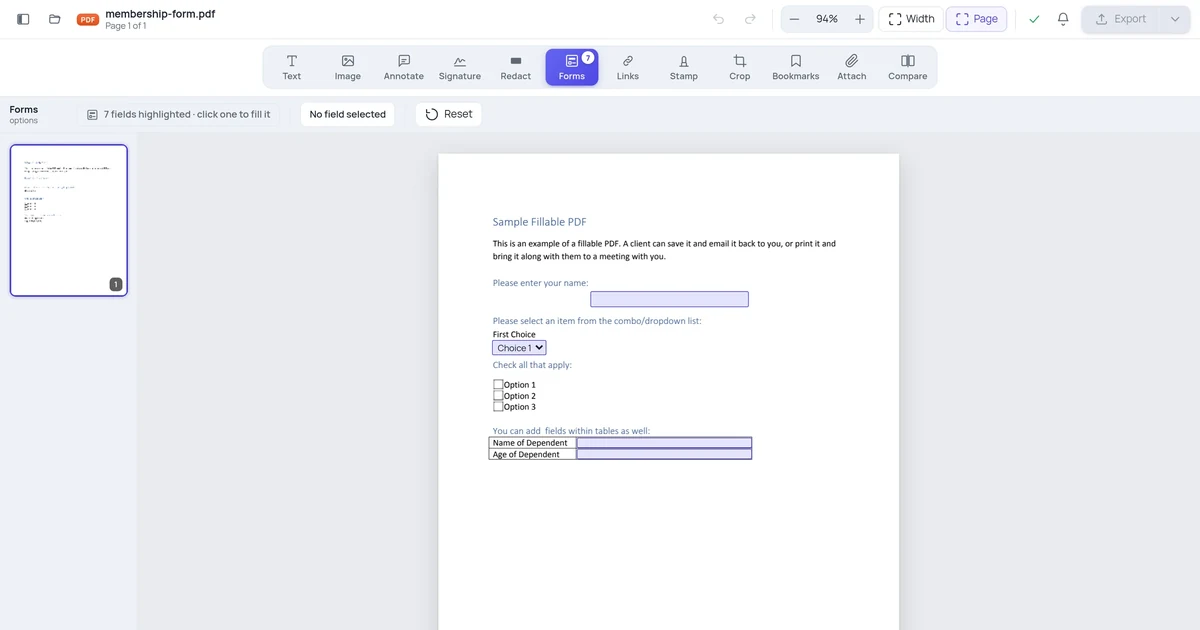
- Add a text field over the first blank. Pick the Text Field tool and draw a box over the empty line or box where someone should type, such as the line after "Full name." The field sits on top of the printed line.
- Size it to the line. Drag the field's handles so it matches the height of the line and runs the length of the space. A field that is too tall or too short reads as sloppy and is awkward to type into.
- Name the field. Open its properties and give it a clear name with no spaces, like
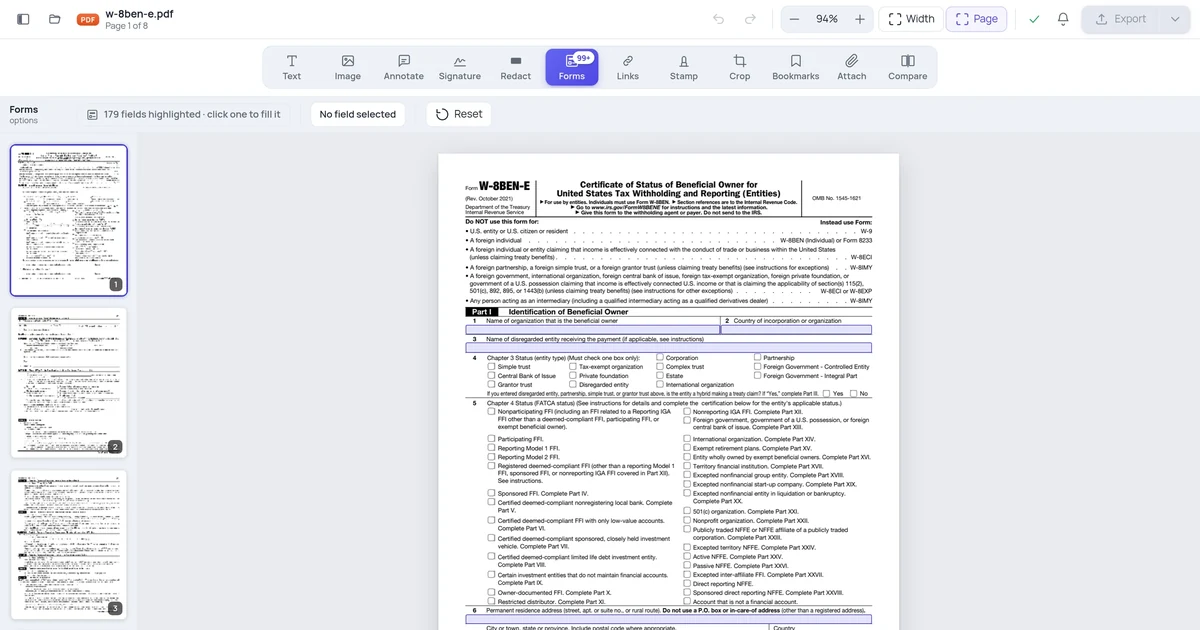
full_nameordate_of_birth. The name is how the answer is identified when the form comes back. - Repeat for every blank. Walk down the page placing a text field on each line that needs an answer, naming each one as you go.
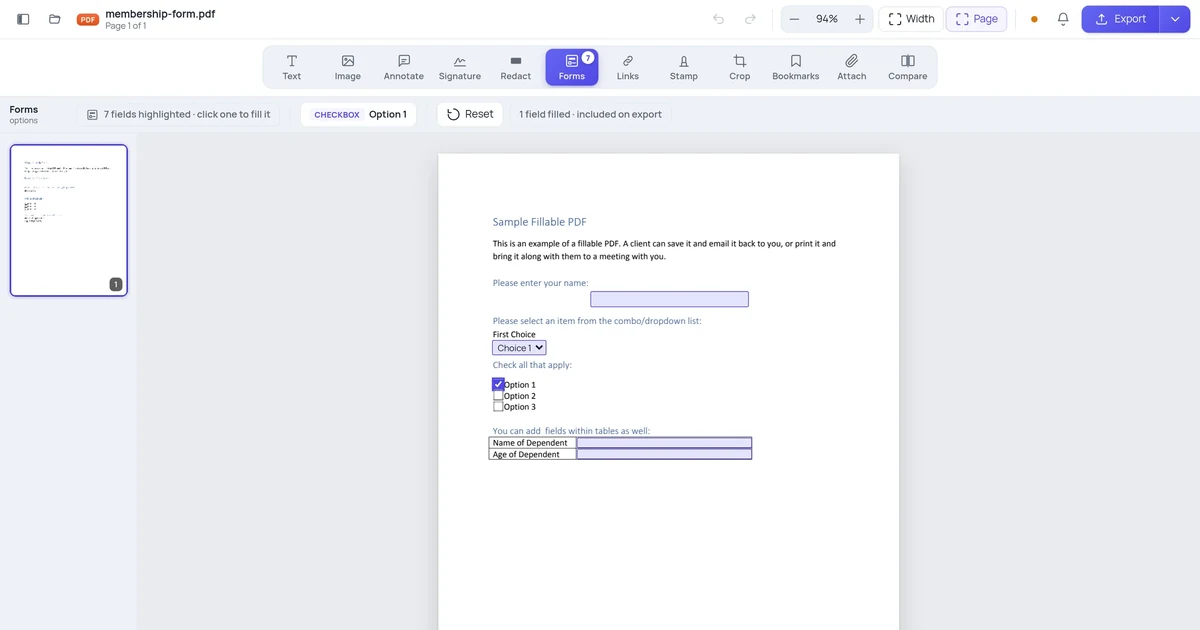
- Add checkboxes and radio buttons next to any tick-box or pick-one questions, giving each a name and an export value. Our deeper guide on adding checkboxes and radio buttons to a PDF form covers the grouping rule that makes pick-one questions behave.
- Add a signature field where a signature is required, so the recipient can sign rather than scrawl over the page.
- Save and download. Export the file. The fields are written in as real interactive form fields and stay clickable wherever the file goes.
That is the whole task for a digitally created flat form. The part most guides gloss over is what happens with a scanned form, where the page is an image, so that gets its own section next.
The catch: a scanned form's text is an image
Here is the surprise that trips people up. If your "non-fillable PDF" came from a scanner or a phone camera, the entire page, including all the printed text, is a single flat image. There is no text under your cursor to select, and there are certainly no fields to click.
The good news is this does not stop you making it fillable. You still place text fields and checkboxes on top exactly as above; the recipient types into your fields, and their answers sit cleanly over the scanned background. The thing to watch is that you cannot rely on the page's own text for anything, because to a computer it is just pixels.
What this means in practice:
- You position fields by eye, since there is no underlying text grid to snap to. Zoom in and line each field up with the printed line beneath it.
- The printed labels stay as a picture, which is fine; you are not editing them, just adding fields beside them.
- Searching or copying the form's text will not work until the page is run through OCR, which is a separate concern from making it fillable.
If the form is a paper original you scanned yourself, our dedicated walkthrough on how to make a scanned paper form fillable covers the scan-specific steps, including getting a clean, straight image to place fields on. The core idea is identical: fillable fields go on top of the flat page.
Make it fillable vs. just type on it: pick the right one
Before you add a single field, ask one question: who is going to fill this in, and when? The answer decides whether you build a real form or just type your own answers onto the page. People confuse these constantly, and it is why someone sends out a "fillable" form that turns out to be untypeable.
| Your situation | What to do | Result |
|---|---|---|
| Someone else completes it on screen later | Add real text fields, checkboxes, and a signature field | A clickable form they can fill and return |
| You are filling your own answers now, once | Type directly onto the page with the text tool | Your answers appear as text; no reusable form |
| The form gets printed and filled by hand | Leave it flat, or just print as-is | A blank paper form to write on |
| You collect many responses and need the data | Add named fields, keep them interactive | Clean, named answers you can read back |
If you only need to complete a form yourself this one time, you do not need fillable fields at all. You can type straight onto the flat page, which is faster. But if you are preparing a blank form for other people to complete, adding text directly does nothing for them; the moment they open it, there is still nothing to click. Build real fields in that case.
Name your fields like you mean to read the answers
A form is only as useful as the answers you can pull out of it, and the field name is what carries each one. Treat names as the real deliverable, not an afterthought.
Give each field a name that says what it is, in plain words with no spaces, like email_address or start_date. Avoid the generic names an editor may assign by default, such as Text 1 and Text 2, because when responses come back they tell you nothing.
| Blank on the page | Field name | What you get back |
|---|---|---|
| "Full name" line | full_name | full_name: Jordan Lee |
| "Email" line | email_address | email_address: jordan@example.com |
| "Date" line | signature_date | signature_date: 2026-06-28 |
| "I agree" checkbox | agree_terms (value Yes) | agree_terms: Yes |
When the form is processed, each clean named line beats decoding Text 7: filled. The same discipline applies whether you build from a flat PDF here or start from scratch; our guide on creating a fillable PDF form online without Adobe Acrobat goes deeper on planning fields before you place them.
Making a flat PDF fillable on different devices
The idea is the same everywhere, but not every tool can create true interactive fields, which is the thing to watch.
| Platform | How you make it fillable | Notes |
|---|---|---|
| Online (any browser) | Open the PDF editor, add text field, checkbox, and signature tools over the blanks | Creates real fillable fields; works on desktop and mobile browsers |
| Windows (desktop app) | A PDF editor's Prepare Form or Forms tool, then place fields | Full editors do this well; free readers only fill existing fields |
| Mac (Preview) | Not really supported | Preview can type onto a flat page and draw shapes, but cannot create new clickable fields |
| iPhone / iPad | Markup can type text; field creation is rare | Fine for filling your own answers, not for building a reusable form |
| Android | A PDF app with form-building support | Many apps only fill forms; confirm it can create fields first |
The recurring gotcha across phones and free desktop readers: they let you type onto a flat page but cannot create interactive fields. That is the difference between marking your own answers and building a form others complete on screen. If you need a form people will fill in later, use a tool that explicitly creates form fields and confirm they are clickable by reopening the saved file.
Test the form before you send it
A form that looks right but does not work is worse than no form, because someone discovers the problem after they have tried to fill it. Spend two minutes checking it.
- Click into every text field and type a few characters to confirm each accepts input.
- Tab through the form. Pressing Tab should move from field to field in a sensible top-to-bottom order; a jumpy order frustrates anyone filling it quickly.
- Check every checkbox and radio group toggles the way you intended.
- Reopen the exported file in a plain PDF reader, not just the editor, and confirm the fields are still clickable. This is the real test that the fields baked in as interactive content rather than getting flattened.
- Check alignment one last time at the zoom level a reader will use, so each field sits on its line.
If the form gets flattened on export, the fields stop being interactive and become part of the page image, which is occasionally what you want for a final filed record but never for a blank form. Keep the fields live until the form is filled.
A worked example
Say you have a one-page membership application that was exported flat from Word: lines for name, email, and phone, a single "Membership type" question with three options, and a signature line at the bottom. You open the file in the PDF editor. Starting at the top, you draw a text field over the name line, size it to the line height, and name it full_name. You repeat for the email and phone lines, naming them email_address and phone_number. For "Membership type," which is pick-one, you switch to the Radio Button tool, drop a button next to each option, and give all three the same field name membership_type with values individual, family, and student, so choosing one clears the rest. At the bottom you add a signature field over the signature line. You tab through the form to check the order flows down the page, type into each field to confirm it accepts input, then export. You reopen the saved file in a plain reader, click into the name field, type, and tick a membership option to make sure everything holds. The flat application is now a real form, and when applications come back each one reads as clean named values.
FAQ
How do I make a PDF I can type in?
Open the PDF in an online editor and add a text field over each blank line or box where typing should go. Draw the field, size it to the line, and give it a clear name like full_name. Repeat down the page, add checkboxes or a signature field where needed, then save and download. The flat page becomes a form you and others can click into and type in. If you only need to fill it yourself once, you can type directly onto the page instead without adding fields.
What does "non-fillable PDF" actually mean?
It means the page has no interactive form fields, so there is nothing to click into. The lines, boxes, and labels are printed graphics with nothing behind them. The PDF is not broken; it simply was created without form fields, which is true of most PDFs. To make it fillable you add your own text fields, checkboxes, and signature fields on top of the flat page, name them, and save so they become clickable.
Can I make a scanned form fillable?
Yes. You place text fields and checkboxes on top of the scanned page exactly as you would on any flat PDF, and the recipient types into your fields. The one difference is that a scan's printed text is an image, so you cannot select it and must position fields by eye, zooming in to line each one up. The scanned background stays as a picture beneath your interactive fields, which is perfectly fine for a working form.
Is typing on a PDF the same as making it fillable?
No, and confusing the two causes most "it doesn't work" complaints. Typing directly onto the page adds your text as content and is great when you are filling a form yourself, once. Making it fillable means adding interactive fields that someone else can click into and complete later. If you type your own answers onto a blank form and send it out, the recipient still finds nothing to click. Build real fields when others must fill it.
Why aren't my fields clickable after I save?
The most common reason is the form was flattened on export, which turns interactive fields into part of the page image so nothing can be clicked. The other is that you typed text or drew shapes instead of placing actual form fields, so they were never interactive to begin with. Re-export without flattening, make sure you used the text field and checkbox tools rather than drawing tools, and test by reopening the file in a plain reader and clicking a field.