How to Redact a Bank Statement PDF Safely Before Sharing
A rental application, loan, or visa often asks for a bank statement — but not your full account and routing numbers. Here's how to redact just those, permanently, while keeping the rest of the document readable.

Landlords, lenders, and visa applications routinely ask for a bank statement as proof of funds or income — but they don't need your full account and routing numbers to see that. Sharing those unnecessarily is how fraud happens. Here's how to redact exactly the fields that need to disappear, permanently, while leaving the rest of the document intact and verifiable.
Key takeaways
- Redact account numbers and routing numbers before sharing — most requesters only need to confirm balances or transaction history, not full banking credentials.
- Keep the bank name, account holder name, dates, and balances visible — over-redacting can make a document look tampered with or get it rejected.
- A black box over the numbers isn't enough — the digits must be removed from the file's content, not just visually covered.
- We tested this directly: after redacting an account and routing number on a real financial document and exporting, both were completely absent from the file — text extraction, raw file data, and metadata all came back clean, while every other detail stayed intact.
What to redact — and what to leave alone
| Redact | Keep visible |
|---|---|
| Full account number | Bank name |
| Routing number | Account holder name |
| Any linked card numbers | Statement dates |
| Balances and transaction history (unless the requester specifies otherwise) |
Over-redacting is its own problem. A statement with everything blacked out except a balance figure looks suspicious and can get rejected outright. Redact only the specific numbers that would let someone move money or impersonate the account — leave the context that makes the document verifiable.
How to redact a bank statement PDF
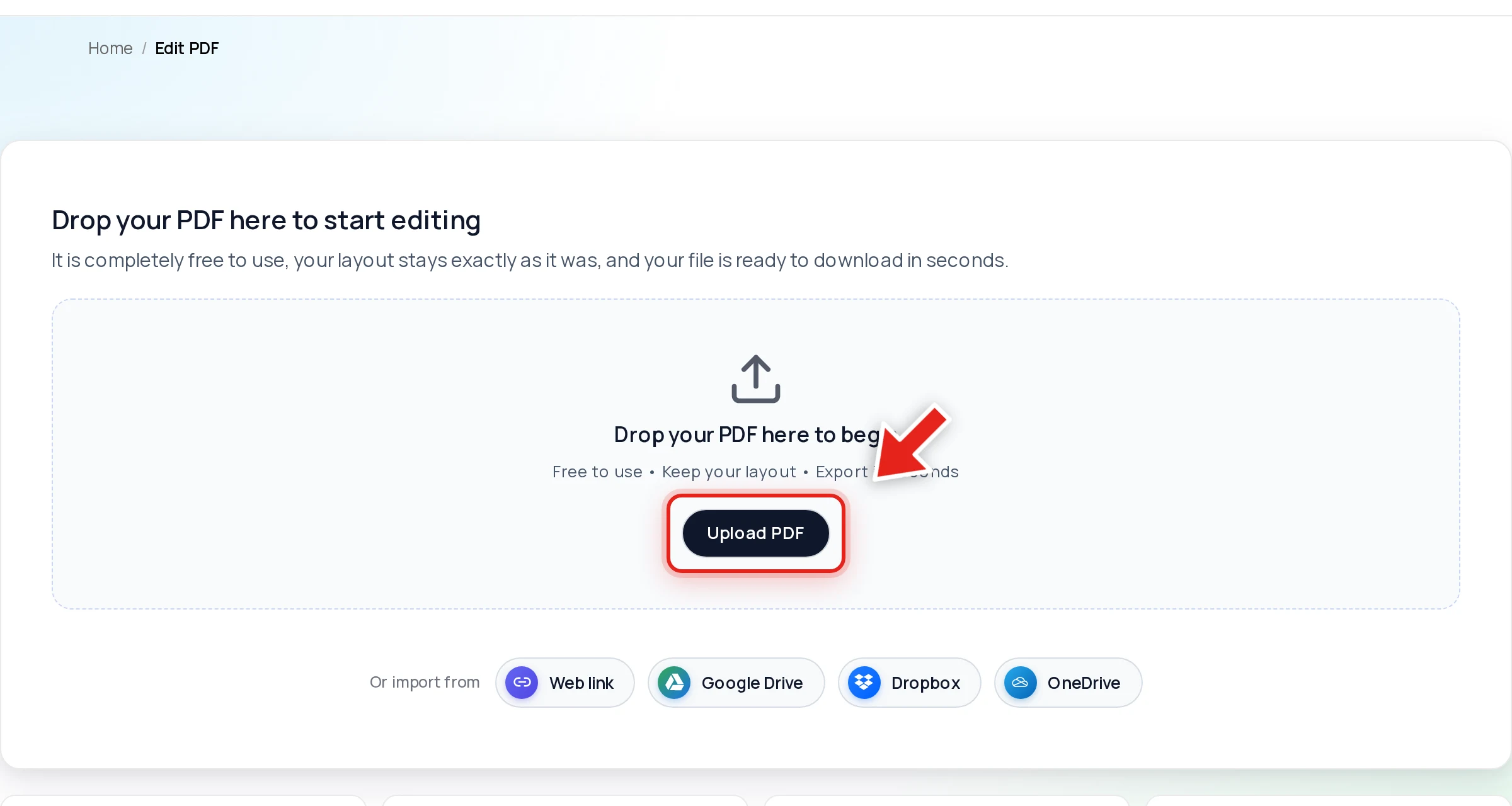
Step 1 — Upload your statement
Go to the free PDF editor and drop your file onto the upload area, or click Upload PDF.
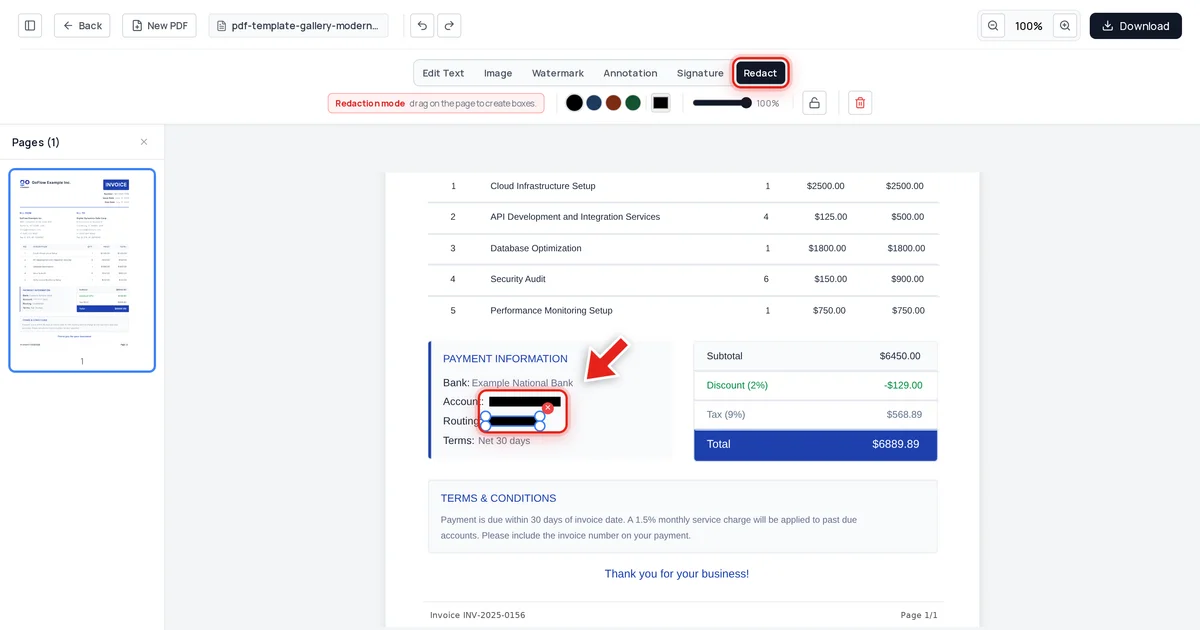
Step 2 — Drag a box over each sensitive number
Click Redact in the toolbar:

Then click and drag over the account number. As you drag, you'll see a live preview of the box growing to cover the digits:
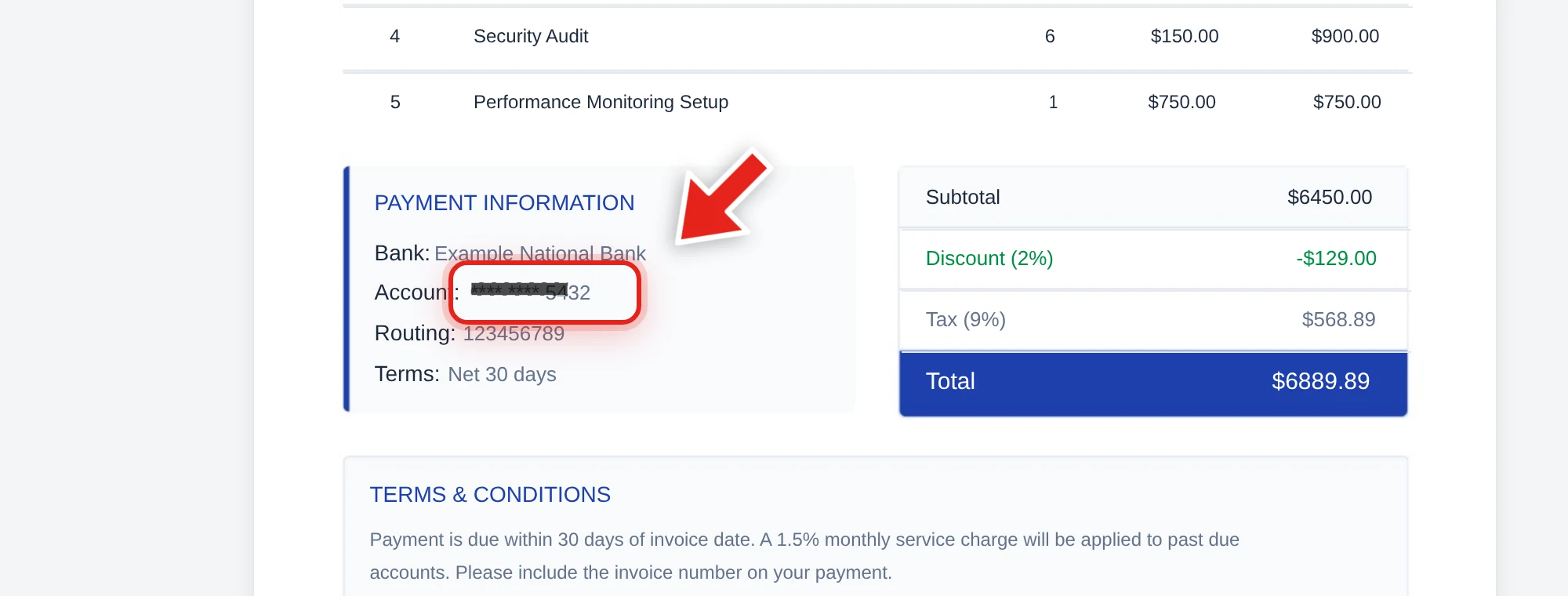
Release to finish the box, then repeat for the routing number separately — drawing each one individually rather than one big box spanning both keeps labels like "Account:" and "Routing:" legible so the document still reads clearly.
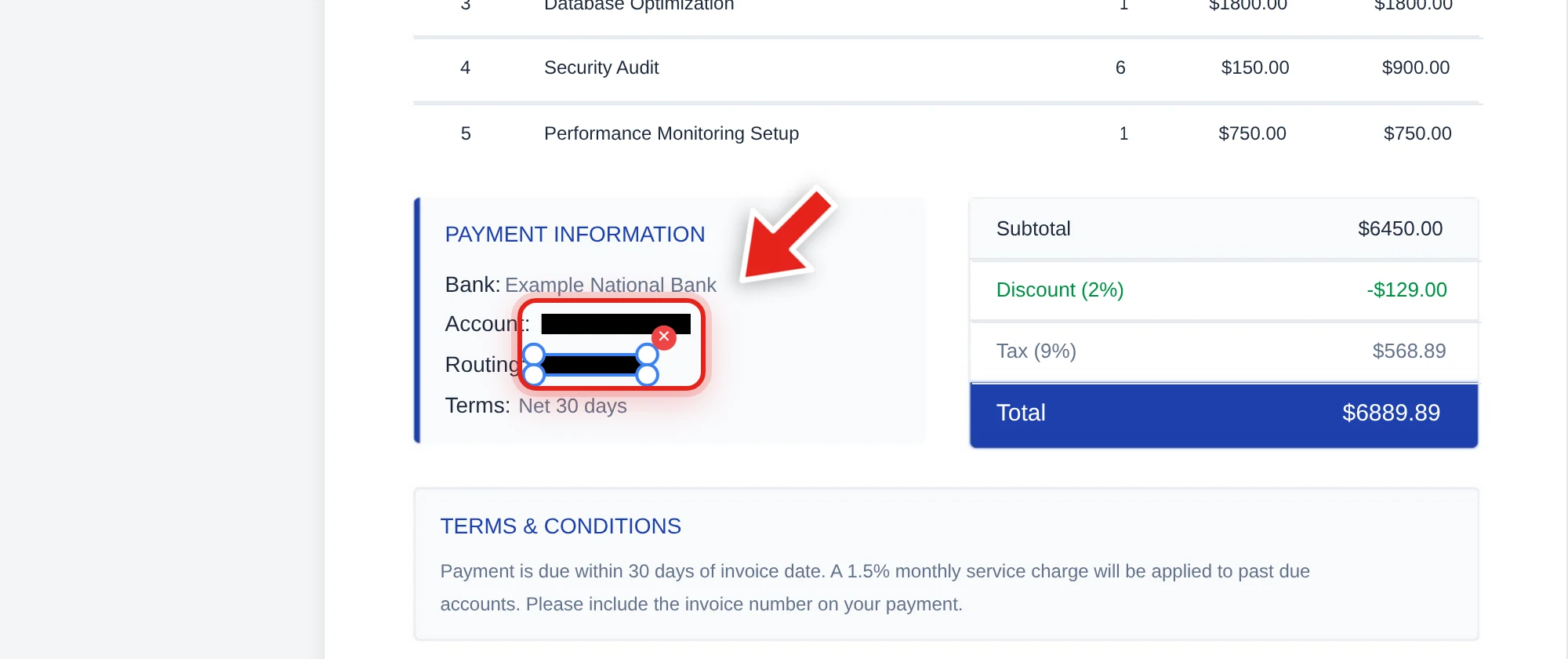
Step 3 — Export
Click Download, keep PDF selected, and hit Start Export. The numbers are removed from the file's content, not just covered.
We verified the numbers are actually gone
On the document above, we redacted the account number and routing number, exported the file, and checked the result three ways: extracted every line of text from the file, searched the raw decompressed file data, and inspected the embedded metadata. Both numbers were completely absent from all three — while the bank name, terms, and every other line item on the page stayed exactly as they were.
That's the standard worth insisting on for anything with your banking details in it — a black box alone doesn't meet it. See why black box redaction isn't safe for exactly why a drawn rectangle leaves the numbers recoverable.
Before you send it anywhere, test it yourself
Open the exported file, try to click-drag select over where the account number used to be, copy it, and paste into a plain text editor. Nothing coming out means it's genuinely gone. Do the same with Ctrl+F, searching for a few digits you redacted. This takes about ten seconds and is the only way to actually confirm a redaction worked, regardless of which tool produced it.
Related redaction guides
- How to redact a PDF permanently — the full workflow and verification test in depth
- How to redact financial documents and accounting records — for invoices, tax records, and statements beyond bank accounts
- How to redact a Social Security number in a PDF — another common field on financial paperwork
FAQ
What exactly should I redact on a bank statement?
The full account number and routing number, plus any linked card numbers. Leave the bank name, account holder name, statement period, and balance/transaction history visible unless the specific requester asks for more redaction.
Won't redacting information make the statement look suspicious?
Redacting a small number of clearly-labeled fields (account number, routing number) is standard practice and widely accepted by landlords and lenders. What raises suspicion is over-redacting — blacking out balances, dates, or the bank's letterhead — since that removes the context that makes the document verifiable.
Is it safe to upload my bank statement to redact it online?
The safety question is really about what the tool does with the file and what its redaction actually removes. Whatever tool you use, verify the output afterward with the copy-paste test described above before you share it anywhere.
Can I redact more than one number on the same line?
Yes — draw a separate box for each value. Drawing individual boxes rather than one large one keeps field labels readable, so the document still makes sense to whoever's reviewing it.
Does this work if my bank statement is a scanned image, not a text PDF?
If the file has a text layer (common with statements downloaded directly from your bank's website), this works exactly as described. For a purely scanned image, the "text" is part of a photograph — a redaction box still permanently covers that region, but there's no separate text layer to strip out underneath it.