How to Redact Insurance Documents and Claims Safely
An Explanation of Benefits or claims file carries policy numbers, contact details, and often health information — most of it unnecessary for whoever you're sharing the document with next.

Insurance paperwork — claims files, Explanation of Benefits (EOB) statements, policy documents — routinely gets shared with third parties who only need part of what's in them: a landlord verifying coverage, a contractor confirming a claim, a lawyer handling a dispute. Here's what to redact before any of that paperwork leaves your hands, and how to make sure it's actually gone.
Key takeaways
- Common fields to redact from insurance documents: policy numbers not relevant to the specific disclosure, contact details, and any protected health information (PHI) tied to a claim.
- Redaction has to be permanent — a black box that leaves text selectable or extractable doesn't protect anything.
- The demonstration below uses a business document with genuine contact and identifier fields to show the exact mechanics — the same technique applies directly to a claims file or EOB.
- We tested this directly: an email and phone number, redacted and exported, came back completely clean from text extraction, raw file data, and metadata.
What to redact from insurance paperwork
- Policy and claim numbers not relevant to the specific person you're sharing with.
- Contact details — phone numbers and emails belonging to policyholders, claimants, or adjusters not involved in the current request.
- PHI tied to a claim — diagnosis codes, treatment details, anything covered under HIPAA if the claim involves medical treatment (see our HIPAA redaction guide for the specific 18 identifiers).
- Financial account details if a claim payout references a bank account or card.
What to generally keep visible: the policy status, coverage dates, and whatever specific detail the recipient actually needs verified.
How to redact
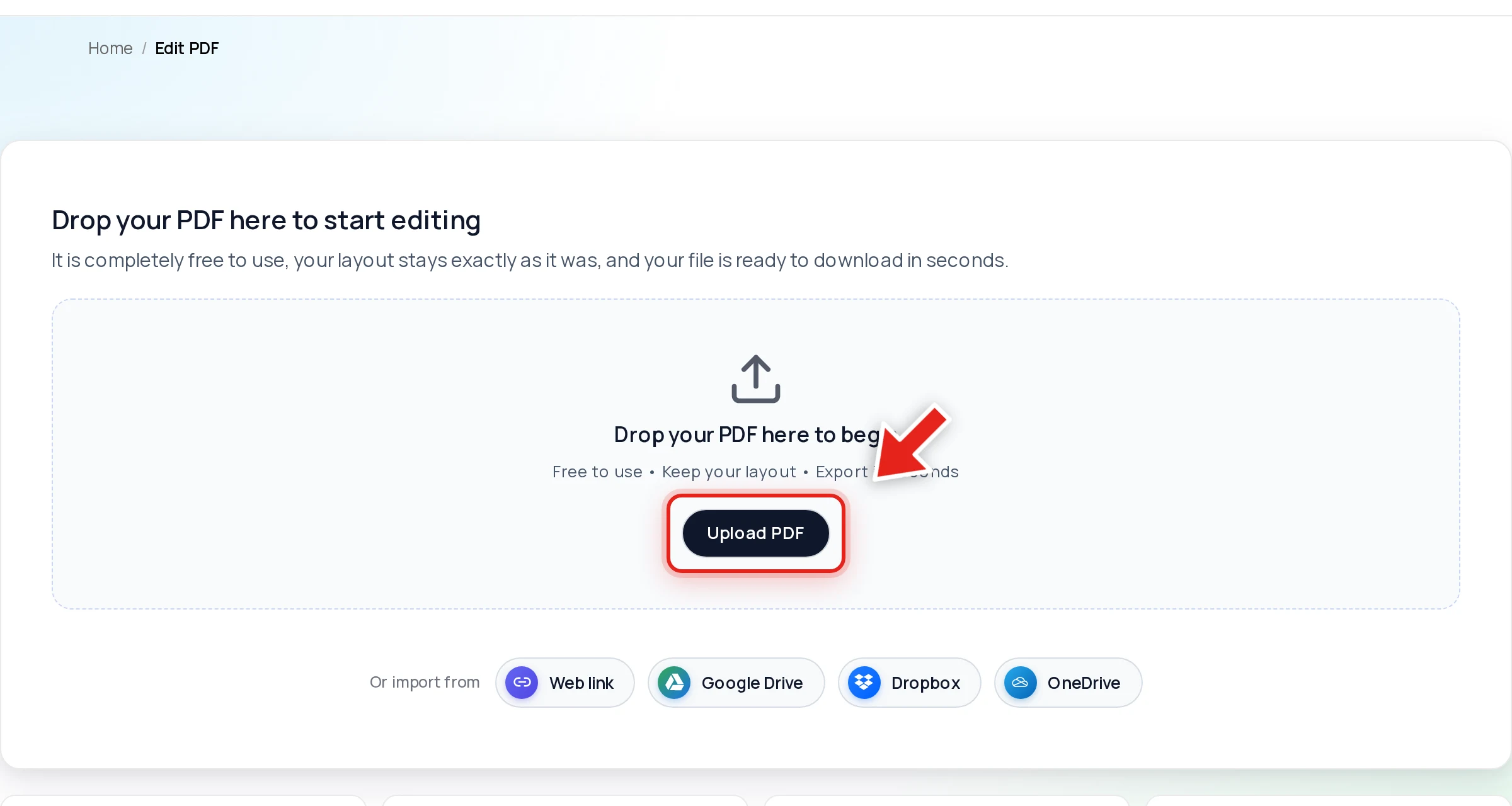
Open the document in Online PDF Edits — drop it onto the upload area, or click Upload PDF.
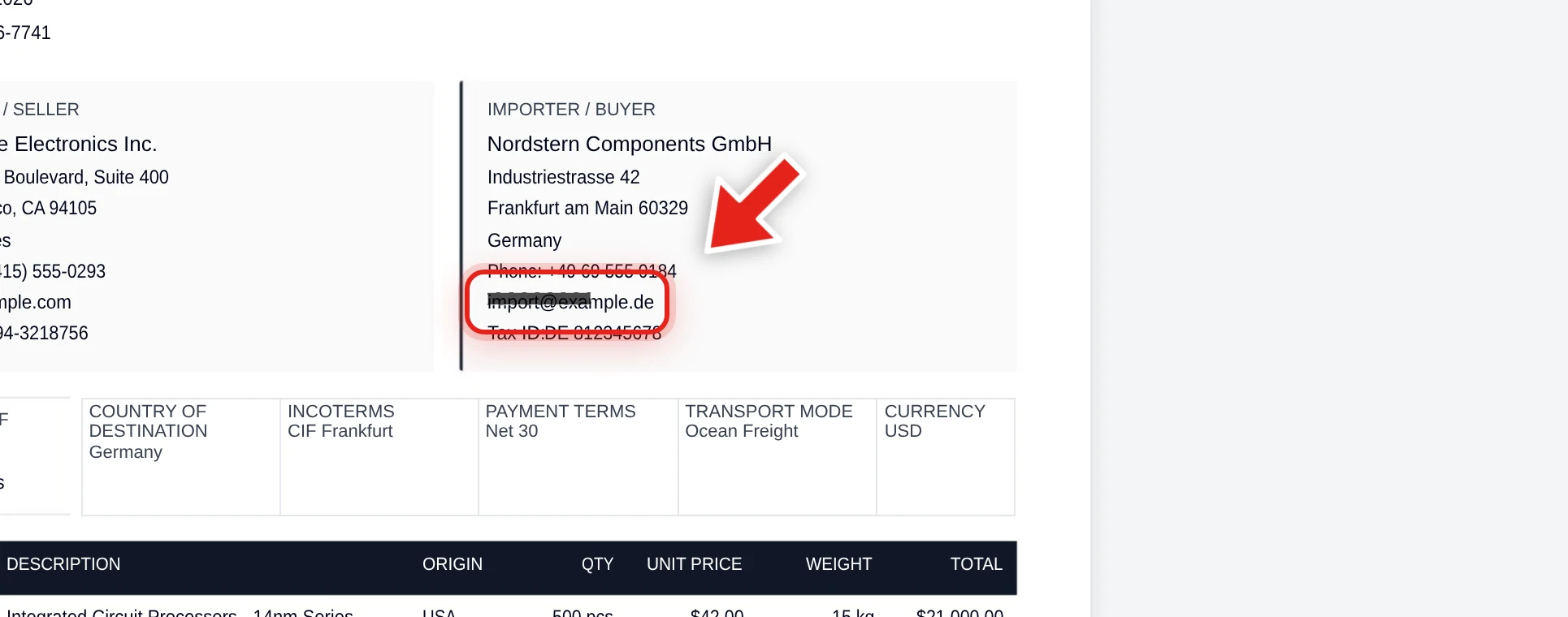
Click Redact in the toolbar:

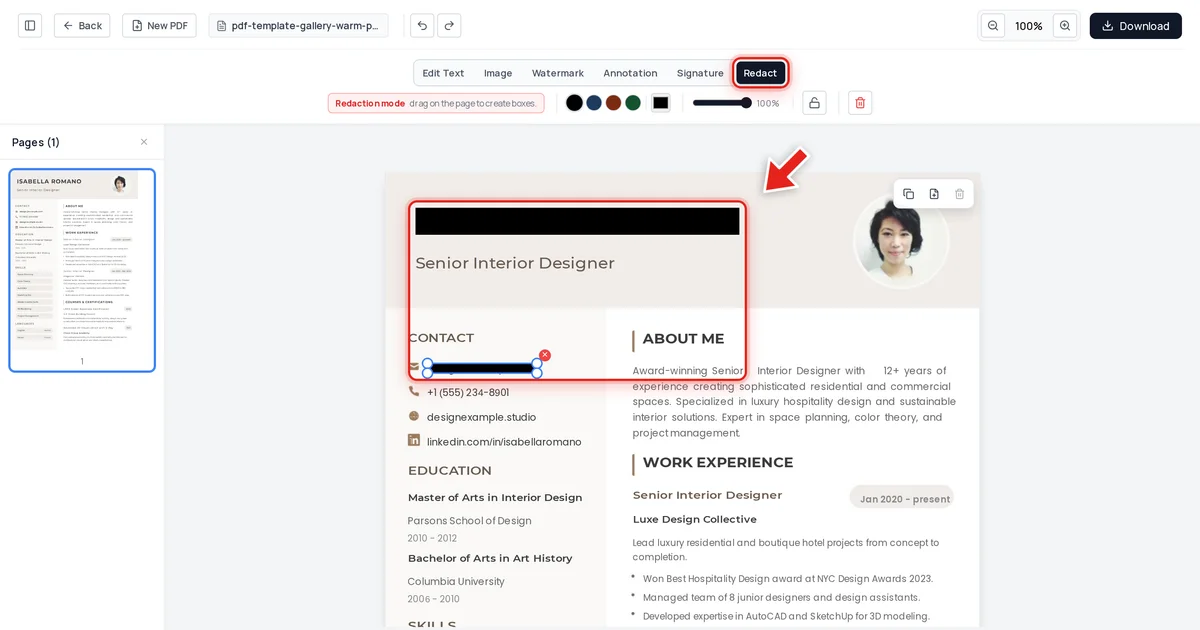
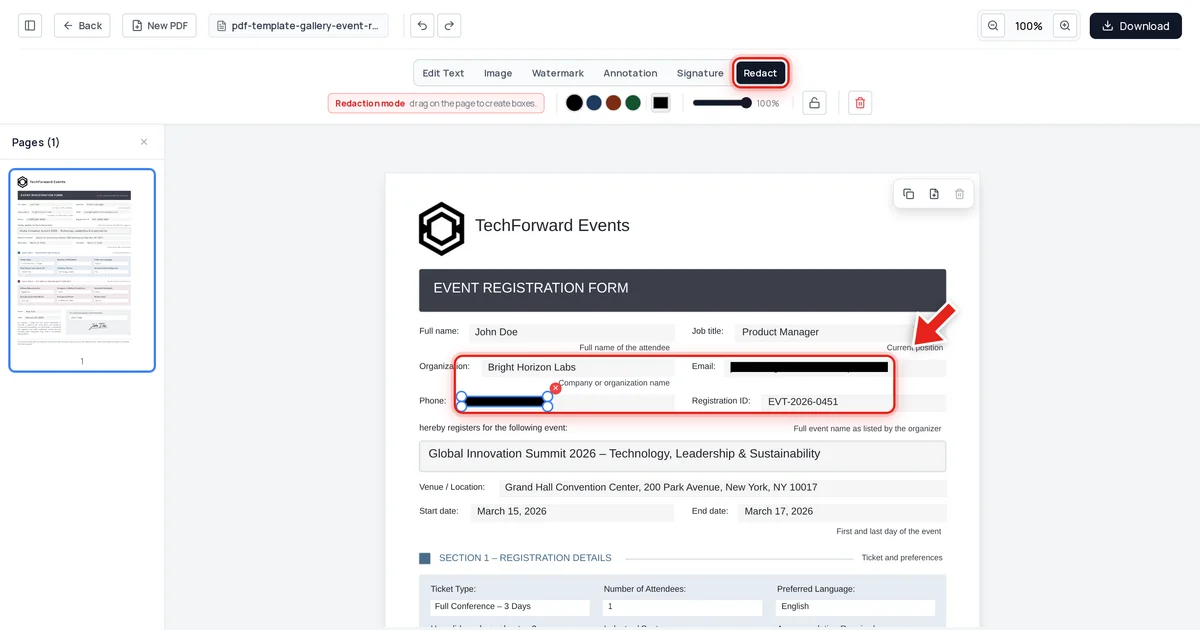
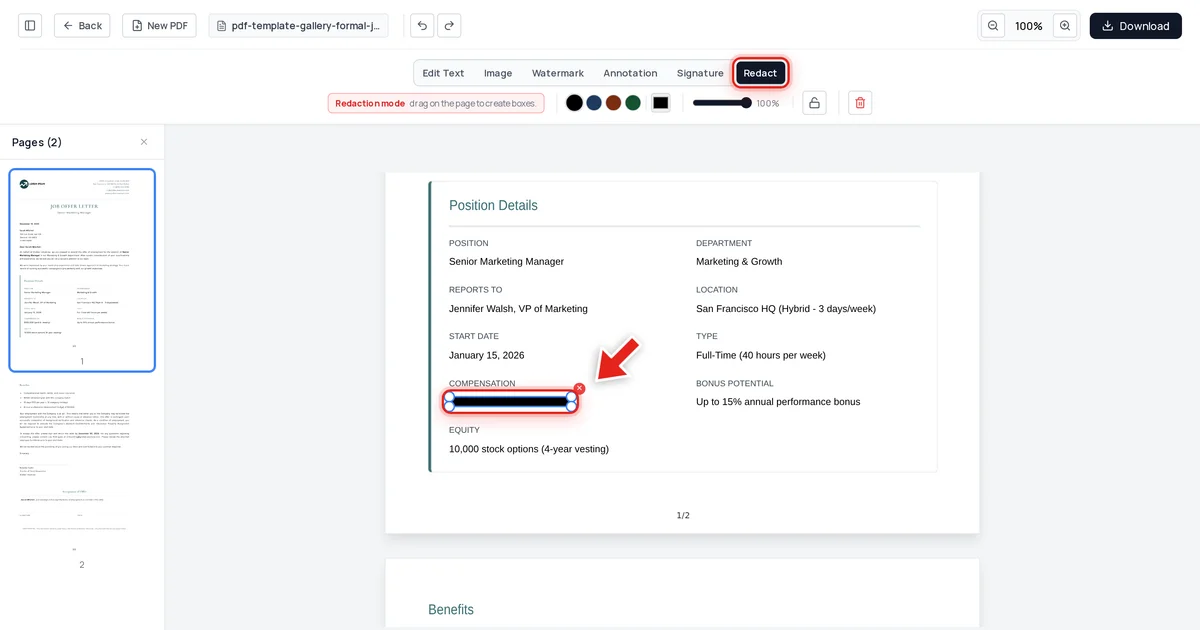
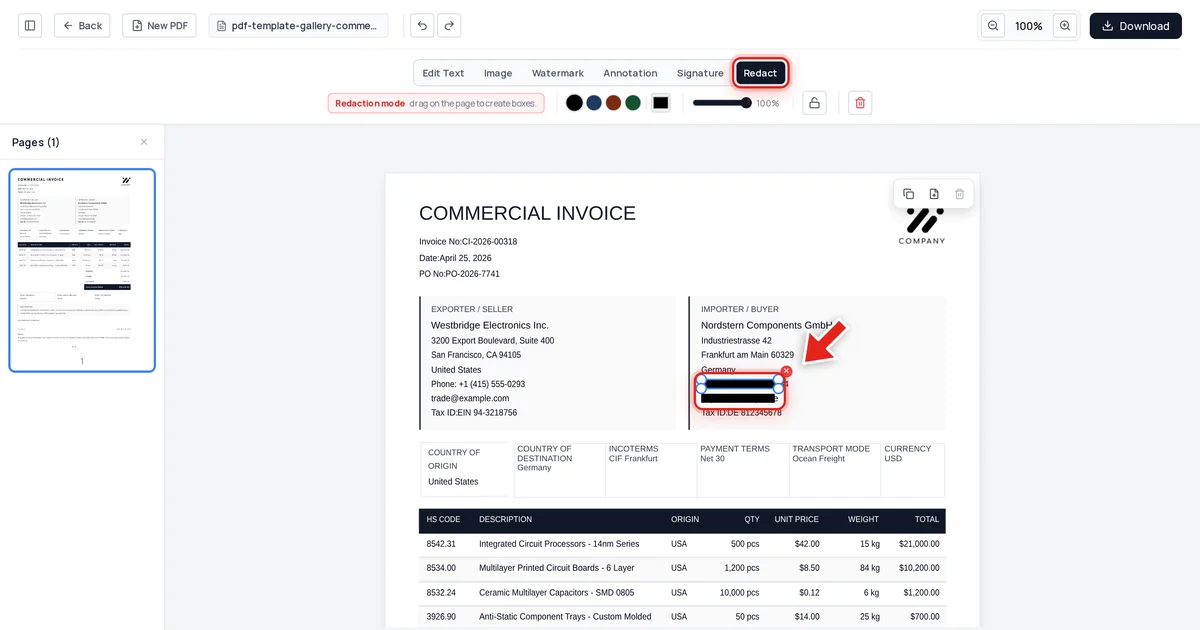
Then click and drag over each field. A live preview shows the box growing as you drag:
Release the mouse and a solid black bar takes its place.
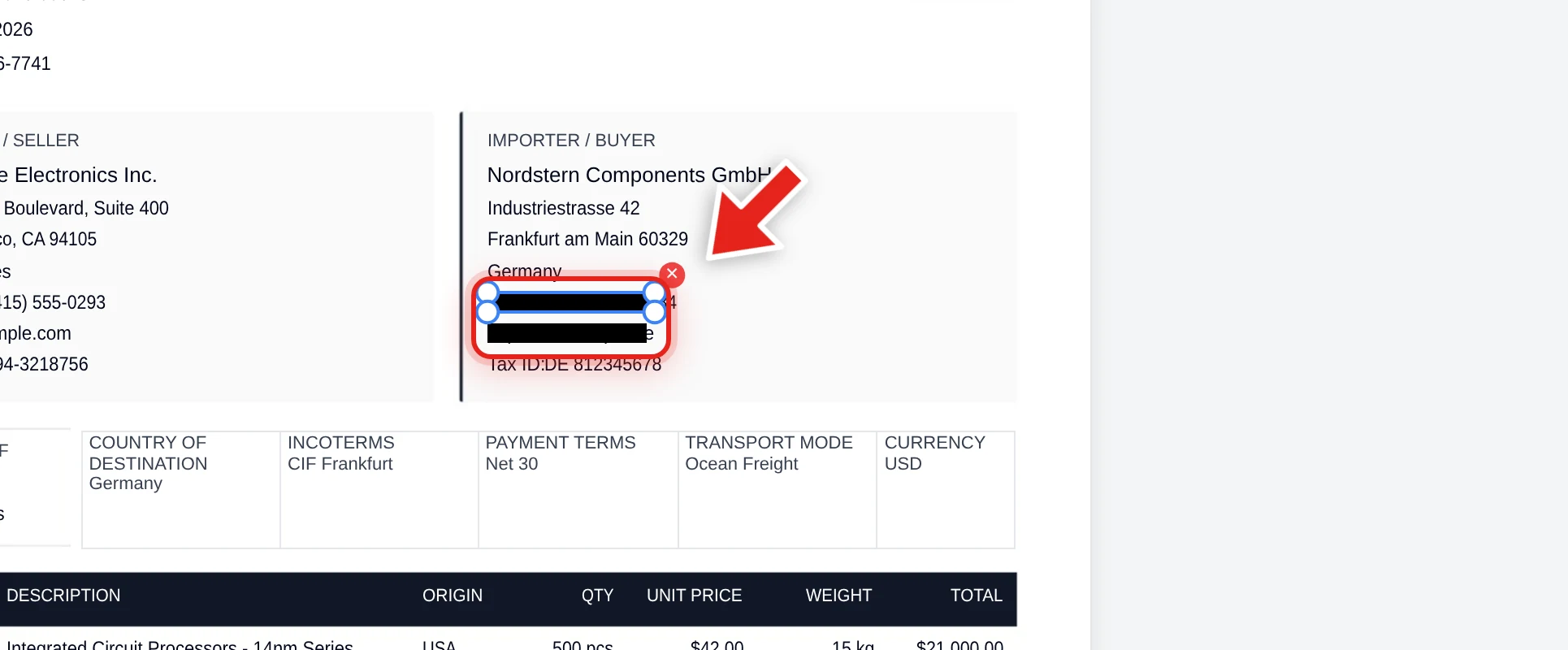
We tested this directly on the document above, redacting a contact email and phone number. After export, we checked the extracted text, the raw decompressed file data, and the embedded metadata. Both values were completely absent from all three, while the rest of the document's identifying details stayed exactly as they were. This is the exact mechanic that applies whether you're redacting a shipping document like this one or an actual claims file — draw the box, export, verify.
Verify before sending anything out
A drawn black box that leaves the underlying text selectable doesn't actually protect a policy number or a claimant's contact details — anyone who copies the area gets it back in full. This is the same mechanism behind several public redaction failures involving legal filings. See why black box redaction isn't safe, and test your own redacted insurance documents the same way: try to select, copy, and search the redacted area — see our full verification guide.
FAQ
What should I redact from an EOB before sharing it?
Policy or claim numbers not relevant to the recipient, contact details belonging to other parties, and any protected health information tied to the claim that the recipient doesn't need to see.
Is a black box over a policy number enough?
No — if the underlying number is still present in the file, it can be selected, copied, and searched regardless of what's drawn on top of it.
Does this apply to claims involving medical treatment?
Yes, and those claims carry additional considerations under HIPAA — see our dedicated HIPAA redaction guide for the specific identifiers that need to come out.
Can I redact multiple claim documents at once?
Each document needs its own redaction pass since fields sit in different positions, though you can work through several documents quickly using the same steps each time.
How do I confirm the redaction actually worked before sending the document?
Try to click-drag select the redacted area in the exported file, copy it, and paste into a plain text editor. If nothing comes out, it worked.